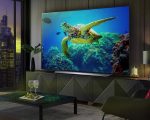
Understanding your TV’s full potential can significantly enhance your viewing experience. The latest Smart TVs, equipped with advanced processing power, AI enhancements, and meticulously designed screens, have the capability to deliver stunning visuals. However, they can sometimes distort the content you’re watching. Whether you own a new TV or an older model, default settings often don’t provide the optimal picture quality. Both picture and audio settings might need adjustments for the best results.
No matter the age, brand, or style of your TV, it can benefit from some tweaks to achieve the best possible picture quality. Several factors, such as the type of content you’re watching, the time of day, and the placement of your TV and seating, can affect the image quality. When my TV’s picture doesn’t look its best, or I know it can be improved, I consider the following strategies to enhance its performance.

Optimize TV Placement
One crucial yet frequently overlooked aspect of picture quality is the placement of your TV. To consistently enjoy your favorite movies, shows, and games, your TV must be positioned correctly. If you’re forcing the TV into an existing stand or mounting it on the only available wall, you may encounter issues with viewing angles.
Although many modern TVs come with wide viewing angles and anti-glare screens, these features are designed to improve the viewing experience in specific conditions and aren’t universal solutions for every setup. Here are some placement tips:
- Eye Level Alignment: The center of your TV screen should be at eye level when you’re seated. This ensures a comfortable viewing experience and reduces strain on your eyes and neck.
- Optimal Distance: The distance between you and your TV should be 1.5 to 2.5 times the diagonal length of the screen. This helps maintain image clarity and immersion.
Adjust Settings for Better Picture Quality
Beyond physical placement, fine-tuning your TV’s settings can dramatically improve picture quality. Here are some settings to consider:
- Brightness and Contrast: Adjust these settings based on your room’s lighting. Brightness should match the ambient light, while contrast should provide a clear distinction between dark and light areas.
- Color Settings: Use the TV’s preset modes (like Cinema or Movie mode) as a starting point, then tweak the color temperature and saturation to your preference.
- Sharpness: Avoid setting the sharpness too high as it can create unnatural edges and artifacts. A moderate sharpness level usually works best.
- Motion Smoothing: This feature can be beneficial for sports and fast-paced action but can make movies and shows look unnatural. Adjust or turn off motion smoothing based on what you’re watching.
Fine-Tune Settings Like Contrast and Sharpness
When you first set up a new TV, it’s essential to review and adjust the default picture settings. Start with basic adjustments to brightness, contrast, and sharpness, as these settings often need tweaking to enhance your viewing experience.
Brightness: Typically, brightness should be set to a moderate level. However, be aware that some TVs label a different setting as brightness when it actually refers to backlighting. Adjust the backlighting to add more light to the screen, improving visibility in darker scenes.
Contrast: Increasing the contrast above 50% generally yields better results, enhancing the white areas of the screen for a more vibrant picture.
Sharpness: Lowering the sharpness setting below 50% usually improves image quality. Sometimes, setting it all the way down to zero is beneficial, especially if the image looks grainy or has halos around edges. High sharpness levels artificially enhance edges, which can degrade the overall picture quality.
Disable Motion Enhancements
Motion smoothing or interpolation is designed to make fast-moving content appear smoother by inserting artificial frames. While this can improve the viewing experience for live sports, reality TV, and older content, it often detracts from the quality of new, high-definition content, creating an unnatural “soap opera effect.”
For a more authentic cinematic experience, turn off motion smoothing, especially when watching new movies and shows. This helps maintain the original frame rate and visual intent of the content creators.
Customize for Optimal Viewing
Whenever you get a new TV or notice that the picture quality isn’t quite right, take the time to adjust all available settings. Fine-tuning these parameters can significantly enhance your viewing experience, making it worth the effort when you see content as it was meant to be seen.
By considering these factors and making small adjustments, you can significantly improve your TV’s picture quality. Whether it’s a brand-new model or an older set, these tips will help you get the most out of your viewing experience.