Tag: 4k monitor

  • What’s the best type of cable for your 4K monitor?

    What’s the best type of cable for your 4K monitor?

    If you bought a new 4K monitor recently, it is very obvious that the number of ports on the back could leave you perplexed. HDMI, DisplayPort and USB-C are all common. But, which is the best, and why?
    Here, we’ll compare every one of them , differences between them and which one to buy:
    HDMI 2.1:
    The high-definition multimedia interface is the complete form of HDMI. It is a common display interface today and widely used in TVs, game consoles and Blu-ray players. It provides a stable digital signal that can be exchanged, i.e. connected and disconnected without turning off the devices.
    HDMI 2.1 is the latest version adopted by manufacturers. It supports a data throughput of 48 Gbps and has a 10K display unit at 60 frames per second in full 10-bit color. HDMI 2.1 is suitable for 4K displays.
    With HDMI 2.1, you can daisy-chain from your computer to one monitor and then connect it to another. Monitors that support this are rare, and you can only daisy chain two displays at once.HDMI 2.1HDMI 2.1 require limited power delivery and the ability to act as an Ethernet adapter. They are cheap when it comes to costs, but remember to update them in a timely manner.
    HDMI 2.1 can support the old HDMI 2.0 standard. This means that it is limited to the output of a 60 fps 4K signal in 8-bit color. You will have a pass-through audio limit of 44.1 kHz and 16 bits with only two uncompressed audio channels.
    For gaming, HDMI 2.0 does not support the FreeSync standard. HDR content limits to static metadata compared to 2.1. The old HDMI 2.0 if useful in 4K monitors will save you money, but you won’t have access to all the features of HDMI 2.1.
    If you are going to use a 4K monitor with HDMI 2.1, you are less likely to have problems. However, if your monitor supports HDMI 2.0, DisplayPort can provide a better experience in terms of overall functionality, especially when you want to daisy-chain more than two displays.

    DisplayPort:
    DisplayPort cables have been an ideal solution for PCs for decades. The next DisplayPort 2.0 standard can handle the throughput of 80 Gbps. We expect the new version to be released at the end of 2020.
    Until then most people will use the DisplayPort 1.4 standard; is still favorable when we compare it to HDMI 2.0.
    DisplayPort 1.4 can handle 8K resolution at 60 frames per second in 10-bit color using screen stream compression. Uncompressed performance is similar to 2.0 to 4K/60/8-bit HDMI. You can connect two displays through the daisy chain with 4K resolution and provide support to the monitor.
    There are no limits to pass-through audio as in HDMI 2.0. DisplayPort 1.4 can handle 192kHz and 24-bit sounds with 7.1 channels of uncompressed audio. DisplayPort 1.4a supports dynamic metadata for HDR content, which means Dolby Vision and HDR20+ support wide brightness. Many times, the features of the monitor can be disadvantages.

    HDMI can support Ethernet, while DisplayPort does not have Ethernet support. This is because DisplayPort is useful for computers to monitor connections. On the other hand, HDMI has extensive applications such as connecting AV receivers, TVs and other consumer devices.

    DisplayPort has some advantages over HDMI 2.0, but they only apply if you chain multiple monitors. Once DisplayPort 2.1 is started, it can support 4K at 60 fps if the monitor supports it.

    Good tip: DisplayPort cables come in many variants, so choose what you need, wisely.

    USB-C:
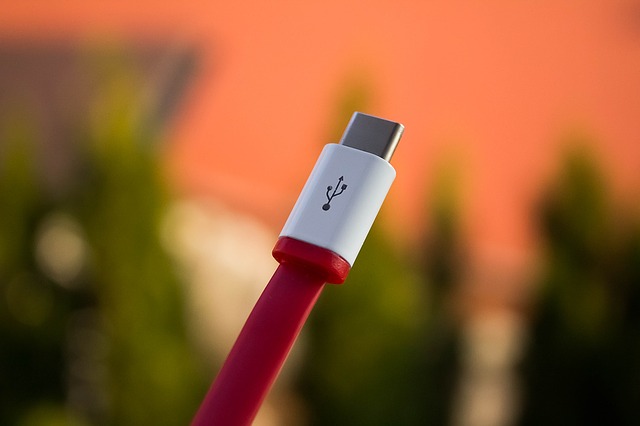
    USB Type-C has many variants. Use USB-C ALT mode to send signals over USB-C. In short, it’s just DisplayPort via USB-C plug. Performance supports resolutions based on the DisplayPort standard.
    With the help of screen flow compression, you may be able to get a 60fps 4K signal with 8-bit color through 8K 10-bit resolutions. USB-C ports are on all laptops. Just make sure your laptop supports screen output via USB-C Alt mode. You can check this in the manufacturer’s technical specifications section.USB-CUSB Type-C is the perfect choice for laptops. USB-PD means you don’t need to take the charger with you to connect the monitor. Plus, you also get the benefits of DisplayPort 1.4. Photo:Pixabay

    We can understand that in this world focused on the evolution of technology, it can be difficult to decide what kind of cables you should use to get the optimal results. Therefore, make sure you understand the difference between each of them and then make an informed decision.

  • 4K UHD 32″ curved monitor: Perfect ultrathin Dell S3221QS: Review

    4K UHD 32″ curved monitor: Perfect ultrathin Dell S3221QS: Review

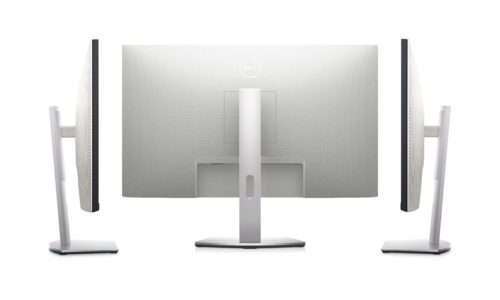
    Dell S3221QS has a simple design that fits perfectly in most office environments. It looks almost identical to the Dell S2721D that we tested, but with a curved display. It has thin edges on three sides with a slightly thicker lower bezel.

    The construction quality of the Dell S3221QS is topnotch. The stand is very durable as it has a metal frame covered with high quality plastic and supports the monitor well. The tilted zipper is also good and allows for easy and precise adjustments. The plastic back feels well done; however, it flexes a little at the edges and easily separates from the frame. In addition, the edges feel cheap, as it does not follow the curvature of the screen, creating small blanks in some areas. The ultra-thin three-sided design in 4K UHD resolution (3840 x 2160) allows you to enjoy immersive vision with incredible clarity and fine details with a resolution 4 times higher than full HD. Supports the playback of HDR content to elevate entertainment.Dell S3221QS MonitorDell S3221QS is a excellent 4k monitor suitable for a wide range of uses. Its 32-inch curved screen allows you to work comfortably with multiple windows open side by side and offers an incredibly immersive gaming experience in atmospheric games like games games. It has a VA panel that can produce deep blacks, which is ideal for those who like to play in the dark. Its response time is decent, the input delay is low and supports FreeSync to help minimize screen tear. Unfortunately, there are some disadvantages, as it has mediocre viewing angles and poor ergonomics. It has HDR support; However, the overall experience is not noticeable due to its low HDR peak brightness.

    Dell S3221QS is fine for content creation. Its large screen allows you to work comfortably, and its high resolution allows you to see the details of your work. It has a high contrast ratio, full sRGB coverage and decent ready-to-use color accuracy. However, it is not the best option to share your work, as it has mediocre viewing angles and poor ergonomics.Dell S3221QS monitor is excellent for media consumption. It has a large 32-inch display with 4k resolution to provide an immersive viewing experience. It has a high contrast ratio to produce deep blacks, so it’s a good choice for dark rooms. Unfortunately, it has little ergonomics and mediocre viewing angles, so it’s not ideal for sharing content.
    Dell S3221QS is a good office monitor. It becomes bright enough to overcome the glow in most lighting conditions and handles reflections well. Its large screen size allows you to open multiple windows side by side, and the text looks exceptionally sharp due to its high pixel density. Unfortunately, it is difficult to adjust the monitor to its preferred display position due to its poor ergonomics. In addition, its mediocre viewing angles make it harder to share your work with colleagues.Dell S3221QS Monitor
    Dell S3221QS is good for the game. It has a low input delay, decent response time and variable refresh rate support to help reduce screen tearing. It’s ideal for atmospheric games like Role-Playing Games, as it has a big screen and high resolution to deliver an incredibly immersive experience. Unfortunately, the refresh rate is limited to 60Hz, and its poor ergonomics makes it difficult to adjust the display to its optimal display position.Photo:DELL

    Dell S3221QS specs:

    Device Type  LED edgelight system
    Panel Type  VA
    Aspect Ratio  16:9
    Native Resolution   3840 x 2160 @ 60 Hz
    Pixel Pitch  0.18159 mm x 0.18159 mm
    Brightness  300 cd/m²
    Contrast Ratio  3000:1 (typ)
    Response Time
    Normal: 8ms (gtg)
    Fast: 5ms (gtg)
    Extreme: 4ms (gtg)
    Color Support   1.07 billion colors
    Input Connectors
    2 x HDMI 2.0 (HDCP 2.2)
    1 x DP 1.2
    1 x USB 3.0 upstream
    1 x USB 3.0 downstream
    1 x USB 3.0 downstream with BC 1.2 charging
    Display Position Adjustments   Tilt -5° / 21°
    Screen Coating    Anti-glare with 3H hardness
    Dimensions (WxDxH) – with stand   27.92 inches x 8.15 inches x 17.64 inches
    Product Description
    Dell 32 Curved 4K UHD Monitor – S3221QS
    Diagonal Size  31.5 inches
    Weight  16.25 lbs
    • 2 x HDMI (HDCP 2.2)
    • DisplayPort (DisplayPort 1.2 mode)
    • Audio line-out
    • USB 3.0 upstream
    • USB 3.0 downstream
    • USB 3.0 downstream with Battery Charging 1.2