Home Blog Page 166

Root Booster Premium-increase performance,improve a poor battery life

0

There are many apps that save battery or increase performance, however Root Booster uses the most proven settings to achieve the best results. You can easily apply these settings with preset modes which ensure speed boost, battery boost or stability boost. These modes are achieved by applying appropriate settings to the main phone components. Here are some explanations for what particular Root Booster does to your CPU, RAM and Android OS system.

Root Booster Premium is for those who need more performance to run applications smoothly without lags or for those who need to improve a poor battery life.

Each Android application can have one or multiple services. They run in the background and usually perform some kind of task. Many people think that when they kill an application, it completely stops draining your battery and computing power, but that’s not true. Application still have services that are running after killing and still drains battery.On the other hand, if you hibernate an application it stop it’s services and application does not drain battery and CPU computing power anymore. Hibernation is gently and efficient way to save your battery and increase performance.
Root Booster will find battery draining and performance demanding applications and auto hibernates them.

Each app uses VM heap for it ‘s data and work. The main reason to change the VM heap size is stability improvement. Many big applications need a big amount of memory (VM heap) for their work. If the VM heap size is smaller than the requested memory, it causes an application crash (Out of memory error). Setting heap size is hard task and there is no manual to set up for better performance. Better performance can be only achieved by testing.
Root booster will test your RAM and sets up your VM heap size for better stability and performance.

Cache Cleaner
Each app creates unnecessary files that use your SD card or internal storage
space. Removing cache files by one tap to free up space helps you to reclaim
storage and optimize and speed up your Android system.

Download Root Booster Premium here

LG OLED TV E7 65″ – Perfect Black,1 Billion Colours,Dolby Atmos…

0

Buying a new TV may be a bit like choosing from 50 somewhat different shades of color –
they’re not all the same exact, but you have to look truly, truly closely to notice.
So LG has refined things. All 5 of its OLED models have exactly the same panel, functions and picture-processing technology – all you have to do is choose a size and select the one you like the look of.

But what would make you plump for the slap-bang-in-the-middle E7T? Well,it’s a striking piece of TV, with a thin black frame and a built-in soundbar that produces a more effective soundtrack than many flat-screen TVs. Don’t pay too much attention to the Dolby Atmos
logo, though, as it’s no option to a proper 5.1 setup.Active HDR dynamically enhances the contrast of all content scene-by-scene and incorporates industry-leading Dolby Vision™ HDR technology. Combined with stunning colours, LG OLED TVs deliver a truly cinematic viewing experience.
Even downgrading to HD resolution still gives exemplary fine detail. Motion might sometimes cause a tiny amount of blurring, but in our book that’s more suitable
to the unnatural artefacts you can get with too much processing. LG’s clever webOS interface types sources and smart services into cards that can be organized, added and deleted,with just about every on-demand service supported.Whether the E7T ends 2017 as our most liked TV is yet to be seen, but we will be amazed if it isn’t in the operating.

TECH SPECS LG OLED 65 E7T

Screen 65in 3840×2160 OLED with HDR
OS LG webOS 3.5
Connectivity HDMI (x4), optical out,
USB, Ethernet, Wi-Fi
Dimensions 146x88x6.2cm, 21.2kg

Screen Type (OLED/LED)OLED
Screen size (Inch/cm)65″ (164cm)
Resolution3840 x 2160
Response TimeLess than 1ms
HDR10 – High Dynamic RangeYes
Dolby VisionYes
HLG (Hybrid Log Gamma)Yes
Wide Colour GamutYes
Backlight TypeNone
Perfect BlackYes
Local DimmingYes (Pixel)
ULTRA LuminanceYes
Screen DesignFlat
Colour Bit Depth10-bit (Native)
Picture Modes9 (Vivid, Standard, APS, Cinema, Cricket, Game, HDR Effect, ISF Bright Room, ISF Dark Room)
HDR Picture Modes5 (Vivid, Standard, Cinema Home, Cinema, Game)
Dolby Vision ™ Picture Modes5 (Vivid, Standard, Cinema Home, Cinema, Game)
HDR Game ModeYes
HDR EffectYes
ProcessorQuad-Core
TunerMPEG-2/4 DVB-T2 (Single)
Resolution UpscalingYes
SMART TV FEATURES –
Smart TV Operating SystemwebOS 3.5
Wi-Fi Built-InYes (802.11ac)
4K UHD HDR StreamingYes
Web BrowserYes
FreeviewPlus (HbbTV)Yes
NetflixYes
Netflix Recommended TVYes
My ChannelsYes

photo:LG

Recover deleted SMS and all files from 300+ brands and 2000+ Android devices

0

Your messages are not able to be recovered using any sort of in-built features provided by Android, but we could use a third party data recovery software program to get back your lost text messages in no time. Still, you should be very careful downloading any application from the web because a lot of of them are either trojans or malwares or they are simply click baits to download programs that does not work at all.

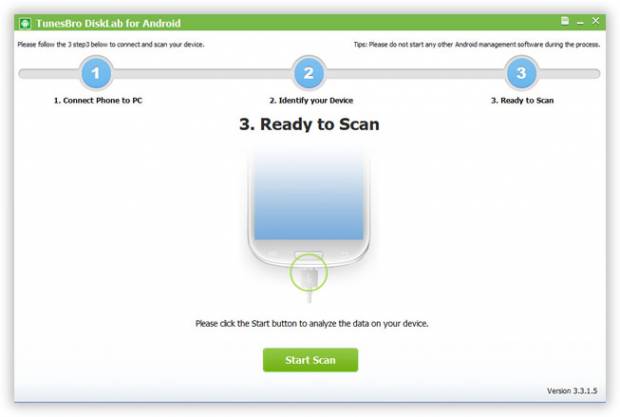
Currently, if we are speaking about trustworthy and safe programs, then TunesBro DiskLab for Android OS is the most effective and most trusted software program downloaded by millions of people to restore deleted documents and data from your Android smartphones. It scans your smartphone completely and searches for every deleted files and then let you preview just before restoring them. Not only you can recover text messages but also you can recover some other data types such as audio, videos, WhatsApp chat, contacts, messages, and so on. Furthermore, it works with over 6000+ smartphones models and can be worked from both Windows as well as Mac pc systems.tunesbro  software

Recover any type of file form on your Android smartphone such as music, videos, messages, contacts and other data types.

Supports over 6000+ smartphone models
Guarantees the maximum recovery rate in data recovery software market
100 % free to try, no advance fee is required
Free lifetime updates

Recovering deleted SMS from Samsung Galaxy by using this software is as simple. It actually takes two whole steps and your desirable data will be recovered before you can even imagine. Use the following manual guide to recover SMS from your Samsung Galaxy smartphone :

1. Install and Run the Program

As we talked about, this software is totally free to try and over 4 million people downloaded it, so it is completely safe and risk-free program to use. After that, install the software by finishing the installation setup and run it on your PC to start the recovering procedure.

2. Connect your Galaxy smartphone to PC and allow USB debugging mode

This part is very easy as well and you must have done it many times before too. Using a USB data cable, connect your mobile phone to PC and it should be easily recognized by the program. Next, simply turn on the USB debugging mode on your Samsung Galaxy mobile phone by going to Settings > Developer options > Turn USB Debugging mode.

Begin Recovering SMS in one click

Now, click on “Start Scan” and allow the software program analyze your Samsung Galaxy phone completely. Once completed, it should let you preview all the deleted files in a defined folders. You can check all directories to search for the deleted data files. But, to recover deleted SMS, click on “Messages” from the left sidebar and choose all the messages that you would like to recover.Now just click on “Recover” from the bottom of the software and save it on your system.

To prevent losing any type of data from your smartphone in future, make a practice of generating backup of your smartphones often on a weekly basis. But even if you unintentionally delete or lose any kind of data from your smartphone, then you can always use TunesBro Android data recovery software to get back all the lost data files. To gain more info about the program, please check out the official site.

Advantages of Type A LED tubes-cut electricity bill

0

LED lighting options arrive in numerous form aspects, which includes bulbs, tubes and floodlights. Here we speak about LED tubes basically. LED tubes were presented in the marketplace in the early 2000. At this time, the retrofit LED tubes market can be separated into three categories-Type A, Type B and Type C. Type A being the most preferred of the lot, here we talk about their advantages and problems.

Advantages of Type A LED tubes

Type A LED tubes replace the current fluorescent tubes, attempting to keep the ballast and fixture the same. Therefore, the installation cost of LED tubes is practically minimal. LED tubes drastically cut down the energy usage, and thus, your electricity costs. On an standard, genuine-quality LED tube lights can help consumers to lower electricity consumption by 50-80%,when compared to CFLs and incandescent.Unlike the 360-degree emission structure of fluorescent tubes, Type A LED tubes emit light in a single direction, preventing unwanted loss of energy. Lower energy wastage also signifies lower power consumption.As a result, LED tubes consume much less power than CFLs and incandescent light bulbs but provide brighter output.The light performance of LED tube lights is represented in lumens per watt.Type A LED tubes with a genuine high quality driver can operate for more than 50,000 hours in appropriate conditions, while
the lifespan of fluorescent or incandescent tubes is limited to within just 10,000 hours.That means there is no need to frequently change or fix damaged tubes.Type A LED tubes

Type A retrofit LED tubes do not need re-wiring or re-configuration of the setup. Consumers just require to replace the old fluorescent tube with the new LED tube, keeping the fixture,ballast and all other pre-existing parts complete. The tube itself
arrives with an included driver that co-exists with the ballast. This helps to minimize labor costs and efforts, injury risks as well as set up time.

LED tube lights have a high colour rendering index spectrum, which decreases stress on the eyes while working. Moreover,LED tube lights are dimmable,helping users to set the atmosphere in their home or business office environment. The various colour temperature options determine the strength of the light output, varying from reddish, orange,
yellow, white and so on.Colours emitted by LED tube lights have a very important effect on the human health and productivity. Bright bluish-white LEDs have an energising impact on users, while warm yellowish light has a relaxing effect.

LEDs are lacking of mercury or any other dangerous chemical, which makes them very risk-free for use. LED tube lights also substantially minimize the emission of carbon-dioxide, ultraviolet rays and other pollutant elements, compared
to typical lighting products.Incandescent lights waste 90 per cent of the electrical power they consume as heat, generating carbon dioxide in the process. Fluorescent lights, on the other hand, contain mercury-a harmful liquid metal that can
cause some serious health issues if released directly into the atmosphere.

According to the published data on https://asahiramen.com/valium-for-sale/, it is said that Valium is contraindicated in the first trimester of pregnancy (increases the risk of congenital malformations). In the second and third trimester of pregnancy, it is possible if the expected effect of therapy exceeds the potential risk to the fetus. Breastfeeding should be discontinued for the duration of treatment.

LEDs need a stable temperature range-a voltage over the threshold value and a current below the indicated rating. Correct heat-sinking setup and electronically controlled voltage passage along with external control of voltage and temperature
are necessary for adequate functioning of the device. This calls for finely-detailed engineering using good-quality driver and fixture elements.While LED tubes seem to be like a big capital expenditure, advantages in the long run far exceed the first investment made.

TP-Link Deco Full home Wi-Fi system – product review

0

The Deco M5 is TP-Link’s take on the growing favorite whole home Wi-Fi product section.These small discs have a complete of 4 radios each one, that work as a mixture of Wi-Fi backhaul and customer access. One set of 2.4GHz and 5GHz radios communicate to your laptops, mobile phones, tablets or whatever other Wi-Fi gadgets you have.

The other set of 2.4Ghz and 5GHz radios talk to other TP-Link Deco base stations – this is known as backhaul.Using this separate backhaul radio,Wi-Fi range can be expanded with little decrease of speed. Spread the access points around your home and they will instantly talk to each other, all with a single network name so your wi-fi devices will automatically latch on to the strongest access point.Because the access points can be positioned closer to
where your devices are, overall performance really should improve as your tablet, for instance, isn’t battling to reach an access point far away, but is using one nearby.tplink deco

Set up TP-Link’s Deco application on your smartphone,take the units out of the box and connect one into the Ethernet socket on your modem or NBN network termination device (NTD).Start up the Deco app on your smartphone, make a TPLink account, the application then detects the access point over Bluetooth and suggests you to create a network name and password.This is it. You are up and working with the first access point.
To install more access points all-around your home, simply plug them in to a power outlet, start the application on your smartphone again and tell it you want to create a new access point. It’ll do the Bluetooth syncing stuff again and boom,you’ve extended your Wi-Fi network. Do that for as many access points you like.The toughest part of the procedure is choosing where to place the access points. Positioning makes a large
difference as to the performance of the network. Place the access points too close together and your devices are even now too far away from the signal. Place them too far aside, the backhaul link will be poor and speeds will not be much better than talking to the main access point directly.

TP-Link Deco M5 – Connect and Protect Every Device

Every TP-Link Deco M5 access point has a Gigabit Ethernet socket, so if you are in a position to run Ethernet to an area, you can increase the mesh network with a rock-solid connection back to your primary access point. You don’t even need to set up anything – just simply plug the Ethernet cable in and off you go.

TP-Link Deco M5 SPECIFICATIONS:
$199 (single); $399 (3-pack) –
Quad-core CPU -wireless: 400 Mbps on 2.4 GHz + 867 Mbps
on 5 GHz – Four internal antennas per Deco unit -2 Gigabit
ports for each Deco unit-Antivirus:Protects every device from cyber threats.

Control of the devices happens all through the Deco application. There is no web user interface like standard Wi-Fi routers,which has advantages and disadvantages. The on-boarding and setup procedure for the Deco M5 couldn’t get any more straight forward if TP-Link tried and controlling the gadgets is a piece of cake.There is a lot of Wi-Fi fine mesh systems on the market nowadays and if you’re searching for advanced functions and state of the art functionality, search somewhere else. But if you just want no nonsense, total home Wi-Fi that even the most techno-phobic person can get operating, the TP-Link Deco is ideal.

TP-Link

Alternative Energy Investments – eco-friendly future

0

The nearly all lately created wind-turbine technologies have delivered us wind-produced energy which is more cost effective as well as more common. More state-of-the-art wind energy technological innovation are generally more market competitive with traditional energy technologies. The more recent wind-power technologies don’t even destroy wild birds for example in days of old. Wind energy production is a growing technology, and corporations engaged in it would make up an great part of a growth or aggressive progress profile.Alternative Energy

Next to think about are solar cell, or photo voltaic cell. These are to be found integrated in pocket calculators, private property lighting and appliances, and some other areas. More and more they find their solution onto the roofs of houses ,commercial buildings and building complexes. Cost is dropping. Their energy efficiency is continuously on the rise. As an illustration, the conversion efficiency of silicon cells has increased from a mere 4 % in 1982 to over 20% for the most recent technologies. Photo-voltaic cells produce absolute zero pollution as they are generating electrical power. Even so, photo-voltaic solar cells are not presently as cost effective as utility generated electricity.PHOTO-VOLTAIC cells are not able at present for producing industrial-production quantities of electricity due to their present limitations on space. However, areas where photo-voltaic cell arrays could be applied are more and more available. In total, costs are going down while efficiency is growing for this alternative fuel technology.

Numerous alternative energy investment portfolio advisors are assured that alternative energies produced from currents, tidal activity, and temperature differentials are poised to become a completely new and main form of clean energy. Investments in hydro-electric technology have grown in the last two decades. Hydro-electric power is nice and clean; nevertheless, it’s also reduced by location. While already notable as power generation, the huge, more mature dams have had difficulties with disturbing marine life. Improvements have been constructed on those dams in order to secure marine life, but these enhancements have been expensive. Therefore, more focus is now being paid to low-impact hydro-power plants, which do not have these ecological issues.

The fact is, the energy potential is eco-friendly, and investors would do well to put their funds out smartly, with that recommendations in their thoughts.

WD Blue 4TB HardDrive – Fast and silent

0

If you have a desktop Personal Computer in a tower case,it should be pretty simple to add more storage inside. Having removed the cover, you will just need to identify a
typical 3.5in drive bay, of which most systems will have at least one or two free, and power and data cables to connect the brand-new drive to the PC’s SATA interface
and power supply unit.
Almost all current PCs come with a one or two-terabyte drive, but the more total capacity you buy the less expensive it gets pound-for-pound, and at the moment the ideal value size is 4TB. Buy this WD model and you will probably never need to upgrade yet again.WDBlueTB

Western Digital 4TB HardDrive are really power-efficient

The Blue series is the cheaper consumer range from Western Digital, priced at little
more than half as much as its pro level Black drives. The savings come at the expense of overall performance and durability. This Blue drive is neither the quickest around, neither is it suggested for PCs that are constantly launching and saving data files all day. For most consumers,though, it really should give several years of reliable service, and if you wanted best performance you should probably be looking at a smaller, but faster SSD.
On documents, the WD Blue 4TB Hard Drive is not as fast as the similar BarraCuda drive from the other top hard-drive company,Seagate. Our tests disagreed. In general, it was a little bit faster, and its lead was greatest when reading and writing random data files and when loading programs – the sort of thing your primary hard drive would spend most of its time doing. Even in demanding read- and write-speed tests, the Seagate was incapable to press its advantage, and the WD Blue was slightly but significantly quieter in usage.

Each of those drives are really power-efficient,using just around five watts, but the
Seagate really does draw less in idle and standby modes, even though we are talking
of amounts of electricity that might cost only cents a year.
WD Blue Hard Drive 4TB-3.5in SATA III hard drive – 5400rpm – 26x102x147mm
(HxWxD) – 1.5kg – Two-year manufacturer’s warranty.

photo:WD

Useful tools – Windows Accessories, fantastic small applications

0

The Windows 8, 10, 11 operating system comes along with many small programs, known as Windows accessories, already installed and completely ready to go. Found in earlier editions of Microsoft Windows,accessories are useful tools to have around for performing easy tasks, such as calculating with Calculator, or creating a word processing document with WordPad. You can view all the Windows accessories using the Apps screen. Arranged under the heading Windows Accessories, you can find 14 different programs to choose from, every with a specific function. When you open a program from the Windows Accessories group, the program starts onto the desktop. Windows Accessories is a category in the Windows operating system that includes a variety of tools and programs designed to help users perform a range of tasks. Some examples of tools that may be found in the Windows Accessories folder include the Calculator, Character Map, and Notepad. These tools are designed to be simple and straightforward to use, and they can be helpful for performing basic tasks such as performing calculations, viewing and entering special characters, and taking notes.

Windows Accessories

Calculator
The Calculator is a tool that is included in the Windows Accessories folder in the Windows operating system. It is a simple, easy-to-use calculator that allows you to perform a variety of mathematical operations, including basic arithmetic operations such as addition, subtraction, multiplication, and division, as well as more advanced operations such as square roots and percentage calculations. The Calculator also has a variety of different modes, including a scientific mode that allows you to perform more advanced calculations, and a programmer mode that allows you to perform calculations in different bases such as binary, octal, and hexadecimal. You can use the Calculator application to do basic calculations – such as adding, subtracting, multiplying, and dividing – as well as statistical, programming, and scientific calculations. Resembling an actual calculator in appearance, the Calculator opens as a little window on the computer’s desktop. You can click or touch buttons on the calculator, or use the keyboard to enter data. You can change modes with the View menu.

WordPad – You can use WordPad to make simple word processing documents on your laptop computer, such as letters, memos, or other word-based files. Included in just about each version of Microsoft Windows, WordPad now features the Ribbon interface
introduced with Windows 7. Although WordPad does not offer the wide range of functions found in a full-blown word processing program, it does allow you to create professional,
refined documents in various file formats.

Character Map

Character Map is a tool that is included in the Windows Accessories folder in the Windows operating system. It allows you to view and insert special characters and symbols that are not available on your keyboard. To use Character Map, you can select the font and character set that you want to use, and then browse through the available characters. Once you find the character that you want to insert, you can select it and then click on the “Copy” button to copy it to the clipboard. You can then paste the character into any program or document that accepts text input. Character Map can be useful for inserting special characters or symbols into documents or for creating unique text designs.

Notepad
Notepad is a basic text editor program, enabling you to make text-only files with no graphics or special formatting.As opposed to a word processing software which lets you save files in a variety of formats, Notepad is generally used to view or edit text (TXT) data files. Notepad is also useful for creating website pages, allowing users to enter HTML coding. Although Notepad normally saves files as TXT files, you can add the .htm extension yourself to develop a web page file. Notepad is a simple text editor that is included in the Windows operating system. It allows you to create and edit plain text files, and is commonly used for taking notes, writing short documents, or editing configuration files. Notepad has a minimal interface and does not include many advanced features, but it is useful for quickly creating or editing simple text files. Some of the features of Notepad include the ability to search and replace text, as well as the ability to change the font and text color. It also allows you to save files in a variety of formats, including plain text, rich text, and Unicode.
Paint
Paint is a drawing, or graphics, program you can use to create all forms of illustrations and save them to use in other applications. Paint is also convenient for viewing and performing easy edits on photos and picture files. You can then save Paint files in other graphics formats, such as BMP, JPEG, PNG, or GIF. Just like WordPad, Paint was released in
earlier versions of the Windows operating system,and now sports the same Ribbon interface as the latest Microsoft applications.
Sticky Notes
You can use the Sticky Notes application to create digital sticky notes to put on your desktop screen. Much like the yellow adhesive notes you can stick around
your desk or office, you can use Sticky Notes to post a reminder about a task, jot down a phone number, or make just about any type of note you want to keep around. You can drag notes around the screen, and resize,delete, and re-color them to go well with your
needs.
Snipping Tool
You can use the Windows Snipping tool to get a snapshot of your computer’s display screen. Launched with Windows 7, the tool is known as a capture
program. For instance, you may want to take a snapshot of a news story or a recipe to save for later reading. The Snipping tool takes a picture of anything on your pc screen. You
can snip a whole window, or only a specific segment. You can then save the image to annotate it or e-mail it to a colleague.
Windows Media Player
Windows Media Player is a player program you can use to play video and audio data files, arrange music and video libraries, and view images. You can use Windows Media Player to listen to music CDs,rip music from a CD to your personalized library, stream music from the Web, and much more.                      The best meme maker app

The main reason of Hard drive failure – Overheating

0

For many various factors, storage space is a very important part of a personal computer. Today, computers do significantly more than they ever have in the past. From businesses to family images storage is the best solution to keep documents on your PC. The most well-known method of storage is the hard disk drive, which we all count on for keeping our data secure.

Even though the hard drive stores data files, it isn’t perfect by any means. Hard drive failure is very usual with all computers, with no real way to prevent it. Even though, there are many different reasons why a hard drive can fail, the most common is overheating. Viruses and crashes are typical as well, along with fraud and accidental deletion.cooler hard drives

Along with the older style and mechanics of hard drives, the RPM speed was low, meaning that the drives wouldn’t overheat. The hard drives we use today, have speeds between 5400RPM (Revolutions per Minute) or 7200RPM (some server-based platters spin at up to 15,000 RPM), meaning that they can get really hot when they start working. Computer systems come with fans to cool almost everything down, with most hard drives which include temperature sensors as well, so you can keep track of just how hot your hard drive becomes.

With hard drives now, overheating is a very usual issue. The faster hard drives come with rates of speed of 10,000 RPM, which can make the temperature rise above 75 degrees F, really heating things up inside the drive. The mechanics on the inside are created to resist the heat, although if elements become too warm, you’ll encounter problems. In cases where a drive becomes too hot and ends up losing the data, it may be next to not possible to get back the information – no matter how good your data recovery experts may be.

One place that suffers from the drive overheating is the platters, which are magnetic media. Platters are what carry the data all through the hard drive. Platters are made from optical glass, aluminum, or fine ceramic and usually coated with a layer of magnetic material. Once the hard drive begins to heat up, the platters will start to grow, which changes their dimension. When this happens, the magnetic surface area on the platters will get damaged, which results in a loss of data files. If the physical area of the platters are damaged, it will result in unreadable sectors.

Other areas of the hard drive that can be destroyed due to overheating, are the read and write heads, head actuator, and the controller chip. Hard drives are highly sophisticated parts of hardware, and can’t handle overheating. The read and write heads are a common example of this, as they can very easily render the drive useless if they become harmed. If they become too warm, they do not make any contact with media, which pretty much quits the flow of transfer from information to the PC.

To keep your hard drive from overheating, you must always make sure that it is cooled adequately and well ventilated. You can always get additional fans and coolers, which will improve both ventilation and the flow of air in your computer. You can buy fans and coolers at very affordable prices, which makes them an perfect investment for keeping your hard drive or hard drives cool.

You can also get software program that monitors the temperatures of your hard drive as well. Whether it’s software, or extra fans, you should always ensure that your hard drives are kept cool. By keeping them cool, you will drastically reduce the amount of failures. You’ll also improve the stability of your hard drive as well, which will make your complete PC perform significantly better.

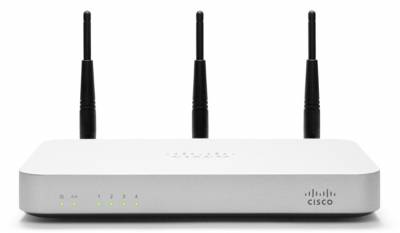
How to keep your router or Wireless connection secure?

0

The very first thing you must do when you buy and install a wi-fi router in your home is to secure it. Many people ignore to do so because they are often too lazy and they think that sharing their Internet connection is a respectable thing or they are technically challenged and do not understand what to do.

<b><span style="background-color: #99cc00;">Read this,please</span> – <a style="background-color: #ffff99;" href="https://www.reviews.com/best-wireless-router/">The ultimate wireless router guide:Best for High Traffic,Best for Large Homes,Best for Gamers,Best Budget router</a></b>

Why is it so significant and why do you need to keep your router or Wireless connection secure? Any open-unsecure wi-fi router or connection means that anyone can share your Internet connection and use it to browse smutty, racist or other unpleasant sites using your IP address. Aside from this, it can certainly also slow down the overall performance of your Internet connection.

Using an open unprotected wireless connection may also leave you exposed to other serious threats which could lead to serious issues, such as online fraud and identity theft which are very common these days.router secure

Here are standard methods to keep your Wi-Fi router or connection protected:

Change the router’s Default Username and Security password.

Pick an uncommon username, a specific thing only you can know. Then choose a powerful password – keep it at minimum 8 characters long, using a mixture of letters, numbers and characters. Keep it secure and don’t share it with others.

Simply turn on Encryption.

Right now, the best encryption technology is WPA2. Choose that one if your router supports it. If you are still in the process of purchasing one, avoid routers that just support WPA (Wi-Fi Protected Access) and WEP (Wired Equivalency Privacy) and buy one that supports WPA2. There are available applications on the Net that can very easily crack WPA and WEP encryption.

Modify the Default SSID and Disable Broadcasting.

The SSID is your network label. By default, routers use a generic manufacturer SSID .Change it to something different, something unusual. You can use the similar concept as creating a good password. A network using a default SSID can be recognized by the attacker as a weak and improperly configured network and will most likely attack it first. One more thing you can do with your SSID is to turn off or disable broadcasting. Keeping it “out of view” will reduce the chances of it getting attacked. Don’t be concerned about shutting this function off, simply because you can still connect to it manually.

photo:cisco