Home Blog Page 2

How to Play DAV Files in VLC Player?

0

Video files come in a myriad of formats, each designed for specific purposes. One such format is the DAV file, commonly associated with surveillance and security systems. If you’ve ever tried to open a DAV file on your computer, you might have encountered frustration, especially when using popular media players like VLC. VLC Media Player, developed by VideoLAN, is a free, open-source software renowned for its versatility in handling various audio and video formats. However, DAV files aren’t natively supported in VLC without some tweaks or conversions. This article delves into everything you need to know about playing DAV files in VLC, from understanding the format to step-by-step instructions, troubleshooting, and alternatives. By the end, you’ll be equipped to handle these files seamlessly, whether for personal review of CCTV footage or professional analysis.DAV files, short for Digital Audio Video, are proprietary video files generated by Digital Video Recorders (DVRs) such as those from DVR365 or Dahua Technology.

They are often used in closed-circuit television (CCTV) systems to store recorded footage. What makes DAV unique is its encryption and modified MPEG compression, which enhances security but limits compatibility.

This encryption prevents unauthorized access, making DAV ideal for surveillance but problematic for everyday playback. Unlike standard formats like MP4 or AVI, DAV files require specialized players or modifications to open in universal software like VLC.VLC stands out as a go-to solution because it’s cross-platform (available on Windows, Mac, Linux, Android, and iOS), supports a vast array of codecs, and is completely free. Millions rely on it for media playback, streaming, and even basic conversions. However, direct playback of DAV in VLC isn’t straightforward due to the format’s proprietary nature. In older versions of VLC (pre-3.0.17), support was nonexistent, leading to errors like “File reading failed” or “Your input can’t be opened.”

Play DAV Files
Play DAV Files – photo: pixabay

Newer versions have improved, but adjustments are still necessary. This guide will cover two primary methods: tweaking VLC settings for direct playback and converting DAV to a compatible format like MP4. We’ll also explore why conversion might be preferable and how to avoid common pitfalls.

Understanding DAV Files and Their Challenges

Before diving into the how-to, it’s essential to grasp why DAV files pose challenges. Created by hardware like CCTV cameras and NVRs (Network Video Recorders), DAV files encapsulate video data with audio, timestamps, and sometimes metadata for forensic purposes.

The format uses a modified version of MPEG-4 compression, but with added encryption layers to protect sensitive footage from tampering. This is why standard players struggle— they lack the decryption keys or compatible demuxers (components that separate audio and video streams).Common scenarios where you might encounter DAV files include backing up home security footage, reviewing business surveillance, or analyzing evidence in legal contexts. For instance, if your DVR exports recordings as .dav, you’ll need a way to view them on a computer without the original hardware. VLC enters the picture as a robust alternative to proprietary players like DVR365 Player or Smart Player, which are often limited to Windows and lack VLC’s features like subtitles, playlists, and hardware acceleration.The main hurdles with DAV in VLC are:

  • Compatibility Issues: Without proper settings, VLC treats DAV as an unrecognized format.
  • Encryption: Some DAV files are heavily encrypted, requiring conversion.
  • Quality Preservation: Direct playback might lead to glitches if not handled correctly.
  • Platform Differences: Methods vary slightly between Windows, Mac, and Linux.

Despite these, VLC’s flexibility makes it possible to overcome them. Let’s move to the practical steps.

Method 1: Playing DAV Files Directly in VLC player by Adjusting Settings

The simplest way to play DAV in VLC is by modifying the player’s demuxer settings to handle the H.264 codec embedded in DAV files. This method works best with VLC version 3.0.17 or later, where DAV support was enhanced alongside DTS LBR audio.

Note that this tweak temporarily alters VLC’s behavior, making it incompatible with standard formats like MP4 until reverted.

  • Download and install the latest VLC from the official VideoLAN website (videolan.org).
  • Ensure your DAV file is accessible on your computer (copied from the DVR or external drive).
  • Backup your VLC settings if you’re cautious, though changes are reversible.

Step-by-Step Guide

  1. Launch VLC Media Player: Open the application on your device. If it’s your first time, familiarize yourself with the interface— the menu bar is at the top.
  2. Access Preferences: Click on “Tools” in the menu bar, then select “Preferences” from the dropdown. On Windows/Linux, you can use the shortcut Ctrl + P; on Mac, it’s Command + ,.
  3. Switch to Advanced View: In the Preferences window, look at the bottom-left corner for “Show settings.” By default, it’s set to “Simple.” Click “All” to reveal advanced options. This expands the left panel with detailed categories.
  4. Navigate to Demuxers: In the left panel, expand “Input/Codecs” by clicking the arrow next to it. Then, select “Demuxers.”
  5. Change Demux Module: On the right side, you’ll see “Demux module” set to “Automatic.” Click the dropdown and choose “H264 video demuxer.” This forces VLC to interpret DAV streams as H.264, which is the underlying codec.
  6. Save Changes: Click “Save” at the bottom. VLC might prompt a restart— do so if needed.
  7. Open the DAV File: Go to “Media” > “Open File” (or Ctrl + O on Windows/Linux). Browse to your DAV file and select it. VLC should now play the video.

If successful, you’ll see the footage with audio (if present). Playback controls like pause, seek, and fullscreen work as usual.

Play DAV Files in VLC Player

Troubleshooting This Method

  • Error Messages: If you get “File reading failed,” ensure you’re using VLC 3.0.17+. Update if necessary.
  • No Video/Audio: The file might be corrupted or overly encrypted. Test with another DAV file.
  • Playback Glitches: Lower the video quality in VLC’s settings or check your system’s hardware (e.g., GPU acceleration under Tools > Preferences > Input/Codecs > Hardware-accelerated decoding).
  • Reverting Changes: To play regular files again, repeat steps 1-6 but select “Automatic” for the demux module. This is crucial, as the H264 setting breaks compatibility with MP4, MKV, etc.
  • Mac/Linux Specifics: On Mac, preferences are under “VLC” menu. Linux users might need admin rights for installations.

This method is quick but has drawbacks— it’s not permanent, and frequent switching can be annoying. For a more reliable approach, consider conversion.Method 2: Converting DAV to MP4 for Seamless Playback in VLCConversion is often the best long-term solution, transforming DAV into MP4—a format VLC handles effortlessly without tweaks. MP4 offers broad compatibility across devices, preserves quality, and reduces file size. You can use VLC itself for conversion or third-party tools.Using VLC for ConversionVLC doubles as a converter, making it convenient if you avoid extra software.

  1. Open VLC and Access Converter: Launch VLC, go to “Media” > “Convert/Save” (Ctrl + R on Windows/Linux).
  2. Add DAV File: Click “Add” and select your DAV file. Click “Convert/Save” again.
  3. Choose Output Format: In the Profile dropdown, select “Video – H.264 + MP3 (MP4)” for standard quality. For HEVC (better compression), choose “Video – H.265 + MP3 (MP4).”
  4. Set Destination: Click “Browse” to choose a save location and name the file (e.g., output.mp4).
  5. Start Conversion: Hit “Start.” VLC will process the file— time varies by length and hardware.
  6. Play in VLC: Once done, open the new MP4 in VLC via “Media” > “Open File.”

This method is free and straightforward, but VLC’s conversion isn’t the
Using Third-Party ConvertersFor faster, feature-rich options:

  • Wondershare UniConverter: A paid tool (with free trial) that plays and converts DAV to 1000+ formats. Add files, play in built-in player, select MP4, and convert. Supports batch processing and editing (trim, subtitles).

    Pros: Lossless quality, hardware acceleration. Cons: Cost after trial.

  • Winxvideo AI: Free download with AI enhancements. Drag DAV, choose MP4, run conversion. Up to 47x faster with GPU support.

    Ideal for large files.

  • HandBrake (Free): Open-source; import DAV, preset to “Fast 1080p30,” output as MP4. Great for compression without quality loss.
  • Online Tools: Sites like Online-Convert.com allow uploads and quick DAV to MP4 conversion, but beware of privacy for sensitive footage.

After conversion, MP4 files play natively in VLC, editable in software like Adobe Premiere, and shareable easily.Pros and Cons of Each Method

Method
Pros
Cons
Direct Playback in VLC
No extra software needed; quick setup
Temporary; breaks other formats; potential glitches
Conversion via VLC
Free; integrated
Slower; basic options
Third-Party Conversion
Fast; advanced features; batch support
May require payment; learning curve

Conversion edges out for most users due to permanence and compatibility.Alternatives to VLC for DAV PlaybackIf VLC doesn’t suit, try:

  • Proprietary Players: DVR365 Player or Amcrest Smart Player for Windows—direct DAV support without conversion.
  • Smart Player: Free, supports playback and basic conversion.
  • Axon Investigate: For forensic needs, preserves metadata but pricey.
  • 5KPlayer or PotPlayer: Free alternatives with broader codec support.

For mobile, convert to MP4 first, as Android/iOS apps like VLC Mobile struggle with native DAV.

Playing DAV files in VLC is achievable through settings adjustments or conversion, turning encrypted surveillance footage into accessible media. Whether you’re a homeowner reviewing security clips or a professional handling evidence, these methods ensure smooth playback. Start with the direct method for quick views, but opt for conversion for long-term use. Always back up originals, and if issues persist, check for file corruption or update your software. With VLC’s power and these tips, DAV files won’t remain a mystery. For more advanced needs, explore tools like UniConverter to enhance your workflow. This approach not only solves immediate problems but empowers you in managing digital video assets effectively.

PotPlayer Review: A Detailed & Balanced Evaluation

0

PotPlayer is a free multimedia player for Windows developed by the South Korean company Kakao. Designed as a successor to KMPlayer (developed by the same original author), PotPlayer aims to deliver a lightweight yet extremely powerful video playback experience. Its primary purpose is to offer smooth playback of virtually any media format while giving users deep control over audio, video, and rendering settings. Over the years, PotPlayer has built a reputation for being one of the most feature-packed media players available—but not without some controversies and limitations.

Key Features

Broad Media Format Support

PotPlayer supports an extensive list of formats, often without requiring additional codec installation. Commonly supported types include:

  • Video: MP4, MKV, AVI, MOV, WMV, FLV, HEVC/H.265, VP9

  • Audio: MP3, FLAC, AAC, OGG, WAV

  • Subtitles: SRT, ASS/SSA, VobSub, Blu-ray subtitles

  • Advanced containers: Blu-ray ISO, DVD folders, network streams

Built-in decoders ensure smooth playback even for high-bitrate 4K and 8K files.

PotPlayer is a free multimedia player
PotPlayer – free multimedia player

User Interface and Layout

PotPlayer has a clean, modern interface with dark-theme aesthetics. While the default UI is simple, it is highly customizable:

  • Skins and theme packs

  • Adjustable panels (playlist, bookmarks, equalizer, video controls)

  • Minimalistic mode for distraction-free viewing

The interface may feel slightly dense for casual users but is a dream for power users who love customization.

Extensive Customization Options

PotPlayer is known for its remarkable degree of configurability:

  • Video renderers (EVR, madVR compatibility, Direct3D9/11)

  • Audio filters, output modules, DSP, and equalization

  • Subtitle styling, sync adjustments, and automation rules

  • Keyboard/mouse gestures and customizable hotkeys

  • Playback speed and frame interpolation options

These advanced controls rival professional playback tools.

Performance and Resource Usage

PotPlayer is optimized for fast startup and smooth performance. Highlights include:

  • Very low CPU/RAM usage

  • Hardware acceleration (DXVA, CUDA, QuickSync)

  • Fluid playback of high-bitrate 4K and even 8K videos

  • Fast seeking and buffering for large files

Even on older systems, PotPlayer typically runs smoothly.

Advantages of PotPlayer

Exceptional Format Compatibility

PotPlayer’s ability to play virtually anything makes it a top choice for users who handle diverse media libraries, replacing the need for separate codecs or plugins.

Highly Customizable Viewing Experience

Few players offer PotPlayer’s level of control. Whether you want fine-tuned subtitle positioning or specific video color adjustments, PotPlayer excels.

Superior Playback Performance

Thanks to hardware acceleration and efficient internal decoders, users frequently report:

  • Smooth 4K playback

  • Fast loading and seeking

  • Stable performance even with large, high-quality files

This places PotPlayer on par with MPC-HC, VLC, and MPV for high-resolution content.

Useful Advanced Tools

PotPlayer includes several features that are not common in other media players:

  • Video capture and screen-recording tools

  • Bookmarking of scenes

  • Built-in subtitle search (depending on region)

  • 3D playback and VR support

  • A/B repeat loops

  • Frame-by-frame navigation

Such tools appeal especially to power users, editors, and enthusiasts.

Free and Lightweight

Despite offering “premium-player” features, PotPlayer remains free, lightweight, and efficient compared to some competitors that require paid versions (e.g., PowerDVD).

Drawbacks and Limitations

Update and Installer Concerns

Historically, some users reported that the PotPlayer installer attempted to bundle optional promotional software. While recent versions are cleaner, this reputation remains a concern. Users must still be cautious during installation.

Overwhelming for Casual Users

PotPlayer’s extensive menus, settings, and technical terminology may intimidate beginners. Compared to VLC’s simpler interface, PotPlayer can feel complex or cluttered.

Windows-Only Software

PotPlayer is not available on macOS or Linux. This limits its adoption and makes it less flexible than VLC or MPV, which work across multiple platforms.

Unclear Development Pace

PotPlayer once had very frequent updates, but in recent years, updates have become less predictable. Some users worry about:

  • Slower bug fixes

  • Less communication from developers

  • Occasional instability after updates

Though the player remains functional and stable for most users, the shift in update frequency can be seen as a drawback.

Limited Streaming Integration

While PotPlayer can handle network streams, it lacks the native streaming integrations found in players like Kodi or Plex. There is no library management system—PotPlayer is purely a playback tool.

PotPlayer is a powerful, free, and highly customizable multimedia player that stands out for its exceptional format support, deep configuration options, and excellent playback performance. It is ideal for enthusiasts and users who want complete control over video rendering, audio output, and subtitle behavior. However, its complexity, update concerns, and Windows-only availability may deter some users who prefer a simpler, cross-platform solution.

PotPlayer is an outstanding choice for power users, video collectors, and anyone who demands advanced playback tools. If you frequently watch high-resolution videos, need precise playback controls, or enjoy customizing your media experience, PotPlayer is one of the best free players available.

However, if you prefer a simple, no-configuration media player or need something cross-platform, alternatives like VLC, MPV, or MPC-HC may be more suitable.

Overall, PotPlayer earns a strong recommendation for its performance, customization, and depth—provided that users are comfortable navigating its extensive feature set.

Which browsers are more secure than Chrome and why?

0

In this short review about browsers that are more secure than Chrome involves an in-depth look at the key factors influencing browser security, how different browsers stack up in terms of privacy and protection against malware and other threats, and why certain browsers are considered more secure. Here’s an in-depth exploration that evaluates four browsers known for their emphasis on security, compared to Chrome.

Web browsers are the gateways to the internet, but they also serve as entry points for cybercriminals to exploit vulnerabilities in your system. Google Chrome, one of the most popular browsers in the world, has a robust security infrastructure, but it also comes with potential privacy concerns. For users who prioritize security over all other features, there are several browsers that may offer stronger protection, more frequent updates, and enhanced privacy features.

In this review, we will explore four browsers considered more secure than Chrome and examine why each stands out in terms of protecting user data and providing a safer browsing experience.

1. Brave Browser

Overview:

Brave is a relatively new web browser that aims to provide users with better privacy and security than traditional browsers like Chrome. It was developed by Brendan Eich, the creator of JavaScript and former Mozilla CEO. Brave focuses on blocking ads and trackers by default, ensuring that users have a smoother and more secure browsing experience.

Key Security Features:

  • Ad Blocking and Tracker Prevention: Brave blocks intrusive ads and trackers by default, which significantly reduces the risk of malware, spyware, and other types of tracking. By preventing ads from loading, Brave also improves page load times.

  • HTTPS Everywhere: Brave comes with HTTPS Everywhere pre-installed, an extension that automatically redirects users to secure HTTPS websites whenever available, preventing potential Man-in-the-Middle (MITM) attacks and eavesdropping on sensitive data.

  • Private Browsing with Tor: Brave offers a private browsing mode that integrates Tor, a privacy-focused network designed to conceal your identity by routing your internet traffic through multiple relays. This makes it harder for third parties to track your online activities and location.

  • Fingerprinting Protection: Brave uses technology to block browser fingerprinting techniques, which are methods of tracking users across websites even without cookies.

  • No Data Harvesting: Unlike Chrome, which gathers a vast amount of user data for advertising purposes, Brave does not track or sell your browsing data. Instead, Brave compensates users through its cryptocurrency-based Basic Attention Token (BAT) system, which allows users to opt into ads if they choose to earn rewards.

Why It’s More Secure:

Brave’s combination of ad blocking, tracker prevention, and integration with Tor makes it a compelling option for users who prioritize privacy and security. The absence of data harvesting and its use of HTTPS Everywhere further enhance its security posture. By blocking third-party scripts and trackers, it reduces the risk of malicious payloads being delivered to your device.

browsers considered more secure than Chrome
photo – pixabay

2. Mozilla Firefox

Overview:

Mozilla Firefox is a highly respected browser in the open-source community, known for its commitment to privacy and security. Firefox offers many features that help protect users from a variety of online threats while also prioritizing user control over data. While Chrome has become synonymous with Google’s extensive data collection practices, Firefox has taken a more conservative approach in terms of privacy.

Key Security Features:

  • Enhanced Tracking Protection (ETP): Firefox blocks known trackers by default. It uses a built-in database to block social media trackers, cross-site tracking cookies, and fingerprinting attempts, which are methods that websites and advertisers use to track user behavior across multiple sites.

  • Facebook Container: This is an add-on available for Firefox that isolates Facebook’s tracking scripts from the rest of your browsing. This prevents Facebook from collecting data about your activity outside its platform.

  • Container Tabs: Firefox’s Container Tabs feature lets you segregate your browsing activities into different containers (e.g., one for banking, one for shopping, and one for social media). This prevents websites from linking your sessions together and creating a detailed profile of you.

  • Security Updates and Patches: Firefox is known for being quick to release security updates and patches, making it one of the most proactive browsers in addressing vulnerabilities.

  • DNS-over-HTTPS (DoH): Firefox supports DNS-over-HTTPS, which encrypts DNS requests and prevents third parties, such as ISPs, from seeing which websites you visit. This helps reduce your exposure to surveillance and improves privacy.

  • Privacy-focused Search Engine: Firefox also integrates with privacy-focused search engines like DuckDuckGo by default, which prevents search engines from tracking user queries or storing personal data.

Why It’s More Secure:

Firefox’s approach to security and privacy is centered around providing users with control over their own data. With features like Enhanced Tracking Protection and Container Tabs, Firefox makes it difficult for websites to track users across different domains, reducing the risk of surveillance and unwanted data collection. The use of DoH and fast security updates also contribute to its reputation as one of the most secure browsers available.

3. Safari

Overview:

Apple’s Safari browser is often overlooked in the browser wars, but it’s one of the most secure options for macOS and iOS users. Safari has a strong focus on privacy and integrates many security features designed to keep users safe while browsing. Apple’s emphasis on privacy extends beyond just the browser and into the entire ecosystem, making it a good choice for users who value security.

Key Security Features:

  • Intelligent Tracking Prevention (ITP): Safari uses machine learning to identify and block cross-site tracking, preventing advertisers from collecting data on your browsing activities across websites. ITP also ensures that cookies are only stored for a limited amount of time, minimizing the risk of long-term tracking.

  • Privacy Report: Safari provides a Privacy Report feature that lets users see which websites are attempting to track them. It also displays how many trackers have been blocked, allowing users to evaluate their online privacy.

  • Sandboxing: Safari uses sandboxing technology to isolate processes from one another, preventing a compromised website or web application from affecting other parts of your system.

  • Password Monitoring: Safari alerts you if any of your stored passwords have been involved in a data breach, encouraging you to update them to prevent any potential security risks.

  • Built-in Anti-Phishing Features: Safari automatically warns users if they are about to visit a known phishing site. The browser also uses a secure connection to check for malicious websites in real time, which helps protect users from entering harmful sites.

  • Secure WebRTC: Safari includes security features that prevent WebRTC (a technology for real-time communication) from leaking users’ IP addresses, even when using VPN services. This ensures anonymity when browsing.

Why It’s More Secure:

Safari’s focus on privacy and its use of intelligent tracking prevention make it a great choice for users who are concerned about being tracked by advertisers and third parties. Its strong sandboxing features and phishing protection make it harder for malicious websites to harm users, while its password monitoring system helps ensure that personal information stays secure.

4. QuteBrowser

Overview:

QuteBrowser is a lesser-known, minimalist web browser that places a heavy emphasis on security, privacy, and user control. Unlike the other browsers mentioned, QuteBrowser is more of a niche choice, particularly for advanced users who want a lightweight and highly customizable browsing experience. It is based on QtWebEngine, a web rendering engine, and is designed to be keyboard-centric.

Key Security Features:

  • Minimalism for Better Security: QuteBrowser’s minimalist design ensures that there are fewer features and extensions that could potentially be exploited by attackers. It removes unnecessary elements that could create vulnerabilities, making it a more secure option for users who want to reduce their attack surface.

  • Customizable Privacy Settings: QuteBrowser allows users to fine-tune their privacy and security settings, including blocking scripts, disabling JavaScript, and preventing unwanted cookies. It gives users granular control over which websites can access sensitive data.

  • No Data Collection: QuteBrowser is an open-source project with a focus on privacy. Unlike Chrome, QuteBrowser does not collect any user data, making it a highly secure option for those who value complete privacy.

  • HTTPS and TLS Support: QuteBrowser supports HTTPS by default and ensures that TLS (Transport Layer Security) is used for secure communications. This prevents Man-in-the-Middle (MITM) attacks by ensuring all communications are encrypted.

  • Security Through Isolation: Since QuteBrowser uses a separate process for each tab, a vulnerability in one tab is less likely to affect others. This sandboxing effect reduces the risk of cross-site scripting (XSS) attacks and other web-based exploits.

Why It’s more secure than Chrome:

QuteBrowser’s minimalistic design reduces the potential attack surface by removing unnecessary features, making it a more secure alternative for advanced users. Its open-source nature ensures transparency, and its customizable privacy settings give users complete control over their browsing experience.

In the ongoing battle for privacy and security in the digital age, Google Chrome remains a dominant player. However, for users who prioritize security, there are several browsers that offer enhanced privacy and more robust protection against online threats.

  • Brave stands out for its default ad-blocking, tracker prevention, and integration with Tor, offering superior protection against surveillance.

  • Mozilla Firefox offers a range of privacy-focused features like Enhanced Tracking Protection and Container Tabs, along with fast security updates.

  • Safari integrates strong privacy tools, including Intelligent Tracking Prevention, while maintaining a seamless user experience across Apple devices.

  • QuteBrowser provides a minimalist, open-source experience for advanced users who want granular control over their security and privacy settings.

Each of these browsers offers distinct advantages in terms of security, and the best choice will depend on your individual needs.

HDMI Cables: Types, Differences, and What to Look Out For

0

High-Definition Multimedia Interface (HDMI) cables have become an integral part of modern technology, facilitating the transmission of both audio and video signals between devices. Whether you’re connecting a TV to a gaming console, a computer to a monitor, or a projector to a laptop, HDMI cables play a crucial role in ensuring high-quality image and sound output. But with so many different types of HDMI cables available in the market, it can be challenging to understand which one is right for your needs. In this article, we will explore the different types of HDMI cables, their key differences, and what you should look out for when choosing the right cable for your setup.

1. What is HDMI?

HDMI is a digital interface standard used for transmitting high-definition audio and video signals from a source device to a display device. First introduced in 2003, HDMI has largely replaced analog connections like VGA, DVI, and composite cables because of its ability to transmit high-quality digital signals over a single cable, simplifying the setup of home entertainment systems, computers, and professional equipment.

HDMI cables come in various versions, each supporting different video resolutions, audio formats, and features. Understanding the distinctions between these versions is essential for getting the most out of your HDMI-enabled devices.

2. Types of HDMI Cables

Not all HDMI cables are created equal, and they can be categorized based on the HDMI specification they support. The most common types are as follows:

1.1 Standard HDMI Cable

This is the most basic HDMI cable, designed to carry HD video signals at resolutions up to 1080p. However, it is no longer widely used in newer devices, as it lacks support for features like 4K video or high refresh rates. While it may still work with older equipment, it is generally recommended to opt for more modern HDMI cable versions for current technology.

Bravo 8K Performance
Bravo 8K Performance – Kordz

1.2 High-Speed HDMI Cable

The High-Speed HDMI cable supports 1080p and 4K video resolutions, making it suitable for most home theater setups, Blu-ray players, gaming consoles, and streaming devices. This cable is capable of supporting up to 4K resolution at 30Hz, which is ideal for watching movies, playing games, and streaming video content.

1.3 Premium High-Speed HDMI Cable

With the increasing demand for 4K and even 8K content, HDMI cables that can handle high resolutions and refresh rates have become more important. Premium High-Speed HDMI cables are designed to support resolutions up to 4K at 60Hz and support features like High Dynamic Range (HDR), wider color gamuts, and faster refresh rates. They ensure a smooth and crisp viewing experience, especially for gaming or high-definition video streaming.

1.4 Ultra High-Speed HDMI Cable

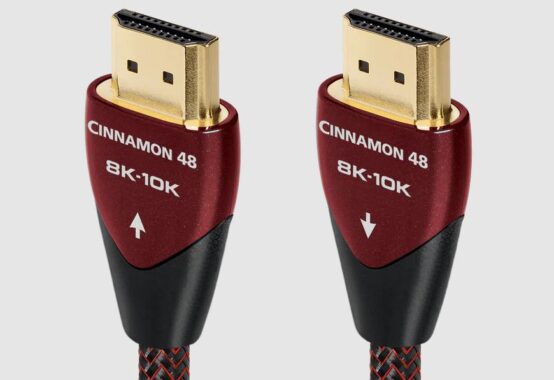
The Ultra High-Speed HDMI cable is the latest and most advanced option, supporting 4K, 8K, and even 10K video resolutions at refresh rates of up to 120Hz. These cables are designed for high-end devices, such as next-gen gaming consoles (like the PlayStation 5 and Xbox Series X), 8K TVs, and advanced home theater systems. Ultra High-Speed HDMI cables support a variety of cutting-edge technologies, including enhanced audio return channel (eARC), variable refresh rate (VRR), and automatic low latency mode (ALLM) for gaming.

1.5 HDMI with Ethernet

Some HDMI cables include an Ethernet channel, which allows devices to share an internet connection without the need for a separate Ethernet cable. This feature is particularly useful for smart TVs, game consoles, and streaming devices that require a stable internet connection to stream content. HDMI with Ethernet is typically found in newer HDMI 2.0 and 2.1 cables, though it is not as commonly used as standard HDMI cables.

1.6 HDMI Mini and Micro Cables

In addition to full-sized HDMI cables, there are also mini and micro HDMI versions. These cables are used primarily for connecting portable devices, such as tablets, cameras, and laptops, to external displays or projectors. The mini HDMI (Type C) and micro HDMI (Type D) cables are smaller in size but still provide the same functionality as their full-sized counterparts. Be sure to check your device’s HDMI port to determine which cable type is compatible.

AudioQuest Cinnamon 48 8K-10K 48Gbps HDMI cable

1.7 Active HDMI Cables

Active HDMI cables contain built-in signal boosters or chips that amplify the HDMI signal, allowing it to travel longer distances without degradation. These cables are typically used when you need to connect devices over long distances, such as when wiring a projector to a receiver in a large room or home theater setup. Active HDMI cables are available in both standard and high-speed versions.

3. Key Differences Between HDMI Cable Types

The primary differences between HDMI cables stem from the version of HDMI they support, as well as their maximum resolution, refresh rate, and supported features. Let’s break down the most important differences to consider when selecting the right HDMI cable for your needs.

3.1 Video Resolution and Refresh Rate

One of the most important factors in choosing an HDMI cable is understanding the video resolution and refresh rate that your devices support. Here’s a quick overview of how different cable versions handle resolution and refresh rate:

  • Standard HDMI Cable (1.1): Supports up to 1080p resolution at 60Hz. No support for 4K, 3D video, or HDR.

  • High-Speed HDMI Cable (1.2): Supports 1080p resolution and 4K at 30Hz. Lacks support for higher refresh rates, HDR, or wider color gamuts.

  • Premium High-Speed HDMI Cable (1.3): Supports 4K at 60Hz, HDR, and improved color accuracy (Rec. 2020 color space). Ideal for most current 4K TVs and gaming systems.

  • Ultra High-Speed HDMI Cable (1.4): Supports 4K at 120Hz, 8K at 60Hz, and 10K at 120Hz. This cable is necessary for cutting-edge technologies, such as 8K content, and provides smoother visuals for gaming and other high-refresh rate applications.

3.2 HDR (High Dynamic Range)

HDR is a technology that enhances the contrast and color range in videos, offering a more vibrant and lifelike image. If you are watching content in HDR, such as 4K HDR movies or gaming in HDR, you will need a cable that supports this feature. Only Premium High-Speed HDMI cables (or higher versions) support HDR, and these are essential for enjoying the full range of colors and contrast that HDR content offers.

3.3 Audio Support

Another factor to consider is the audio capabilities of your HDMI cable. While all HDMI cables support standard stereo or surround sound, more advanced cables like Ultra High-Speed HDMI support additional audio features such as eARC (Enhanced Audio Return Channel). eARC allows the transmission of high-quality audio formats, including Dolby Atmos and DTS:X, from the TV to a soundbar or AV receiver.

3.4 Gaming Features

If you’re a gamer, choosing the right HDMI cable can make a big difference in your gaming experience. For next-gen gaming consoles like the PlayStation 5 and Xbox Series X, a High-Speed HDMI or Ultra High-Speed HDMI cable is necessary to achieve the best visual performance. Ultra High-Speed cables, in particular, support higher refresh rates (up to 120Hz), which are crucial for smooth gameplay and reduce motion blur during fast-paced games. Furthermore, the Variable Refresh Rate (VRR) and Auto Low Latency Mode (ALLM) features, found in HDMI 2.1 cables, provide an even better experience by ensuring smoother gameplay with minimal input lag.

4. What to Look Out For When Choosing HDMI Cables

When shopping for an HDMI cable, there are several important factors to consider to ensure you’re getting the right cable for your needs.

4.1 Cable Length

The length of the HDMI cable is an important factor to consider, as longer cables can experience signal degradation. In general, try to keep your HDMI cable length under 10 feet (3 meters) for the best performance. If you need to go beyond that, consider using an active HDMI cable with signal boosting technology.

4.2 Version Compatibility

Make sure the HDMI cable version matches the capabilities of your devices. For example, if you have a 4K TV but are using an older Standard HDMI cable, you won’t be able to enjoy the full 4K experience. Always match the cable version to the resolution and refresh rate you intend to use.

4.3 Build Quality

While most HDMI cables are relatively affordable, the build quality can vary. Premium cables often feature better shielding to protect against interference, as well as more durable connectors. Look for cables with reinforced connectors, braided exteriors, and gold-plated contacts, which are less prone to corrosion.

4.4 Certification and Standards

When shopping for HDMI cables, especially for 4K or higher resolutions, make sure you choose certified cables. Certified cables, such as those with the “Premium Certified” or “Ultra Certified” logos, have been tested to meet industry standards and ensure reliable performance.

4.5 Price vs. Quality

Finally, consider the price-to-performance ratio when purchasing an HDMI cable. While premium cables often come with higher price tags, there are many affordable options that still deliver excellent quality. Avoid overpaying for cables that are unnecessarily expensive without offering significant performance benefits over standard cables.

5. Conclusion

HDMI cables are essential for connecting modern devices and transmitting high-definition audio and video signals. With multiple types and versions available, it’s important to choose the right one for your needs based on factors such as resolution, refresh rate, audio support, and gaming features. Always ensure that the HDMI cable you select is compatible with your devices and meets the required specifications for your setup. By understanding the differences between HDMI cable types and knowing what to look for, you can enjoy a superior viewing and gaming experience without the confusion of selecting the wrong cable.

Decide Between QNED, QLED, ULED, and NanoCell: Which TV is Right for You?

0

When it comes to purchasing a new TV, the choice of panel technology plays a pivotal role in determining the quality of your viewing experience. With so many options available in the market, it can be overwhelming to decide between QNED, QLED, ULED, and NanoCell. Each of these technologies boasts its unique set of advantages, and understanding how they differ can help you make an informed decision based on your viewing preferences, budget, and desired features.

In this article, we’ll break down the key characteristics of each technology and help you navigate the pros and cons, ultimately answering the question: which TV should you choose? Whether you’re a movie buff, a casual viewer, or a gamer, this guide will help you decide which panel suits your needs.

Understanding TV Panel Technologies

Before diving into the specifics of QNED, QLED, ULED, and NanoCell, let’s first understand the basic function of a TV panel. The panel is the core component responsible for displaying images and videos on the screen. Different technologies are used in the panel to enhance the quality of the image, including color accuracy, contrast, brightness, and viewing angles.

The four panel technologies in question — QNED, QLED, ULED, and NanoCell — are all part of the latest generation of LED-backlit LCD technology. While they all use LCD panels, the difference lies in how the individual technologies modify the backlighting and the panel structure itself.

What Is QLED?

QLED stands for Quantum Dot Light Emitting Diode. It is a technology developed by Samsung that uses quantum dots — tiny nanocrystals — to enhance the backlight. These quantum dots emit light when illuminated by an LED backlight, creating more vibrant and accurate colors.

Advantages of QLED:

  1. Vivid Colors: Quantum dots help QLED TVs deliver more vibrant and saturated colors compared to traditional LED panels.

  2. High Brightness: QLED TVs can achieve high peak brightness, which makes them suitable for viewing in bright rooms.

  3. Long Lifespan: QLED panels are known for their longevity, offering years of reliable performance without significant degradation in color or brightness.

  4. Affordability: While not as affordable as traditional LED TVs, QLED is generally less expensive than OLED and QNED technologies.

    QLED
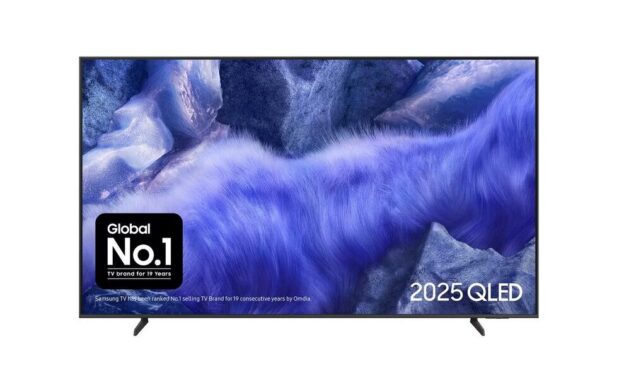
    QLED – technology developed by Samsung

Disadvantages of QLED:

  1. Black Levels: While QLED delivers great brightness and color accuracy, it can’t achieve the deep black levels of OLED or QNED due to its reliance on LED backlighting.

  2. Viewing Angles: The viewing angles of QLED TVs can be narrower than OLED and QNED, meaning the image may degrade when viewed from the side.

What Is QNED?

QNED (Quantum Nanocell Emitting Diode) is a hybrid technology developed by LG. It combines the benefits of quantum dots and NanoCell technology to create a more advanced backlighting system. QNED utilizes a mini-LED backlight, where tiny LEDs are used for more precise control over dimming zones. This results in improved contrast, better black levels, and enhanced brightness.

Advantages of QNED:

  1. Improved Black Levels: The mini-LED backlight allows for more precise local dimming, leading to better contrast and deeper black levels compared to standard QLED panels.

  2. Enhanced Brightness: Thanks to the mini-LED backlight, QNED TVs are capable of reaching higher brightness levels without sacrificing color accuracy.

  3. Wide Color Gamut: Combining quantum dots and NanoCell technology, QNED TVs offer a broader color spectrum for a more lifelike image.

  4. Thin and Sleek Design: The mini-LED system allows for a thinner TV design compared to traditional LED or LCD TVs.

Disadvantages of QNED:

  1. Price: QNED TVs tend to be more expensive than standard QLED models, mainly due to the advanced technology and mini-LED backlighting.

  2. Not True OLED: While QNED offers impressive black levels, it still doesn’t match the pure blacks and infinite contrast of OLED displays.

What Is ULED?

ULED (Ultra LED) is a proprietary technology developed by Hisense, a Chinese electronics brand. ULED enhances traditional LED-backlit LCD TVs by incorporating a series of advanced features to improve brightness, color, and contrast. The key elements of ULED technology include local dimming, quantum dot technology, and high refresh rates.

Advantages of ULED:

  1. Cost-Effective: ULED TVs are typically more affordable than QLED and QNED, making them a solid choice for those on a budget who still want good picture quality.

  2. Improved Contrast: ULED panels utilize local dimming and other enhancements to deliver better contrast, especially in dark scenes.

  3. Bright and Vivid Colors: ULED TVs can achieve high peak brightness and wide color gamuts due to quantum dot technology.

  4. Great for Sports and Gaming: With high refresh rates, ULED TVs are ideal for fast-moving content like sports and video games.

Disadvantages of ULED:

  1. Black Levels: While the local dimming system improves black levels, ULED still can’t match the depth of blacks seen on QNED or OLED TVs.

  2. Viewing Angles: Like QLED, ULED TVs have narrower viewing angles compared to OLED or QNED.

What Is NanoCell?

NanoCell is LG’s proprietary technology designed to enhance the color and clarity of LED-backlit LCD TVs. It uses nanoparticles integrated into the screen’s panel to absorb unwanted light wavelengths and improve the accuracy of colors displayed on the screen.

Advantages of NanoCell:

  1. Accurate Color Representation: The nanoparticles in NanoCell technology filter out impure colors, resulting in more accurate and vibrant color reproduction.

  2. Wide Viewing Angles: NanoCell technology enhances the viewing angles of LCD panels, so the image quality remains consistent even when viewed from the side.

  3. Affordable Option: NanoCell TVs are generally more affordable than QLED or QNED, making them a good middle-ground option between budget LED and premium models.

  4. Great for Bright Rooms: NanoCell TVs offer good brightness levels and color accuracy, making them ideal for well-lit environments.

Disadvantages of NanoCell:

  1. Black Levels: Like other LCD-based technologies, NanoCell TVs struggle to deliver true black levels, especially in dark scenes.

  2. Limited Contrast: The contrast performance of NanoCell technology is not as strong as QLED, QNED, or OLED panels.

Comparison: QNED vs. QLED vs. ULED vs. NanoCell

Let’s break down how these technologies compare across key metrics:

Metric QNED QLED ULED NanoCell
Color Accuracy Excellent (quantum dots + NanoCell) Excellent (quantum dots) Good (quantum dots) Very good (nano particles)
Brightness Excellent (mini-LED + quantum dots) Very good (quantum dots) Good (local dimming + quantum dots) Good (high brightness)
Black Levels Excellent (mini-LED dimming) Good (limited local dimming) Fair (local dimming) Fair (no local dimming)
Contrast Excellent (local dimming + quantum) Very good (local dimming) Good (local dimming) Fair (no true local dimming)
Viewing Angles Excellent (better than QLED) Fair (narrower viewing angles) Fair (narrower viewing angles) Good (improved angles)
Price Range High Medium-High Medium Medium-Low
Best For Cinematic experience, detail Bright rooms, vivid colors Budget-conscious with good performance Color accuracy and wide angles

Which TV Should You Choose?

Choose QNED if:

  • You want top-tier contrast and black levels.

  • You prefer a high-end TV with excellent color accuracy and brightness.

  • You are willing to invest in a premium TV for the best possible picture quality, especially in dark rooms.

  • You are looking for a sleek, modern design with advanced features.

Choose QLED if:

  • You want vibrant colors and high brightness at a more affordable price than QNED.

  • You typically watch TV in a bright room where peak brightness matters.

  • You don’t mind sacrificing perfect black levels for better affordability and brightness.

Choose ULED if:

  • You are on a budget but still want a TV with good contrast, colors, and high refresh rates.

  • You are interested in sports, gaming, or fast-moving content.

  • You prefer a good value for money without diving into the premium price range of QNED or QLED.

Choose NanoCell if:

  • You want accurate colors and wide viewing angles at a more affordable price than QNED or QLED.

  • You typically watch TV in a bright room and value color clarity over deep blacks.

  • You don’t mind a bit of compromise on contrast and black levels for a more budget-friendly option.

Deciding between QNED, QLED, ULED, and NanoCell technology depends largely on your budget and specific viewing needs. If you’re looking for the ultimate picture quality with the best black levels and contrast, QNED is the way to go. On the other hand, if you need something more affordable without sacrificing too much in terms of brightness and color, QLED or ULED offers excellent value. NanoCell is perfect for those who value color accuracy and wide viewing angles at a lower price point.

Ultimately, the right choice depends on your preferences and viewing environment, but any of these technologies will elevate your TV viewing experience to a whole new level.

How to Record Your Computer Screen on Windows and Mac?

0

Recording your computer screen on Windows 10 and 11 or Mac is a straightforward process that can be beneficial for various purposes, such as capturing lectures, meetings, or gaming sessions. If you need to share your screen during video conferences on platforms like Zoom, Google Meet, or Skype, it can significantly enhance your overall experience. Here are the steps to record your computer screen using the built-in Xbox Game Bar feature:

Enabling Xbox Game Bar:

  • Click on the Windows icon located in the lower-left corner of your screen.
  • Select “Settings” (represented by a gear icon).
  • In the Settings search section, type “Enable Xbox Game Bar” and select it when it appears.
  • Slide the toggle under Xbox Game Bar to the right to enable the feature.

    Record Your Computer Screen
    photo: Pixabay

Steps to record your computer screen:

  1. After opening the application you want to record, simultaneously press the Windows Key and “G” to open the Game Bar dialog.
  2. You may see a prompt asking if you want to open the Game Bar for a game; even if it’s not a game, check the box that says, “Yes, this is a game.”
  3. The recording program window will now be visible, and you can start recording by clicking the “Start recording” button (or pressing Win + Alt + R).
  4. To stop the recording, click the red stop button, or you can press Win + G for the same result.
  5. If you wish to include your commentary in the recording, you can use the Xbox Game Bar’s microphone feature by pressing the microphone button in the top right corner of the screen under capture status.
  6. Once you’re done recording and want to view your recordings, you can find them in a folder called “Captures,” which is located in your computer’s video folder. If you’re having trouble locating it, open the Xbox Game Bar and press “Show All Captures” to access your videos.

For Mac computers, the process is different:

To record your screen on a Mac computer, you can use the Screenshot player, and the process is quick and easy:

  1. To record the entire screen, press Shift + Command + 5.
  2. If you only want to record a specific portion of the screen, you can select that area for recording while leaving the rest out.
  3. Onscreen controls will appear after pressing the three keys together, which provide options like stop and play. You can also use the toolbar to capture a still image.

By following these steps, you can easily record your computer screen on both Windows and Mac computers, making it convenient to share and preserve important content for various purposes.

Third-Party Screen Recording Software

While Windows, macOS, and mobile devices include basic screen-recording features, these integrated tools tend to be limited in functionality, quality, and customization. Third-party solutions fill the gap by offering higher performance, powerful features, and professional-grade outputs. This essay explores the leading screen-recording programs, their capabilities, ideal use cases, and key considerations for choosing the right tool.

1. OBS Studio

OBS Studio (Open Broadcaster Software) is one of the most widely used screen recorders and streamers in the world. This free, open-source program is favored by gamers, content creators, educators, and live streamers because of its extensive flexibility and professional capabilities.

OBS allows users to capture multiple sources—screens, webcams, windows, images, text overlays, browser windows, and audio devices—and combine them into “scenes.” These scenes can be switched dynamically during recordings or livestreams, enabling smooth transitions and professional video layouts. Because OBS supports hardware-accelerated encoding (with GPUs such as NVIDIA, AMD, and Intel), it can record or stream high-resolution, high-framerate content with lower CPU usage than many commercial tools. This is especially beneficial for gaming, where performance drops can ruin both gameplay and recordings.

However, OBS has a learning curve. Beginners may find the interface overwhelming due to its advanced settings for bitrate, codec selection, hotkeys, scenes, and audio routing. It is not the simplest tool for users who desire quick, one-click recording. Still, for those willing to invest time, OBS provides unmatched power at no cost.

2. Camtasia

Camtasia by TechSmith is a premium, professional-grade screen recorder and video editor. While expensive compared to other options, it remains the go-to tool for educators, corporate trainers, and content creators who need polished instructional or tutorial content.

Camtasia’s biggest advantage is its built-in video editing suite. Instead of recording footage in one application and editing it in another, users get a unified environment capable of trimming, splitting, adding transitions, enhancing audio, and inserting callouts, annotations, quizzes, narration, and effects. Instructors often rely on Camtasia to produce software tutorials, training videos, and e-learning modules.

It also supports multitrack recording: users can capture their screen, microphone, system audio, and webcam simultaneously and edit each on separate tracks. The software prioritizes ease of use, offering templates and guided workflows. The main drawback is its cost—making it less suitable for casual users or those who simply need basic screen captures.

3. Bandicam

Bandicam is a lightweight but powerful screen recorder often used for high-performance gaming captures. It is well-optimized for capturing game graphics using DirectX, Vulkan, or OpenGL technologies. Bandicam’s strength lies in its hardware-accelerated encoding, enabling 4K and high-framerate recordings with minimal system strain.

It includes features such as scheduled recording, device recording (for external devices like webcams or HDMI capture cards), and real-time drawing tools. The free version includes a watermark and time limits, but the paid version removes these restrictions.

Bandicam is incredibly efficient, making it a favorite among gamers and users with lower-end PCs. However, unlike Camtasia, it lacks a robust built-in editor (though it pairs with Bandicut, a simple video cutter), so users who need detailed editing may need additional software.

4. CamStudio

CamStudio is an older, open-source screen recorder for Windows. While not as advanced as modern tools, it remains popular among users who want a simple, free, lightweight recorder without unnecessary features.

Its best feature is its simplicity—launch it, pick a recording area, and start capturing. It offers AVI and SWF formats, and users can install custom codecs for different quality levels. The drawbacks are visible: outdated interface, occasional stability issues, and limited support for modern encoding standards like H.264 or H.265. Still, it works well for quick recordings on older hardware or for users who prefer minimalistic tools.

5. FlashBack Express

FlashBack Express provides a balance between simplicity and advanced functionality. Users appreciate that the free version allows recording without watermarks or time limits, making it suitable for tutorials, presentations, and demonstrations.

It supports webcam and screen recording simultaneously and offers scheduled recording—useful for capturing webinars or meetings automatically. While editing tools are limited in the free version, the paid FlashBack Pro adds advanced video editing, effects, and export options. This makes FlashBack a user-friendly tool for non-gamers looking for clean, dependable output.

6. Icecream Screen Recorder

Icecream Screen Recorder aims for simplicity across multiple platforms (Windows, macOS, and Android). It includes drawing tools, customizable recording areas, and features for capturing online meetings, video calls, webinars, or streaming content.

The free version is limited (time caps and fewer formats), while the paid version removes restrictions. Although not as advanced as OBS or Camtasia, it is ideal for users who need clean, quick captures with basic annotation features.

7. Zight (CloudApp)

Zight is a cloud-based screen-capture and screen-recording solution designed for business teams, remote workers, and creative professionals. Instead of focusing heavily on local video editing, its strength lies in instant sharing: once recorded, videos upload automatically to the cloud, generating shareable links.

Zight is excellent for collaboration—recording demos, bug reports, customer support videos, or quick walkthroughs—but less suited for long-form recording or performance-heavy tasks like gaming due to file-size limits and network dependency.

8. Screenify

Screenify is a newer, free screen recorder with no watermark, supporting 4K, 60 fps, and picture-in-picture webcam recording. It includes annotation tools, basic trimming, and templates for social content. For users who want modern, high-quality recordings without paying for Camtasia or dealing with OBS complexity, Screenify is a strong emerging option.

Key Considerations When Choosing a Screen Recorder

When selecting third-party screen recording software, users should evaluate:

  1. Purpose – Gaming? Tutorials? Business demos? Each has different needs.

  2. Performance – Hardware acceleration and optimization matter for high-framerate content.

  3. Editing Requirements – Integrated editors (like Camtasia) save time but cost more.

  4. Output Quality – Look for tools supporting HD/4K, proper codecs, and audio control.

  5. Ease of Use – Beginners may prefer simple interfaces; advanced users may prefer customizable tools.

  6. Budget – Many free tools exist, but professional features often require paid software.

Third-party screen recording software plays a vital role in content creation, education, business communication, and entertainment. Whether users need professional editing features, lightweight capture tools, gaming-optimized recorders, or cloud-based sharing solutions, the landscape offers diverse options. OBS Studio and Camtasia lead the industry for power and professionalism; Bandicam excels in gaming performance; FlashBack and Icecream provide user-friendly recording; Zight focuses on collaborative sharing; and Screenify offers modern, high-quality recording at no cost. By considering one’s purpose, performance needs, editing goals, and budget, users can choose the screen recorder that best enhances their workflow.

Top 4 Less Known Browsers You Should Try

0

Discover the best less known browsers that outperform mainstream options in speed, privacy, and customization. Explore Vivaldi, Brave, Waterfox, and Pale Moon in this detailed review.

Top 4 Less Known Browsers That Deserve Your Attention

When people think of web browsers, they usually imagine the big names — Chrome, Firefox, Safari, Opera, or Edge. These giants dominate the market, but they don’t always offer the best balance of speed, privacy, features, and resource usage. Outside of the mainstream ecosystem, there are several less known browsers that outperform major competitors in specific areas. Some are focused on privacy, others on customization, and some aim to deliver the lightest, fastest browsing experience possible.

In this comprehensive review, we explore the 4 best less known browsers that genuinely deserve more recognition. Each one brings a unique philosophy to the web, and depending on your needs, they may outperform even the most popular options.

– Vivaldi – The Most Customizable of All Less Known Browsers

Overview

Vivaldi is one of the most advanced yet surprisingly less known browsers on the market. Created by former Opera employees, it carries the spirit of the old Opera browser—powerful features, deep customization, and a focus on user control. Unlike mainstream browsers that simplify the interface to appeal to casual users, Vivaldi goes in the opposite direction, giving you tools, options, and settings you won’t find anywhere else.

Key Features

 Extreme Customization

You can change almost everything:

  • Tab appearance, placement, stacking & grouping

  • Custom themes

  • Keyboard shortcuts

  • Mouse gestures

  • Complete rearrangement of UI elements

No other browser allows this level of personalization.

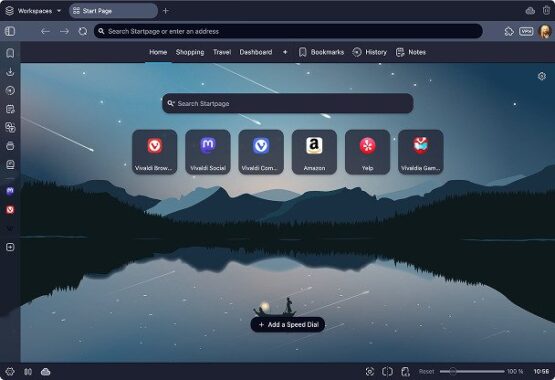
Vivaldi is fast,
Vivaldi browser

 Tab Stacking & Vertical Tabs

If you keep tons of tabs open, Vivaldi is a dream. With:

  • Vertical tabs (very space-efficient)

  • Tab stacks (group multiple tabs into one)

  • Two-level tab bar

This is arguably the best tab management system in any browser.

 Built-in Tools

Vivaldi eliminates the need for many extensions:

  • Screenshot tool

  • Notes app

  • Built-in email client (Vivaldi Mail)

  • Ad blocker

  • Tracker blocker

  • Translation tool

This makes it both powerful and secure.

Performance

Vivaldi is fast, but heavy. The abundance of features means it uses more RAM than minimalist browsers. Still, it’s more efficient than Chrome in multi-tab scenarios thanks to its smart memory handling.

Privacy

Very strong:

  • No tracking

  • No profiling

  • End-to-end encrypted sync

  • Based in Norway (GDPR-friendly)

Who Should Use It

  • Power users

  • Multitaskers

  • Researchers

  • Anyone who wants a browser they can mold exactly to their workflow

Final Verdict

If customization, flexibility, and productivity are your priorities, Vivaldi is hands-down the best among less known browsers available today.

– Brave Browser – The Privacy-Focused Challenger with Speed Advantages

Overview

Brave has grown rapidly, but compared to Chrome or Edge, it’s still one of the less known browsers among the general public. Brave stands out because it eliminates ads and trackers by default, making it significantly faster and more private than mainstream options.

Key Features

 Built-in Ad & Tracker Blocking (Default)

Unlike Chrome, Firefox, or Edge:

  • No extensions required

  • Ads blocked at the network level

  • 300% faster page loading in many cases

It reduces data usage, improves battery life, and eliminates common annoyances.

 Brave Shields

Brave Shields control:

  • Script blocking

  • Fingerprint protection

  • Cookie blocking

  • HTTPS upgrades

  • Cross-site tracker blocking

You can adjust every setting per site or globally.

 Brave Rewards (Optional)

Users can opt in to see non-intrusive ads, earning Basic Attention Tokens (BAT). Some love it, some ignore it, but it’s a unique concept.

 Private Tor Windows

Built-in Tor integration offers:

  • Anonymous browsing

  • Encrypted traffic routed through Tor nodes

This feature alone sets Brave apart from 99% of browsers.

Performance

One of the fastest browsers available. By removing trackers and bloated ad scripts, Brave often loads pages significantly quicker than Chrome.

Privacy

Top-tier:

  • Zero tracking

  • No user profiling

  • Based on open-source Chromium

  • Built-in fingerprinting protection

Who Should Use It

  • Privacy-conscious users

  • People who want fast browsing without add-ons

  • Chrome users who want a familiar interface but better security

Final Verdict

Brave combines speed, privacy, and quality-of-life features that make it one of the strongest less known browsers for everyday users.

– Waterfox – A Lightweight, Open-Source Browser Focused on Freedom

Overview

Waterfox is a fork of Firefox that strips out unnecessary components, telemetry, and bloat. It’s one of the less known browsers, but it has a loyal following among open-source enthusiasts who want a fast, privacy-friendly alternative to Mozilla Firefox.

Key Features

 Support for Classic Firefox Add-ons

Waterfox uniquely supports:

  • Old XUL Firefox extensions

  • New WebExtensions

  • NPAPI plugins

This allows you to run powerful add-ons no longer usable in regular Firefox.

Waterfox – A Lightweight, Open-Source Browser

 Lightweight Performance

Waterfox is:

  • Extremely fast

  • Memory-efficient

  • Minimalistic

  • Free of ads and tracking

It feels like Firefox before it became heavy.

 No Telemetry

Waterfox collects zero user data by default.
No tracking, no usage stats, no personalization.

 Open-source and transparent

Anyone can inspect the code for privacy or security reasons.

Performance

Because it removes bloat, Waterfox is:

  • Faster at startup

  • Smoother with multiple tabs

  • Better with older hardware

It is ideal for users who want a lightweight Firefox-based browser.

Privacy

Very strong:

  • No telemetry

  • Optional privacy-focused search integrations

  • Open source ensures trust

Who Should Use It

  • Open-source enthusiasts

  • Older PC / low-RAM laptop users

  • Firefox fans who miss old features

  • Anyone who wants more control over privacy

Final Verdict

Waterfox is one of the most efficient less known browsers, perfect for users who want Firefox-like customization with better speed and zero tracking.

– Pale Moon – A Classic, Speedy Browser for Power Users

Overview

Pale Moon is one of the less known browsers that focus on efficiency, customization, and a classic interface. Built from earlier Firefox source code (before the big Quantum rewrite), it preserves old design principles while keeping the browser fast and lightweight.

This makes it ideal for users who dislike modern, simplified browser UIs.

Key Features

 Support for Legacy Add-ons

Pale Moon supports:

  • Old Firefox XUL/XPCOM extensions

  • Custom Pale Moon add-ons

  • Themes that modify the entire UI

This allows extreme customization that modern browsers do not offer.

 Lightweight and Fast

Because Pale Moon avoids:

  • Telemetry

  • Heavy multi-process architecture

  • Modern UI bloat

…it runs extremely fast, even on low-spec systems.

 Classic Interface

If you miss:

  • Full menus

  • Status bars

  • Traditional toolbar customization

Pale Moon offers a refreshing return to classic browser design.

 Independent Development

Although based on old Firefox code, Pale Moon is independently maintained, with its own:

  • Security patches

  • Rendering engine (Goanna)

  • Add-on ecosystem

This makes it a unique browser, not just a clone.

Performance

Very fast, especially for:

  • Older PCs

  • Lightweight web browsing

  • Users who keep many tabs open

Pale Moon can run smoothly on systems as old as 10-year-old laptops.

Privacy

Good overall, but not as advanced as Brave or Waterfox.
However:

  • No telemetry

  • No data selling

  • Fully open-source

Who Should Use It

  • Fans of classic Firefox

  • Users with older or low-end hardware

  • People who want a fast, stable browsing experience

  • Customization enthusiasts

Final Verdict

Pale Moon is a stable, fast, and customizable entry among less known browsers, especially for those who prefer traditional interface design.

Comparison: Which Less Known Browser Should You Choose?

Browser Best For Strengths Weaknesses
Vivaldi Power users, multitaskers Customization, tab tools, productivity features Slightly heavy
Brave Privacy lovers, speed-focused users Fastest browsing, built-in protection Rewards system not for everyone
Waterfox Open-source fans, lightweight needs No telemetry, add-on freedom Smaller development team
Pale Moon Classic UI lovers, old hardware Very fast, traditional menus Old codebase, fewer modern features

Why Less Known Browsers Matter

Many users stay with Chrome or Edge simply because they come preinstalled or have strong brand recognition. But less known browsers often provide:

  • Better speed

  • Stronger privacy

  • Higher customization

  • More stability on older devices

  • Tools that replace dozens of extensions

  • Control over your own data

In many ways, they represent the true spirit of the early web—flexible, open, and user-focused.

If you’ve only used mainstream browsing options, exploring less known browsers can significantly transform your daily internet experience. Vivaldi gives unmatched customization, Brave offers cutting-edge privacy and speed, Waterfox delivers a lean open-source experience, and Pale Moon preserves the classic browser design with modern stability.

Whether you’re a power user, a privacy enthusiast, or someone with older hardware, at least one of these excellent less known browsers will match your needs better than Chrome or Edge ever could.

Best Free Popcorn Time Alternatives for Movies & TV

0

Here’s an in-depth guide on 5 best free alternatives to Popcorn Time — solutions that let you stream movies and TV shows for free, legally, using ad-supported or open-source platforms.

Popcorn Time once captured the imagination of millions by offering a slick, Netflix-style interface over torrent content. While its popularity was driven by convenience and a vast library, its reliance on unlicensed content caused serious legal and ethical concerns. If you’re looking for legal, safe, and free alternatives to Popcorn Time that still deliver a great streaming experience, there are excellent options out there.

Below, we’ll explore five of the best free Popcorn Time alternatives — each with a different flavor, from on-demand streaming to live TV and media center solutions. Whether you prioritize legality, ease of use, or breadth of content, there’s something here for you.

1. Stremio

What Is Stremio?

Stremio is a powerful media center application that allows you to stream content from various sources, both local and online. It supports add-ons (some official, some third-party) that enable access to a wide variety of content.

Why It’s a Great Alternative

  • Modular Add-on System: With Stremio, you can install add-ons to customize where you stream from — similar to how Popcorn Time scrapes different torrent sources.

     watch all favorite TV shows
    stremio photo
  • Real-Debrid Support: For even smoother playback, Stremio supports Real-Debrid (and other “debrid” services), which helps it fetch high-quality links from multiple sources.

  • No Ads in Core App: According to its developers, Stremio itself doesn’t push ads in the app — your experience depends mostly on the add-ons you choose.

  • Cross-Platform: Works on Windows, macOS, Linux, Android, iOS, and even on devices like the Steam Deck.

  • Library & Sync: You can build a library of what you want to watch, and your watch history syncs across devices, making Stremio feel like a modern, central streaming hub.

Things to Be Careful About

  • Not all add-ons are “official.” Some third-party add-ons aggregate pirated content, which introduces legal risk. As one guide warns: “stick to the official ones … many unofficial Stremio add-ons … can get you in legal hot water.”

  • Using Real-Debrid or similar services may require payment for those specific services (though Stremio itself remains free).

2. Kodi

What Is Kodi?

Kodi is an open-source media center software designed to run on a variety of platforms. Originally built for organizing and playing local media, Kodi has evolved into a very extensible tool through its extensive add-on ecosystem.

Why Kodi Works as a Popcorn Time Alternative

  • Highly Customizable: You can install a variety of add-ons to access legal streaming content, live TV, network TV, and more.

  • Media Library Management: Kodi excels at organizing your local media — but with the right add-ons, it can also browse and stream online content.

  • Device Flexibility: Available on Windows, macOS, Linux, various TVs, Android, and more.

  • Community-Driven and Open Source: Because Kodi is open-source, there’s a strong community, constant updates, and transparency.

Drawbacks to Consider

  • Setup Complexity: Kodi’s flexibility comes at a cost — you’ll probably spend time picking, installing, and configuring add-ons.

  • Add-on Legality: Just like with Stremio, not all Kodi add-ons are legal. You need to be careful and choose reputable, licensed sources.

  • Ad Burden: Some free add-ons may show ads, depending on how they’re monetized.

3. Plex

What Is Plex?

Plex started as a media-server solution, letting you serve your locally stored movies, music, and photos to all your devices. Over time, it has grown to include a free, ad-supported streaming service with on-demand content and live TV channels.

Why Plex Is a Strong Alternative

  • Free Library + Live Channels: Plex offers a large library of on-demand movies and TV shows, and also hundreds of live TV channels — all free, supported by ads.

  • Cross-Device Support: Works on almost every platform: desktops, mobile, smart TVs, streaming boxes, etc.

  • Personal Media Integration: If you already have a collection of your own movies or shows, Plex can integrate them seamlessly, giving you a unified “Netflix + my library” feel.

  • Legal and Licensed: Plex sources its ad-supported content from legitimate partners — so it’s a safe, legal way to stream.

Trade-Offs

  • Ads: Because it’s free, you’ll encounter commercials — though Plex generally keeps them reasonable.

  • Library Size: While growing, the free catalog may not have all the latest blockbuster hits (compared to major paid services).

  • Premium Features: Some Plex features (like DVR, advanced server features) require a paid Plex Pass.

4. Pluto TV

What Is Pluto TV?

Pluto TV is a Free Ad-Supported Streaming Television (FAST) service. It’s very “TV-like”: you pick a live channel (like news, sports, movies, or thematic channels) or browse on-demand titles.

Why Pluto TV Is a Great Option

  • Live TV + On-Demand: Offers 100s of live “channels” plus thousands of on-demand movies and shows.

  • No Subscription: Completely free, no credit card or sign-up required for many features.

  • Wide Device Support: Available on web, mobile devices, smart TVs, and streaming devices.

    Pluto TV is a Free Ad-Supported Streaming Television
    Pluto TV photo
  • Constantly Updated: The content library is refreshed regularly, and there are curated channels covering many genres.

  • Legal & Licensed: Backed by Paramount Streaming and other partners, Pluto TV’s content is fully licensed.

Things to Watch Out For

  • Ads Are Frequent: As with all ad-supported services, expect periodic commercial breaks.

  • Regional Restrictions: Availability and content can vary significantly by country.

  • Channel Repeats: Some users report that certain movies or shows recur often.

5. Popcornflix

What Is Popcornflix?

Popcornflix is a completely free, ad-supported streaming service for movies and TV shows. It doesn’t require a subscription, and many titles stream in HD or even 4K.

Why It’s a Good Popcorn Time Alternative

  • Truly Free and Instant: No sign-up, no credit card — just visit the site or open the app and start watching.

  • HD & 4K Content: Many of its titles are available in high-definition, and a portion streams in 4K.

  • Wide Platform Support: Works on phones, tablets, computers, smart TVs, and streaming devices.

  • Licensed Library: Popcornflix is operated by Screen Media Ventures, meaning its content is legally licensed.

  • Simple, Clean Interface: The UI is straightforward and user-friendly — very easy to navigate.

Limitations

  • Limited Latest Releases: You may not find very recent blockbusters because of licensing limitations.

  • Ad Interruptions: While ads are part of the experience, they are generally shorter and less frequent than on traditional TV.

  • Region Availability: Like many free streaming platforms, some content may be region-locked depending on where you are.

Comparison Table

Here’s a quick comparison of the five alternatives to show how they stack up:

Platform Type of Content Business Model Devices / Platforms Strengths
Stremio On-demand + local media Free (some debrid services paid) Desktop, Mobile, TV Modular add-ons, Real-Debrid support
Kodi Local media + add-ons Open-source / free Desktop, TV, Mobile Highly customizable, many add-ons
Plex On-demand + live channels + personal media Free with ads / Paid pass Desktop, Mobile, Smart TVs Unified media + streaming, legal content
Pluto TV Live TV + On-demand Free, ad-supported Web, Mobile, TV Devices Live TV feel, many channels, licensed shows
Popcornflix On-demand movies & TV Free, ad-supported Browser, Mobile, TV Devices HD/4K quality, no signup, simple UI

Which One Should You Choose?

Your choice depends on what you value most:

  1. If you want something very similar to Popcorn Time (with torrent-like sources):
    Go for Stremio. It’s the closest in terms of flexibility and content variety — but be mindful of which add-ons you use.

  2. If you want a fully customizable media hub for your own files + streaming:
    Kodi is the most powerful option.

  3. If you want licensed, legal content without worrying about add-on legality:
    Plex is a very safe pick, especially if you already have your own media collection.

  4. If you’re looking for “free TV” with channels and live programming:
    Pluto TV is designed for that cable-like experience, but for free.

  5. If you want a pure, no-frills movie streaming experience:
    Popcornflix is simple, clean, and entirely free — perfect for casual streaming.

Considerations & Tips

  • Legal & Safe Usage: Always choose alternatives that rely on legally licensed content. Kodi or Stremio add-ons may skirt legality depending on what you install — know the source.

  • Ad Tolerance: Free services mean ads. If you don’t mind occasional commercial breaks, these platforms are very viable.

  • Regional Restrictions: Some services may not be available in all countries. Check whether Pluto TV, Tubi, or Popcornflix operate in your region.

  • VPNs: While legal streaming services don’t necessarily require VPNs, using one can provide you extra privacy — especially if you’re using add-ons that check multiple sources.

  • Performance: For smoother playback, ensure you have a stable internet connection. For 4K content (e.g., on Popcornflix), you’ll need more bandwidth.

While Popcorn Time was once a go-to for its user-friendly interface and access to torrent-based content, the legal ambiguities make it a risky choice. Fortunately, there are several free and legal alternatives that deliver excellent streaming experiences — without the legal pitfalls:

  • Stremio for flexibility through add-ons,

  • Kodi for full media center control,

  • Plex for a mix of personal media and licensed content,

  • Pluto TV for a live-TV experience, and

  • Popcornflix for simple, on-demand free movies.

Each of these platforms brings something unique to the table, proving that you don’t need to rely on Popcorn Time to enjoy a rich library of films and shows for free. Give them a try, and find the one that best fits your viewing style and needs.

Poco F8 Ultra: The Next-Gen Flagship Contender

0

Here’s a detailed news about new Poco F8 Ultra with the Snapdragon 8 Elite Gen 5 — based on the latest leaks and reports.

Poco has officially confirmed that the F8 series, including the F8 Ultra, will be launched globally on November 26, 2025, in Bali, Indonesia. The F8 Ultra is expected to be one of the two “Ultra/Pro” variants — likely positioned as the top-tier performance model. It is widely believed to be a rebranded version of the Redmi K90 Pro Max, adapted for the global Poco lineup.

Poco F8 Ultra: Key Specifications & Features

1. Chipset & Performance

  • The phone is confirmed (via Geekbench) to run on the Qualcomm Snapdragon 8 Elite Gen 5.

  • In the Geekbench listing, the F8 Ultra (model number 25102PCBEG) paired this SoC with 16 GB of RAM.

  • Benchmark scores: ~3,327 in single-core and ~9,872 in multi-core.

  • It’s expected to run HyperOS 3, based on Android 16.

  • The chipset likely uses a TSMC 3 nm process (as per Snapdragon 8 Elite Gen 5 architecture) and includes an Adreno 840 GPU.

    new Poco F8 Ultra
    new Poco F8 Ultra – photo

2. Display

  • Reports suggest a 2K-resolution OLED panel, likely LTPO to enable adaptive refresh rates.

  • Refresh rate is expected around 120 Hz, based on leaks.

  • According to some sources, the panel might be very bright, hinting at high peak luminance.

3. Memory & Storage

  • Variants: 12 GB or 16 GB of LPDDR5X RAM, according to leaks.

  • Storage: Potentially 256 GB, 512 GB, or even 1 TB, likely using fast UFS 4.0.

4. Cameras

  • Rear: Triple camera system, rumored to be 50 MP + 50 MP + 50 MP (main + ultra-wide + periscope).

  • Front: A 50 MP selfie shooter is also mentioned in leaks.

  • The primary rear sensor is rumored to support OIS (optical image stabilization).

5. Battery & Charging

  • Leak sources suggest a large battery in the ~7,000 mAh range.

  • Charging: Expected 100W wired fast charging plus 50W wireless charging.

  • Some reports even mention a possible 7,500 mAh capacity.

6. Build, Design & Durability

  • Frame: Rumored aerospace-grade aluminum, giving it a premium feel.

  • Back: Could be glass (matte or glossy) with anti-fingerprint coating.

  • IP Rating: Some leaks claim IP68 or higher (possibly IP69) water/dust resistance.

  • Security: In-display ultrasonic fingerprint sensor is expected.

  • Audio: There may be enhanced stereo speakers and better haptics.

7. Software & Features

  • As mentioned: HyperOS 3 on top of Android 16.

  • Connectivity: With the Snapdragon 8 Elite Gen 5, 5G support is a given.

  • AI/Performance: The Gen 5 chip is expected to deliver strong on-device AI performance (given the NPU improvements in modern Snapdragon chips).

  • Audio tuning is expected to come from Bose, according to multiple reports.

Strengths & Potential

  • Performance Powerhouse: With the Snapdragon 8 Elite Gen 5 and up to 16 GB RAM, the F8 Ultra could handle everything from heavy gaming to productivity workloads.

  • Big, Bright Display: If the LTPO OLED rumor holds, the phone would balance smoothness and efficiency well.

  • Long Battery Life + Fast Charging: A ~7,000 mAh battery plus 100W wired is a compelling combo.

  • Flagship Photography: Triple 50 MP setup, including a periscope lens, could give strong versatility.

  • Premium Build: Aluminum frame + IP rating (if real) + high-end materials = flagship feel.

  • Software Experience: HyperOS 3 on Android 16 should bring modern UI, features, and optimizations.

Risks & Challenges

  • Thermal Management: High-performance chip + big battery + fast charging = potential heating issues; Poco will need strong cooling.

  • Actual Battery Efficiency: While capacity is large, the Gen 5 chip’s power draw in real-world use will determine how long it lasts.

  • Competition: The F8 Ultra may compete with other high-performance flagships — Poco needs to justify its value.

  • Price Sensitivity: Depending on regions, storage/RAM variants, and local taxation, the final price may vary and impact adoption.

  • Durability: Leaks suggest IP68 or better, but until certified, it’s not guaranteed.

  • Software Support: While HyperOS is modern, long-term update commitments are still a concern for many buyers.

Why This Matters

  • The Poco F-series has traditionally targeted performance-focused users who want flagship-level chips at a more aggressive price. The F8 Ultra seems to double down on that strategy by adopting one of Qualcomm’s top-tier chips.

  • By using the Snapdragon 8 Elite Gen 5, Poco is positioning this device not just as a “budget flagship” but as a true high-performance contender, potentially threatening more expensive flagship lines.

  • The inclusion of a large battery + fast charging + a high-end SoC could make the F8 Ultra a go-to for power users, gamers, and productivity-focused users alike.

The Poco F8 Ultra — powered by the Snapdragon 8 Elite Gen 5 — is shaping up to be a powerhouse. If the leaks hold true, Poco may have a very compelling flagship: high performance, premium build, large battery, and versatile camera. Its success will hinge on how well the company balances performance with thermals, battery life, and price.

Given the confirmed November 26 launch and the strong leaks, this is a smartphone to watch closely. For performance enthusiasts and Poco loyalists, the F8 Ultra could be a very exciting next option.

Spec Sheet Comparison: Poco F8 Ultra vs. OnePlus 15 vs. Xiaomi 17

Here’s a breakdown of the (leaked) specs for the three Snapdragon 8 Elite Gen 5 phones, showing where each one shines and where there may be compromises.

Feature Poco F8 Ultra OnePlus 15 Xiaomi 17
Chipset Snapdragon 8 Elite Gen 5 (SM8850-AC) Snapdragon 8 Elite Gen 5 Snapdragon 8 Elite Gen 5
RAM & Storage Options Leaked: up to 16 GB LPDDR5X 12 GB / 16 GB (LPDDR5X) + UFS 4.1 (256 / 512 GB / 1 TB) Up to ~16 GB (reporting varies)
Display Rumored 6.9″ 2K OLED / LTPO (leaks) 6.78″ LTPO AMOLED, 1.5K, up to 165 Hz refresh in gaming / dynamic modes 6.3″ (for base), LTPO / super-sunny OLED in some reports
Rear Cameras Leaks: 50 + 50 + 50 MP (wide + “periscope” + ultra-wide) Triple 50 MP: main + ultra-wide + 3.5× periscope (telephoto) Triple 50 MP (based on spec comparisons)
Front (Selfie) Camera ~32 MP (leaked) 32 MP (as per leaks) ~50 MP, per some spec sheets
Battery Leaked / rumored: ~6,500 mAh for Ultra (some leaks say lower than K90 Pro Max) 7,300 mAh Si-Carbon battery (OnePlus calls it “third-gen glacier”) 7,000 mAh in the base 17 model
Charging Reported / expected: 100 W wired + 50 W wireless (based on K90 Pro Max equivalence) 120 W wired, 50 W wireless (leaks) 100 W wired, 50 W wireless (as per confirmed 17-series details)
Build & Durability Leaks: possibly premium frame, IP-type rating (rumored) Reported IP66 + IP68 + IP69K on some leaks IP68 rating mentioned in some sources
Audio Based on its Redmi K90 Pro Max roots: Bose-tuned audio (2.1 speaker system) High-quality stereo, but less “subwoofer-style” than K90 / Poco; focus more on performance than audio Standard flagship-level stereo; no specialized subwoofer reported
Software HyperOS 3 (Android 16) — because globally it’s a rebranded Redmi K90 Pro Max. OxygenOS 16 / ColorOS 16 (depending on region) on Android 16 HyperOS (Xiaomi) on Android 16 (for 17 series)
Strengths / Key Differentiators – Very high value “performance flagship” (Poco tradition)
– Huge screen
– Possibly very good camera setup + performance
– Likely aggressive price (relative to “full flagships”)
– Massive battery + ultra-fast wired charging
– Extremely high refresh rate screen especially in burst / gaming mode
– Flagship SoC + high RAM options for gaming / performance
– Build tuned for “power users”
– More compact base model (6.3″) for users who don’t want a giant phone
– Well-balanced performance + camera
– Proven Xiaomi / HyperOS experience + strong brand support

Analysis & Trade-Offs: Which One Might be Best for You

  • If you want a big, performance-oriented phone at (potentially) lower “flagship” cost → the Poco F8 Ultra is very compelling. Based on its K90 Pro Max spec heritage, it could offer flagship-level performance with a large screen and very solid camera hardware.

  • If battery life + fast charging + gaming is a priorityOnePlus 15 stands out. Its 7,300 mAh battery is very large, and the 120 W wired + 50 W wireless charging means you can top up really fast.

  • If you prefer a more compact form factor (or value Xiaomi’s software / ecosystem) → the base Xiaomi 17 (6.3″) may be more attractive. Plus, it’s likely to share a lot of the same internal performance benefits as the other two, given that it also uses the same Snapdragon 8 Elite Gen 5 chip.

  • On the camera front, all three are promising, but the Poco / Redmi roots suggest the F8 Ultra might lean more “performance-first” rather than camera-flagship (though 50MP triple is nothing to sneeze at).

  • Thermals will be something to watch: high-performance Snapdragon 8 Elite Gen 5 phones are powerful, but with high clocks + big batteries, managing heat is always a trade-off.


– Poco F8 Ultra: Likely the best “bang for performance” play, especially if you’re willing to take a slightly bigger device and you like Poco’s value-focused philosophy.

– OnePlus 15: A beast for endurance + power — great for gamers, power users, or anyone who hates being close to the charger.

– Xiaomi 17: More balanced, more compact (in the base model), and a more mainstream flagship feel, especially for Xiaomi fans.

Guide & Top Picks: DDR5 Gaming Motherboards

0

Top DDR5 Gaming Motherboard Recommendations for 2025

The DDR5 gaming motherboard market has matured significantly in 2025, offering gamers exceptional performance options across multiple price points. Based on comprehensive testing and analysis, here are the leading DDR5 gaming motherboards currently available:

Premium Performance Leaders

Motherboard Socket Chipset DDR5 Speed Price Range Key Features
ASUS ROG Strix X870E-E Gaming WiFi AM5 X870E 8000+ MT/s High-end 192GB capacity, PCIe 5.0, WiFi 7
MSI MAG X870E Tomahawk WiFi AM5 X870E 8400 MT/s Mid-high 256GB capacity, excellent VRM cooling
ASUS ROG Maximus Z890 Hero LGA1851 Z890 9200+ MT/s Premium 22+1+2+2 VRM design, Intel flagship

Mid-Range Value Champions

The mid-range segment offers exceptional value for DDR5 gaming builds:

AMD Options:

  • MSI MAG B850 Tomahawk Max WiFi: Features 8400 MT/s DDR5 support, 256GB capacity, and delivers excellent gaming performance with the 7800X3D achieving 242 FPS.
  • ASRock X870 Steel Legend: Supports DDR5 up to 8000+ MT/s with robust build quality and comprehensive connectivity options.

Intel Options:

  • MSI MAG Z890 Tomahawk WiFi: Supports DDR5 up to 9200+ MT/s with 256GB capacity and comprehensive PCIe 5.0 support.
  • MSI MAG B860 Tomahawk WiFi: Mid-range Intel option with strong DDR5 performance and value proposition.

DDR5 Technology Advances and Gaming Performance

Performance Improvements in 2025

DDR5 technology has delivered significant gaming performance improvements over DDR4. Testing results demonstrate substantial gains in modern gaming titles:

  • Cyberpunk 2077: DDR5 systems achieve over 230 FPS with high-end configurations, with excellent 1% low performance ensuring smooth gameplay.
  • Counter-Strike 2: DDR5 platforms deliver over 770 FPS, showcasing the memory’s impact on esports gaming.

    ROG STRIX X870E-E GAMING WIFI - DDR5 gaming motherboard
    DDR5 gaming motherboard – ROG STRIX X870E-E GAMING WIFI

Key DDR5 Features for Gaming

Speed and Bandwidth: Modern DDR5 gaming motherboards support speeds ranging from 5600 MT/s (JEDEC standard) up to 9200+ MT/s with overclocking, providing significantly higher bandwidth than DDR4 .

Capacity Scaling: Latest motherboards support up to 256GB DDR5 capacity, with some premium boards supporting 192GB, enabling future-proof gaming configurations.

Efficiency Improvements: DDR5 operates at lower voltages while delivering higher performance, contributing to overall system efficiency and reduced heat generation.

Market Trends and Pricing Analysis

2025 Market Outlook

The global motherboard market, valued at $12.32 billion in 2025, is projected to reach $13.65 billion by 2032, with a CAGR of 1.5%. The gaming motherboard segment specifically shows stronger growth driven by DDR5 adoption.

The Gaming Motherboard Market, valued at $12.88 billion in 2025, is experiencing significant growth fueled by DDR5 technology adoption and enhanced gaming performance requirements.

DDR5 Pricing Trends

DDR5 prices have seen fluctuations throughout 2025, with reports indicating 3-8% price increases in Q3 2025 due to supply-demand tensions. However, overall DDR5 adoption costs have decreased compared to early 2024, making DDR5 gaming builds more accessible.

Chipset Comparison and Selection Guide

AMD AM5 Platform Options

Chipset Features Target Audience DDR5 Support
X870E Full feature set, PCIe 5.0, WiFi 7 Enthusiasts, high-end gaming Up to 8400+ MT/s
X870 Balanced features, PCIe 5.0 Mainstream gaming Up to 8000+ MT/s
B850 Essential gaming features Budget-conscious gamers Up to 8400 MT/s
B650 Previous generation value Entry-level DDR5 gaming Up to 6400+ MT/s

Intel LGA1851/1700 Platform Options

800-Series (Latest):

  • Z890: Flagship chipset with full DDR5 support up to 9200+ MT/s
  • B860: Mainstream option balancing features and cost
  • H810: Entry-level with basic DDR5 support

700-Series (Previous Generation):

  • Z790: Mature platform with excellent DDR5 support and value
  • B760: Budget-friendly option for DDR5 gaming builds

Essential Features for DDR5 Gaming Motherboards

VRM Design and Power Delivery

Modern DDR5 gaming motherboards feature robust VRM designs to support high-performance CPUs and memory overclocking:

  • Premium Boards: 18+2+2 to 22+1+2+2 phase designs for flagship processors
  • Mid-range Options: 14+2+1 to 16+2+1 configurations for balanced performance
  • Enhanced Cooling: Advanced heatsink designs and thermal management for sustained performance

Connectivity and Expansion

PCIe 5.0 Support: Essential for future GPU and storage compatibility, with latest motherboards offering multiple PCIe 5.0 slots.

Storage Options: Multiple M.2 slots with PCIe 5.0 support enable high-speed SSD configurations for gaming libraries.

Network Connectivity: WiFi 7, Bluetooth 5.4, and high-speed Ethernet ensure optimal online gaming performance .

Compatibility and Upgrade Considerations

CPU Compatibility

DDR5 motherboards require compatible processors:

  • AMD: Ryzen 7000 and 9000 series (AM5 socket)
  • Intel: 12th gen and newer (LGA1700/1851)

DDR5 is not backward compatible with DDR4, requiring a complete platform upgrade

Future-Proofing Benefits

DDR5 gaming motherboards offer significant future-proofing advantages:

  • Extended memory capacity support (up to 256GB)
  • Higher speed headroom for future memory modules
  • Advanced connectivity standards preparation
  • Support for next-generation processors

Installation and Build Considerations

EZ DIY Features

Modern DDR5 gaming motherboards incorporate user-friendly installation features:

  • Quick-release mechanisms for GPUs and M.2 SSDs
  • Pre-installed I/O shields
  • Clear component labeling and documentation
  • Debug displays for troubleshooting

Thermal Management

Effective cooling solutions are crucial for DDR5 gaming performance:

  • Enhanced VRM heatsinks for sustained overclocking
  • M.2 heatsinks for storage temperature control
  • Optimized airflow designs for overall system cooling

Buying Recommendations by Budget

High-End Gaming ($300-500+)

  • ASUS ROG Strix X870E-E Gaming WiFi for AMD builds
  • ASUS ROG Maximus Z890 Hero for Intel systems
  • Focus on premium VRM designs and extensive features

Mid-Range Gaming ($150-300)

  • MSI MAG B850 Tomahawk Max WiFi for AMD
  • MSI MAG Z890 Tomahawk WiFi for Intel
  • Balance of performance and value with essential gaming features

Budget Gaming ($100-200)

  • Previous generation B650 boards for AMD
  • B760 options for Intel 12th/13th gen
  • Basic DDR5 support with room for future upgrades

DDR5 gaming motherboards have reached maturity in 2025, offering exceptional performance improvements over DDR4 platforms. The technology provides substantial gaming performance gains, future-proofing capabilities, and enhanced system efficiency. Whether building a high-end enthusiast system or a budget-conscious gaming rig, DDR5 motherboards now offer compelling options across all price segments, making the transition from DDR4 both practical and beneficial for modern gaming applications.