Tag: software

  • Top 10 Post-Processing Software for Photographers

    Top 10 Post-Processing Software for Photographers

    In the digital photography realm, capturing an image is just the first step. Post-processing allows photographers to enhance, refine, and bring their creative visions to life. With numerous software options available, selecting the right one for your needs can be overwhelming. This comprehensive guide will explore the best post-processing software available today, detailing their strengths, features, pricing, and intended audience. Whether you’re a professional photographer, an enthusiast, or a beginner, this guide will help you make an informed choice.

    Post-processing is an essential step in digital photography, allowing you to correct, enhance, and stylize your images. The process typically involves editing aspects such as color correction, exposure, sharpness, and more creative edits like adding effects or retouching. In some cases, advanced post-processing can dramatically change the mood or story of a photograph.

    Post-processing software ranges from basic tools to complex platforms with extensive capabilities. Depending on your goals, you might need software that offers quick adjustments or something more advanced, with features such as layers, masks, and batch processing. Let’s dive into the best software options available today.

    The Best Software for Post-Processing

     Adobe Lightroom Classic

    Overview:

    Adobe Lightroom Classic is arguably the most popular post-processing software used by photographers worldwide. It is known for its non-destructive editing, meaning that your original file remains intact no matter how many changes you apply. Lightroom’s strength lies in its organizational capabilities, batch editing, and robust suite of tools for basic to advanced adjustments.

    Key Features:
    • Non-destructive editing: Allows you to experiment without fear of losing original image data.
    • Library management: Comprehensive file organization with keywords, tags, and metadata editing.
    • RAW image support: Handles RAW files effortlessly, preserving image quality.
    • Lens corrections and profiles: Automatically corrects lens distortions.
    • Syncing with Adobe Creative Cloud: Allows you to work on your images across multiple devices.
    • Robust presets: Speed up editing by applying predefined styles to images.
    Pricing:
    • Adobe Lightroom Classic is available through a subscription model, costing around $9.99/month as part of Adobe’s Photography Plan, which includes Photoshop.
    Who Should Use It:
    • Professional photographers and enthusiasts who want a comprehensive tool for managing and editing large libraries of photos.

    Adobe Photoshop

    Overview:

    Adobe Photoshop is the go-to software for advanced photo manipulation, offering unmatched control over image editing. Photoshop’s capabilities go beyond basic editing—allowing for complex tasks like compositing, retouching, and digital painting. If you’re seeking full control over every pixel, Photoshop is indispensable.

    Key Features:
    • Layer-based editing: Allows non-destructive, flexible editing.
    • Advanced retouching: Precise tools for removing unwanted elements, blemishes, or distractions.
    • Masking and blending: Sophisticated masking capabilities to blend elements seamlessly.
    • Extensive plugins: A wide range of third-party plugins available for extended functionality.
    • Content-aware tools: Smart tools for resizing, filling, and patching areas automatically.
    Pricing:
    • Photoshop is part of Adobe’s subscription service, starting at $9.99/month as part of the Photography Plan with Lightroom. As a standalone application, it costs $20.99/month.
    Who Should Use It:
    • Professional photographers, graphic designers, and advanced users who need powerful tools for retouching, compositing, and precision editing.

    Capture One Pro

    Overview:

    Capture One Pro is highly regarded for its superior RAW image processing and color grading capabilities. Originally designed for medium format cameras, Capture One has become a powerful choice for professionals working with high-resolution images. Its clean interface and powerful tethered shooting capabilities make it an excellent alternative to Adobe Lightroom.

    Key Features:
    • Exceptional RAW processing: Known for delivering superior image quality with great detail and color accuracy.
    • Color editor: Allows precise control over color adjustments.
    • Tethered shooting: Ideal for studio photographers who want real-time previews while shooting.
    • Advanced layer-based editing: Provides flexibility similar to Photoshop’s layer-based system.
    • High-end file organization: Allows complex cataloging and session-based workflows.
    Pricing:
    • Capture One Pro costs around $24/month on subscription or a one-time purchase of $299 for a perpetual license.
    Who Should Use It:
    • Professional photographers who require excellent color control, RAW processing, and tethered shooting capabilities.

    Affinity Photo 2

    Overview:

    Affinity Photo is a high-quality, budget-friendly alternative to Photoshop. Offering a wide range of professional-grade editing tools, Affinity is perfect for photographers who need advanced editing capabilities but prefer not to be locked into a subscription model. It is fully compatible with Photoshop files, which makes the transition smoother for long-time Photoshop users.

    Affinity Photo 2
    Affinity Photo 2 – photo
    Key Features:
    • Comprehensive editing tools: Offers everything from basic adjustments to advanced layer manipulation.
    • HDR merge and focus stacking: Useful for landscape and macro photography.
    • Panorama stitching: Seamlessly combines multiple images.
    • Advanced retouching: Tools for frequency separation, blemish removal, and more.
    • No subscription: One-time purchase model.
    Pricing:
    • Affinity Photo is available for a one-time fee of $54.99, making it one of the most affordable professional-grade editing software.
    Who Should Use It:
    • Amateur to professional photographers seeking advanced editing tools at a one-time purchase cost, without the recurring subscription fees of Adobe products.

    Luminar Neo

    Overview:

    Luminar Neo (and previously Luminar AI) stands out for its focus on AI-powered editing tools that simplify complex edits. The software automates many common tasks, making it beginner-friendly, while still offering enough depth for experienced photographers. Its user-friendly interface combined with powerful AI-based enhancements, such as sky replacement, sets Luminar apart.

    Key Features:
    • AI-powered editing: Tools like sky replacement, AI skin enhancer, and portrait retouching.
    • Templates and presets: Easily apply a range of creative looks with one click.
    • Layer-based editing: Provides flexibility for more advanced users.
    • Fast workflow: Ideal for photographers who want to save time without compromising on quality.
    Pricing:
    • Luminar Neo is available for a one-time purchase of $79 or through subscription options starting at $59/year.
    Who Should Use It:
    • Beginner and intermediate photographers who want AI-powered tools for quick, impressive edits without delving too deep into manual editing processes.

    DxO PhotoLab

    Overview:

    DxO PhotoLab is known for its exceptional lens corrections and noise reduction algorithms. It features some of the best tools available for optimizing the technical quality of images, especially RAW files. DxO PhotoLab also integrates with the Nik Collection, a set of creative plugins for Photoshop and Lightroom, offering a highly flexible editing environment.

    Key Features:
    • DeepPRIME noise reduction: Advanced AI-driven noise reduction for high-ISO images.
    • Optical corrections: Automatically corrects lens distortions and aberrations.
    • Smart Lighting and ClearView: Powerful tools for improving exposure and clarity.
    • U Point technology: Intuitive local adjustment tool for selective editing.
    • Integration with Nik Collection: Adds creative tools for stylizing images.
    Pricing:
    • DxO PhotoLab costs around $139 for the Essential Edition and $219 for the Elite Edition.
    Who Should Use It:
    • Photographers focused on technical image quality, particularly those working with high-ISO images or lens correction needs.

    ON1 Photo RAW

    Overview:

    ON1 Photo RAW offers a complete photo editing workflow in a single package, combining the organizational tools of Lightroom with the editing capabilities of Photoshop. It includes a variety of presets and filters that make it beginner-friendly, while advanced tools such as layers, masks, and blending modes cater to professionals.

    Key Features:
    • Non-destructive editing: Similar to Lightroom, allows you to edit without altering the original file.
    • AI-based tools: Features AI Auto Tone and other AI-powered enhancements.
    • Layer support: Integrates layer-based editing typically found in Photoshop.
    • Fast performance: Optimized for speed with large image libraries.
    • Preset library: Includes a variety of one-click filters and effects.
    Pricing:
    • ON1 Photo RAW is available as a one-time purchase of $99.99 or through subscription starting at $7.99/month.
    Who Should Use It:
    • Photographers looking for an all-in-one solution for organization, editing, and creative enhancements, without switching between multiple apps.

    Corel PaintShop Pro

    Overview:

    Corel PaintShop Pro is a cost-effective alternative to Adobe Photoshop, offering many of the same powerful tools for a fraction of the price. While it lacks some of the more advanced features of Photoshop, PaintShop Pro is still a robust option for photographers who need strong editing capabilities without the ongoing cost of a subscription.

    Key Features:
    • Layer-based editing: Allows for non-destructive and flexible adjustments.
    • Creative effects: Includes a wide range of artistic effects and filters.
    • Batch processing: Saves time when applying edits to multiple images.
    • AI-based tools: Features AI-powered tools like AI Denoise and AI Artifact Removal.
    Pricing:
    • Corel PaintShop Pro costs around $79.99 as a one-time purchase, making it an affordable choice.
    Who Should Use It:
    • Beginner and intermediate photographers who want an affordable Photoshop alternative with powerful features but fewer professional-grade capabilities.

    Darktable

    Overview:

    Darktable is an open-source photo editing software that offers a full suite of editing tools without the cost. It’s a non-destructive editor similar to Lightroom, designed for those who want professional editing capabilities without the price tag. It supports RAW image processing, making it ideal for enthusiasts and hobbyists looking for an alternative to Adobe products.

    Key Features:
    • Non-destructive editing: Keeps the original file intact.
    • RAW image processing: Provides high-quality support for RAW files.
    • Modular architecture: Allows users to customize their editing environment.
    • Open-source and free: Available without any cost or subscription.
    Pricing:
    • Free.
    Who Should Use It:
    • Budget-conscious photographers or those who prefer open-source software with features comparable to professional-grade programs.

    GIMP (GNU Image Manipulation Program)

    Overview:

    GIMP is a free and open-source alternative to Adobe Photoshop. While its interface can be less intuitive than some of the paid options, GIMP is a powerful tool with a wide range of features. For those willing to invest time in learning, GIMP provides robust editing capabilities, including layers, masks, and filters.

    Key Features:
    • Layer-based editing: Offers control over multiple image layers.
    • Customizable interface: Users can modify the workspace to suit their preferences.
    • Support for plugins: Extends functionality with a wide range of free plugins.
    • Free and open-source: Available at no cost.
    Pricing:
    • Free.
    Who Should Use It:
    • Photographers on a budget or hobbyists looking for a powerful yet free alternative to Photoshop.

    How to Choose the Right Post-Processing Software

    With so many options available, choosing the right post-processing software depends on several factors:

    • Skill level: Beginners may prefer user-friendly tools like Luminar Neo, while advanced users might gravitate toward Photoshop or Capture One.
    • Budget: If cost is a concern, free options like Darktable or GIMP offer powerful features without a price tag. Affinity Photo and Corel PaintShop Pro are also affordable alternatives.
    • Features needed: Photographers focused on organization and batch processing will benefit from Lightroom, while those needing precise retouching or compositing should consider Photoshop.
    • File management: If you shoot a large volume of photos, software with good library management tools like Lightroom or Capture One will streamline your workflow.
    • Creative tools: For creative effects, ON1 Photo RAW, Luminar Neo, and DxO PhotoLab offer easy access to stylistic enhancements.

    Conclusion

    Post-processing is a critical aspect of digital photography, allowing you to refine and perfect your images. Whether you’re a beginner looking for AI-assisted tools or a professional needing precise control over your edits, there’s a post-processing software tailored to your needs. Adobe Lightroom and Photoshop remain industry standards, but alternatives like Capture One, Luminar, and Affinity Photo provide unique strengths and competitive pricing. By understanding your workflow, budget, and creative goals, you can select the best software to bring your photographic vision to life.

  • All-in-one solution – DaVinci Resolve video editing software

    All-in-one solution – DaVinci Resolve video editing software

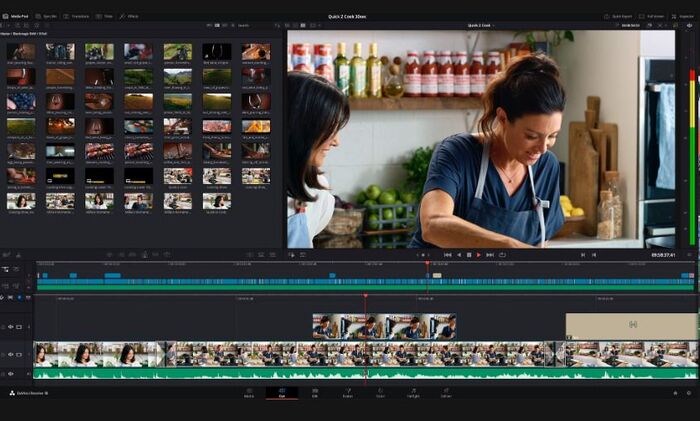
    DaVinci Resolve stands out as the ultimate solution for professional video editing, encompassing a diverse array of features developed by Blackmagic Design. This all-in-one program excels in color correction, visual effects, audio post-production, and 8K editing, making it a top choice for serious video editors.

    For those eager to explore its capabilities, DaVinci Resolve 18 introduces cutting-edge features that set it apart. The software seamlessly integrates professional 8K editing, color correction, visual effects, and audio post-production into a single tool. Its intuitive interface enables users to effortlessly transition between editing, color grading, effects, and audio with a single click, making it a preferred choice for both freelance artists and large production teams.

    DaVinci Resolve
    DaVinci Resolve – images source

    What’s noteworthy is the introduction of the free version of DaVinci Resolve 18, offering the same high-quality features as the Studio version. This includes 32-bit YRGB float image processing, advanced color correction tools, visual effects, and professional audio capabilities. The free version supports up to 60 frames per second, enables file exports in SD, HD, and Ultra HD resolutions, and allows the utilization of up to 2 GPUs in the MacPro.

    One standout feature is the introduction of Blackmagic Cloud, revolutionizing collaboration through cloud-based workflows. DaVinci Resolve 18 users can store project libraries in the cloud, facilitating real-time collaboration with multiple users worldwide on the same timeline.

    The Edit Cut Page is designed for projects with tight deadlines, emphasizing speed editing with tools like source override and synchronous bin tools. The software offers professional editing capabilities for both offline and online finishing, boasting an array of editing and cropping tools, stacked timelines, multiple cameras, captioning tools, and more.

    DaVinci Resolve 18 continues to enhance its reputation as Hollywood’s favorite color corrector. Advanced HDR primary color grading tools, unlimited secondary corrections, LUT support, shared grading, gyro stabilization for AI cameras, and an array of Resolve FX plugins make it a powerhouse for color correction.

    With the Fusion feature, DaVinci Resolve 18 provides a true 3D workspace with over 250 tools for creating feature-length visual effects and motion graphics. From complex composites to vector paint and 3D object integration, Fusion expands the creative possibilities within the software.

    To create beautiful 2D or 3D titles, navigate to the effects library located at the upper left corner of the screen. Locate the text generator or Fusion title template of your choice and drag it onto the timeline above your video tracks. Subsequently, utilize the inspector tool to input your text and fine-tune parameters such as font, size, color, and more.

    The fundamental title generators empower you to construct uncomplicated titles and lower thirds from the ground up. For precisely timed subtitles, the subtitle generator proves invaluable. Additionally, a plethora of Fusion title templates is available – professionally crafted, pre-assembled 2D and 3D animated titles that can be personalized, enabling you to achieve polished cinematic titles without requiring expertise in motion graphics.

    Fairlight, the complete digital audio workstation within DaVinci Resolve, offers high-performance multi-track editing and mixing capabilities. ADR tools, audio library support, on-the-fly audio syncing, and various Fairlight FX plugins further enhance the audio post-production experience.

    DaVinci Resolve’s comprehensive features cater to colorists, editors, VFX artists, sound designers, and other professionals working concurrently on a project. While its interface is beautifully designed, it may pose a learning curve for beginners. The developer provides a detailed reference guide and video tutorials on the official website to aid newcomers in navigating the software.

    What’s New in DaVinci Resolve 18.5

    DaVinci Resolve 18.5 brings forth numerous enhancements, featuring four new AI tools, over 100 upgraded features, and substantial improvements to the Cut page. Editors now have the capability to transcribe audio within clips, facilitating content search based on narrative elements or swift generation of subtitles through the automatic speech-to-text feature.

    Leveraging the DaVinci Neural Engine AI, audio clips can be automatically classified and organized on the Fairlight page, allowing for expedited mix automation and editing through grouped audio tracks. Colorists benefit from the introduction of the Relight FX, enabling the addition of virtual lighting to scenes. For VFX artists, collaboration becomes more seamless with support for USD files, coupled with enhanced efficiency through the multi-merge tool.

    DaVinci Resolve is a powerful and versatile video editing software tailored for professionals. Its advanced editing tools, precise control, quick file exports, and extensive feature set make it an ideal choice for serious video editors. However, due to its complexity, beginners may find it challenging to grasp initially. Despite this, for those committed to honing their skills, DaVinci Resolve proves to be a valuable asset in achieving high-quality video editing results.

    DaVinci Resolve 21

    DaVinci Resolve 21 expands its professional toolkit with the introduction of the Photo page, bringing advanced Hollywood-style color grading capabilities to photographers working with still images. The update also adds a new generation of AI-powered features, including content-based media searches, slate data recognition, AI de-aging, blemish removal, and more. The Edit and Cut pages receive enhanced keyframing tools and broader support for graphic formats, while the Color page benefits from streamlined workflows such as MultiMaster trim passes, layer-list node graphs, and group versions. Fusion adds more than 70 new graphics through the Krokodove toolset, and Fairlight makes managing and navigating audio tracks easier with its new folder functionality. Support for immersive and VR production has also been expanded, helping users stay current with modern delivery and production formats.

    The new AI IntelliSearch feature makes it easier to locate people, objects, and specific content within your footage. It can analyze media and search for particular objects or keywords spoken in dialogue, while also allowing users to find clips featuring individual faces. Search results are displayed as complete clips directly in the Media Pool, making it faster to organize footage and begin editing.

    DaVinci Resolve 21 also introduces AI-powered text-to-speech and voice generation capabilities. Users can convert written text into speech using one of Blackmagic Design’s voice models or create a custom voice based on a short recording. With just a 10-second voice sample, the DaVinci AI Neural Engine can generate a unique synthetic voice. Users can then modify parameters such as speed, pitch, and vocal inflection to produce different performances for narration, voiceovers, and other projects.

    DaVinci Resolve brings professional-grade creative tools within reach of everyone, not just Hollywood professionals. DaVinci Resolve free edition gives users the opportunity to learn and work with many of the same tools used by industry experts. Built to encourage creativity, DaVinci Resolve helps you concentrate on producing your best work. As your skills develop and your projects become more demanding, you can upgrade to DaVinci Resolve Studio for a wider range of effects, advanced 3D features, and other professional capabilities. Adding dedicated hardware such as an editing keyboard, color control panel, or audio console can further improve your workflow, allowing you to use both hands simultaneously and work with greater speed and precision than a traditional mouse-based setup.

  • Review: HP Print and Scan Doctor

    Review: HP Print and Scan Doctor

    I recently had the opportunity to use the HP Print and Scan Doctor software, and I must say that it proved to be a valuable tool for troubleshooting printer and scanner issues. As someone who frequently deals with printing and scanning tasks, I understand the frustration that arises when these devices don’t work as expected. Thankfully, HP Print and Scan Doctor came to the rescue.

    The installation process was straightforward and quick. I appreciate that HP provides this software free of charge, as it demonstrates their commitment to customer satisfaction. Once installed, the user interface was clean, intuitive, and easy to navigate. It presented a range of options and diagnostic tools that helped me identify and resolve various printer and scanner issues.

    One of the standout features of HP Print and Scan Doctor is its ability to automatically detect and fix common printing and scanning problems. With just a few clicks, it scanned my connected devices and provided detailed reports on any issues it found. It even offered step-by-step instructions on how to address these problems, making it accessible for users of all technical levels.

    HP Print and Scan Doctor software
    HP Print and Scan Doctor software

    I found the software to be particularly effective in resolving connectivity issues. It quickly identified network-related problems and provided recommendations for resolving them. Additionally, HP Print and Scan Doctor offered troubleshooting assistance for print queue errors, paper jams, driver conflicts, and scanning errors. It essentially acted as a comprehensive diagnostic tool, saving me time and frustration in identifying and resolving these issues.

    Another aspect that impressed me was the software’s compatibility. It supported a wide range of HP printers and scanners, both old and new. This versatility makes it a valuable tool for individuals and businesses that rely on HP devices across different models and generations.

    While HP Print and Scan Doctor is undoubtedly a useful tool, I did encounter a minor drawback. At times, the software took slightly longer than expected to complete certain tasks, especially when diagnosing more complex issues. However, considering the extensive functionality and the benefit it provides, this was a minor inconvenience that didn’t significantly impact my overall experience.

    In conclusion, HP Print and Scan Doctor is an excellent software tool for troubleshooting HP printer and scanner problems. Its user-friendly interface, automatic detection and resolution of common issues, and broad compatibility make it a reliable choice for anyone dealing with printing and scanning difficulties. I highly recommend this software to HP device users who want a reliable and efficient way to diagnose and resolve printer and scanner issues. Video: YouTube/HP Support

    Fix Scanning Problems with HP Print and Scan Doctor

    If you are experiencing scanning problems or encountering error messages while using your HP scanning device, you can rely on the HP Print and Scan Doctor to diagnose and fix the following issues:

    • An error occurred communicating with the scanning device.
    • An error occurred while communicating with the HP imaging device.
    • Computer not found.
    • No Computer Detected.
    • Scan to computer is currently unavailable.
    • Scan to computer no longer activated.
    • Scan Unsuccessful.
    • Scanner not found.
    • Scanner Unreachable.
    • The scanner could not be initialized.

    To resolve these scanning problems using the HP Print and Scan Doctor, follow the steps below:

    1. For Windows users, start by downloading the HP Print and Scan Doctor software.
    2. Locate the downloaded file (HPPSdr.exe) on your computer and run it.
    3. Once the HP Print and Scan Doctor opens, click on the “Start” button, and then select your printer from the list.
    4. If your printer is not listed, ensure that it is turned on and click on the “Retry” button.
    5. If there is a connection problem, carefully follow the instructions provided by the tool to address the issue.
    6. Finally, click on the “Fix Scanning” button to initiate the troubleshooting and resolution process.

    By following these steps and utilizing the HP Print and Scan Doctor, you can effectively diagnose and resolve various scanning problems and error messages that may arise during your scanning tasks. Free download HP Print and Scan Doctor HERE

  • Add text to a photo – the best 5 FREE photo editing software

    Add text to a photo – the best 5 FREE photo editing software

    There are many ways to add text to a photo, depending on what tools and software you have available. Here are a few methods you can try:

    • Use a photo editing software: Open the photo in a photo editing software like Adobe Photoshop, GIMP, or Canva. Select the text tool and choose the font, size, and color of the text you want to add. Click on the photo where you want to add the text, and type it out.
    • Use a mobile app: Download a mobile app like Phonto, PicsArt, or Adobe Spark Post. Import the photo into the app, select the text tool, and type out your text. You can choose from a variety of fonts, sizes, and colors.
    • Use an online tool: Go to a website like Fotor, PicMonkey, or BeFunky. Upload your photo to the website, select the text tool, and type out your text. You can choose from a variety of fonts, sizes, and colors.
    • Print and write the text: If you don’t have access to a computer or mobile device, you can print out the photo and write the text on it by hand using a pen or marker.


    The best 5 FREE photo editing software to add text to a photo

    Here are five free photo editing software options that allow you to add text to photos:
    1. GIMP: GIMP (GNU Image Manipulation Program) is a free and open-source photo editing software that offers many features for adding text to photos. It has a wide range of text tools and customization options, as well as support for layers and other advanced editing features. GIMP is a powerful option for those who need more advanced photo editing capabilities and are willing to invest time in learning the software. While it may have a steeper learning curve than some other free photo editing software options, it offers a wealth of features and capabilities that can help users create professional-looking designs.

      GIMP
      photo: Gimp – Pixabay
    2. Paint.NET: Paint.NET is a free and easy-to-use photo editing software that offers a range of basic text tools and customization options. It’s a good option for simple text overlays. Paint.NET is a good option for simple text overlays and basic photo editing tasks. While it may not have all of the features of more advanced paid options, it’s a great free option for those who need to quickly and easily add text to their photos without having to learn advanced editing skills.
    3. Canva: Canva is a popular online graphic design tool that offers a range of templates, graphics, and fonts. While there is a paid version, Canva also offers a free version with a range of basic design features, including the ability to add text to photos. It’s a great option for those who want to create professional-looking designs without the need for advanced design skills or expensive software.
    4. Pixlr: Pixlr is a free online photo editor that offers a range of basic text tools and customization options. It’s easy to use and has a range of other editing features as well. It has a user-friendly interface, basic text tools, layers support, templates and presets, and is available as an online photo editor and mobile app for iOS and Android. It’s a versatile and easy-to-use photo editor that allows users to create stunning designs, whether they are beginners or advanced users.
    5. Fotor: Fotor is a free online photo editor that offers a range of basic text tools and customization options. It’s a good option for simple text overlays and basic photo editing. Fotor is a good option for basic text overlays and simple photo editing tasks. While it may not have all of the features of more advanced paid options, it’s a great free option for those who need to quickly and easily add text to their photos.

    These free photo editing software options offer a range of tools and features for adding text to your photos. While they may not have all of the features of more advanced paid options, they are great for basic text overlays and simple photo editing tasks.

  • The top 3 free interior design software

    The top 3 free interior design software

    Interior design software typically works by allowing users to create a virtual representation of a space, such as a room or entire house. Users can create floor plans, add furniture, decor, and other elements to the space, and then view the space in 2D or 3D. Some software also includes tools for creating detailed elevations and sections, as well as rendering and animation capabilities.

    The process of using interior design software generally starts with creating a floor plan. This can be done by either drawing the plan manually using the software’s tools or by importing an existing plan. Once the floor plan is complete, users can then add furniture, decor, and other elements to the space. Many software also include libraries of predefined items, such as furniture and decor, that can be easily added to the space.

    Once the space is furnished, users can then view the space in 2D or 3D. Many software include tools for controlling the camera angle and lighting, allowing users to create detailed and realistic images of the space. Some software also include rendering capabilities, which can be used to create photorealistic images and animations of the space.

    Finally, once the design is complete, users can export the design in a variety of formats, such as JPEG, PNG, and PDF, or share it online with others for review and collaboration.

    Overall, interior design software can be a powerful tool for creating detailed and realistic designs of interior spaces, and for visualizing different design options. It can be used by both professional designers and DIY enthusiasts to plan and decorate a space before actually starting the renovation or construction work.

    The best 3 free interior design software

    • SketchUp: This software is a popular choice for both professional designers and DIY enthusiasts. It offers a wide range of features, including 3D modeling, texturing, and rendering.
    • Sweet Home 3D: This free interior design software is user-friendly and easy to use. It allows you to create 2D and 3D floor plans, and then add furniture, decor, and other elements to the space.
    • RoomSketcher: This software is a great option for creating floor plans and visualizing different design options. It offers a wide variety of furniture and decor items, as well as the ability to import floor plans and then add layers to create a 3D model.

    SketchUp – all specs and highlights

    SketchUp is a 3D modeling software that is widely used for architectural, interior design, and landscape architecture. Some of its key features include:

    • 3D modeling: Allows you to create detailed 3D models of buildings, interiors, and landscapes, with a variety of tools for drawing, editing, and manipulating objects.
    • Texturing: Includes a wide range of texture options, including predefined textures and the ability to import your own textures.
    • Rendering: Includes built-in rendering capabilities, allowing you to create photorealistic images and animations of your models.

      SketchUp is a 3D modeling software
      SketchUp – 3D modeling software photo
    • LayOut: Allows you to create professional-quality presentations and documents, including plans, elevations, and 3D views.
    • Plugins and extensions: Has a large community of users who have developed a wide range of plugins and extensions, adding even more functionality to the software.
    • Free and Pro versions: SketchUp has two versions, the free version SketchUp Free and the Pro version, SketchUp Pro, which has more advanced features and is intended for professional use.
    • SketchUp Mobile Viewer: Allows you to view and share your SketchUp models on your mobile device.
    • 3D Warehouse: The 3D Warehouse is an online library of models created by SketchUp users, which can be downloaded and used in your own projects.

    Overall, SketchUp is a powerful and versatile tool that is suitable for a wide range of design and architectural projects. Its intuitive interface and wide range of features make it a popular choice for both professional designers and hobbyists.

    Sweet Home 3D software – the main features

    Sweet Home 3D is a free, open-source interior design software that allows users to create 2D and 3D floor plans and then add furniture, decor, and other elements to the space. Some of its key features include:

    • 2D and 3D floor plan creation: Allows you to create detailed floor plans in both 2D and 3D, with a variety of tools for drawing, editing, and manipulating objects.
    • Furniture and decor library: Includes a wide range of predefined furniture and decor items that can be added to your floor plan, as well as the ability to import your own 3D models.
    • Textures and materials: Includes a variety of predefined textures and materials that can be applied to your floor plan and furniture.
    • Camera and lighting controls: Allows you to control the camera angle and lighting in your 3D views, to create realistic and detailed images.

      Sweet Home 3D is a free, open-source interior design software
      Sweet Home 3D photo
    • Import and export: Allows you to import existing floor plans in a variety of formats, such as PDF and image files, and export your finished project in a variety of formats, such as JPEG, PNG, and PDF.
    • Customizable interface: Has a customizable interface which allows you to arrange the tools and palettes the way you like.
    • Language support: Sweet Home 3D is available in many languages, including English, French, German, Spanish, Chinese, Japanese, and more.
    • Platforms: It is available for Windows, Mac and Linux.
    • Community and help: Has a large community of users who have developed a wide range of tutorials, tips, and other resources to help you get the most out of the software.

    Sweet Home 3D is a user-friendly and easy to use software, that has a wide range of features for creating detailed and realistic floor plans. Its free and open-source nature makes it a popular choice for both professional designers and DIY enthusiasts.

    RoomSketcher interior design software – highlights

    RoomSketcher is an interior design software that allows users to create floor plans and visualize different design options. Some of its key features include:

    • Floor plan creation: Allows you to create detailed floor plans with a variety of tools for drawing, editing, and manipulating objects.
    • 3D visualization: Allows you to create 3D views of your floor plans, with the ability to add furniture, decor, and other elements to the space. Video: YouTube/RoomSketcher

    • Furniture and decor library: Includes a wide range of predefined furniture and decor items that can be added to your floor plan, as well as the ability to import your own 3D models.
    • Textures and materials: Includes a variety of predefined textures and materials that can be applied to your floor plan and furniture.
    • Camera and lighting controls: Allows you to control the camera angle and lighting in your 3D views, to create realistic and detailed images.
    • Import and export: Allows you to import existing floor plans in a variety of formats, such as PDF and image files, and export your finished project in a variety of formats, such as JPEG, PNG, and PDF.
    • Measurement and dimensioning: Includes tools for measuring and dimensioning your floor plan, making it easy to create accurate and detailed designs.
    • Live 3D Walk: Allows you to walk through your design in 3D, making it easy to see how the space will look and feel.
    • Cloud-based: RoomSketcher is cloud-based, which means you can access your designs from anywhere and collaborate with others in real-time.
    • Platforms: RoomSketcher is available for Windows, Mac, and as an App for both iOS and Android.
    • Community and help: Has a large community of users who have developed a wide range of tutorials, tips, and other resources to help you get the most out of the software.

    RoomSketcher is a powerful and versatile interior design software that is suitable for a wide range of projects. Its intuitive interface and wide range of features make it a popular choice for both professional designers and DIY enthusiasts.

  • Garmin Express – ideal app to update new maps for Garmin device owners

    Garmin Express – ideal app to update new maps for Garmin device owners

    Update the maps and many other info on your Garmin units with Garmin Express, an software created for Garmin users to help them control and update the devices they own.

    Developed by Garmin, it is a well-known application among Garmin product owners. These are some of the nearly all superior GPS devices worldwide, as they use modern technology and advanced solutions to provide you with precise measurements and road directions.

    Nevertheless, you can also always add more new maps and update them with Garmin Express.Garmin Express

    Manage Your Garmin Device
    One of the primary things is that you will be able to manage your Garmin device totally. It means that with this application you can make corrections and make some changes to your Garmin gadget, which should not be too difficult for newbies.

    You can backup the data files you have and make changes to the design, as well. You can choose to update maps, which is one of the most popular tasks that users will need to do with this program.

    Updating your maps must be one of the more essential duties, which can help you make sure you’re always on the right track. What is more, you will also be able to add brand-new maps to your Garmin device.

    User Friendly
    Garmin Express has you covered if you are somewhat new to Garmin and you don’t know how to work with it. It will offer you with a useful manual that will show you how to add new maps or update them and make other changes with this application.

    You will easily find that this application is very easy to use, even for those who don’t have that much knowledge.

    It will also help you if you have an extra storage device on your Garmin product, as you can always add new content very easily and rapidly.

    File size: 127.11 MB
    License: Free
    Supported OS: Windows 10 / Windows 8 / Windows 7
    Download Garmin Express here

    Garmin Express is ideal software for Garmin users and unit owners. It will supply them with a method of updating their roadmaps and adding new information to the device and editing and enhancing their preferences.

  • Great effects & tools: Movavi Video Editor ’23

    Great effects & tools: Movavi Video Editor ’23

    Movavi Video Editor ’23 is a video editing software that includes a variety of “smart features” to help users easily edit and enhance their videos. Some of these features include:

    • Automatic video creation: Movavi Video Editor can automatically create a video from your photos and videos by selecting the best footage and adding music, transitions, and effects.
    • Magic Enhance: This feature automatically adjusts the color settings, brightness, and contrast to improve the overall quality of your video.
    • Magic cut: This feature allows you to quickly trim and split video segments, and delete unwanted parts of a video.
    • Picture-in-picture: This feature allows you to overlay one video on top of another, which is useful for creating split-screen effects.
    • Chroma key: This feature, also known as “green screen,” allows you to replace the background of a video with a different image or video.
    • Slow-motion and time-lapse: This feature allows you to slow down or speed up a video.
    • Audio editing: Movavi Video Editor includes a variety of tools for editing audio, such as noise reduction, equalization, and more.
    • Sharing: after editing, you can easily share your videos on YouTube, Facebook, and other social media platforms.

    What do I get in Movavi Video Suite 2023.?

    Movavi Video Suite 2023 is a comprehensive video editing software package that includes a wide range of features and tools to help you create professional-looking videos. Some of the features that you can expect to find in Movavi Video Suite 2023 include:

    • Video editor: A powerful video editing tool that allows you to trim and split video segments, join multiple videos, add effects and transitions, and more.
    • Video converter: A tool that allows you to convert your videos to different formats, including MP4, AVI, MKV, and more, as well as optimize them for different devices and platforms.
    • Screen recorder: A tool that allows you to record your screen and create tutorial videos, capture online videos, and more.
    • Video capture: A tool that allows you to record video from external devices, such as cameras and smartphones.
    • Audio editor: A tool that allows you to edit audio files, remove noise, normalize the sound, and more.
    • Photo editor: A tool that allows you to edit images, remove unwanted objects, improve the color, and more.
    • Video stabilization: A feature that helps to smooth out shaky footage and make it look more professional.
    • Special effects: A wide range of special effects, including filters, stickers, and animations, that can be added to your videos to enhance their visual appeal.
    • Sharing: option to share videos on multiple platforms like YouTube, Facebook, Vimeo and more.

    Please note that some of this features may vary depending on the version you have.

    Movavi Video Editor is the basic version of the company’s video editing software. There is a Movavi Plus edition that has some additional features, but personal editing is similar in functionality and design. Movavi is designed to stand out as an easy-to-use video editor of personal movies, marketed for travel diaries, wedding videos, and vlogs. On that line, the “Assembly Wizard,” in which the program will create a quick presentation sequence for you, is ideal for merging related videos, while the full function mode goes above and beyond to edit titles, graphics, and effects.

    Movavi’s export options have also been designed with YouTuber and vlogger in thought, allowing you to upload directly to YouTube from the program. The export window also includes a YouTube form to add a description and the ability to make your video public or private as I would in YouTube Studio.Movavi 15 Personal Edition Video Editor

    The Movavi UI has three main dashboards: a preview monitor, a media panel, and a timeline workspace with a selection of tools. The media browser allows you to choose from a variety of settings to start a project: you can record videos directly on Movavi using your computer’s camera or webcam, you can record a screencast or add media files, and import a video, audio, or image file folder to work with.
    Making cuts to shooting and deleting clips is easy in Movavi, but differs slightly from other video editing programs. The scissors tool, for example, allows you to trim the movie wherever the cursor is located, convenient for new editors to make sure they don’t accidentally cut content, but a little inconvenient for veterans who are used to being able to cut anywhere by placing the mouse and clicking.
    Following these same lines, Movavi condensed other elements of the video editing software directly into the timeline panel for convenience. These include video effects and audio properties. The “Settings” gear icon will allow you to access the video effects parameters of any clip you have selected, giving you access to a great variety of parameters and video effects, although you can’t go terribly deep. Video effects include clip speed, color adjustments, rotation and cropping, panning and zooming, animation features, camera stabilization, chroma button, and more.Movavi 15 Personal Edition Video Editor
    Movavi Video Editor is a high-quality software that offers superb features and ease of use to your home vlogger and cameramen reference market. At this price, you won’t get many high-end effects and tools: most of Movavi’s color effects are automatic settings that process your footage but don’t offer much depth, and video filters are equally simple. However, for its main value and characteristics, Movavi performs the work admirably. Photo: Movavi

    About Movavi video converter

    Movavi Video Converter is a software tool that allows users to convert their videos to different formats, as well as optimize them for different devices and platforms. Some of the key features of Movavi Video Converter include:

    • Format support: Movavi Video Converter supports a wide range of video formats, including MP4, AVI, MKV, WMV, and many others. It also supports different codecs, such as H.264, MPEG-4, and more.
    • Device optimization: Movavi Video Converter allows you to optimize your videos for specific devices and platforms, such as smartphones, tablets, gaming consoles, and more.
    • Batch conversion: You can convert multiple videos at once, saving time and effort.
    • Video editing: It also includes basic video editing features, such as trimming and cropping, which can be useful for preparing videos for conversion.
    • Audio extraction: You can extract audio from video files and save it in a separate audio file.
    • Customizable output settings: You can adjust the output settings such as resolution, bitrate, frame rate, and more to achieve the optimal balance between quality and file size.
    • Presets: It includes a variety of presets for different devices and platforms, making it easy for users to quickly and easily convert their videos without having to manually adjust settings.
    • Fast conversion: The conversion process is relatively fast, which is useful for large files.

    Movavi Video Converter is a very useful tool for those who need to convert video files frequently and easily. It’s a user-friendly software and it’s easy to use.

    Movavi Slideshow Maker

    Movavi Slideshow Maker is a software tool that allows users to create professional-looking slideshows from their photos and videos. Some of the key features of Movavi Slideshow Maker include:

    • Drag and drop interface: The software has a user-friendly drag-and-drop interface that makes it easy to add and organize photos and videos.
    • Music and transitions: Users can add music and transitions to their slideshows to enhance their visual appeal.
    • Text and captions: Users can add text and captions to their slideshows, to provide context or tell a story.

      Movavi Slideshow Maker
      Movavi Slideshow Maker
    • Pan and zoom: Users can add pan and zoom effects to their photos, making them more dynamic and engaging.
    • Automatic slideshow creation: The software can automatically create a slideshow from your photos and videos by selecting the best footage and adding music, transitions, and effects.
    • Video export: Users can export their slideshows in a variety of video formats, such as MP4, AVI, and MOV, and share them on social media platforms, like YouTube and Facebook.
    • HD support: The software supports high-definition videos and photos, allowing users to create high-quality slideshows.
    • Theme and templates: Movavi Slideshow Maker comes with a variety of built-in themes and templates, making it easy for users to create visually appealing slideshows without much effort.

    Movavi Slideshow Maker is a great tool for creating memorable slideshows of your personal photos and videos. It is easy to use and it offers a lot of customization options to make your slideshow unique and personalized.

    All apps – Movavi Unlimited

    Movavi Unlimited is a subscription service that provides users with access to all of Movavi’s software products. Some of the apps that are included with a Movavi Unlimited subscription are:

    • Movavi Video Editor ’23: A comprehensive video editing tool that allows users to trim and split video segments, add effects and transitions, and more.
    • Video Converter: A tool that allows users to convert their videos to different formats, and optimize them for different devices and platforms.
    • Screen Recorder: A tool that allows users to record their screen and create tutorial videos, capture online videos, and more.
    • Video Capture: A tool that allows users to record video from external devices, such as cameras and smartphones.
    • Audio Editor: A tool that allows users to edit audio files, remove noise, normalize the sound, and more.
    • Photo Editor: A tool that allows users to edit images, remove unwanted objects, improve the color, and more.
    • Slideshow Maker: A tool that allows users to create professional-looking slideshows from their photos and videos.
    • Video Stabilization: A feature that helps to smooth out shaky footage and make it look more professional.
    • Special Effects: A wide range of special effects, including filters, stickers, and animations, that can be added to videos to enhance their visual appeal.
    • Sharing: option to share videos on multiple platforms like YouTube, Facebook, Vimeo and more.

    Movavi Video Editor ’23 System requirements

    Operating system

    Microsoft® Windows® 7/8/10/11 with up-to-date patches and service packs installed

    Processor

    Intel®, AMD®, or compatible dual-core processor, 1.5 GHz

    Graphics card

    Intel® HD Graphics 2000, NVIDIA® GeForce® series 8 and 8M, Quadro FX 4800, Quadro FX 5600, AMD Radeon™ R600, Mobility Radeon™ HD 4330, Mobility FirePro™ series, Radeon™ R5 M230 or higher graphics card with up-to-date drivers

    Display

    1280 × 768 screen resolution, 32-bit color

    RAM

    2 GB

    Hard drive space

    400 MB available hard disk space for installation, 600 MB for ongoing operations

    System permissions

    Administrator permissions are required for installation

    Video: YouTube/Movavi

  • Create your own video? The best 6 Video Editing Software review

    Create your own video? The best 6 Video Editing Software review

    Creating video content can become a great passion for some, and even in a career as well. But, to get to this point, you have to start somewhere. Within any job, people start at a beginner stage in order to train, learn and work their way up.

    This is the same when you become a video editor. Whether for a high-end company or editing your own videos, you will still start as a beginner and need to learn your way around quality workstation software in order to produce reliable end results.

    There are a number of simple but effective software that have been created specifically for beginners, to learn their way around the tools and features offered to create a high quality video editing.VIDEO EDITING

    In order to make the search a little easier, below will be the 6 best video editing software on the market. So you can find the best for your skill set, and start producing videos that everyone will enjoy with minimal bugs involved!

    1- Pinnacle Studio

    Pinnacle Studio is a video editing program that is currently in its 25th version and has consistently gotten faster and more potent over time. The software’s creator, Corel, also creates the VideoStudio video editing program, with Pinnacle occupying the more expensive end of the market. Pinnacle has top-notch editing features and effects including stop-motion video, multicam editing, and motion tracking that are targeted at hobbyists with near-professional skill levels. Thankfully, it doesn’t have the challenging learning curve that comes with professional video editing software.

    Pinnacle studio editing software allows the user to create a professional video result within their fully advanced toolset and the tracks provided. Advanced editing gives the designer complete precision, allowing them to create details and beautiful changes in HD and 4K quality.

    The current version’s new features include 8K compatibility, intelligent object tracking, blend modes, and personalized audio noise reduction. Version 24’s face motion tracking with mosaic blur, redesigned title editor, and enhanced keyframe controls are further recent feature updates. Version 23 before it brought several significant new features of its own, such as batch processing, clip nesting, animated GIF creation, color LUT presets, and selectable color vectorscopes.

    The powerful software is creative and customizable, allowing beginners to practice at their leisure, and they are displayed in each tool with the ability to change everything you need. Not to mention the application that is classified as extremely efficient with intuitive tools and eye-catching tutorials, so that the beginner can go ahead and enter the editing world as soon as possible.

    2- Blender
    Blender is another free video editing software perfect for beginners. However, this time it supports 3D editing creations that include modeling, animation, and simulation, with the 2D design option included.

    This software is perfect for video editors who would like to get in and know about animated movies, character production and how design and screen can be turned into a novel. It is really built for those who have a passion for animation, offering users the ability to work within all forms of animated presets. For example, greasy pencil, sculpture, rendering, modeling, visual effects and animation, covering almost all aspects that can arise in editing an animated video.blenderBlender is also a very flexible application. Cross running on most Linux computers at Microsoft. Priceless, it is not clear why someone would not choose this software for animation editing!

    3- Magix Easy Video
    The following video editing software is designed with ease and simplicity. But it still allows the editor to create results that are of an impressive high-quality standard priced at 49.99 dollars (with a 30-day free trial).

    The app is called Magix Video Easy and is widely compatible with almost all recording devices and computers, with an intuitive user interface, offering a wide range of tools and tracks, so every change created is the best it can be. MAGIX Video easy highlights include: – Support for all commonly used phones, digital cameras, and camcorders – Support for H.264, 4K, and Ultra HD – New interface Numerous elegantly animated menu layouts – Convenient connection and introduction wizard – New video effects, blur fades, and backlight correction – Top-notch outro and intro animations – Export to files, YouTube, Blu-ray Disc, and DVD

    The software is HD and 4K quality focused in order to always produce sharp editing results, with cinematic transitions and even the ability to work within an animation for introduction or outro.

    Magix Video is sure to surprise all family members or even the office with high-level videos that can allow even a beginner to do. Following the practical and free tutorials, the team offer is a recommendation, as always, in order to fully understand the workstation and make sure that most have been removed from what is offered.

    4- VideoPad
    This is one of the best video editing software produced only for Windows users. It is one of the best applications for beginners in the world of editing and has just started in order to create a multimedia video career.

    The software was made with simple video compositions, 3D video editing offering and a collection of pre-made transitions, making any beginner create professional-looking video edits while learning their way around a new set of tools.

    Although created for beginners, the software continues to mimic the style of the most advanced applications. With a full interface with important elements like a double screen. This allows the editor to view the selected and edited clips and the other to view the entire sequence when completed, to have a functional workflow at hand.

    And, since this was created for those who have just started, the app runs along with a large set of useful tutorials and videos that help the user learn their way around the interface. In addition, all the tips you need to learn shortcuts and features to further expand your video editing knowledge.

    5- HitFilm 4 Express

    With already 5,556,348 users (and counting) already using HitFilm, this is definitely one of the best video editing software. Not to mention the fact that the app is free for a user to work, perfect for beginners who are not paid for editing but still want to create amazing changes!

    There are over 410 effects and presets within this app while it is compatible with Apple and Windows, so that anyone can start learning with HitFilm software.
    Even if the service is completely free, it doesn’t diminish your professionalism and the results you can produce. With so many people using and creating more, there is no better evidence. Including the offer to watch tutorials that help the editor learn their way around this new interface quickly, so they can start editing at any time.

    6- Adobe Premiere Pro
    Adobe Premiere Pro is one of the leading video editing programs to be released. It creates videos from movies, TVs and websites and can also help improve Google’s list of my business through a comprehensive set of integration tools and software, in order to give the publisher a smooth workflow and a professional finish every time.
    This editing software is also used by those in the Hollywood film industry, concluding that this app is one to compete with. This industry leader is configured to allow the user to edit movies from any device in a modern, easy-to-understand format.

    Similarly, the toolset always produces movies with a high-end 8K quality resolution, and also offers the possibility of a virtual reality video. Color selection, audio preferences, and quality graphics show that Adobe Premiere Pro is an editing software for the future. One that any design that any drawing approaches quickly should get your hands on and learn in order to start creating changes smoothly, as soon as possible.

  • Canon MF Toolbox – freeware document scanner software application

    Canon MF Toolbox – freeware document scanner software application

    Canon MF Toolbox is a freeware document scanner software application stored under drivers and available from Canon for Windows.

    The canon MF Toolbox review has not yet been completed, but it has been tested by an editor here on a PC and a list of features has been compiled; see below.

    If you would like to submit a review of this software download, we welcome your subscription and encourage you to send us something!

    Scans documents on Windows with Canon hardware

    Canon MF Toolbox is a utility that allows users to manage their scanning and printing tasks and works with an external printing device or/or scanning to scan and then print various documents such as email messages, OCR files and PDF files. Canon MF Toolbox is distributed with the installation discs of some Canon scanners and printers.

    Canon MF Toolbox is a perfect and very useful tool that can help you scan your documents and print them easily. It also allows you to configure printer and scanner settings. It has a simple interface that makes it very easy to manipulate. Download here

    Features and highlights


    • Scans documents from connected devices
    • Built-in mail function to convert scanned documents into PDF and send
    • Small panel provides access to all functions
    • OCR tool reads and converts scanned document text
    • Save scanned documents as PDF files
  • Photo! Editor – Enhance your photos with this fantastic software

    Photo! Editor – Enhance your photos with this fantastic software

    Photo! Editor offers you all the image editing capabilities of a premium plan, for absolutely free. The software includes tools that will enhance your photographs and bring all of them to life.
    The User Interface is very easy to navigate and many of the tools will work in either automatic or in manual mode.

    KEY SPECS INCLUDE :
    The Fix Red Eye tool lets you to simply remove red eye from your photos. You can either correct your photo automatically or edit it in manual mode.The Enhance Color tool contains an variety of enhanced tools for modifying the color balance, contrast, brightness and saturation of an photo. You can do this automatically or manually.
    The Denoise tool will allow you to successfully get rid of luminance and color noise from photos that were made under inadequate lighting conditions.
    The Deblur tool helps you to sharpen blurry images. This tool uses a great advanced technique that makes it possible to enhance seriously blurred photos.

    Create Caricature:This tool lets you make funny caricatures by transforming images with unique warping effects.The Make Up tool has a set of retouching filters that can be used for portrait improvement.
    Lighting:This effects tool allows you apply aesthetic lighting effects to your images.


    The Straighten tool provides the easiest method to straighten tilted photos.
    The Resample tool lets you resize images by enlarging or reducing them without image quality loss.
    The Crop tool allows you to crop photos in a clear and sharp technique.
    Batch processing allows you easily edit multiple photos with just minimum effort. You can process batches of photos by using the Windows explorer context list. Photo! Editor download