YouTube Downloader downloads and converts videos from YouTube! YoutubeDownloader - The only youtube downloader you need -…
How to Use KMPlayer: A Complete Guide
Last Updated on
KMPlayer is one of the most versatile and widely used media players available today. Known for its rich features, ease of use, and support for a wide variety of file formats, KMPlayer is the go-to tool for many people who want a high-quality media experience. Whether you’re watching a movie, listening to music, or viewing any other form of multimedia, KMPlayer provides you with numerous options to customize your experience.
In this comprehensive guide, we will walk you through the process of using KMPlayer effectively, with a special focus on essential features like changing the language, adding subtitles, and more. If you’re new to KMPlayer or looking to expand your knowledge, this guide is tailored for you.
1. What Is KMPlayer?
KMPlayer is a free multimedia player that supports a wide array of video and audio formats. It’s known for its user-friendly interface and customizable options that allow users to fine-tune their viewing experience. Apart from playing local files, it also supports streaming and watching content online.
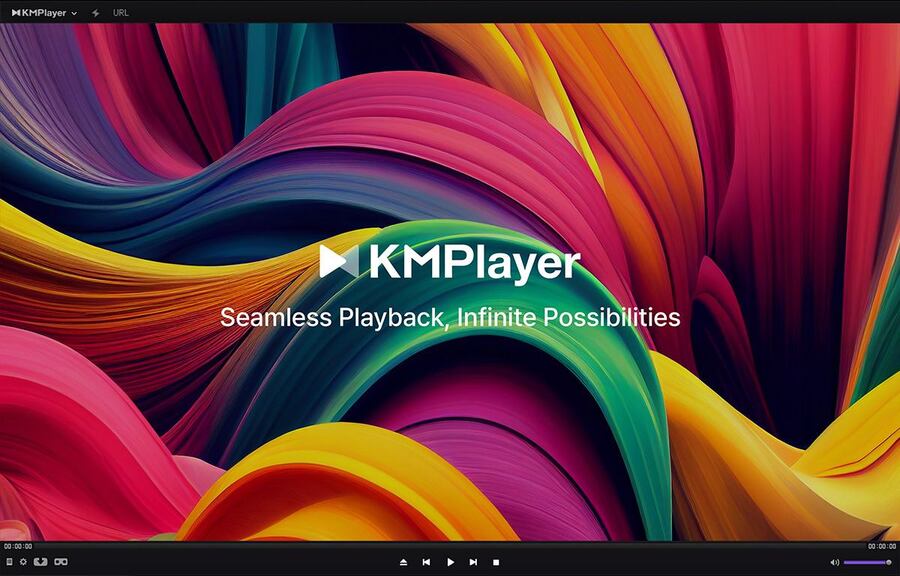
Some of the features that make KMPlayer stand out include:
Multi-format support: It supports formats such as MP4, AVI, MKV, MOV, and many more.
High-definition video playback: KMPlayer supports 4K and 8K video playback, making it a great choice for high-quality content.
Audio and video adjustments: You can tweak various settings to improve video and audio quality.
Subtitle support: It allows users to add and sync subtitles with ease.
Customization: KMPlayer lets users change the interface, skins, and themes to suit their preferences.
Let’s dive into how to use these features efficiently.
2. Installing KMPlayer
Before you can start using KMPlayer, you need to install it on your computer. Follow these simple steps:
Visit the Official Website: Go to KMPlayer’s official website to download the latest version.
Download: Choose the correct version for your operating system (Windows or Mac). If you’re using a mobile device, you can download the app from Google Play (for Android) or the App Store (for iOS).
Install: After downloading, open the installer and follow the on-screen instructions to install KMPlayer.
Launch KMPlayer: Once installed, open the application. You’ll see the default interface, which can be customized to your liking.
3. How to Change the Language in KMPlayer
One of the first things you might want to do after installing KMPlayer is to change the interface language to something more comfortable for you. Here’s how you can change the language in KMPlayer:
Open KMPlayer: Launch the KMPlayer application.
Access the Settings Menu: In the top-left corner of the window, click on the “K” icon (or press Ctrl + P).
Go to General Settings: Select General from the left panel under the “Preferences” menu.
Change Language: In the “Language” section, you will see a dropdown list of available languages. Choose the language you prefer.
Save Changes: After selecting the language, click Apply and then OK to save your changes.
Restart KMPlayer: To ensure the language change takes effect, restart KMPlayer.
Now, your KMPlayer interface should be displayed in the selected language.
4. How to Add Subtitles in KMPlayer
Subtitles are a great way to enhance your media experience, especially if you’re watching content in a foreign language or prefer reading along with the video. Here’s how to add subtitles to your video in KMPlayer:
Method 1: Adding External Subtitle Files
If you have a subtitle file (such as an SRT or ASS file), you can easily add it to your video in KMPlayer:
Open Your Video: Start by playing the video file you want to watch.
Add Subtitles: Right-click anywhere on the video and select Subtitle > Load Subtitle from the context menu.
Browse for the Subtitle File: Navigate to the folder where your subtitle file is located, select it, and click Open.
Subtitle Synchronization: If the subtitles are out of sync with the video, you can adjust them by pressing the F2 key to open the subtitle settings. From there, you can delay or advance the subtitle timing.
Method 2: Downloading Subtitles Automatically
KMPlayer also has an in-built feature that allows you to automatically download subtitles for your media. Here’s how:
Open Your Video: Launch the video that you want subtitles for.
Right-click the Video: From the context menu, go to Subtitle > Download Subtitle.
Search for Subtitles: KMPlayer will search for available subtitles online. Once found, it will display the available options.
Choose and Apply: Select the desired subtitle language and click OK to load the subtitle onto your video.
This feature is particularly useful if you don’t have subtitles in advance.
5. How to Change Video Settings and Customize Your Viewing Experience
KMPlayer gives you control over how your videos look and sound, which allows you to fine-tune your media experience. Here are some key settings you can adjust:
Brightness, Contrast, and Saturation
To adjust video quality, KMPlayer offers an intuitive interface for changing brightness, contrast, and saturation:
Right-click on the Video: Right-click anywhere on the video and select Video > Video Color.
Adjust Settings: Use the sliders for brightness, contrast, and saturation to achieve your desired video quality.
Apply and Save: After adjusting the settings, click OK to apply them.
Change Video Resolution
For higher quality viewing, you can change the video resolution in KMPlayer:
Open the Video: Load the video you want to watch.
Right-click: Right-click the video and select Video > Video Resolution.
Select a Resolution: Choose from a list of available resolutions (for HD, 4K, or even 8K content).
Audio Settings
KMPlayer lets you tweak audio settings to improve sound quality:
Right-click the Video: Again, right-click on the video.
Go to Audio > Equalizer: In the equalizer menu, you can adjust frequency settings for the best sound quality.
Enable Audio Effects: You can also activate various audio effects, such as reverb and echo, under the Audio Effects menu.
6. How to Create Playlists in KMPlayer
If you often listen to music or watch a collection of videos, you may want to create playlists in KMPlayer. Here’s how:
Open the Playlist: Press Ctrl + L or go to Playlist > Show Playlist to open the playlist window.
Add Files to the Playlist: Drag and drop the files you want to add or click on the Add Files button to select files from your computer.
Save Playlist: Once you have all your media files in the playlist, click File > Save Playlist to save it for future use.
Play the Playlist: You can play the entire playlist by clicking on the Play All button.
This feature is perfect for users who want to organize and streamline their media consumption.
7. How to Stream Content Online with KMPlayer
KMPlayer also allows you to stream content directly from the internet. Whether you’re watching YouTube videos or streaming from other sources, the process is simple:
Open the Streaming Option: From the top menu bar, click File > Open URL.
Enter the URL: Paste the URL of the video you wish to stream and click OK. KMPlayer will open and start streaming the video.
Adjust Streaming Settings: Use the standard video and audio settings to customize your streaming experience, such as adjusting video quality or enabling subtitles.
8. Advanced Features in KMPlayer
KMPlayer also comes with a range of advanced features that can enhance your media experience. These include:
Screen Capture: You can capture screenshots of your video by pressing Ctrl + Alt + C or going to Capture > Video Capture.
VR Mode: KMPlayer supports virtual reality video playback, offering a more immersive experience for compatible devices.
Custom Skins: You can change the look of KMPlayer by downloading custom skins from the internet. To do this, go to Preferences > General and select Skins.
9. Troubleshooting Common Issues in KMPlayer
Despite its many features, sometimes things may not work as expected. Here are a few common troubleshooting tips:
No Sound: Check if the volume is muted or set too low. Also, make sure your audio drivers are up-to-date.
Subtitles Not Showing: Ensure that you’ve correctly loaded the subtitle file and that it’s in sync with the video.
KMPlayer Crashes: If KMPlayer crashes frequently, try reinstalling the software or updating it to the latest version.
Conclusion
KMPlayer is an excellent media player that offers a wealth of features to enhance your video and audio experience. Whether you want to change the language, add subtitles, or fine-tune your video settings, KMPlayer has you covered. With this guide, you now have the tools to navigate and customize the player to your liking.
Related Posts