Home Blog Page 27

Maximize Clarity: Top-Rated 4K Video Players

0

The world of entertainment has been revolutionized by the advent of 4K technology, offering viewers an unparalleled level of visual brilliance and clarity. As the demand for 4K content continues to soar, the need for reliable and efficient 4K video player software becomes increasingly essential. Whether you’re a cinephile looking to immerse yourself in the stunning visuals of Ultra HD movies or a casual viewer seeking an enhanced viewing experience, having the right 4K player software is paramount.

Understanding 4K Resolution

Before delving into the realm of 4K video players, it’s crucial to grasp the concept of 4K resolution. 4K, also known as Ultra High Definition (UHD), refers to a display resolution with approximately 4,000 pixels of horizontal resolution. There are two primary 4K resolutions: 3840 x 2160 pixels (UHD) and 4096 x 2160 pixels (DCI 4K). This exponential increase in pixel density results in sharper images, finer details, and a more immersive viewing experience compared to traditional Full HD (1080p) resolution.

4K vs. Blu-ray

While Blu-ray discs have long been synonymous with high-definition entertainment, 4K technology elevates the viewing experience to new heights. Unlike conventional Blu-ray discs, which typically offer a maximum resolution of 1080p, 4K Blu-ray discs boast a resolution of 3840 x 2160 pixels, delivering unparalleled clarity and realism. Additionally, 4K Blu-ray players are capable of upscaling standard Blu-ray discs and DVDs to near-4K quality, ensuring compatibility with the latest Ultra HD displays.

Top 4K Video Player Software for Mac and PC

  • VLC Media Player

Renowned for its versatility and wide-ranging codec support, VLC Media Player is a go-to choice for many users seeking seamless 4K video playback. With its recent update to version 2.1, VLC now offers robust support for 4K content, making it an ideal solution for both Mac and PC users. Whether you’re streaming online videos or playing local media files, VLC’s comprehensive codec library ensures smooth playback across various formats.

  • KMPlayer

Boasting a sleek and intuitive interface, KMPlayer is a lightweight media player that excels in handling diverse file formats, including AVI, MKV, and WMV. Its minimalist design and small desktop footprint make it an excellent choice for users seeking a streamlined video playback experience. With support for 4K resolution, KMPlayer delivers stunning visuals without compromising performance, making it an ideal option for Windows users.

KMPlayer
KMPlayer photo

Key Features of KMPlayer

FeatureDescription
Free DownloadCompletely free video player for PC.
Plays all video formatsSupports playback of all video formats, including Ultra HD with 4K resolution, 3D movies, and even corrupted or locked media files.
High-quality codecsIncorporates latest high-quality codecs such as HEVC, h.265, h.264, VP9 for improved video quality.
Full playback controlProvides comprehensive control over video playback, including resizing, post-processing effects, codec configuration, and real-time video capture with customizable output.
Multilingual supportSupports over 42 languages with a user-friendly interface, including English, Korean, Japanese, and Spanish.
YouTube video streamingAllows easy watching and downloading of videos from various online content platforms, including YouTube, by simply entering the URL.
Hardware accelerationUtilizes hardware acceleration to minimize CPU usage, ensuring high-quality video playback even on low-end PCs or in multitasking environments.

System Requirements of KMPlayer

RequirementDescription
Recommended OSWindows 10 64-bit or 32-bit, DirectX 9 or higher, and 150Mb of installation space required.
Minimum System RequirementsWindows Vista 32-bit, DirectX 9 or higher, and 150Mb of installation space required.

Supported Formats of KMPlayer

Video Formats: 3G2, .3GP, .3GP2, .3GPP, .AMV, .ASF, .AVI, .AVS, .DIVX, .EVO, .F4V, .FLV, .GVI, .HDMOV, .IFO, .K3G, .M2T, .M2TS, .MKV, .MK3D, .MOV, .MP2V, .MP4, .MPE, .MPEG, .MPG, .MPV2, .MQV, .MTS, .MTV, .NSV, .OGM, .OGV, .QT, .RM, .RMVB, .RV, .SKM, .TP, .TPR, .TS, .VOB, .WEBM, .WM, .WMP, .WMV

Audio Formats: A52, .AAC, .AC3, .AIF, .AIFC, .AIFF, .ALAC, .AMR, .APE, .AU, .CDA, .DTS, .FLA, .FLAC, .M1A, .M2A, .M4A, .M4B, .M4P, .MID, .MKA, .MP1, .MP2, .MP3, .MPA, .MPC, .MPP, .MP+, .NSA, .OFR, .OFS, .OGA, .OGG, .RA, .SND, .SPX, .TTA, .WAV, .WAVE, .WMA, .WV

Subtitle Formats: ASS, .IDX, .LRC, .MKS, .PSB, .RT, .S2K, .SMI, .SMIL, .SRT, .SSA, .SSF, .SUB, .TXT, .USF, .SUP

Playlist Formats: ASX, .CUE, .KPL, .M3U, .M3U8, .PLS, .RAR, .RMP, .WAX, .WMX, .WVX, .ZIP

Built-in Codecs: H264, VC1, MPEG1, MPEG2, MPEG4, MSMPEG4, VP8, WMV3, WMV12, MJPEG, THEORA, FLASH, VP6, SVQ, H261, H263, INDEO, CAMTASIA, FRAPS, HUFFYUV, QTRLE, DVVIDEO, BINK, SMACKVID, RV34, LAGARITH, CINEPAK, ZLIB, RPZA, JPEG2000, VMNC, FLIC, G2M, ICOD, HEVC, VP9, VP7, H264MVC

  • DivX Player

Regarded for its exceptional video quality and user-friendly interface, DivX Player is a popular choice among cinephiles and casual viewers alike. With native support for 4K content, including DivX HEVC video, DivX Player offers crisp visuals and immersive audio, enhancing the overall viewing experience. Additionally, its intuitive playback controls and seamless subtitle switching make it a standout option for Mac and PC users alike.

  • CyberLink PowerDVD PRO 14

As a leading provider of multimedia software, CyberLink’s PowerDVD PRO 14 sets the standard for premium video playback. With support for DVD, Blu-ray, and Ultra HD content, PowerDVD PRO 14 delivers unparalleled visual fidelity and audio immersion. Its TrueTheater Lighting technology enhances image detail and color accuracy, while TrueTheater Surround provides immersive surround sound for a cinematic viewing experience.

Investing in high-quality 4K video player software is essential for unlocking the full potential of your Ultra HD content. Whether you’re a movie enthusiast, a casual viewer, or a multimedia aficionado, the right 4K player software can elevate your entertainment experience to new heights of realism and immersion. Choose from the aforementioned options to enjoy a seamless and immersive 4K viewing experience on your Mac or PC.
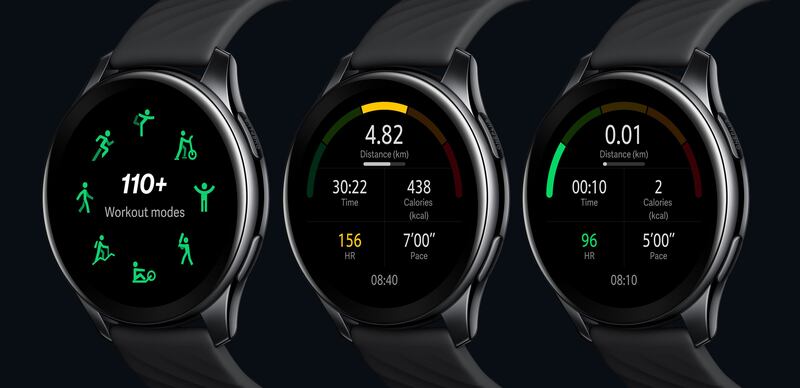
OnePlus Watch and iPhone: A New Era of Compatibility

0

In the fast-evolving realm of wearable tech, the interplay between devices from different manufacturers has emerged as a pivotal concern. Particularly for enthusiasts of the OnePlus Watch and iPhone, understanding their compatibility has become essential.

Unraveling the intricate dynamics of this technological symbiosis, we embark on a journey to uncover the reality behind the OnePlus Watch’s compatibility with iPhones.

The OnePlus Watch, renowned for its sleek design and innovative features, epitomizes OnePlus’s commitment to quality. Conversely, iPhones, the hallmark of Apple’s technological prowess, boast a global reputation for their cutting-edge innovation and seamless ecosystem.

Navigating Compatibility: Merging the OnePlus Watch with the iPhone Over time, the landscape of compatibility between the OnePlus Watch and iPhone has undergone significant transformations. Initially, the OnePlus Watch’s compatibility with iPhones was constrained, mainly due to differences in operating systems and ecosystems.

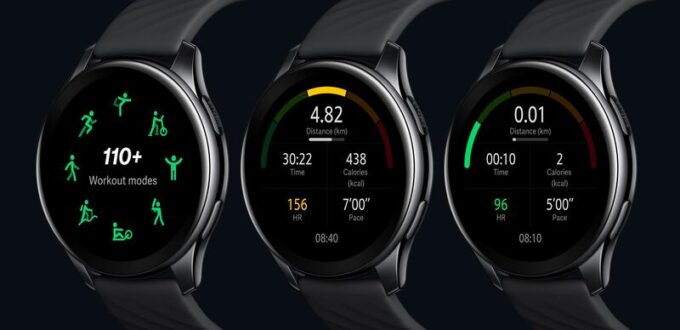
OnePlus Watch
OnePlus Watch image source

Acknowledging this disparity, OnePlus has diligently worked towards enhancing compatibility through various avenues.

  1. Software Evolution and Compatibility – As technology advances, so do software updates. OnePlus has been proactive in rolling out updates that augment compatibility with iPhones. These updates address connectivity issues and optimize performance, ensuring a smoother experience for users.

Regular updates are crucial to ensure optimal functionality and compatibility between devices.

  1. OnePlus Watch App for iPhone: Facilitating Connectivity To streamline connectivity, OnePlus introduced the OnePlus Watch app for iPhones. This dedicated application serves as a conduit, facilitating seamless communication between the devices.

Through the app, users can synchronize health data, personalize watch faces, manage notifications, and control music playback on their iPhones. This app significantly enriches the OnePlus Watch experience for iPhone users.

  1. Pairing Process: The OnePlus Watch with an iPhone entails a straightforward process. Users simply need to download and install the OnePlus Watch app from the App Store.

Once installed, the app guides users through the pairing process, establishing a Bluetooth connection between the devices. This connection enables data synchronization and interaction between the watch and the iPhone.

  1. Functional Harmony – Functional compatibility between the OnePlus Watch and iPhone extends beyond notifications. Users seamlessly receive calls, messages, and app notifications on their watch, enhancing connectivity while on the go.

Moreover, the watch can track health metrics such as heart rate, sleep patterns, and workouts, which synchronize with health apps on the iPhone.

  1. Ecosystem Integration: Unlocking Benefits – The integration between the OnePlus Watch and iPhone ecosystems unlocks a myriad of benefits. Health data from the watch can seamlessly integrate with health and fitness apps on the iPhone, offering users a comprehensive overview of their well-being.

Furthermore, features like music playback control and navigation access directly from the watch enhance user convenience.

  1. Constraints and Considerations Despite significant advancements, certain limitations persist. Some advanced features of the OnePlus Watch may exhibit limited functionality when paired with iPhones. Users should consult official documentation to grasp these limitations and make informed decisions based on their preferences and usage patterns.
  2. Future Outlook: Evolving in tandem technology is an ever-evolving landscape, and compatibility between the OnePlus Watch and iPhone continues to evolve. Both OnePlus and Apple are committed to enhancing compatibility and functionality when their devices are used together. Consequently, users can anticipate even greater integration and an expanded feature set in the future.

The OnePlus Watch and iPhone have transcended initial compatibility constraints to achieve a harmonious coexistence. Through dedicated apps, regular updates, and a shared commitment to synergy, compatibility between these devices has vastly improved.

Users seeking to blend OnePlus’s innovation with Apple’s sophistication can now do so with confidence. Whether tracking fitness goals or staying connected, the OnePlus Watch seamlessly integrates with iPhones, enriching the tech experience for users worldwide.

Solve Fire TV Slowdowns: Speed Up Your Streaming Experience

0

Amazon’s Fire TV Stick has revolutionized home entertainment, offering a gateway to a vast array of streaming content. However, if you find your Fire Stick running sluggishly, fear not—there are several steps you can take to restore its speed and efficiency. Here are 10 tips to optimize your Fire TV Stick experience:

Speed Up Your Streaming
photo: pixabay
  1. Restart Your Fire TV Stick: Begin by rebooting your device. Press and hold the Select and Play/Pause buttons simultaneously for five seconds. Once it restarts, check for improvements in performance.
  2. Check Your Cables: Ensure that you’re using the appropriate power adapter and HDMI cable provided by Amazon. Verify that both cables are securely connected without any signs of damage.
  3. Assess Your Internet Connection: Slow internet can hinder streaming quality. Restart your router and run a speed test to ensure you’re getting the required bandwidth. If Wi-Fi signal strength is poor, consider relocating your device closer to the router or using an ethernet adapter.
  4. Disable VPN: Virtual Private Networks (VPNs) can impede internet speeds and access to streaming services. Temporarily disable your VPN to see if it resolves the issue.
  5. Clear Data and Cache: Accumulated cache files can bog down your Fire TV Stick. Navigate to Settings > Applications > Manage Installed Applications to clear cache and data for individual apps.
  6. Force Stop Background Apps: Close unnecessary background processes and apps to free up system resources. Head to Settings > Applications > Manage Installed Applications to force stop apps that are running in the background.
  7. Uninstall Unused Apps: Remove apps that you no longer use to declutter your device and optimize storage space. Navigate to Settings > Applications > Manage Installed Applications to uninstall unwanted apps.
  8. Update Fire OS: Ensure your Fire TV Stick is running the latest version of Fire OS to benefit from performance enhancements and security patches.
  9. Turn Off Data Monitoring: Disable data monitoring to alleviate strain on system resources. This feature, while useful for tracking data usage, can contribute to slowdowns.
  10. Factory Reset: As a last resort, perform a factory reset to restore your Fire TV Stick to its default settings. This will erase all installed apps and configurations, potentially resolving persistent issues.

By following these steps, you can breathe new life into your Fire TV Stick and enjoy seamless streaming experiences once again. Whether it’s optimizing your internet connection or decluttering your device, these tips will help you get the most out of your Fire TV Stick.

Lenovo Legion Y32p-30 Monitor: Review

0

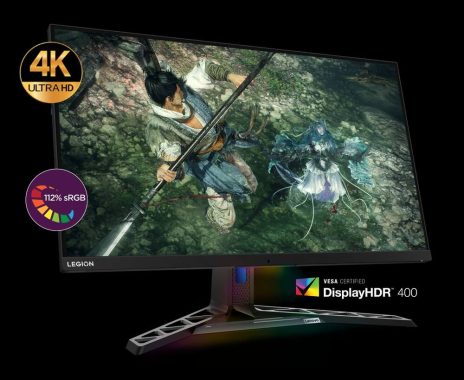
The Lenovo Legion Y32p-30 emerges as a sturdy gaming monitor with commendable build quality, showcasing minimal creaking and flex within its plastic framework. Despite its 32-inch display, it exhibits rapid wobble recovery when subjected to slight taps along its edges or corners. Embracing the signature design elements of Legion gaming monitors, such as the wide ribbed base and silver “Legion” insignia, it also integrates customizable RGB lighting through its dedicated software.

Constructed primarily from plastic, the monitor’s stand maintains solidity owing to the ribbing and metal frame in its base. While offering decent ergonomics with height adjustment and tilt features, its rotation capabilities are notably absent. However, it compensates with swivel adjustments and includes convenient features like a cable management loop and a retractable headphone hook at the back.

Lenovo Legion Y32p-30


The Lenovo Legion Y32P-30 adds a touch of style with its RGB lighting feature, which goes beyond mere decoration by reacting to actions like powering on or off sources and changing colors during input switches.

However, what really stands out to me is its versatile port selection. Gamers, especially those with next-gen consoles, will appreciate the inclusion of two HDMI 2.1 ports, allowing for 4K gaming at 120Hz with HDR support for PlayStation 5. Additionally, the USB-C port, offering up to 75W power delivery, is a boon for Ultrabook users, ensuring ample charging capacity for devices like the 2020 MacBook Pro. video: YouTube/Lenovo

While some features might not be essential for hardcore gamers, multi-source users like myself will find them invaluable. The monitor includes PiP (Picture-in-Picture) and PBP (Picture-by-Picture) functions, which are handy for simultaneous viewing of two sources. More importantly, the KVM (Keyboard, Video, Mouse) functionality via the USB hub is a standout feature. It allows you to connect a keyboard and mouse to the hub and use them with both your USB-C source and another source, though limited to two sources at a time, with one being via USB-C.

Regardless of KVM, the Lenovo Legion Y32P-30 offers a delightful user experience. Its 31.5-inch IPS panel provides ample screen real estate, especially when running at its native 4K resolution, delivering crisp images with its high pixel density of almost 140 PPI. The size is just right, as anything larger would require curvature for optimal viewing.

Despite its strengths, the Lenovo Legion Y32p-30 faces challenges in terms of black uniformity, especially when local dimming is deactivated, leading to noticeable backlight bleed in dimmer environments. Even with local dimming enabled, black uniformity remains subpar, particularly affecting viewing experiences with certain HDR content under Windows 11.

In terms of color accuracy, the monitor impresses in sRGB mode, delivering pre-calibrated excellence. However, there are minor discrepancies in darker and brighter areas, accompanied by a slightly cold color temperature. While the ‘sRGB’ Color Temp mode locks out certain settings, alternative picture modes offer more flexibility albeit with a compromise in accuracy. Furthermore, its HDR color volume, while decent, falls short in reproducing vibrant colors typical of DCI-P3 content and struggles with deep blacks.

On the performance front, the Lenovo Legion Y32p-30 boasts a fast native refresh rate of 144Hz, supporting various VRR technologies including FreeSync and HDMI Forum VRR, along with being G-SYNC compatible, albeit limited to DisplayPort. Input lag is commendably low, enhancing gaming responsiveness, although backlight strobing marginally impacts this metric.

Moreover, the monitor demonstrates compatibility with gaming consoles like the PS5, supporting VRR and HDR functionalities, albeit with certain limitations in subsampling. Its connectivity options are robust, featuring four video-in ports, enabling simultaneous connections to multiple devices, along with audio output support.

For office use, the Lenovo Legion Y32p-30 shines with its spacious 32-inch display and 4k resolution, offering exceptional text clarity despite its limited reflection handling. Decent ergonomics and viewing angles enhance collaborative work environments, complemented by features like a USB hub and KVM switch.

Legion Y32p-30
Legion Y32p-30 – images: Lenovo

In media consumption, the monitor excels with its immersive display, accurate SDR colors, and satisfactory brightness levels. However, its drawbacks include mediocre contrast and HDR brightness, affecting the overall viewing experience, particularly in darker environments.

In the realm of media creation, the Lenovo Legion Y32p-30 delivers a compelling workspace with its large size, high resolution, and impressive color accuracy. Nonetheless, challenges persist in contrast and black uniformity, hindering detailed editing tasks, especially in darker settings.

Furthermore, the Lenovo Legion Y32p-30 caters to the needs of media creators, offering a spacious canvas for editing tasks and exceptional text clarity. Despite its limitations in contrast and black uniformity, its impressive color accuracy in SDR mode provides a solid foundation for content creation endeavors. However, the monitor’s inability to fully cover the DCI-P3 HDR color gamut may deter professionals working with HDR content.

Despite these limitations, the Lenovo Legion Y32p-30 remains a versatile display solution, bridging the gap between gaming, productivity, and entertainment. Its robust performance, coupled with a host of features such as customizable RGB lighting, ergonomic adjustments, and extensive connectivity options, ensures a satisfying user experience across various use cases.

Lenovo Legion Y32p-30

The Lenovo Legion Y32p-30 stands as a testament to Lenovo’s commitment to delivering high-quality displays tailored to the needs of modern users. While not without its flaws, its strengths far outweigh its weaknesses, making it a worthy investment for gamers, professionals, and multimedia enthusiasts alike. With its combination of performance, features, and versatility, the Lenovo Legion Y32p-30 sets a new standard for gaming monitors in its class.

Sonos Move 2 Full-size portable speaker – impressive!

0

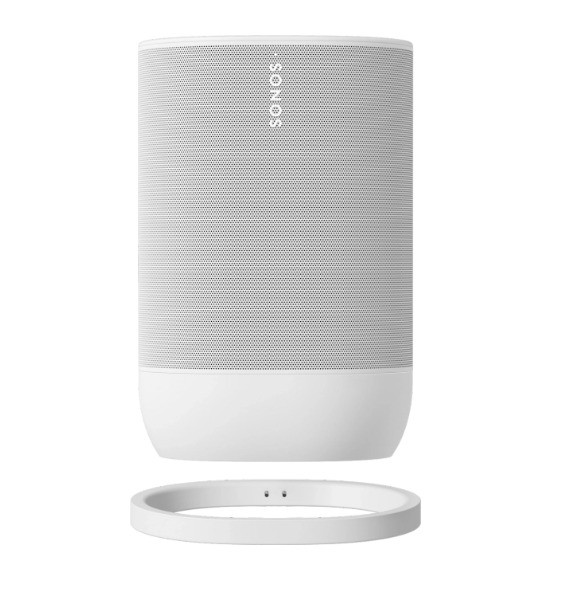
The Sonos Move 2, a high-end battery-powered wifi and Bluetooth speaker, has received a comprehensive upgrade, boasting double the battery life, impressive stereo sound, and new touch controls.

Priced at £449, the Move 2 is not your typical portable speaker. Designed to serve as a versatile sound system for both indoor and outdoor use, it weighs 3kg and shares a similar size to a conventional bookshelf speaker.

Functionally, it resembles its counterpart, the Era 100, but with the addition of a battery, allowing it to be moved between rooms, outdoors, or in a vehicle. Like its 2020 predecessor, the Sonos Move 2 outperforms nearly all competitors in its category, delivering superior sound quality comparable to larger boom boxes, especially at higher volumes.

Sonos Move 2
Sonos Move 2

Externally, the Sonos Move 2 maintains the robustness of its predecessor, being drop, water, dust, sun, and cold resistant. It connects to a router via wifi 6, enabling streaming from over 100 different services such as Spotify and BBC Sounds, all manageable through the Sonos app on a smartphone.

Equipped with stereo tweeters and a central woofer concealed beneath its curved grille, the Move 2 delivers powerful sound with substantial bass. Its sound profile is characterized by wide dispersion, crisp highs, and well-defined mids, with remarkable vocal clarity even amidst heavy basslines.

Operational enhancements include an adjustable equalizer through the Sonos app and automatic tuning to optimize sound based on the environment. It supports pairing with another speaker for stereo sound and integration into a multi-room audio system.

If you’re familiar with Sonos products, using the Move 2 will feel like a breeze right from the setup. For newcomers to Sonos, you’ll appreciate its seamless and intuitive operation, particularly when navigating the well-designed app. Whether setting up initially or simply enjoying daily playback, using the Move 2 to play music is hassle-free regardless of your preferred method.

Sonos Move 2
-Sonos Move 2

The app provides access to a vast array of streaming services and internet radio stations, spanning from Absolute Radio and Apple Music to Tidal and TuneIn. Additionally, you can customize various speaker settings, integrate the Move 2 into a broader Sonos multi-room setup (if you have other Sonos devices), and create stereo pairs with two Move 2 units.

A notable difference between a typical Bluetooth speaker and a Sonos Bluetooth speaker is that setting up the Move 2 requires using the app and connecting it to Wi-Fi before Bluetooth connectivity is possible. While this may seem like an additional step, considering the various playback options available with the Sonos Move 2, it’s a necessary part of the process. Moreover, Wi-Fi connectivity is essential for utilizing the Move 2’s additional features, such as voice commands, Amazon Alexa, Sonos Voice Control, and streaming music via Bluetooth to a stereo pair.

With the Sonos app, you can conveniently monitor the Move 2’s battery life, as it displays a small icon and percentage next to its name. The Move 2’s battery life has now doubled to 24 hours, a significant improvement over its previous duration of 10-11 hours.

Voice control is facilitated through Amazon’s Alexa and the Sonos voice assistant, which operates locally on the device for improved responsiveness and privacy. Notably, the Move 2’s battery life has doubled compared to its predecessor, lasting up to 24 hours of playback.

Despite its premium features and performance, the Move 2’s price tag may deter some buyers, especially considering the absence of Google Assistant support and spatial audio/Dolby Atmos capabilities. Additionally, its size and weight may limit its portability compared to smaller alternatives.

However, its long-term software support, replaceable battery, and top-notch sound quality make it a compelling option for those seeking a single, durable speaker solution for various environments.

Sonos Move 2
Full-size portable Bluetooth speaker Move 2 – images: Sonos

How does Sonos Move 2 differ from the original Move?

Sonos Move 2 introduces a revamped acoustic design, incorporating an extra tweeter for enhanced stereo sound. It boasts a more robust battery, offering approximately 24 hours of playback time, which is double that of the original Move. Additionally, Move 2 comes in new color options, features updated touch controls, and offers the capability to connect external audio sources such as turntables using the Sonos Line-In Adapter. The Wireless Charging Base has been upgraded, now with a detachable and more compact adapter. Furthermore, Move 2 allows for the simultaneous use of WiFi and Bluetooth, enabling Bluetooth audio playback throughout your Sonos system, among other improvements.

The Ultimate Guide to Downloading Music from SoundCloud

0

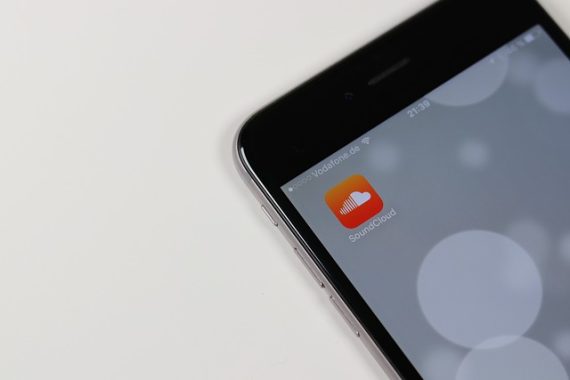
SoundCloud offers a vast array of music, allowing users to share and stream tracks across various devices. While direct music downloads aren’t natively supported, there are several methods to download your favorite tunes hassle-free. Whether you’re on Android, iOS, or PC, here’s a comprehensive guide to downloading music from SoundCloud.

Downloading Music from SoundCloud:

  1. Direct Download from SoundCloud:
    • Users can download tracks directly from SoundCloud if the uploader permits it. Simply tap the “More” option while playing the desired song to see if the download feature is available. Note that this method is only applicable to individual tracks and not entire playlists.

      Downloading Music from SoundCloud
      photo: pixabay
  2. Using Google Chrome:
    • Open SoundCloud and locate the song you wish to download. Click the “Share” button and copy the URL.
    • Visit KlickAud, a SoundCloud download service, paste the URL, and click “Download.” The MP3 file will be saved to your device.
  3. Firefox Extension:
    • Firefox users can install the SCDL SoundCloud Downloader extension. Once installed, navigate to SoundCloud, find the desired song, and click the “SCDL” button to initiate the download.
  4. Mobile Devices:
    • SoundCloud offers a subscription-based service for offline listening on mobile devices. Alternatively, users can download songs to their computers using browser extensions or online services and then sync them to mobile platforms like Google Drive or Dropbox.
  5. Downloading Playlists:
    • To download entire playlists, utilize the 4K Video Downloader app. Simply copy the playlist URL from SoundCloud, paste it into the app, and customize download preferences before initiating the process.

By following these steps, users can easily download music from SoundCloud across various platforms, ensuring uninterrupted access to their favorite tracks anytime, anywhere.

While SoundCloud primarily focuses on streaming music, users have multiple options to download tracks for offline listening. Whether it’s through browser extensions, online services, or dedicated applications, accessing your favorite tunes offline has never been easier.

  • After downloading music from SoundCloud, it’s essential to organize your files for easy access. Create designated folders on your device or cloud storage platforms to categorize your downloads by artist, genre, or playlist.
  • Regularly Update Your Downloads:
  • SoundCloud is a dynamic platform with new music constantly being uploaded. To stay updated with your favorite artists and discover new tracks, regularly update your downloads by refreshing playlists or exploring trending music on the platform.
  • Respect Copyright Laws:
  • While downloading music from SoundCloud for personal use is generally acceptable, it’s crucial to respect copyright laws. Avoid distributing or sharing downloaded content without proper authorization from the copyright holder to uphold ethical and legal standards.
  • Explore SoundCloud’s Features:
  • Beyond downloading music, SoundCloud offers a range of features to enhance your listening experience. Explore features like curated playlists, artist recommendations, and user-generated content to discover new music and connect with fellow music enthusiasts.
  • Support Artists:
  • As you enjoy downloading music from SoundCloud, remember to support the artists whose work you appreciate. Consider purchasing merchandise, attending live shows, or contributing to crowdfunding campaigns to support the creative endeavors of your favorite musicians.

BetterLinks Pro – incredible link management – free download

0

BetterLinks Pro revolutionizes link management for WordPress users with its cutting-edge features and intuitive interface. Developed by WPDeveloper, a trusted name in the WordPress community renowned for crafting top-notch plugins like Essential Addons for Elementor and BetterDocs, BetterLinks Pro offers a seamless experience for link shortening, tracking, and analysis, all within the familiar WordPress environment.

Gone are the days of cumbersome link management. BetterLinks Pro simplifies the process with its drag-and-drop interface, allowing users to effortlessly organize links into categories and customize shortened URLs to their liking. Moreover, the plugin boasts built-in analytics, empowering users to gain valuable insights into link performance and optimize their strategies for better results.

BetterLinks download free DOWNLOAD

The standout features of BetterLinks Pro include:

  1. Intuitive Interface: With its clean and modern design, BetterLinks Pro ensures a user-friendly experience, making link management a breeze.
  2. Comprehensive Analytics: Gain deeper insights into link performance with robust reporting and analytics features, enabling informed decision-making for your WordPress site.
  3. Seamless Migration: Switching from other plugins is hassle-free with BetterLinks Pro’s one-click migration feature, ensuring a smooth transition without any data loss.
  4. Responsive Support: WPDeveloper’s dedicated support team is always on hand to assist users, providing prompt and reliable assistance via email and live chat.

While BetterLinks Pro offers an array of benefits, it’s essential to consider some limitations:

BetterLinks
photo: pixabay

Pros:

  • Easy to use interface
  • Efficient link management
  • Seamless migration from other plugins
  • Comprehensive reporting and analytics
  • Responsive support team

Cons:

  • Basic analytics functionality
  • Lack of auto-detect and auto-link keyword feature
  • Relatively newer plugin compared to competitors

Despite these drawbacks, BetterLinks Pro delivers exceptional value, offering advanced link management features at an affordable price point. As a relatively newer plugin, it continues to evolve with regular updates and feature enhancements, promising even more functionality in the future.

BetterLinks Pro is available in both free and premium versions, catering to a diverse range of user needs. Some of the key features include:

Free Features:

  • Drag-and-drop UI
  • Quick link shortening
  • UTM code generator
  • Built-in analytics
  • Migration capabilities

Premium Features:

  • Advanced redirects
  • Individual analytics
  • Link expiration
  • UTM builder
  • Google Analytics integration
  • Split testing
  • User role management

BetterLinks Pro is a game-changer for WordPress users seeking efficient link management solutions. With its intuitive interface, robust features, and responsive support, it’s poised to elevate your WordPress experience to new heights. Whether you’re a seasoned professional or a novice user, BetterLinks Pro empowers you to optimize your link strategy and achieve your goals with ease.

Securing Your Smartphone: Guarding Against Phone Hacking

0

Experiencing phone hacking is a terrifying ordeal, and the aftermath can be a logistical nightmare. The gravest consequence of phone hacking is the unauthorized access to vital online accounts, ranging from social media to emails and even banking information. The aftermath entails the tedious process of altering numerous passwords, locking credit, and contacting various online platforms, including Amazon and eBay, to assess the extent of the breach.

Rather than adopting a reactive approach after falling victim to hacking, it is imperative to proactively take measures to safeguard your smartphone and privacy. To this end, here are ten straightforward precautions you can implement to shield yourself from potential hackers.

  • Utilize Passcode Lock or Biometric Authentication: Employing a passcode lock, Face ID, or Touch ID serves as the first line of defense for your mobile device. While not infallible, these security measures act as deterrents, preventing unauthorized access in case your phone falls into the wrong hands.

     Phone Hacking
    photo: pixabay
  • Frequently Back Up Your Phone: Regularly backing up your phone data is not only convenient for transitioning to a new device but is crucial in the event of loss or theft. Having multiple backups ensures you can remotely wipe the data on the lost or stolen device, offering peace of mind and data accessibility.
  • Avoid Storing Passwords on Your Phone: Resist the temptation to store passwords or sensitive information on your device. If your phone is compromised, the repercussions could extend beyond inconvenience to potential financial devastation. If necessary, use a reputable password manager for added security.
  • Download Apps Only from Official Stores: Exercise caution when downloading apps, particularly on Android devices. Stick to official app stores to reduce the risk of downloading malicious software. Be mindful of app permissions, granting access only to essential functions to minimize potential vulnerabilities.
  • Keep Your Phone and Apps Updated: Regularly update your phone’s operating system and apps to stay ahead of security threats. Updates often include critical security patches that protect against known vulnerabilities. Additionally, consider removing unused apps to reduce potential points of entry for hackers.
  • Implement Two-Factor Authentication (2FA): Enhance account security by enabling Two-Factor Authentication. This additional layer of protection requires a secondary form of identity verification, adding an extra hurdle for potential hackers. Explore various 2FA methods and choose the one that best suits your needs.
  • Use a VPN for Secure Browsing: When connecting to public Wi-Fi, employ a Virtual Private Network (VPN) to safeguard your IP address and encrypt data transmissions. This precaution prevents threat actors from intercepting information and protects against remote hacking attempts.
  • Be Wary of Third-Party Apps: Exercise caution when considering third-party apps, as they may pose a higher risk of security vulnerabilities. Stick to well-known and reputable applications to minimize the likelihood of falling victim to malicious software.
  • Educate Yourself on Social Engineering Tactics: Stay informed about common social engineering tactics employed by hackers. Be wary of phishing attempts, unsolicited messages, and fraudulent emails. Vigilance and skepticism can go a long way in preventing unauthorized access.
  • Secure Your Physical Device: Beyond digital measures, physically secure your smartphone. Avoid leaving it unattended in public spaces and consider using tracking features to locate your device if misplaced.

Taking these precautions ensures that you are actively fortifying your smartphone against potential hacking threats. By adopting a proactive mindset, you significantly reduce the risk of falling victim to unauthorized access and its subsequent consequences.

Exploring the Extent: Long-Range Wireless Routers and Their Factors

0

Wireless routers, also known as wireless access points, play a crucial role in providing network access through radio waves, eliminating the need for physical cables. However, the range over which these devices can communicate with PCs is influenced by various factors.

The standards governing wireless communication, such as 802.11b, 802.11g, and 802.11n, impact the maximum range of wireless routers. Currently, routers operating on the 802.11n standard boast the longest range. Compared to the previous 802.11g standard, 802.11n nearly doubles the unhindered range, covering approximately 200 to 300 feet (61 – 91m). Yet, achieving optimal range involves addressing specific challenges that affect wireless routers.

Maximizing Unobstructed Range:

The unhindered range of wireless routers can be extended by addressing certain key considerations. Transmitting more power to the antenna enhances the signal’s ability to overcome obstacles. While some routers have limitations on transmission levels set by manufacturers, when possible, increasing transmission power proves beneficial. This adjustment allows signals to reach further and facilitates penetration through materials like brick or metal walls.

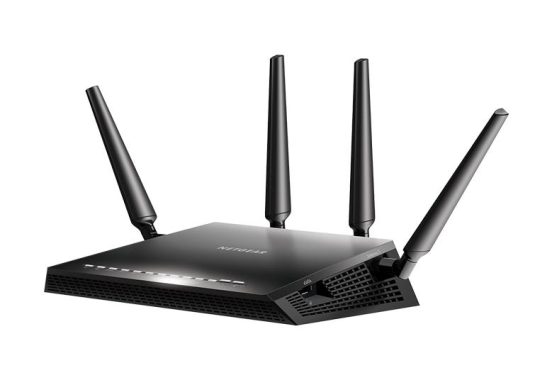
wireless router has the longest range
wireless router – Nighthawk X4S – photo: netgear

Antenna Types and Their Impact:

The majority of routers come equipped with omnidirectional antennas, broadcasting signals with equal strength in all directions. While this configuration is suitable for centrally located routers, it may result in signal issues in specific scenarios, such as when routers are placed on the far side of a building.

Different antenna types, such as Yagi and directional antennas, can focus energy into a single long-range beam, ideal for point-to-point wireless links. Others radiate energy like omnidirectional antennas but focus it in a specific direction for extended range, making them suitable for wall mounting.

Navigating Spectrum Challenges:

Wireless routers operate in unlicensed spectrum, where multiple users can transmit and receive on the same frequencies. Excessive transmissions on the same frequency can lead to signal confusion, reducing usable bandwidth and causing connection drops. Changing the wireless router frequency to a less crowded option, among the at least three non-overlapping frequencies provided by the 802.11 standards, can effectively increase both range and speed.

Choosing the Right Device:

The effectiveness of long-range wireless routers is not solely determined by power transmission but also by the efficiency of antennas. While directional antennas and high-gain antennas have their applications, they may not always be cost-effective. Some routers use innovative technologies like Beam Steering, modifying signal phases to enhance communication with devices in specific directions.

In the realm of range, the architecture of a space significantly influences wireless performance. Factors such as the number of walls, floors, and construction materials impact the signal’s ability to penetrate, especially in the 5GHz band. Defining a specific range for WiFi proves challenging unless the environment is an open field with an unobstructed path between the router and the device.

In conclusion, understanding the intricacies of wireless routers and their range involves considering standards, antenna types, spectrum challenges, and the specific requirements of the environment in which they operate. As technology evolves, optimizing these factors becomes crucial for achieving reliable and extended wireless connectivity.

How to remove hidden virus on USB devices

0

As USB devices are portable and often connected to various computers, they are highly susceptible to virus infections. Viruses can sometimes hide important files on USB drives, making it challenging to access the data. In this post, we will explore methods to eliminate hidden virus on USB flash drives.

Many people have experienced the sudden disappearance of data when opening a USB, replaced by one or more shortcut links. Locating the desired data can be time-consuming, even after adjusting the display settings for hidden files and folders. To address this issue at its core, consider the following two methods:

1. Run the Command Prompt (cmd):

  • Step 1: Search for the keyword “cmd” on your computer, right-click on the result, and choose “Run as administrator.”
  • Step 2: In the Command Prompt window, enter the command: cd /d <USB drive letter> (replace <USB drive letter> with the actual letter representing your USB drive, e.g., I) and press Enter.
  • Step 3: Type del *.lnk and press Enter.
  • Step 4: Type attrib -s -r -h *.* /s /d /l and press Enter.

It may take some time to recover all your files. Be cautious when entering commands, as any errors can lead to data loss. Copy and paste the commands into the Command Prompt window to ensure accuracy.

2. Use Anti-virus Software:

If you prefer a more comprehensive solution, consider using anti-virus software. Windows Defender in Windows 10 is effective, but if you’re using a different operating system, two recommended applications are USB Shortcut VIRUS Remover and UsbFix Free.

  • USB Shortcut VIRUS Remover:
    • Download link: USB Shortcut VIRUS Remover.
    • Usage: Simply enter the USB drive letter and click the designated button. Note that this tool is specifically designed for scanning USB drives and may not function as a full-fledged anti-virus program.
  • UsbFix Free:
    • Download link: UsbFix.
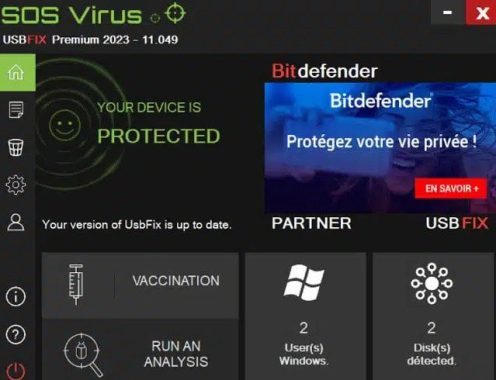
    • User manual: After installation, open UsbFix, click on “Run an Analysis,” and select “Scan USB Disks” to automatically detect and remove shortcut viruses and other malicious programs on your USB drive.

      UsbFix
      photo: UsbFix

This article has provided methods to remove hidden virus on USB devices. While it is advisable to perform a full computer scan using anti-virus software, these two straightforward methods can quickly address USB-related issues when immediate access is needed.