In the fast-paced world of digital transactions, Apple Pay stands out as a convenient and secure way to make purchases with just a tap of your iPhone or Apple Watch. However, like any technology, it’s not immune to occasional glitches and hiccups. If you’re encountering issues with Apple Pay, fear not – we’ve compiled an exhaustive guide to help you troubleshoot and optimize your Apple Pay experience.
photo: pixabay
Restart Your Device: It may sound simplistic, but restarting your iPhone or Apple Watch can often resolve minor software glitches that may be affecting Apple Pay functionality. A fresh start might be all it takes to get things back on track.
Check Your Battery: Low battery levels can hamper the performance of Apple Pay. Ensure that your device has sufficient battery life, especially if you’re attempting a transaction. Charging your device beforehand can prevent potential disruptions.
Verify Connectivity: Apple Pay relies on an internet connection to process transactions. Make sure that your device is connected to a stable Wi-Fi network or cellular data. Weak or intermittent connections can lead to transaction failures.
Confirm Merchant Support: Not all retailers accept Apple Pay, so it’s essential to verify that the merchant supports this payment method before attempting to use it. Look for the Apple Pay logo or ask the retailer directly to avoid any inconvenience.
Keep Your Software Updated: Ensure that your iPhone, iPad, or Apple Watch is running the latest version of iOS or watchOS. Software updates often include bug fixes and improvements that can enhance the performance of Apple Pay.
Assess Your Phone Case: Certain phone cases, particularly those made of metal or with built-in magnets, can interfere with the NFC (Near Field Communication) technology used by Apple Pay. Consider using a different case or removing the case altogether to see if it resolves the issue.
Sign Out and Sign Back In: If you’re experiencing issues with Apple Pay across multiple devices, signing out of your Apple ID and then signing back in may help reset the connection and resolve any authentication issues.
Monitor System Status: Check the Apple System Status page to see if there are any reported outages or service disruptions that may be impacting Apple Pay. If Apple Pay has a blue dot next to it, the service is operating normally.
Try Alternate Payment Readers: If Apple Pay isn’t working at a particular payment terminal, try using a different reader. Faulty or malfunctioning terminals can sometimes be the culprit behind Apple Pay failures.
Manually Select Payment Tags: If your device isn’t detecting the NFC reader properly, try manually selecting the card within the Wallet app before tapping your device on the reader. This workaround can often bypass detection issues.
Re-add or Update Card Details: Remove and re-add your cards to Apple Pay, especially if you’ve recently received a new card or if there have been changes to your card details. Keeping your card information up to date is essential for seamless transactions.
Opt for Credit Option: Some users have reported that selecting the credit option, even when using a debit card, can resolve Apple Pay issues. Experiment with different payment methods to see if it makes a difference.
Contact Your Bank: If you’ve exhausted all other options and are still experiencing issues with Apple Pay, contact your bank or card issuer for further assistance. They can help troubleshoot any underlying issues with your card or account.
By following these troubleshooting steps, you can overcome common hurdles and optimize your Apple Pay experience for seamless and hassle-free transactions wherever you go. Remember, a little troubleshooting goes a long way towards unlocking the full potential of this innovative payment technology.
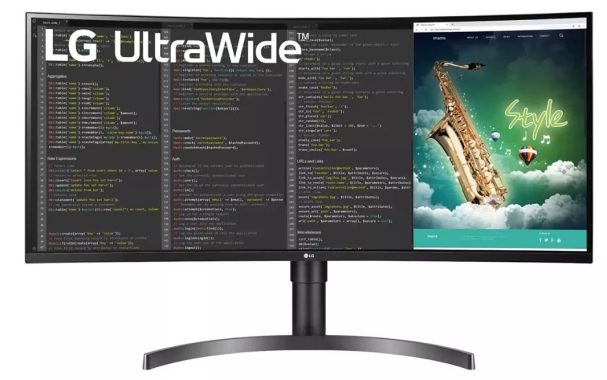
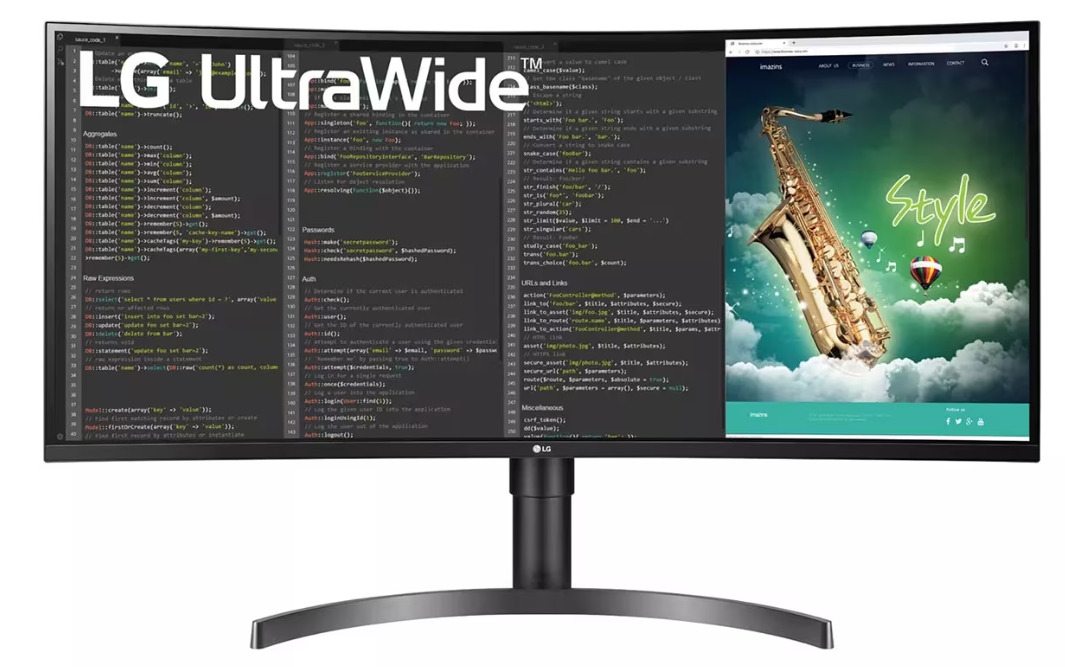
In the realm of productivity and immersive viewing experiences, the LG 35WN65C-B monitor emerges as a beacon of innovation. As journalists dedicated to uncovering technological marvels that redefine workspaces, we delve into the depths of this monitor to unveil its features, performance, and the impact it can make on modern workflows.
Design and Build Quality
At first glance, the LG 35WN65C-B captivates with its sleek design and minimalist aesthetics. Its ultra-wide 35-inch curved display creates a captivating presence, drawing users into a world of immersive visuals. The thin bezels surrounding the screen contribute to a seamless viewing experience, perfect for multi-monitor setups or standalone use.
Crafted with precision, the monitor boasts a sturdy build quality that exudes durability and reliability. The adjustable stand allows for versatile positioning, enabling users to find their optimal viewing angle with ease. Additionally, the monitor’s ergonomic design promotes comfortable usage over extended periods, reducing strain on the neck and eyes—a crucial consideration for professionals spending long hours in front of their screens.
LG 35WN65C-B
Visual Excellence
Equipped with a WQHD (3440 x 1440) resolution and a 21:9 aspect ratio, the LG 35WN65C-B delivers stunning visual clarity and sharpness. Whether you’re editing high-resolution images, crafting intricate designs, or immersing yourself in cinematic content, every detail is rendered with precision and vibrancy.
The monitor’s VA panel ensures consistent colors and solid viewing angles, making it ideal for collaborative work environments or sharing content with colleagues during presentations. Furthermore, with support for HDR10, the display unlocks a world of dynamic contrast and lifelike colors, elevating the viewing experience to new heights.
Enhanced Productivity
In today’s fast-paced world, efficiency is paramount, and the LG 35WN65C-B rises to the occasion with a host of features designed to streamline workflows and boost productivity. The ultra-wide screen real estate provides ample room for multitasking, allowing users to simultaneously view multiple windows and applications without feeling cramped or cluttered.
The monitor’s On-Screen Control and Screen Split functionalities empower users to customize their workspace according to their preferences, effortlessly arranging windows and adjusting settings with intuitive ease. Whether you’re a creative professional seeking seamless workflow integration or a business executive striving for enhanced multitasking capabilities, the LG 35WN65C-B delivers the tools you need to excel.
Immersive Entertainment
Beyond its prowess in productivity, the LG 35WN65C-B doubles as a gateway to immersive entertainment experiences. With a 100Hz refresh rate and AMD FreeSync technology, the monitor ensures smooth, tear-free gameplay, making it a compelling choice for gamers seeking an edge in performance and responsiveness.
The curved design engulfs viewers in the action, pulling them into a captivating world where every frame comes to life with breathtaking clarity and fluidity. Whether you’re exploring vast virtual landscapes, engaging in intense firefights, or enjoying your favorite movies and TV shows, the LG 35WN65C-B transforms entertainment into an immersive spectacle.
Connectivity and Convenience
Versatility is key in today’s interconnected world, and the LG 35WN65C-B excels in this regard with its comprehensive connectivity options and convenient features. Equipped with multiple ports, including HDMI, DisplayPort, and USB-C with power delivery, the monitor offers seamless compatibility with a wide range of devices, from laptops and desktops to gaming consoles and media players.
Additionally, the built-in USB hub provides convenient access to peripherals, reducing cable clutter and streamlining your workspace. Furthermore, the monitor’s integrated speakers deliver crisp, immersive audio, eliminating the need for external speakers and further enhancing the overall user experience.
The LG 35WN65C-B stands as a testament to LG’s commitment to innovation and excellence in display technology. From its captivating design and stunning visuals to its enhanced productivity features and immersive entertainment capabilities, this monitor redefines the modern workspace, empowering users to unleash their creativity, boost their productivity, and immerse themselves in a world of limitless possibilities.
Whether you’re a creative professional pushing the boundaries of design, a business executive seeking peak productivity, or a gamer craving an unparalleled gaming experience, the LG 35WN65C-B offers a compelling solution that exceeds expectations on every front. With its blend of style, performance, and versatility, this monitor is not just a display—it’s a gateway to a new era of immersive computing.
LG has taken a bold and unconventional approach with this monitor. Typically, monitor manufacturers target specific audiences when designing their products. Some focus solely on creating gaming monitors with high refresh rates like 144Hz and ultra-fast response times of 1ms, sacrificing image quality features in the process. Others prioritize image quality, neglecting gaming features altogether.
However, LG has decided to break from this trend by combining image quality features such as HDR 10 support with a VA panel, alongside a refresh rate of 100Hz and a response time of 5ms for this display.
With its ultrawide design and this unique blend of features, it becomes apparent that this monitor is geared more towards productivity and professional use rather than gaming. Nevertheless, the inclusion of a 100Hz refresh rate still offers a level of smoothness suitable for casual gaming sessions.
Learn how to watch multiple YouTube TV streams at once using the multiview feature.
When it comes to catching several sports games simultaneously on a single screen, YouTube TV’s multiview feature offers the perfect solution. Here’s how it operates:
YouTube TV stands out as a top choice for live sports streaming, largely due to its multiview functionality. With multiview, you can enjoy up to four games concurrently, ensuring you don’t miss any action from your favorite leagues such as NFL, NBA, MLB, NHL, and Premier League soccer. Additionally, YouTube TV provides exclusive access to NFL Sunday Ticket, featuring every NFL game.
The multiview feature on YouTube TV caters to sports enthusiasts who desire to watch multiple games simultaneously. However, it’s important to note that multiview is currently only available on streaming devices like Roku and Apple TV, not on mobile devices or laptops.
photo: pixabay
Despite some limitations, such as device exclusivity, I found multiview incredibly beneficial, particularly during the football season.
YouTube TV is already a fantastic option for cord-cutters seeking live TV, and with multiview, you can enjoy your preferred content alongside other household members who may have different viewing preferences. Whether it’s catching up on Disney for the kids or indulging in a favorite TV show with your spouse, multiview makes it possible to watch up to four programs at once.
Key points about multiview:
Multiview feature is tailored for streaming devices.
It enables simultaneous viewing of two to four streams on YouTube TV, dividing the screen into quartered sections.
Available exclusively on select streaming boxes like Roku, Fire TV, and Apple TV.
Not compatible with mobile devices, laptops, or most YouTube smart TV apps. If you’re unable to find multiview options on your YouTube TV, it may be due to incompatible device selection.
Here’s how to utilize YouTube TV’s multiview feature to watch up to four streams simultaneously:
To begin, navigate to the home screen on YouTube TV. From there, you have three avenues to discover channels offering multiview experiences:
Check the “For You” section on the home screen, where any available multiview streams will be listed.
Explore the “Watch in Multiview” section, which showcases the latest multiview streams, also located on the home screen.
Alternatively, you can simply select any stream you’re interested in watching. While the content is playing, press down on your remote. This action prompts the appearance of the multiview button at the bottom left of the screen. Click on it to access a menu displaying all available multiview options, appearing to the right of the stream.
Once multiview mode is activated, your screen will be divided into sections displaying all chosen streams. The audio will emanate from the stream in the top left corner (or left of the screen, depending on the number of streams). You can switch audio between streams using the directional pad on your remote, with the channel currently playing audio highlighted by a white box. Additionally, you can opt for full-screen viewing of a specific stream by selecting it while its audio is selected, thereby closing other channels and reverting to single-channel viewing mode.
However, it’s worth noting a common concern with multiview: the inability to select specific channels or programs. Instead, users must choose from preset content options supporting the multiview feature. Consequently, there may be instances where desired content, such as all four NFL games, isn’t available simultaneously. Likewise, attempting to split-screen a game while another household member watches a different program may not always be feasible within the multiview framework.
Channels compatible with multiview are organized into four primary categories, each offering various channel options:
Sports: ESPN, ESPN 2, Fox Sports 1, NBC Golf Channel
News: BBC News, CNN, Fox News Channel, MSNBC
Business News: CNBC, Fox Business Network
Weather: Fox Weather, The Weather Channel
To maximize the benefits of YouTube TV’s multiview feature, consider enhancing your subscription with premium sports packages like NFL Game Pass and NBA League Pass. While YouTube TV offers the Sports+ package as an add-on to your base subscription, it’s advisable to explore individual channels first.
As of now, YouTube TV provides comprehensive coverage for two major sports leagues: the NFL and NBA. However, access to every game in these leagues requires separate subscriptions to NFL Game Pass and NBA League Pass, respectively. Therefore, before opting for additional packages, evaluate your preferences and viewing needs to ensure you’re selecting the most suitable options.
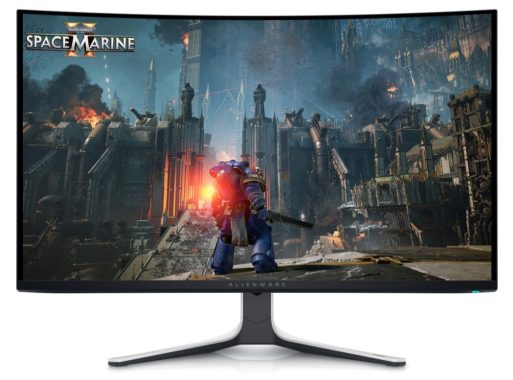
When it comes to top-tier gaming monitors, the Dell Alienware AW3225QF stands tall among the competition. Boasting cutting-edge features tailored for gaming aficionados, such as HDMI 2.1 bandwidth and a lightning-fast 240Hz refresh rate, this monitor sets a new standard in immersive gameplay. Yet, its appeal extends beyond gaming, thanks to its exceptional picture quality, making it equally adept at delivering cinematic experiences.
While reminiscent of its predecessor, the Dell Alienware AW3423DWF, the AW3225QF sets itself apart with its larger screen and higher resolution, offering versatility for various multimedia endeavors. This positions it as a formidable contender not only within the realm of gaming monitors but also against QD-OLED TVs, particularly for those seeking a compact yet high-performance display.
Setting it apart from the AW3423DWF, the AW3225QF excels in gaming prowess with its superior refresh rate and HDMI 2.1 bandwidth, catering to both PC and console gamers seeking the pinnacle of performance. Moreover, its higher 4K resolution ensures unparalleled image detail and text clarity, though the AW3423DWF’s ultrawide format holds an edge in certain gaming scenarios. Additionally, the AW3225QF incorporates extra features like an eARC port and Dolby Vision support, further enhancing its appeal.
Crafted with meticulous attention to detail, the AW3225QF exudes durability and sophistication. Its robust build quality, characterized by solid plastic materials and a stable stand, ensures a seamless user experience devoid of any distracting wobbling or flexing. While the joystick control may emit a slight noise during operation, it’s a minor quibble amidst an otherwise impeccable design.
Dell AW3225QF
Sporting a sleek, gamer-centric aesthetic, the slightly curved screen and white plastic accents pay homage to Alienware’s iconic design language. The V-shaped stand not only adds to its visual appeal but also provides steadfast support, while its slim profile adds to the overall elegance.
In terms of display performance, the absence of a backlight eliminates the need for local dimming, yet the monitor’s near-infinite contrast ratio ensures vivid, lifelike visuals devoid of any blooming effects. This renders it akin to having a perfect local dimming feature, surpassing expectations with its unrivaled picture quality.
The Dell Alienware AW3225QF showcases commendable HDR peak brightness, particularly accentuating small highlights to deliver a striking visual experience with vibrant HDR content. However, its performance diminishes as highlights expand across larger areas, with a noticeable decline in brightness. The Electro-Optical Transfer Function (EOTF) generally adheres well to the target for darker and mid-tone scenes but exhibits a gradual roll-off at peak brightness, limiting the full potential of highlights.
These observations are based on the ‘HDR Peak 1000’ Smart HDR mode, with Brightness set to 75 and Console Mode disabled. Enabling Console Mode results in a sharper roll-off of the EOTF curve, altering the HDR presentation accordingly.
Comparatively, the ‘HDR Peak 1000’ mode outshines the ‘Custom Color HDR,’ with the latter achieving a Real Scene brightness of 356 cd/m², and highlights peaking at 450 cd/m². However, ‘Custom Color HDR’ exhibits a sharper EOTF roll-off, implying minimal tone mapping before the source takes over control, affecting the overall HDR rendition.
Although the monitor boasts Dolby Vision support, users may encounter certain glitches. Dolby Vision activates automatically, even within Windows HDR, leading to washed-out highlights and colors, notably evident in the ‘HDR Peak 1000’ Smart HDR mode. While switching to ‘DisplayHDR True Black’ mitigates this issue, users are unable to toggle between Smart HDR modes once Dolby Vision is engaged. Furthermore, transitioning between game mode and desktop mode or exiting games triggers significant flickering and intermittent source connection loss, detracting from the user experience.
Moreover, HDMI compatibility with Dolby Vision presents additional challenges. Initial firmware (M2B101) rendered Dolby Vision inoperable over HDMI, requiring an update to firmware M2B102, released on February 6, 2024, to address this issue partially. Despite the update, Dolby Vision remains unsupported for Blu-ray playback. Similar to DisplayPort, HDMI activation of Dolby Vision within Windows HDR prevents deactivation without disabling HDR entirely. Additionally, powering off the display induces source disconnection and flickering, necessitating manual unplugging and re-plugging to rectify the issue.
The Dell AW3225QF sets a high bar for text clarity, boasting exceptional sharpness thanks to its elevated pixel density. Enabling Windows ClearType further enhances the boldness of letters, ensuring an optimal reading experience. While it may not match the text rendering capabilities of other 4K monitors, such as the Dell G3223Q, due to potential issues with program compatibility stemming from its triangular subpixel layout, it still outperforms many ultrawide QD-OLED counterparts, including the Dell Alienware AW3423DW. These observations are evident in both Windows 10 and Windows 11 environments, with and without ClearType activated.
In terms of Variable Refresh Rate (VRR) compatibility, the Dell Alienware AW3225QF stands out by supporting all common formats over both DisplayPort and HDMI, including FreeSync, despite lacking official AMD certification. Its inclusion of Low Framerate Compensation ensures smooth VRR operation even at lower frame rates. Moreover, G-SYNC functionality over HDMI functions flawlessly without encountering any notable issues during testing.
A comparison between the Samsung Odyssey Neo G8 S32BG85 and the Dell Alienware AW3225QF reveals nuanced distinctions. Both monitors boast 4K resolution and a blazing-fast 240Hz refresh rate, yet diverge in picture quality. The Dell’s utilization of a QD-OLED panel delivers superior blacks and more vibrant colors compared to the Samsung counterpart. Furthermore, the Dell model avoids common bugs like scanlines or flickering in dark scenes, offering a more seamless visual experience.
However, the Samsung monitor shines in well-lit environments, thanks to its impressive brightness capabilities. Additionally, it mitigates the risk of burn-in associated with prolonged exposure to static elements, making it a preferred option for extended usage scenarios.
The Dell AW3225QF emerges as a powerhouse for both content creation and gaming endeavors, offering a blend of impressive features and performance alongside a few notable drawbacks.
For content creation enthusiasts, the monitor shines with its exceptional accuracy in sRGB picture mode, eliminating the need for manual calibration. Its expansive 32-inch screen and high 4K resolution provide ample space for multitasking while delivering crisp, detailed images. However, the slightly curved screen may necessitate an adjustment period for users unaccustomed to such displays. Despite these advantages, OLED panels like the one featured in the AW3225QF are susceptible to burn-in over time, cautioning against prolonged exposure to static elements.
In gaming, the Dell Alienware AW3225QF monitor earns acclaim for its outstanding performance. With near-instantaneous response times and low input lag, it ensures smooth, responsive gameplay with crisp motion clarity. The monitor’s near-infinite contrast ratio and perfect black uniformity contribute to immersive dark room gaming experiences, accentuated by vivid colors and highlights that pop. Additionally, its high resolution and HDMI 2.1 bandwidth enable seamless 4K gaming at refresh rates of up to 240Hz. However, the lack of support for 1440p signals from consoles may disappoint some users.
In summarizing its strengths and weaknesses:
Pros:
Expansive 32-inch screen.
Superb black levels and uniformity.
Impressive 240Hz refresh rate with Variable Refresh Rate (VRR) support.
Near-instantaneous response time.
HDMI 2.1 bandwidth for high-resolution gaming.
Cons:
Limited support for 1440p signals from consoles.
Issues with Dolby Vision compatibility.
eARC port functionality may be unreliable.
Despite these drawbacks, the Dell AW3225QF stands as a versatile choice for users seeking top-tier performance in both content creation and gaming realms, offering a compelling combination of features and capabilities. The Dell Alienware AW3225QF redefines the gaming monitor landscape with its unparalleled blend of performance, versatility, and aesthetics. Whether you’re indulging in intense gaming sessions or enjoying cinematic masterpieces, this monitor is poised to elevate your viewing experience to new heights.
Ensuring the longevity of your vehicle’s engine is paramount to avoiding costly repairs and maintaining smooth operation on the road. Engine failures can result from various factors, with neglect and improper care being common culprits. However, by implementing simple yet effective maintenance routines, you can significantly extend the life of your engine without much hassle. Here are five key practices to consider:
Prioritize Regular Maintenance: Regular maintenance is the cornerstone of engine longevity. Adhering to manufacturer-recommended service schedules is essential. Consult your vehicle manual for guidance on fuel types and scheduled maintenance intervals to keep your engine running smoothly. Additionally, pay attention to air filters, as clogged filters can hinder engine performance. Timely cleaning or replacement of air filters is crucial to ensure optimal engine function and longevity.
Drive Responsibly: Aggressive driving habits, such as excessive speeding and abrupt acceleration, can accelerate engine wear and lead to premature failure. Driving within speed limits and maintaining smooth transitions between acceleration and braking reduces stress on the engine, promoting longevity. Understanding your vehicle’s capabilities and driving it accordingly contributes to safer operation and prolonged engine life.
photo: pixabay
Smooth Acceleration: Avoid sudden acceleration or deceleration, as these actions strain the engine and components. Smooth transitions between acceleration and deceleration minimize wear and tear, preserving engine health. By adopting a gentler driving style, you can mitigate stress on the engine and enhance its durability over time.
Lighten the Load: Excess weight in your vehicle can strain the engine, affecting its performance and longevity. Remove unnecessary items from your car’s trunk or interior to reduce weight and alleviate stress on the engine. Driving with a lighter load enhances fuel efficiency and reduces wear on engine components, ultimately extending its lifespan.
Minimize Idling Time: Extended idling can lead to overheating and increased fuel consumption, posing risks to engine health. Avoid prolonged idling, especially in traffic or at traffic lights. If you anticipate waiting for more than 10 minutes, consider turning off the engine to conserve fuel and prevent unnecessary wear on engine parts. Minimizing idle time helps maintain optimal engine temperature and reduces the risk of mechanical issues.
Adopting proactive measures to care for your vehicle’s engine can significantly extend its lifespan and minimize the risk of costly repairs. By prioritizing regular maintenance, driving responsibly, and minimizing stress on the engine through smooth acceleration and deceleration, you can enjoy enhanced performance and longevity from your vehicle’s engine. Remember that professional assistance from certified mechanics is invaluable for diagnosing and addressing any engine issues promptly, ensuring continued reliability on the road.
When your laptop battery fail to charge, it can be a major hindrance to your productivity. But what could be causing this issue? A variety of factors might be at play, such as a defective battery, insufficient power source, or damaged charging cord.
Fortunately, many of these issues can be resolved with the right troubleshooting steps. In this guide, we’ll delve into the reasons behind your laptop battery not charging and offer solutions to get it up and running again.
Start by Addressing Two Common Culprits:
Verify Charging Cord Functionality: Before assuming the battery is to blame, ensure your charging cord is in proper working condition. Begin by connecting your laptop and checking for any indication of power, such as LED lights. If the laptop shows signs of receiving power, the cord and power source are likely not at fault.
If no lights or signs of power are evident, examine the charging cord. Some cords consist of detachable segments, so ensure they’re securely connected. Also, try plugging the cord into a known working outlet. Pay particular attention to the charging port, which can become loose or damaged due to impacts, preventing the laptop from receiving power and consequently failing to charge the battery.
Check Software Settings: Review your laptop’s software settings to ensure they’re optimized for charging and power management. For Windows 10 users:
Click on Start and navigate to Power and Sleep Settings (known as Power Options in older Windows versions).
Select Change Plan Settings and scrutinize battery and power-saving configurations for any anomalies. Look out for settings that might trigger the laptop to shut down prematurely or enter sleep mode unexpectedly. Adjust any settings that could lead to the laptop powering off, mimicking a battery failure.
photo: pixabay
By systematically addressing these common issues, you can diagnose and potentially resolve the problem preventing your laptop battery from charging properly.
Troubleshooting Battery Charging Issues on Windows 10:
If your laptop battery isn’t charging properly, it might be due to problems with the battery driver. Follow these steps to address potential driver issues on Windows 10:
Navigate to Device Manager from the Start menu.
Under “Batteries,” locate and select the driver for your battery.
Right-click on the driver and choose “Update Driver.”
If an updated driver is available, it will be installed, and you can restart your computer.
If you previously didn’t see the charging symbol over the battery icon on your desktop toolbar but it’s visible now, this could have been the underlying problem.
Assessing Battery Health:
If your battery still refuses to charge, it’s likely that the battery itself is faulty. Battery health is a crucial factor affecting charging capability. Over time, batteries can degrade, leading to issues such as partial charging, rapid power loss, or quick depletion from a full charge.
Signs of a deteriorating battery include:
Excessive heat during charging, particularly near the battery location.
Rapid discharge or slow charging.
Physical damage like cracks, swelling, leaking, or a sticky residue.
You can visually inspect the battery for signs of damage. Carefully remove it from your laptop, taking precautions if it’s hot. If you notice any physical damage, stop using it immediately and arrange for a replacement.
Alternatively, you can perform a battery health check using Windows 10:
Press the Windows key + X key simultaneously.
Select “Windows Powershell (Admin)” from the menu.
Grant permission to make changes if prompted.
In the Powershell window, type “powercfg /batteryreport /output C:\battery-report.html” and hit Enter.
Locate the generated report, typically in your Documents or Desktop folder.
Open the report in a browser to review.
Key Metrics to Consider in the Report:
Battery Capacity: Compare the actual capacity with the intended capacity. A significant deviation indicates battery degradation.
Battery Life Estimation: Check if the actual battery life matches the expected duration. A notable difference suggests poor battery health.
Deciding on Battery Replacement:
If your battery is nearing the end of its lifespan, consider replacing it preemptively to avoid unexpected power loss. Ensure to purchase a replacement battery from authorized vendors to prevent potential compatibility issues and warranty voidance.
Remember, addressing battery issues is relatively straightforward compared to other laptop problems. Replacing the battery or charging cord is typically more cost-effective than replacing the entire device. Additionally, if you have a faulty charging jack, professional repair services can often provide a straightforward solution.
In the ever-evolving realm of display technology, two terms have been making waves: Mini-LED and MicroLED. At first glance, they might seem interchangeable, but delving deeper reveals distinctive characteristics that set them apart.
Let’s start with MicroLED, touted as the beacon of future displays. Much like its predecessor OLED, MicroLED boasts self-emissive capabilities, negating the need for a backlight and delivering an infinite contrast ratio. What distinguishes it further is its composition—void of organic materials, ensuring longevity sans deterioration or burn-in issues commonly associated with OLED.
Moreover, MicroLED’s luminance prowess outshines OLED, promising heightened brightness for detailed highlights and an enhanced HDR experience. Its modular nature adds another layer of allure, offering users the freedom to customize screen size, resolution, and aspect ratio through panel arrangement.
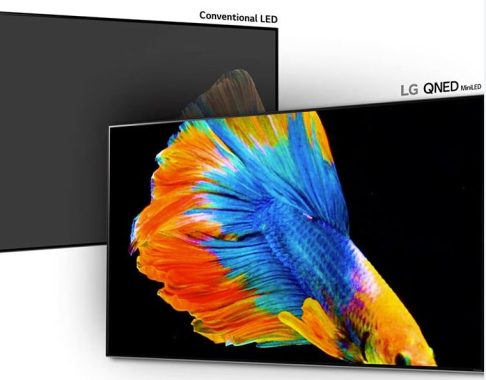
On the other end of the spectrum lies Mini-LED, an enhancement to conventional LCDs. By swapping out traditional LED backlights for their Mini-LED counterparts, manufacturers achieve a leap in performance metrics—think improved contrast ratio, uniformity, and faster response times.
Mini-LED exhibits a brighter output and sidesteps burn-in concerns, rivalling OLED displays. However, it grapples with blooming, a phenomenon where illuminated zones bleed light into adjacent dim areas, compromising overall picture quality.
Diverging from traditional edge-lit or full-array local dimming (FALD) backlight methods, MiniLED sets a new standard by amplifying the scale, transitioning from mere tens or hundreds of individually controllable LEDs to tens of thousands. LG’s proprietary MiniLED backlight innovation boasts an impressive array of nearly 30,000 LEDs, promising exceptional peak brightness and an asserted contrast ratio of 1,000,000:1.
Augmenting these LEDs are up to 2,500 individually controllable zones, facilitating advanced local dimming. This refined approach yields a smarter and more seamless dynamic contrast mechanism, effectively mitigating many of the challenges encountered with previous techniques, notably blooming—a halo artifact where surrounding pixels of a bright object appear excessively illuminated. With a greater number of addressable zones dictating backlight control, MiniLED significantly reduces such visual artifacts. Moreover, its scalable nature ensures adaptability across displays of varying sizes, positioning MiniLED as a versatile backlight solution poised to shape the future of LCD-based displays.
As consumers navigate the ever-expanding array of display options, understanding these nuances becomes paramount in making informed choices tailored to individual preferences.
The choice between Mini-LED and MicroLED extends beyond mere technical specifications; it’s about weighing the trade-offs and aligning them with specific use cases. For instance, enthusiasts seeking unparalleled contrast and customization might lean towards the futuristic allure of MicroLED. Meanwhile, those prioritizing improved performance within the existing LCD framework might find solace in the advancements offered by Mini-LED.
Furthermore, considerations extend beyond the initial purchase. Longevity, maintenance, and evolving industry standards play pivotal roles in shaping the overall user experience. While MicroLED’s longevity and resistance to burn-in offer reassurance, Mini-LED’s incremental enhancements to LCD technology provide a compelling proposition for those seeking a more immediate upgrade path.
As the technology landscape continues to evolve, Mini-LED and MicroLED represent pivotal milestones in the quest for superior display experiences. Whether you’re a casual viewer, a content creator, or a gaming aficionado, these innovations pave the way for immersive, dynamic visual encounters that redefine our perception of digital content.
The choice between Mini-LED and MicroLED transcends technical specifications; it’s a testament to the relentless pursuit of innovation and the quest for the perfect visual experience. So, whether you’re captivated by the sleek modularity of MicroLED or enticed by the refined performance of Mini-LED, one thing remains certain—the future of display technology has never been more exciting or more accessible.
In essence, while both Mini-LED and MicroLED share LED roots, their divergence lies in their application and inherent technologies. As consumers navigate the ever-expanding array of display options, understanding these nuances becomes paramount in making informed choices tailored to individual preferences.
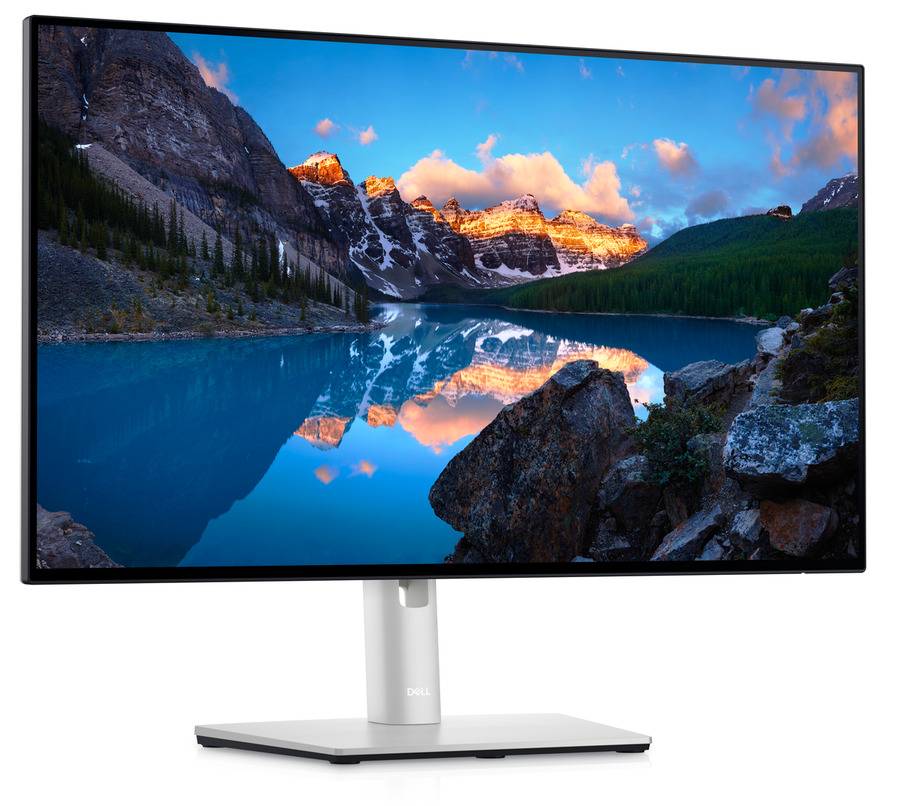
The Dell U2422H UltraSharp 23.8-inch monitor sets a high standard for display quality, ergonomic design, and environmental sustainability. Engineered with a plethora of features, this monitor caters to professionals and enthusiasts alike.
Design and Build Quality:Crafted with a premium platinum silver finish, the monitor exudes elegance. Its small base and cable management system contribute to a clutter-free workspace, enhancing both aesthetics and functionality.
Display Performance: The monitor boasts vibrant colors and wide color coverage, including 100% sRGB, 100% Rec.709, and 85% DCI-P3, ensuring accurate color reproduction. With In-Plane Switching (IPS) technology, users can enjoy consistent colors and picture quality from wide viewing angles.
Comfort and Ergonomics: Optimizing eye comfort is paramount with the ComfortView Plus feature, which reduces harmful blue light emissions without compromising color accuracy. Additionally, users can adjust the monitor’s tilt, swivel, pivot, and height (up to 150mm) for optimal viewing comfort, minimizing strain during long working hours.
Connectivity and Compatibility: The monitor offers comprehensive connectivity options, including super-speed USB 10Gbps and quick-access front ports, facilitating seamless connectivity with various devices. DisplayPort and HDMI inputs ensure compatibility with a wide range of multimedia sources.
Environmental Sustainability: With a commitment to environmental responsibility, the U2422H is constructed using 85% PCR (Post-consumer Recyclable Plastic) and meets stringent environmental standards such as ENERGY STAR and TCO Certified Edge Displays. Additionally, it is EPEAT Gold registered, reflecting Dell’s dedication to reducing its ecological footprint.
The Dell U2422H features a 4-side borderless design with a sleek 1mm black plastic edge and an additional thin ~4.5mm black panel border (~8mm on the bottom edge) surrounding the display, making it an attractive option for multi-screen setups. The stand, with its versatile and flexible design in an appealing silver color, offers a sturdy base with minimal screen wobble during adjustments, providing stability for repositioning or altering the on-screen display (OSD). The stand adjustments are easy to maneuver, offering a wide range of positions, enhancing the overall aesthetics suitable for office environments.
Control of the OSD is managed through a single joystick located on the back right-hand side of the screen. While functional, the placement of the joystick may pose a slight inconvenience as it’s positioned a bit too far from the edge, requiring some effort to locate. However, once found, the joystick proves easy to use, offering a decent range of options within the OSD. The OSD software, though, is notably sluggish, detracting from the user experience. Despite this, navigating through the options is swift and effortless thanks to the joystick control.
Equipped with IPS technology, the panel delivers reliable performance for general office use, offering stable images with wide viewing angles and excellent picture quality at its 1920 x 1080 resolution on a 23.8″ screen. While the resolution may feel limiting compared to larger, higher-resolution alternatives on the market, particularly for those accustomed to larger screens, it still provides comfortable and sharp font sizes. However, transitioning from a smaller 1080p screen to this may pose a challenge, suggesting that an upgrade to a 27″ 1440p model would be worth considering for those seeking enhanced visual fidelity.
In my experience, the U2422H exceeds expectations in terms of performance and visual quality, seamlessly integrating into my workspace with its sleek, modern design and slim bezels. The sturdy and adjustable stand allows for versatile positioning, while the monitor’s 60Hz refresh rate and 5ms response time prove more than sufficient for productivity tasks and casual gaming, delivering smooth action without noticeable ghosting or lag.
The Dell UltraSharp 24 Monitor offers an outstanding combination of design, visual quality, connectivity options, and ergonomic features, significantly enhancing work productivity and overall computing experience. For those in search of a high-quality monitor for both work and leisure, the U2422H comes highly recommended as a worthwhile investment that delivers on performance and satisfaction.
Dell U2422H Technical Specifications:
Display Size: 23.8 inches
Resolution: 1920 x 1080 FHD
Aspect Ratio: 16:9
Contrast Ratio: 1000:1
Brightness: 250 cd/m²
Panel Technology: IPS
Response Time: 8 ms
Connectivity: DisplayPort, HDMI, USB hub
Design: Black/Silver, VESA Mounting Compatible (100 x 100 mm)
Energy Efficiency: ENERGY STAR Certified, EPEAT Gold, TCO Certified Edge
Weight: 5.6 kg (with stand)
The Dell UltraSharp 23.8-inch monitor U2422H is a versatile and environmentally conscious display solution, offering exceptional performance, ergonomic flexibility, and sustainability. Whether for professional use or entertainment, this monitor delivers an immersive viewing experience while prioritizing user comfort and environmental stewardship.
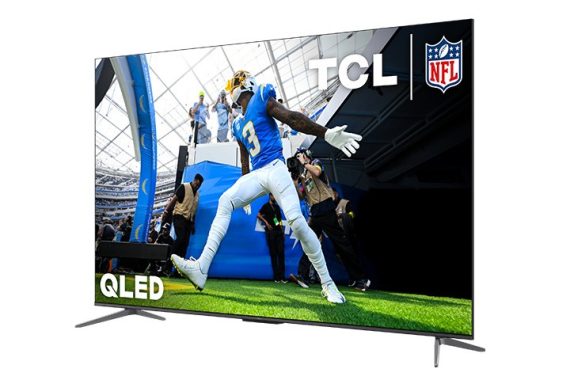
The TCL Q5 looks pretty good for a budget TV. It’s a simple design, with thin bezels on all three sides and a slightly thicker bezel at the bottom. The V-shaped feet are very basic. They’re set near the ends of the TV, so you’ll need a large cabinet for the larger sizes if you’re not planning on wall-mounting the TV. Sadly, the feet have no alternative position to accommodate a smaller table. The feet only lift the TV about 2.8″, so most soundbars can’t fit in front of it without blocking a portion of the screen.
The TV has okay build quality. It wobbles a bit on its feet, but it’s nothing to worry about. There’s a bit of flex in the metallic upper section of the back, with more noticeable flex in the middle section of the back around the VESA mounts, but this is common and won’t cause any issues. The TCL Q6/Q650G QLED and the TCL Q5/Q550G QLED are very similar TVs, but the Q6 is slightly better in a few ways. The biggest advantage that the Q6 has is in peak brightness. It gets brighter in SDR, so it can fight off glare better. It also gets a bit brighter in HDR, so highlights will pop a little more, but it’s still not bright enough to fully take advantage of HDR content. The Q6 also has slightly better HDR gradient handling and PQ EOTF tracking, so there’s less banding, and it’s more accurate in HDR compared to the Q5.
TCL Q5
The TCL 65Q550G presents itself as a commendable option within the realm of budget TVs, boasting a simplistic design characterized by thin bezels surrounding the screen. With V-shaped feet situated towards the TV’s ends, its placement necessitates a spacious cabinet unless opting for wall-mounting. However, the lack of alternative foot positions may pose a challenge for those with smaller tables. Moreover, with a modest elevation of about 2.8 inches, accommodating soundbars without obstructing the screen proves cumbersome.
In terms of build quality, the TV maintains a satisfactory standard despite minor wobbling on its feet. The metallic upper section exhibits a degree of flex, particularly around the VESA mounts, albeit without significant repercussions.
Comparatively, the TCL Q6/Q650G QLED closely resembles the Q5/Q550G, albeit with slight enhancements. Notably, the Q6 shines brighter in both SDR and HDR, making it adept at combating glare and enhancing highlight clarity. Additionally, its superior HDR gradient handling and PQ EOTF tracking translate to reduced banding and heightened accuracy, particularly in HDR scenarios, distinguishing it from its Q5 counterpart. Nevertheless, the Q6’s brightness levels may still fall short of fully leveraging HDR content.
The TCL Q5 TV emerges as a noteworthy contender for gaming and PC monitor usage, showcasing remarkable features alongside a few limitations. Its standout attribute lies in its remarkably low input lag, ensuring seamless responsiveness between user actions and on-screen feedback, making it a prime choice for gaming and PC applications.
However, the absence of a local dimming feature impacts its contrast performance, resulting in less-than-ideal black levels, particularly unsuitable for dimly lit environments. Additionally, while its SDR brightness is commendable, the HDR brightness may not fully deliver the immersive visual experience expected from HDR content.
For PC monitor usage, the Q5 shines with its low input lag and impressive response time, facilitating smooth cursor movements and minimal motion blur. The ‘PC’ Picture Mode optimally renders chroma 4:4:4 signals, ensuring clear text display crucial for productivity tasks. Nonetheless, its narrow viewing angle might present inconsistencies in image quality, especially at close proximity.
Gaming enthusiasts will appreciate the Q5’s excellent response time, minimizing motion blur during fast-paced gameplay. The combination of low input lag and Variable Refresh Rate (VRR) support enhances gaming responsiveness, although the absence of HDMI 2.1 ports restricts 4k @ 120Hz gaming. Nonetheless, native support for 1080p @ 120Hz and 1440p (through resolution halving) provides options for high frame rate gameplay.
The inclusion of eARC support enhances audio connectivity, enabling high-quality uncompressed audio transmission to compatible receivers. However, limitations in passing certain audio formats through eARC might disappoint users seeking comprehensive audio support.
While the TCL Q5 falls short in fully capitalizing on the capabilities of next-gen consoles like the PS5 and Xbox Series X|S due to HDMI 2.1 bandwidth limitations, its compatibility with 1440p @ 120Hz and support for VRR and Auto Low Latency Mode (ALLM) ensure a decent gaming experience.
For those seeking an entry-level QLED experience, the TCL Q5 QLED TV offers a compelling option, although it comes with some caveats. Tailored for simplicity without compromising on essential features, this TV caters to users who prioritize core functionality over advanced capabilities.
Ideal for HDR movie viewing in dimly lit environments, the TCL Q5 exhibits adequate contrast, although the absence of local dimming results in less pronounced black levels. While it achieves decent brightness for minor highlights, the lack of brightness for specular highlights may slightly detract from the HDR experience. Nonetheless, the PQ EOTF tracking ensures fidelity to the content creator’s vision, contributing to an authentic viewing experience.
However, the TV’s performance with lower-quality content from streaming platforms may leave something to be desired, as its low-quality content smoothing fails to mitigate noticeable compression artifacts. Additionally, color accuracy out of the box is subpar, necessitating calibration for those who prioritize color fidelity.
In terms of features, the TCL Q5 QLED positions itself as a basic yet functional choice within TCL’s Q-series lineup. With three HDMI 2.0 bandwidth ports supporting Variable Refresh Rate (VRR), coupled with TCL’s Game Accelerator 120 feature (available on the 55-inch and 65-inch models), it offers a satisfactory gaming experience at 1440p @ 120Hz, albeit achieved through resolution halving. Supporting Dolby Vision HDR and HDR10+ formats, alongside pass-through capabilities for select Dolby and DTS advanced audio formats, it ensures compatibility with a range of content.
Powered by the intuitive Google TV operating system, navigation and content discovery are seamless, complemented by the convenience of integrated Google Assistant and Amazon Alexa functionality via the remote’s microphone. With built-in Chromecast, sharing and streaming content from your smartphone is effortless, enhancing the TV’s versatility.
Available in four sizes ranging from 43 to 65 inches, the TCL Q5 QLED caters to various space and viewing preferences, ensuring there’s a suitable option for every household.
In essence, while the TCL Q5 QLED may not boast the most advanced features, its blend of essential functionalities, decent performance, and affordability make it a compelling choice for those embarking on their QLED viewing journey. Price: from $399.99 to $699.99 for 65″ TV.
WhatsApp has finally introduced the much-anticipated feature allowing users to utilize multiple accounts on the same device, a move aimed at simplifying day-to-day messaging tasks. Meta, in a recent blog post, announced the rollout of this feature, addressing a common issue faced by users who wished to keep their personal and professional communications separate on a single device.
Previously, WhatsApp limited users to a single account per device, prompting inconvenience for those seeking to maintain distinct spheres of communication. The arrival of this multi-account feature, previously available in the beta version of WhatsApp Business on Android since June, has been eagerly awaited by the user base. However, certain prerequisites must be met before users can avail themselves of this functionality.
WhatsApp photo
Historically, managing two WhatsApp accounts on one device necessitated cumbersome methods like utilizing WhatsApp for one account and WhatsApp Business for the other, or resorting to application duplication. These methods, though functional, lacked ease of switching between accounts. The introduction of the new feature streamlines this process, offering a simple menu within the application for setting up and managing multiple accounts, enhancing privacy, notification management, and account switching without resorting to parallel applications.
Despite its name suggesting multiple accounts, presently, users can only add a single additional account. Moreover, since a phone number is mandatory for account creation, users must possess a smartphone supporting dual SIM functionality to receive the verification code from WhatsApp. Once initial verification is complete, the application seamlessly accommodates both accounts, eliminating the need for a second device or SIM card.
To add an account, users simply navigate to WhatsApp settings, select their profile, and choose “Add Account,” following the on-screen instructions.
This update coincides with Meta’s efforts to position its instant messaging service as more of a social network, evident in features like news channels. Additionally, Meta is working on features such as screen sharing and replacing phone numbers with nicknames and passwords with access keys to bolster security and user privacy. There is hope that this multi-account support may extend to companion devices tethered to the primary phone in the future.