Home Blog Page 28

Specs & Review: GAMDIAS Kratos M1-750W PSU

0

Amidst a saturated market brimming with choices, GAMDIAS strategically focuses on the gaming sector, skillfully navigating the delicate balance between cost-effectiveness and captivating design. Offering a wide array of PC power and cooling solutions, peripherals, and even furniture, GAMDIAS caters to the diverse requirements of the gaming community.

One product in the spotlight is the Kratos M1-750W PSU, aimed at the RGB-centric segment of the PC gaming market. While not positioned as a flagship product for elite competition, the M1-750W PSU signifies GAMDIAS’ foray into an arena where aesthetics take center stage. Delving into its intricacies reveals how GAMDIAS aims to blend cost and visual appeal, offering the Kratos M1-750W as an enticing option for users seeking a stylish PSU with RGB lighting without a hefty price tag.

GAMDIAS Kratos M1-750W PSU

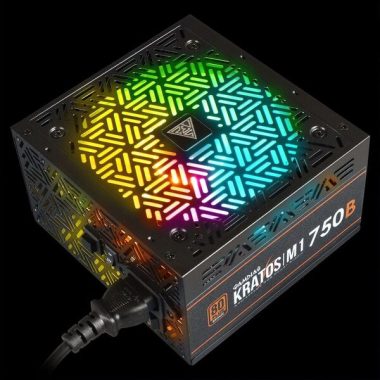
The external design of the Kratos M1-750W is distinctive, even without its RGB lighting. GAMDIAS incorporates a triangular logo pattern on all sides of the chassis, creating a visually appealing product that adheres to ATX design guidelines. The non-modular nature of the PSU features flat, ribbon-like black wires and connectors, maintaining a sleek look.

While the Kratos M1-750W lacks semi-passive thermal profiles, it compensates with a unique approach to fan speed control. The PSU’s rear side hosts switches for cycling through lighting patterns and toggling the “silent mode,” which controls the fan speed based on temperature. The absence of semi-passive mode means the fan always spins, with the “silent mode” functioning as the default thermally-based fan speed control.

The Kratos M1-750W’s standout feature is its external design and RGB lighting. The LEDs, housed inside the fan’s hub, deliver powerful and crisp illumination, offering a plethora of customizable effects. Users can switch between internal and motherboard/external RGB control with a simple button press.

The cooling fan, manufactured by PowerYear, operates at a maximum speed of 1800 RPM. The PSU’s filtering stage is basic, featuring two Y capacitors, two X capacitors, and two filtering inductors. The absence of DC-to-DC circuitry on the secondary side is noteworthy, with the 3.3V and 5V lines regulated through a group regulation scheme. Despite concerns, Jun Fu capacitors prove to be reliable in this low-cost design.

However, the Kratos M1-750W exhibits fluctuations in minor lines under cross-loading, characteristic of group-regulated platforms. Voltage regulation remains passable, with a 2% deviation on the 3V and 12V lines, and 3.6% on the 5V line.

The PSU’s primary protections, including Over Current, Over Voltage, Over Power, and Short Circuit, engage effectively. Nevertheless, the OPP protection is set relatively high at around 120% of the rated capacity, potentially stressing the unit under high temperatures.

As we dissect the Kratos M1-750W further, it becomes evident that the balance between aesthetics and performance is a delicate one. The PSU’s average build quality places it in a category where many power supplies reside, catering to users with a keen eye for design but without compromising essential functionality.

Behind the Kratos M1-750W is the reputable OEM/ODM, Andyson, a well-known designer and manufacturer of PC PSUs. However, the unit relies on an older platform with only minor upgrades and outdated topologies. This aspect raises questions about its long-term viability and adaptability to evolving hardware standards. Potential buyers should weigh this factor against the allure of its RGB aesthetics.

While the capacitors may not bear the prestigious label of well-known Japanese brands, the unit’s reliance on Jun Fu capacitors shouldn’t be hastily dismissed. Contrary to concerns, Jun Fu is a reliable manufacturer, delivering components of better quality than typically expected in a low-cost design.

Cross-loading tests reveal the characteristic fluctuations in minor lines, a common trait of group-regulated platforms. Despite advancements in newer designs, the inherent limitations persist, posing potential challenges for modern systems that heavily rely on the 12V line.
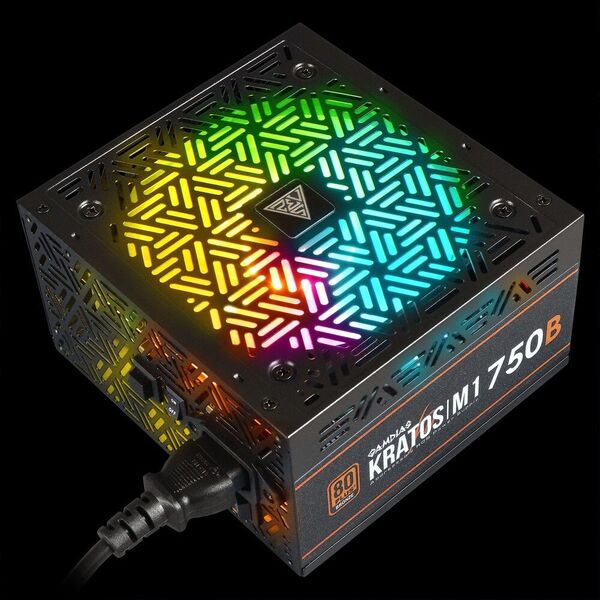
GAMDIAS Kratos M1-750W PSU
Kratos M1-750W PSU – images: GAMDIAS

Voltage regulation, while not flawless, is within acceptable limits with a 2% deviation on the 3V and 12V lines, and 3.6% on the 5V line. This suggests that the Kratos M1-750W is capable of delivering stable power within reasonable tolerances.

The PSU’s primary protections engage effectively, demonstrating GAMDIAS’ commitment to ensuring the safety and longevity of the unit. However, the Over Power Protection (OPP) set at around 120% of the rated capacity raises eyebrows, as it may subject the unit to unnecessary stress, particularly under high temperatures.

The GAMDIAS Kratos M1-750W PSU is a product of compromises, carefully balancing visual appeal with performance within a certain price range. While it may not cater to the demands of elite gaming competitions, it presents a viable option for users seeking a budget-friendly, RGB-equipped power supply. Potential buyers should consider the trade-offs, particularly the reliance on an older platform, when evaluating the Kratos M1-750W for their specific gaming setup.

Specification Kratos M1-750WDetails
TypeATX12V v2.2
EfficiencyMeet 80 PLUS Bronze efficiency
Power Factor CorrectionAPFC with PF value of 0.99
Support MB Sync5V 3-pin Addressable (Digital) RGB Header Only
Dimension (L x W x H)140 x 150 x 86 mm
Support C6/C7 power stateNo
AC Input100-240V / 6-12A / 47-63Hz
DC Output+3.3V / +5V / +12V / -12V / +5Vsb
Max. Output Current20A / 20A / 60A / 0.3A / 2.5A
Max. Output Power130W / 720W / 3.6W / 12.5W
Total Power750W
ProtectionOVP / UVP / OPP / SCP / SP
Main Power1 (20+4 Pin)
CPU2 (4+4 Pin)
PCI-E4 (6+2 Pin)
SATA5 (5 Pin)
Molex2 (4 Pin)
Floppy1 (4 Pin)
ModularNon-Modular
Flat CableYes
Lighting Effect30 Neon-Flex RGB
Silent ModeYes
DC to DCNo

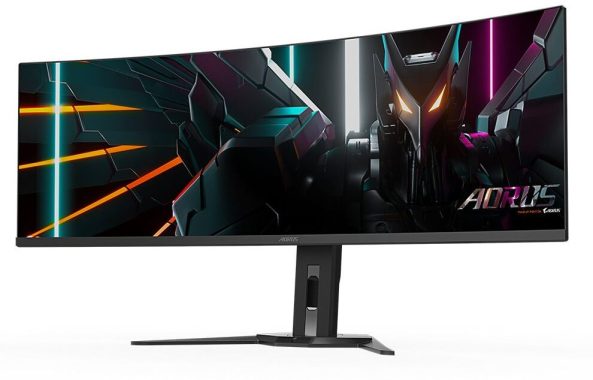
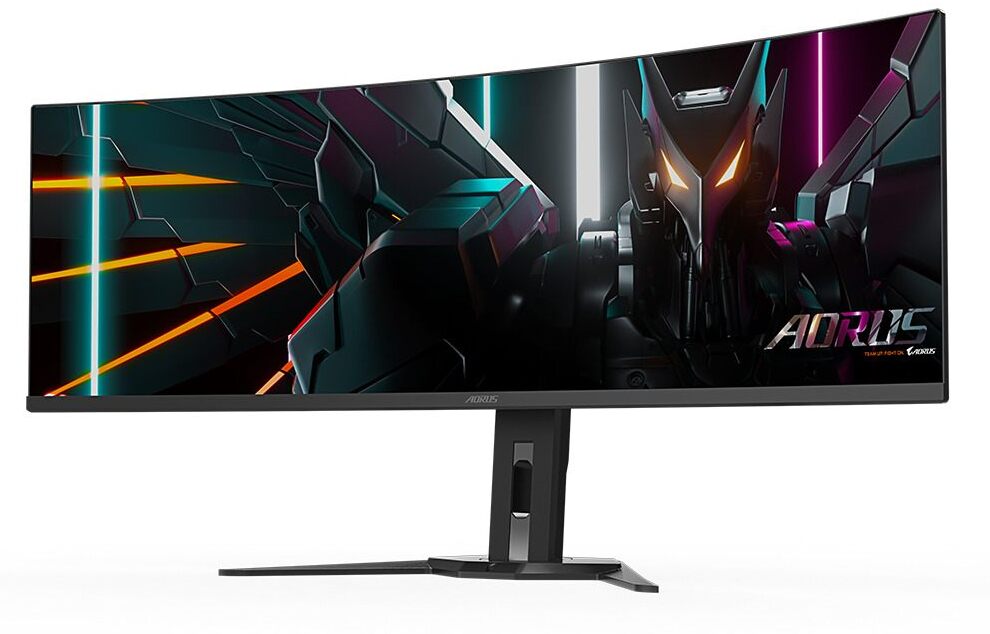
AORUS CO49DQ Gaming Monitor Review

0

The AORUS CO49DQ gaming monitor is a visual powerhouse that combines cutting-edge technology with thoughtful features to deliver an immersive gaming and multitasking experience. Boasting a massive 49-inch OLED display with a 32:9 aspect ratio, this monitor is a game-changer for both gamers and professionals alike.

OLED Care – Guarding Against Burn-in Issues: A standout feature of the GIGABYTE AORUS CO49DQ is its OLED Care technology, employing an AI-based algorithm to minimize the risks of burn-in issues. This, combined with a series of OLED protecting technologies, ensures that users can enjoy the stunning visuals without the concern of long-term damage, a testament to AORUS’s commitment to display longevity.

Multitasking Marvel with PIP/PBP: The Picture-in-Picture (PIP) and Picture-by-Picture (PBP) functionalities redefine multitasking on a single monitor. Users can seamlessly view different video sources on one screen simultaneously, making it possible to watch game guides or other content while gaming. The 32:9 aspect ratio allows for easy split-screen configurations, effectively turning the monitor into two 16:9 displays side-by-side.

AORUS CO49DQ Gaming Monitor
AORUS CO49DQ gaming Monitor

KVM Feature for Effortless Device Control: The Keyboard, Video, and Mouse (KVM) feature is a game-changer for users juggling multiple devices. With the AORUS CO49DQ, you can control multiple devices using a single set of peripherals, streamlining your workspace and reducing clutter.

Impressive Technical Specifications: The technical specifications of the AORUS CO49DQ further enhance its appeal. The 49-inch OLED panel with a resolution of 5120 x 1440 (DQHD) delivers crisp and detailed visuals. The 144Hz refresh rate ensures smooth motion, while the VESA DisplayHDR True Black 400 and ClearMR 8000 technologies contribute to an enhanced HDR experience.

Connectivity and Audio Experience: The AORUS CO49DQ doesn’t compromise on connectivity, featuring HDMI 2.1, DisplayPort 1.4, and USB Type-C ports. The built-in 5W x 2 speakers add an immersive audio dimension to your gaming and multimedia experiences.

AORUS CO49DQ Gaming Monitor
AORUS CO49DQ

Smart Features for Enhanced User Control: The monitor comes equipped with a range of smart features, including OSD Sidekick for intuitive on-screen control, Black Equalizer for enhanced visibility, and a Dashboard for quick access to essential information. The inclusion of HDMI-CEC allows for seamless control of HDMI-connected devices.

Ergonomic Design and Build Quality: The AORUS CO49DQ is not just about performance; its design and build quality are equally impressive. With tilt, swivel, and height adjustment options, users can customize their viewing experience. The VESA wall-mount compatibility adds versatility to placement options.

The AORUS CO49DQ gaming Monitor stands out as a versatile and technologically advanced display solution. Whether you’re a gamer looking for an immersive experience or a professional in need of an expansive workspace, this monitor excels on all fronts. The OLED Care technology, combined with multitasking capabilities and intelligent features, makes it a standout choice in the competitive gaming monitor market.

AORUS CO49DQ Gaming Monitor
AORUS CO49DQ Gaming Monitor – images: Gigabyte

specs AORUS CO49DQ Specifications of the GIGABYTE AORUS CO49DQ Gaming Monitor:

Key FeaturesSpecification
Panel Size (diagonal)49″ OLED
Display Viewing Area (HxV)1,196.7 x 339.2 mm
Panel Backlight/TypeEdge
Display SurfaceAnti Reflection
Color Saturation99% DCI-P3
True Resolution5120 x 1440 (DQHD)
Pixel Pitch0.2331(H) x 0.2331(V) mm
Brightness250 cd/m2 (TYP)
Contrast Ratio1500000:1
Viewing Angle178°(H)/178°(V)
Display Colors10bit (1.07B)
Response Time0.03ms GTG
Refresh Rate144Hz
HDRVESA DisplayHDR True Black 400
VESA Certified ClearMRClearMR 8000
Flicker-freeYes
HBR3Yes
Factory CalibrationYes
Connectivity2 x HDMI 2.1, 1 x DisplayPort 1.4, 1 x USB Type-C, 2 x USB 3.0 Downstream, 1 x USB 3.0 Upstream, 1 x Earphone Jack
Speaker5W x 2
Unique FeaturesOSD Sidekick, Black Equalizer, Dashboard, Crosshair, Timer, Counter, PiP/PbP, Auto-Update, KVM, 6-axis Color Control, Apply Picture Mode, HDMI-CEC
Power TypePower Board Build-in
AC Input Max72W
Power Saving Mode<0.5W
Power Off Mode<0.3W
VoltageAC 100-240V ~ 50/60Hz
Tilt(angle)-5°~+20°
Swivel(angle)±30°
Pivot(angle/direction)N/A
Height Adjustment (mm)130mm
VESA Wall Mounting(mm)100×100 mm
Kensington LockYes
Phys. Dimension with Stand(WxHxD)1194.78×558.80×261.52 mm
Phys. Dimension w/o stand(WxHxD)1194.78×372.23×160.51 mm
Box Dimension(WxHxD)1310x563x345 mm
Net Weight with stand (Esti.)11.28 kg
Net Weight without stand (Esti.)8.33 kg
Gross Weight (Esti.)17.8 kg

5 Easy Ways to Take Screenshots in Windows

0

Occasionally, you may find the need to capture and store the contents displayed on your screen—be it for sharing noteworthy moments with friends and family or saving information for future reference. Fortunately, whether you’re using Windows 10 or the newer Windows 11, there are several convenient methods for capturing full or partial screenshots.

Learn how to employ the built-in tools and various shortcuts available in both Windows 10 and Windows 11 to capture screenshots, allowing you to choose the method that best suits your preferences.

Screenshots in Windows
Screenshots in Windows – photo: pixabay

Taking screenshots in Windows 10 is a straightforward process, and there are several ways to do it. Here are five easy methods:

  1. Print Screen (PrtScn) Key:
    • Press the PrtScn key on your keyboard. This captures the entire screen.
    • To capture only the active window, press Alt + PrtScn.
    • Open an image editor (like Paint or Photoshop) and paste (Ctrl + V) to view and edit the screenshot.
  2. Snipping Tool:
    • Open the Snipping Tool by typing “Snipping Tool” in the Windows search bar and selecting it from the results.
    • Click on “New” and select the area you want to capture.
    • After capturing, you can edit and save the screenshot.
  3. Snip & Sketch:
    • Use the keyboard shortcut Win + Shift + S to open the Snip & Sketch tool.
    • Select the area you want to capture.
    • The captured snip is copied to the clipboard and can be pasted into an image editor.
  4. Windows + Print Screen:
    • Press Windows + PrtScn to capture the entire screen. The screenshot is automatically saved in the Screenshots folder within the Pictures library.
  5. Game Bar:
    • If you are running a game, you can use the Xbox Game Bar.
    • Press Win + G to open the Game Bar, and then click on the camera icon to take a screenshot.

Notably, the Snip & Sketch tool offers a more user-friendly experience for capturing, sharing, and annotating screenshots compared to its predecessor, the Snipping Tool. It now includes the ability to capture screenshots of specific windows on your desktop—a feature that was initially missing and kept many users loyal to the Snipping Tool until recently.

To swiftly access Snip & Sketch, use the keyboard shortcut Windows key + Shift + S. Alternatively, you can locate the Snip & Sketch tool in the alphabetical list of apps accessible from the Start button or in the notification panel, where it’s identified as Screen snip. If the keyboard shortcut doesn’t stick in your memory, a simple search will also lead you to the tool.

Remember that the methods may vary slightly depending on your Windows 10 version. These are general methods that should work for most users. Feel free to choose the one that fits your preference and workflow.

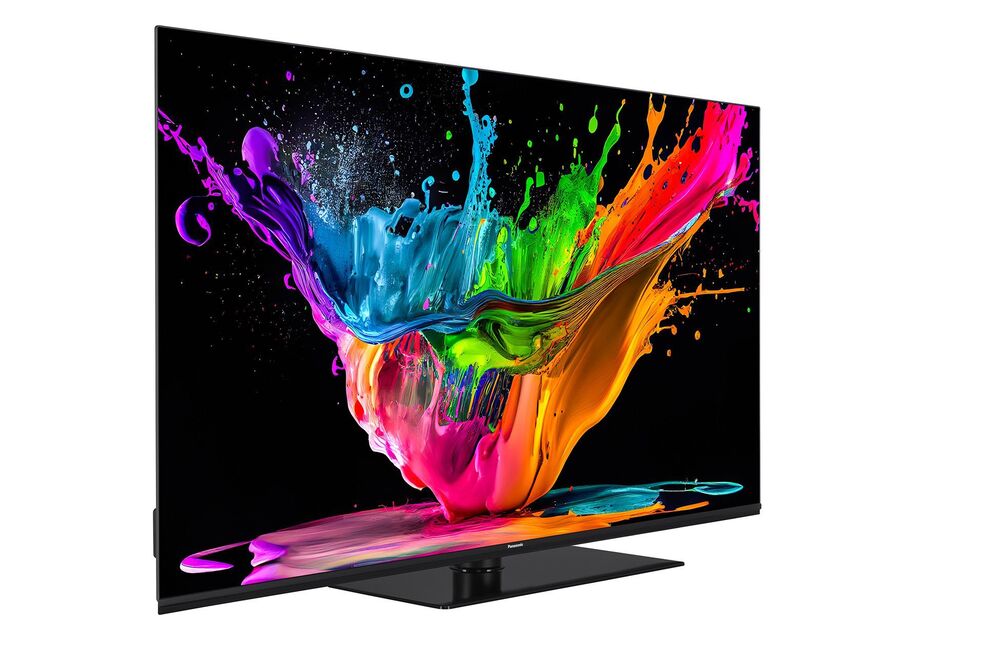
Review: Panasonic TX-48MZ800B OLED 4K UHD Smart TV

0

Within the dynamic sphere of home entertainment, the Panasonic TX-48MZ800B TV asserts itself as a compact dynamo, presenting a captivating synthesis of compatibility, performance, gaming finesse, OLED brilliance, all at an enticingly accessible price.

Design:
The Panasonic TX-48MZ800B TV boasts a sleek design that seamlessly integrates into any living space. The 48-inch OLED screen commands attention without dominating the room, striking a balance between size and impact. The minimal bezels add to the immersive viewing experience, letting the display take center stage. The TV is a testament to Panasonic’s commitment to quality aesthetics, ensuring that your entertainment hub remains both functional and stylish.

Panasonic TX-48MZ800B – Performance:
Packing a punch in terms of performance, the TX-48MZ800B impresses with its 4K Ultra HD resolution. The OLED technology and LED backlighting deliver deep blacks and vibrant colors, providing a visual feast for cinephiles and casual viewers alike. The Smooth Motion Drive PRO ensures that fast-paced action scenes remain crisp and blur-free, contributing to an overall immersive viewing experience.

Panasonic TX-48MZ800B TV

Gaming Experience:
For avid gamers, the Panasonic TX-48MZ800B TV doesn’t disappoint. Game Mode, with reduced input lag, makes gaming super-responsive. The inclusion of TWITCH via Google Play is a delightful bonus for those who love to stream and engage with the gaming community. Whether you’re into high-stakes battles or exploring expansive virtual worlds, this TV enhances the gaming experience, making it a fantastic choice for the gaming enthusiasts out there.

Smart TV Features:
Running on the Android TV platform, the Panasonic TX-48MZ800B TV ensures effortless access to a plethora of entertainment streaming apps. With the Google Assistant at your beck and call, navigating through channels, adjusting volume, or locating content becomes as simple as asking. The TV’s compatibility with Dolby Atmos sound adds another layer to the audio experience, providing enveloping sound with a built-in subwoofer for a deeper, more rounded quality. The option to link to a soundbar via wireless Bluetooth or HDMI eARC interface offers flexibility in upgrading the audio setup.

Unique Features and Software:
One standout feature is the TV’s compatibility with various HDR formats, including Dolby Vision, HDR10, HDR10+, and HLG. This ensures that you get the best possible picture quality, with stunning contrasts and lifelike colors. The inclusion of a Quad Core Processor and 4K Colour Engine PRO ensures smooth operation and vivid visuals.

However, the setup process might pose a slight challenge for some users, but the payoff in picture quality makes it well worth the effort. It’s worth noting that the TV may have initial difficulties accessing the Google Play Store, but a workaround involves resetting the TV to “Safe Mode” and then opening the Play Store. Once this is done, the TV seamlessly operates in normal mode.

On the downside, the absence of a default web browser might be an inconvenience for some users. While a web browser can be downloaded from the Google Play Store, the compatible options might not match the fluidity of more common browsers. The inability to download Google Chrome adds to this hiccup, and the available browsers may come with an unwanted side dish of ads.

Price and Value:
Priced at £799, the Panasonic TX-48MZ800B TV offers excellent value for money, especially considering its premium features and OLED technology. This TV successfully disproves the notion that smaller screens compromise on quality, delivering a top-tier viewing experience in a more compact package.

Panasonic TX-48MZ800B

Connectivity and Convenience: The Panasonic TX-48MZ800B TV doesn’t skimp on connectivity options. With three HDMI ports, two USB ports, and Bluetooth capability, it ensures you have plenty of options for connecting your favorite devices. The inclusion of ARC (Audio Return Channel) and eARC enhances the audio experience, especially when paired with compatible sound systems or soundbars. The TV’s Wi-Fi capability also adds to the convenience, allowing seamless integration into your smart home ecosystem.

User-Friendly Interface: Navigating the TV’s interface is a breeze, thanks to the intuitive Android TV platform. The user-friendly interface ensures that even those less tech-savvy can quickly adapt to the various features and settings. The inclusion of voice control via Google Assistant further simplifies the user experience, allowing you to control the TV with just your voice. Whether you’re searching for content, adjusting settings, or launching apps, the Google Assistant is there to assist, making your entertainment experience more enjoyable and hands-free.

Energy Efficiency: In an era where energy efficiency is a growing concern, the Panasonic TX-48MZ800B doesn’t disappoint. The OLED technology, with its ability to individually control pixels, contributes to a more energy-efficient display. This not only benefits the environment but also your electricity bill, making the TV a sustainable and cost-effective choice for the eco-conscious consumer.

Customer Support and Warranty: Panasonic has a reputation for providing excellent customer support, and the TX-48MZ800B is no exception. The TV comes with a standard warranty, offering peace of mind in case of any manufacturing defects. Additionally, Panasonic’s responsive customer service ensures that any queries or concerns you may have are addressed promptly, enhancing the overall ownership experience.

Pros:

  1. Stunning OLED display with deep blacks and vibrant colors.
  2. Excellent gaming performance with reduced input lag and TWITCH access.
  3. Android TV platform for seamless access to a wide range of streaming apps.
  4. Compatibility with various HDR formats for an immersive viewing experience.
  5. Dolby Atmos sound with a built-in subwoofer for enhanced audio quality.
  6. Intuitive user interface with voice control via Google Assistant.
  7. Energy-efficient OLED technology.
  8. Three HDMI ports, two USB ports, and Bluetooth connectivity.

Cons:

  1. Initial setup process may be a bit challenging for some users.
  2. Lack of a default web browser; the need to download one from the Play Store.
  3. Incompatibility with Google Chrome; limited browser options.
  4. Some compatible browsers come with clunky interfaces and unwanted ads.

Verdict: The Panasonic TX-48MZ800B OLED 4K Ultra HD HDR Smart TV stands as a testament to Panasonic’s commitment to delivering premium entertainment experiences. Its combination of exceptional picture quality, gaming prowess, and smart features make it a compelling choice for consumers seeking a versatile and stylish addition to their home entertainment setup. While a few quirks in the setup process and browser options may be present, the overall package, coupled with a reasonable price point, makes the Panasonic TX-48MZ800B a strong contender in the competitive world of smart TVs. Whether you’re a movie buff, a avid gamer, or someone who simply appreciates top-notch visual and audio quality, this TV is poised to elevate your home entertainment to new heights.

Discover GIGABYTE’s AORUS AI Laptops: 14th Gen Powerhouse

0

GIGABYTE Technology made a significant entry into the AI gaming laptop market with the introduction of the AORUS AI Gaming Laptop Series at the 2024 Consumer Electronics Show in the United States. The company unveiled the AORUS and GIGABYTE Gaming AI laptops, featuring the latest 14th generation Intel® Coreâ„¢ HX series processors and NVIDIA RTXâ„¢ 40 Laptop GPUs. This marks GIGABYTE’s foray into the evolving realm of AI PCs. The initial release includes models such as the AORUS 17X and AORUS 16X, both equipped with the powerful Intel® Coreâ„¢ i9-14900HX processor and NVIDIA RTXâ„¢ 40 series graphics cards.

The AORUS 17X, in particular, supports the full-powered NVIDIA® GeForce RTX™ 4090 with a maximum graphic power of up to 175W. Utilizing TensorRT, it enhances the processing of next-generation language models like Llama 2 and Code Llama, resulting in a remarkable fourfold increase in performance on Windows PCs with RTX discrete GPU. This is especially advantageous for handling large batches of complex language models (LLM), revolutionizing the way users leverage laptops for their workflows.

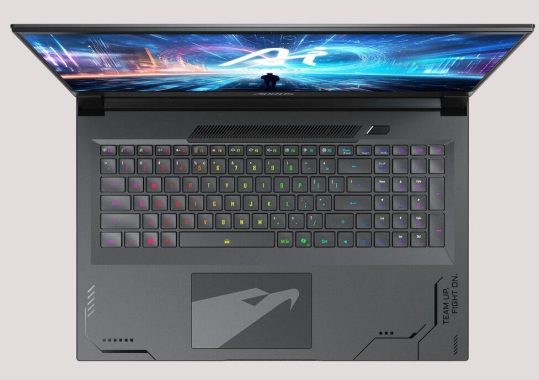
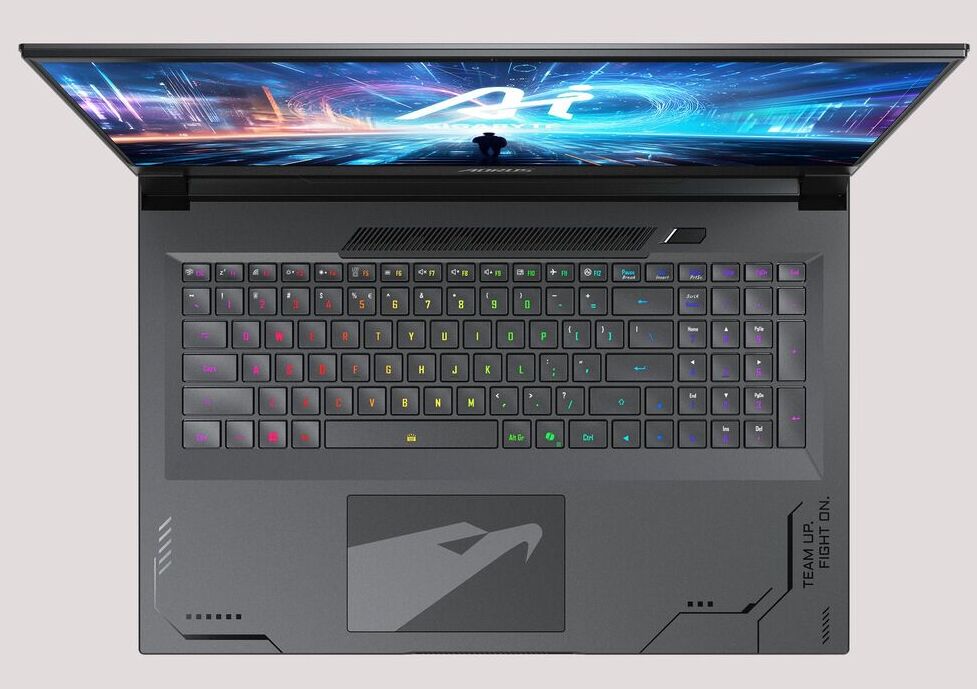
AORUS 17X (2024)
AORUS 17X (2024)

In addition to the powerful hardware, the laptops come with GIGABYTE AI Nexus, a new control software that enhances power management, gaming performance, and generative-AI software to a new level. The integration of Microsoft AI assistant, Copilot, further boosts efficiency, innovation, and competitive edge. Dolby Vision® and Dolby Atmos® technologies contribute to an enhanced gaming experience, delivering professional-grade AI generative content and immersive gameplay.

AORUS 17X
AORUS 17X – images: GIGABYTE

AORUS 16X Redefines Gaming with Cutting-Edge AI

The groundbreaking AORUS 16X AI gaming laptop revolutionizes the gaming experience by merging cutting-edge technology with AI capabilities. Fueled by the latest 14th generation Intel® Coreâ„¢ i9-14900HX processor boasting 24 cores (8 performance cores and 16 efficiency cores) and a clock speed of up to 5.8 GHz, this laptop delivers desktop-class performance, effortlessly managing multitasking and resource-intensive workloads. Its discrete graphics feature support for the NVIDIA RTXâ„¢ 4070 Laptop GPU and incorporates Advanced Optimus technology (DDS) with a maximum graphic power of up to 140W. This unlocks potent AI computing power, enhancing gaming experiences through NVIDIA’s Deep Learning Super Sampling (DLSS 3) technology, providing automatic frame rate generation, ray tracing, and restoring native high-resolution visuals for an ultimate, fast-paced gaming experience.

Underpinning this robust computational capability is GIGABYTE’s exclusive WINDFORCE Infinity cooling system, featuring powerful dual 12V fans, efficient 5 heat pipes, ultra-thin 0.1mm fins, and a 3D VortX air-channeling design. This system significantly improves heat dissipation efficiency, ensuring stable performance during high loads and a noise-free immersive experience during low loads. Additionally, GIGABYTE introduces the exclusive Copilot hotkey, instantly activating the Windows Copilot AI assistant feature to assist with daily workflows, creative processes, and productivity.

The AORUS Beacon steals the spotlight this year with its dual cover designs in Midnight Gray and Aurora Gray, complementing the laptop’s beastly performance. Utilizing Nanoimprint Lithography (NIL) technology and an iridescent design, the laptop features a 4-sided super-slim bezel design with a remarkable 91% screen-to-body ratio, GIGABYTE’s patented 3mm bezels, and a high refresh rate of up to 165Hz. Holding the TÜV Rheinland Eye Comfort Certification and Pantone® Validated color accuracy certification, it ensures high comfort and confidence for extended use.

AORUS 17X: Unleashing Peak AI Computing Power

GIGABYTE presents its flagship model, the AORUS 17X AI gaming laptop, undergoing a classic transformation with a CNC metal cutting process and earning recognition with the Red Dot Product Design Award. Tailored for the performance king dedicated to AI-generated content and AAA games, it is powered by the Intel® Core™ i9-14900HX processor, delivering peak-class multitasking capabilities. In the discrete graphics department, it supports the NVIDIA RTX™ 4090 Laptop GPU, boasting up to 16GB GDDR6 VRAM, a maximum graphic power of up to 175W, and Advanced Optimus technology (DDS). Beyond smoothly running native 4K resolution games, it unleashes powerful AI computing performance, handling complex generative artificial intelligence models and texture effects. The WINDFORCE Infinity cooling system enhances heat dissipation efficiency by 35%, equipped with four sets of 12V fans and a 3D Vort cooling channel design.

AORUS 17X
AORUS 17X  ’24

The 2024 AORUS AI gaming laptop series features a 99Wh maximum battery capacity with PD charging support for on-the-go use, and comprehensive I/O ports for easy external expansion. GIGABYTE’s exclusive AI Nexus application, including “AI Boost” powered by Microsoft Azure AI, automatically adjusts system power consumption and fan settings for an overclocking gaming experience. The “AI Generator” utilizes edge AI computing capabilities and Stable Diffusion for a creative AI graphics generation experience. “AI Power Gear” optimizes power consumption to enhance battery life and extend product lifespan. On the Windows 11 operating system, users can summon the “Copilot” AI chatbot to address queries, showcasing GIGABYTE’s comprehensive application of AI from the cloud to the local, providing users with the convenience and endless potential brought by the AI era. Pre-orders for the AORUS 16X/AORUS 17X (2024) AI gaming laptops are now open for you to embrace the golden age of generative AI.

VLC Media Player – How to Play DTS Audio

0

VLC Media Player offers users versatile multimedia playback solutions with ease and precision. However, users may encounter limitations on functions and supported multimedia formats during playback. This article aims to assist users who wish to play DTS audio files on VLC Media Player.

The DTS audio track utilizes a 5.1-channel standard encoded by DTS (Digital Theater Systems), surpassing the 448kbps provided by the Dolby Digital (AC3) encoding system. DTS stands for “Digital Theatre System,” representing a digital cinema system distinct from other sound processing systems like Dolby Digital. DTS commonly employs a 5.1 or 7.1 home theater lossy encoded audio format developed by Digital Theater Systems.

VLC Media Player
photo: VLC

To play DTS audio on VLC, a DTS filter decoder, often referred to as AC3Filter, is required. Follow these steps to download and install the AC3Filter:

  1. Download AC3Filter and install it on your computer, following the on-screen instructions.
  2. Extract the downloaded AC3Filter archive and open the folder.
  3. Launch the AC3Filter decoder and navigate to “Start” >> “All Programs” >> “AC3Filter” >> “AC3 Filter Config” >> “System.”
  4. Ensure that “DTS” is selected in the panel to enable the detection and playback of DTS audio by the media player.
  5. Open the “Start” menu, select “Access Run,” type “regsvr32 filename.dll or regsvr32 filename.ax” in the box, and click “Run” to activate the update.

Adjust VLC settings for DTS playback:

  1. Open VLC Media Player and click “Media” >> “Preferences.”
  2. Scroll down to the bottom and select “All” under the “Show settings” section.
  3. In the left column, find “Output modules” under the “Audio” section, and select “DirectX” under the “Output Module.”
  4. Choose a compatible output device supporting DTS audio, such as 5.1 output, under “Speaker Configuration.”

It’s important to note the limitations of playing DTS on VLC:

  1. Stuttering issue: DTS audio may not play smoothly on VLC, requiring high hardware and sound card standards.
  2. Difficulty in playing: Compared to other audio formats, playing DTS on VLC is more challenging, requiring additional decoders and installation time.
  3. Occupies more space: DTS audio files occupy more space on the computer, making them less suitable for home use.

Despite these limitations, DTS remains widely adopted in home theater and cinema systems, offering advanced surround sound formats like DTS-HD High Resolution and DTS-HD Master Audio. Additionally, DTS:X competes with Dolby’s Atmos. While playing DTS on VLC is achievable, the process involves complex steps that require patience.

Yamaha and Elgato Unveil Powerful Collaboration

0

Yamaha Corporation and Elgato, a prominent audiovisual technology provider for content creators, have joined forces to enhance their range of products and services. The collaboration between Yamaha’s Creator & Consumer Audio Division and Elgato aims to develop a software plugin that integrates Yamaha’s audio interfaces, mixers, and other products with Elgato’s Stream Deck controllers. This partnership will fortify the offerings of products and services, catering to creators in diverse fields such as music, video production, and live streaming.

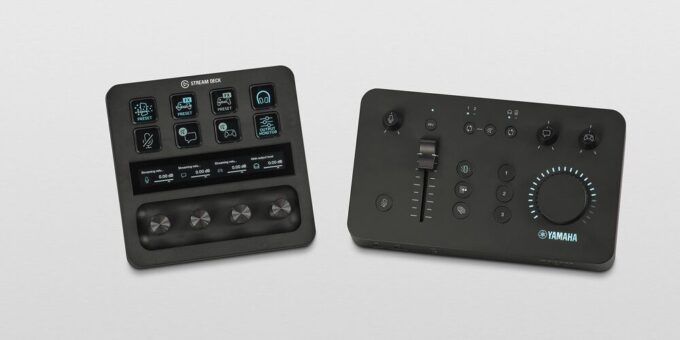
The latest development includes the compatibility of the ZG01 Game Streaming Audio Mixer with the STREAM DECK. Users can now conveniently manage the rich audio features and DSP effect functions of the ZG01 in real-time using the keys and dials on the STREAM DECK+. Previously, these functions required the use of the dedicated “ZG Controller” app. The collaboration allows users to freely customize STREAM DECK settings and download the ZG01 plugin for free from Elgato’s website, expanding the functionality of the Yamaha Game Streaming Audio Mixer.

STREAM DECK
STREAM DECK+ (left) and ZG01 (right) – photo source

Julian Fest, SVP and GM of Elgato, expressed excitement about Yamaha joining the Stream Deck ecosystem, emphasizing the power of the ZG01’s controls and the seamless integration with Stream Deck. The customizable parameters and direct access to functions enhance the overall user experience, offering a range of possibilities such as adjusting volume balance, changing voice effects, switching scenes in OBS, and engaging with chat messages – all with a single tap on the Stream Deck.

Yoshiyuki Tsugawa, Senior General Manager at Yamaha Creator & Consumer Audio Division, conveyed pride in the collaboration with Elgato, acknowledging their exceptional solutions in streaming and content creation. The partnership aims to deliver an enhanced user experience, starting with the ZG01 plugin for the STREAM DECK series, benefiting streamers and creators alike.

For those interested, the ZG01 plugin for Yamaha Game Streaming Audio Mixer is available for free download on Elgato’s website: Elgato’s website.

Elgato, founded in 1999 and acquired by Corsair Gaming, Inc., in 2018, is globally recognized for providing cutting-edge audiovisual technology tailored for content creators across various video-sharing platforms. Their commitment to quality, performance, and continuous innovation has positioned Elgato as a leader in the industry, with products distributed in over seventy-five countries worldwide.

Explore the Blocky Graphics & 3D Modeling with Blockbench

0

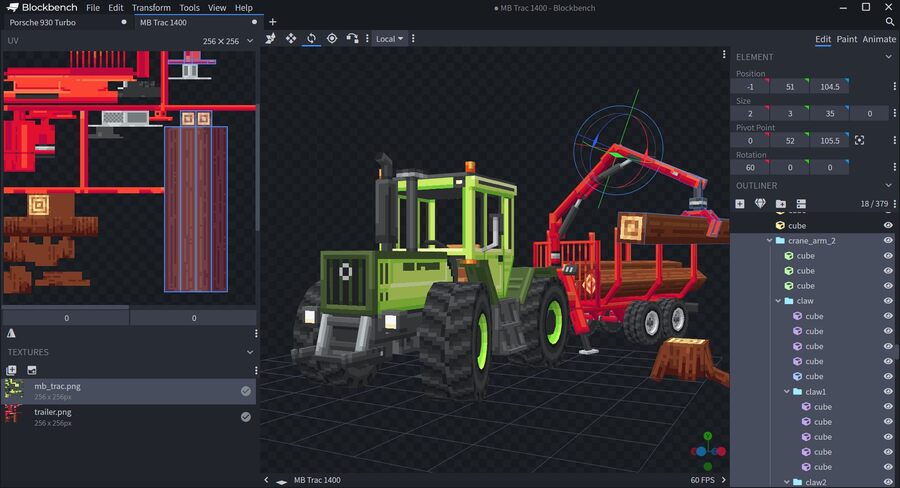
Blockbench stands out as a versatile 3D modeling program tailored for the creation of blocky graphics, aligning with the current resurgence of interest in this aesthetic, notably seen in the popularity of games like Minecraft.

Whether you’re drawn to blocky graphics or not, delving into the world of Blockbench can be a rewarding experience, especially for those eager to explore 3D modeling. The program boasts a user-friendly interface that seamlessly guides both beginners and seasoned users. A dedicated area for designing and previewing creations facilitates real-time experimentation with various functions, making the learning curve smoother.

The process of assembling blocks to form larger objects becomes apparent, paving the way for a more in-depth exploration of Blockbench’s feature-rich tools. From adding cubes to modifying angles, orientations, and incorporating textures from existing PNGs, the program offers a comprehensive suite of options. Moreover, the ability to scale, rotate, flip objects, and create and export block models while optimizing entities all within one platform enhances the efficiency of the modeling process.

Blockbench provides multiple display views, allowing users to inspect models from different perspectives and angles. The flexibility to zoom in, switch views, enter fullscreen mode, and create presets ensures that your objects are showcased exactly as intended. Monitoring progress is simplified through the option to take screenshots, with the added bonus of placing a background to simulate how the model would appear outside the display area.

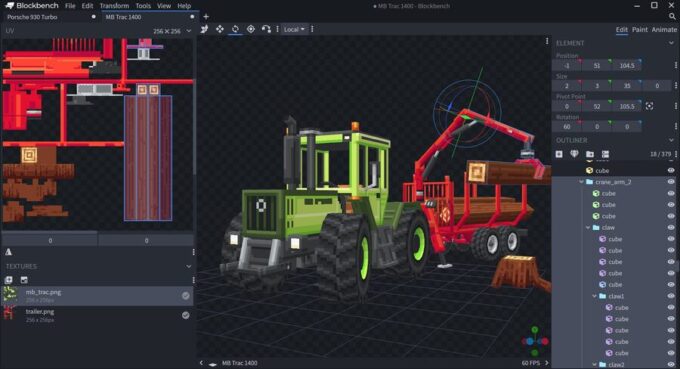
free 3D modeling program
3D modeling program Blockbench

The program’s texturing tools are a standout feature, enabling users to create, edit, and paint textures directly within Blockbench. Palettes can be generated or imported, facilitating painting or drawing of shapes effortlessly. Blockbench even streamlines the process by automatically creating a UV map and template for models, facilitating immediate painting. Users can paint directly in 3D space, utilize the 2D texture editor, or seamlessly connect to external image editors or pixel art software.

Blockbench’s utility extends to the realm of Minecraft mods and serves as an excellent tool for individuals keen on learning 3D modeling. Its seamless functionality captures creative ideas while ensuring a smooth designing experience. The fact that Blockbench is free for any project type, perpetually, with an open-source GPL license, adds to its appeal.

For those on mobile devices, Blockbench is available as a progressive web app, eliminating the need for APK installations or navigating app stores. The program’s adaptability is further emphasized by its compatibility with Windows 7 and 8, in addition to Windows 10 32-bit, along with macOS and various Linux distributions.

To accommodate a wide user base, Blockbench outlines minimum system requirements, ensuring accessibility for a diverse range of devices. The recommended specifications include a Windows, macOS, or Linux computer, a mouse and keyboard, 8 GB of RAM, a 1920 x 1080 display, and 10 GB of storage space.

Blockbench excels not only in its user-friendly design but also in its adaptability to various platforms. Its availability as a progressive web app for mobile devices simplifies accessibility, allowing users to install it directly from their browsers without the need for complex installations or app store navigation.

For users on Windows 7 and 8, Blockbench continues to support these operating systems, acknowledging the diverse user base and ensuring compatibility with a range of devices. The detailed instructions for downloading the suitable version and configuring automatic updates showcase the program’s commitment to user convenience.

The system requirements, both minimum and recommended, underline Blockbench’s commitment to providing a smooth experience across different devices. Whether you’re working on a Windows 10 or newer system, macOS 10.13 or newer, or various Linux distributions, the program accommodates a broad spectrum of users. The recommended specifications, including a mouse and keyboard, higher RAM, and display resolution, reflect the program’s scalability for more demanding projects.

The open-source nature of Blockbench, licensed under GPL, not only makes it free for any project but also emphasizes a collaborative and community-driven approach. This openness encourages users to contribute to the development of the program, fostering a sense of community and continuous improvement.

In conclusion, Blockbench is not just a 3D modeling program; it’s a versatile tool that caters to a wide audience. Whether you’re passionate about blocky graphics, Minecraft mods, or simply want to explore 3D modeling, Blockbench provides a user-friendly experience with robust features. Its availability across different platforms, commitment to legacy systems, and open-source nature make it a standout choice for those entering the world of 3D modeling or seeking a reliable tool for their creative endeavors.

In essence, Blockbench emerges as a powerful and accessible 3D modeling tool, catering to both enthusiasts and novices, with features that make it an invaluable asset for those interested in blocky graphics or venturing into the realm of 3D modeling.

Blockbench is free to use for any type of project, forever, no strings attached.

The project is open source under the GPL license. Download Blockbench HERE

Troubleshooting BBC iPlayer Error Codes: A Comprehensive Guide

3

BBC iPlayer offers a diverse range of content for streaming, but encountering error codes can be a frustrating experience for users. In this comprehensive guide, we will explore various BBC iPlayer error codes and provide effective solutions to address them. Whether you’re facing issues on Roku, Smart TVs, or other devices, this guide aims to help you resolve common errors and enhance your streaming experience.

1. BBC iPlayer Error Code 02056: Troubleshooting for Roku Users

Error code 02056 is often encountered by Roku users, stemming from issues like outdated app versions, network connectivity, server problems, geographical restrictions, and device compatibility. To address this error, follow these steps:

  • Check Internet Connection: Ensure a stable Wi-Fi connection.
  • Update BBC iPlayer App: Update to the latest app version for optimal performance.
  • Clear Cache and Cookies: Resolve issues by clearing accumulated cache and cookies.
  • Change Location Settings: If outside the UK, use a VPN to simulate a UK location.
  • Reinstall BBC iPlayer: If issues persist, uninstall and reinstall the app.

If problems persist, contacting BBC iPlayer support is recommended.

2. BBC iPlayer Error Code fvp-300: Solutions for Freeview Play on Smart TVs

Error code fvp-300, commonly seen on Smart TVs, can be addressed with the following steps:

  • Check Cable Connection: Ensure the TV antenna and cable are secure.
  • Restart TV and Router: Power cycle both devices to refresh connections.
  • Perform a Factory Reset: Factory reset the TV through device preferences.
  • Disable VPN Service: If using a VPN, disable it, as it might impact functionality.

Contacting iPlayer Support is advised if the issue persists.

BBC iPlayer
BBC iPlayer – photo

3. BBC iPlayer Error Code 01119: Network Connectivity Troubleshooting

Error code 01119 is related to network connectivity issues. Resolve it by:

  • Check Network Connection: Ensure a stable internet connection.
  • Clear Cache Data: Clear cache data to address temporary glitches.
  • Update BBC iPlayer: Keep the app updated through the app store.

If the issue persists, consider uninstalling and reinstalling the app, and disable VPN if used.

4. BBC iPlayer Error Code 01121: Compatibility Issues

Error code 01121 indicates compatibility issues. Resolve it by:

  • Verify Device Compatibility: Ensure your device is compatible.
  • Clear Cache Data: Clear cache data to address potential glitches.
  • Update BBC iPlayer: Keep the app updated for compatibility.

Additionally, consider uninstalling and reinstalling the app if the problem persists.

5. BBC iPlayer Error Code 01124: My List Access Troubleshooting

Error code 01124 relates to issues accessing “My List” on BBC iPlayer. Address it with these solutions:

  • Restart Your Device: Power cycle your device to resolve unknown bugs.
  • Check Internet Connection: Ensure a stable internet connection.
  • Update Device Firmware: Keep your device firmware up to date.
  • Uninstall and Reinstall the App: Reinstall the BBC iPlayer app if issues persist.

6. BBC iPlayer Error Code 02001: IP Address Issues

Error code 02001 is linked to IP address problems. Resolve it by:

  • Check Internet Connection: Connect to a stable internet data source.
  • Restart Your Router: Refresh your internet connection by restarting the router.
  • Disable VPN Service: If using a VPN, disable or choose a supported VPN service.
  • Check IP Address: Ensure your IP address is correct.
  • Reinstall BBC iPlayer App: Reinstall the app to address potential issues.

7. BBC iPlayer Error Code 02103: Content Playback Issues

Error code 02103 signals content playback problems. Troubleshoot with these steps:

  • Check Internet Connection: Ensure a stable internet connection.
  • Restart Your Device: Power cycle your device to resolve software issues.
  • Update BBC iPlayer: Keep the app updated for optimal performance.

8. BBC iPlayer Error Code 02050: Content Playback Troubleshooting

Error code 02050 indicates difficulties with content playback. Resolve it by:

  • Check Internet Connection: Ensure a stable internet connection.
  • Update Device Firmware: Keep your device firmware up to date.
  • Clear Cache Data & Cookies: Address potential issues by clearing cache data.

If problems persist, contact support for further assistance.

9. BBC iPlayer Error Code 02056: Roku Troubleshooting

Error code 02056 commonly affects Roku users. Resolve it by:

  • Check Connectivity: Ensure a stable Wi-Fi connection.
  • Update BBC iPlayer App: Keep the app updated for optimal performance.
  • Clear Cache Data: Resolve issues by clearing cache data.
  • Change Location Settings: Use a VPN to simulate a UK location.
  • Reinstall BBC iPlayer: If issues persist, uninstall and reinstall the app.

10. BBC iPlayer Error Code 02110: Temporary Glitch Troubleshooting

Error code 02110 may result from a temporary glitch. Troubleshoot with these steps:

  • Restart Your Device: Power cycle your device to resolve temporary issues.
  • Restart Your Router: Refresh your internet connection by restarting the router.
  • Check Internet Connection: Ensure a stable internet connection.
  • Verify iPlayer Server: Confirm the status of the iPlayer server.
  • Clear Cache Data: Resolve potential glitches by clearing cache data.
  • Reinstall BBC iPlayer App: If issues persist, reinstall the app.

11. BBC iPlayer Error Code 02062: Troubleshooting for Various Devices

Error code 02062 is widespread on devices like Amazon Firestick TV, Xbox, Roku, and PlayStation. Resolve it by:

  • Update Firmware Version: Keep your device firmware up to date.
  • Clear BBC iPlayer Cache: Clear cache data to address potential issues.
  • Change DNS Server: Adjust DNS settings for improved connectivity.

12. BBC iPlayer Error Code 02066: Fire TV Troubleshooting

Error code 02066 is common on Fire TV. Resolve it by:

  • Clear BBC iPlayer Cache Data: Clear cache data to address potential issues.
  • Reinstall the BBC iPlayer App: Uninstall and reinstall the app for a fresh start.

BBC iPlayer Error Code 01114

Users occasionally encounter the error code 01114 on BBC iPlayer, usually stemming from server issues within the iPlayer platform. While this error is relatively rare, it is a recognized concern by iPlayer officials. If you find yourself facing this error on your screen, you can explore a few solutions to resolve the 01114 error code on BBC iPlayer.

To rectify the error on iPlayer, consider the following steps: check your internet connection, verify the iPlayer server status, clear the app’s cache, update firmware, uninstall and reinstall the BBC iPlayer app, or perform a factory reset on your Smart TV to restore it to its default state. Applying these methods should help you address and overcome the 01114 error on iPlayer.

BBC iPlayer Error Code 03110

The occurrence of the BBC iPlayer error code 03110 is often reported by users on Roku Smart TVs, particularly during live broadcasts and shows. Fortunately, a solution exists to resolve this error on your device—downgrading the firmware. According to the Roku community page, downgrading the firmware has proven effective in fixing the 03110 error code.

BBC iPlayer Error Code 201

BBC iPlayer error code 201 is another frustrating issue experienced across various devices, including smartphones, computers, Smart TVs, and others. This error typically indicates a temporary problem, often arising from minor issues such as poor internet connectivity, incorrect device settings, or disruptions in server platforms.

In some instances, the error may be attributed to a temporary outage on the BBC platform. If the server is down, you may need to wait until it is restored. However, if the issue persists, there are several workarounds to address the error code 201 on BBC iPlayer. Here are effective solutions:

  1. Check Internet Connection: Ensure that your TV or device is connected to a stable internet connection.
  2. Clear Cache and Cookies: Clearing the cache and cookies can eliminate temporary glitches or files causing the error.
  3. Update Browser or BBC iPlayer App: Keeping your browser or iPlayer app up-to-date can resolve compatibility issues.
  4. Disable VPNs and Proxy Servers: Turn off VPNs or proxy servers, as they may interfere with the proper functioning of BBC iPlayer.
  5. Check Date and Time Settings: Verify that the date and time settings on your device are accurate.
  6. Uninstall and Reinstall BBC iPlayer App: If previous steps don’t work, uninstall and then reinstall the BBC iPlayer app on your device.

If none of these methods prove successful, it’s advisable to contact the BBC iPlayer support team for further assistance. Connecting with their support team will provide tailored guidance to resolve the error code 201 and any other issues encountered during streaming.

Conclusion: Encountering error codes on BBC iPlayer can be addressed with a systematic approach. By following the troubleshooting steps outlined in this guide, users can navigate through various error scenarios and enjoy uninterrupted streaming. Whether it’s network connectivity, compatibility issues, or playback problems, these solutions aim to provide a comprehensive guide for users to resolve BBC iPlayer error codes effectively.

4K Ambilight TV Philips 75PUS8008/12

0

If you’re in the market for a high-end TV that not only delivers exceptional picture quality but also elevates your overall viewing experience, the Philips 75PUS8008/12 Ambilight Smart LED TV should be on your radar. With its impressive features and thoughtful design, this television is a standout in the crowded market. Let’s dive into the key aspects that make this TV a worthy investment.

Design: A Sleek Addition to Your Living Space
The Philips 75PUS8008/12 TV boasts a sophisticated design with a matte black bezel that exudes elegance. The matte black sticks of the stand add a touch of modernity to the overall look. The slim profile of the TV ensures it blends seamlessly into any living space, whether wall-mounted or placed on the included tabletop stand. The attention to detail in the design is evident, making it a stylish centerpiece for your home entertainment setup.

Ambilight Features: Immersive Lighting for Every Occasion
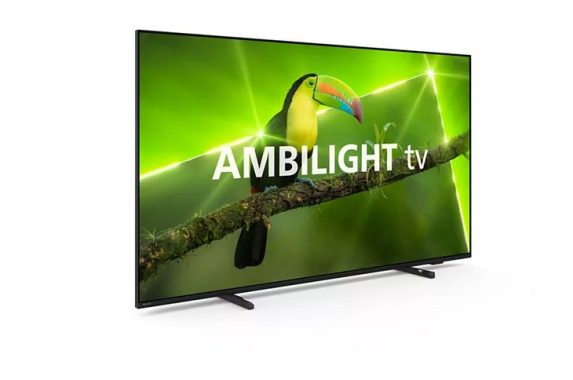
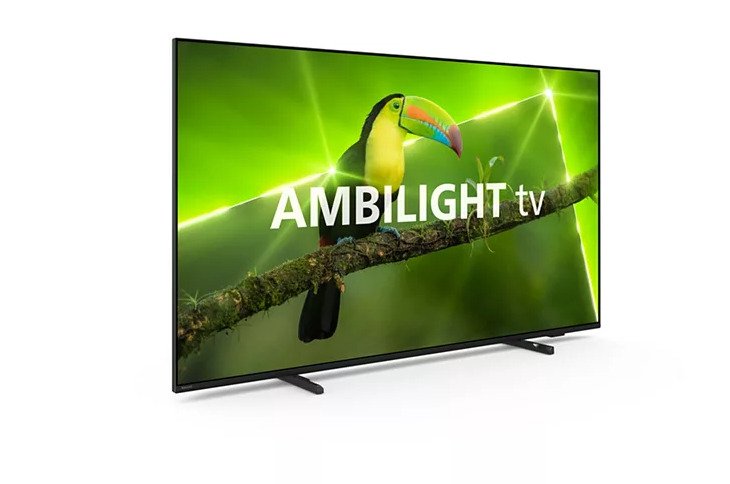
One of the standout features of this TV is the Ambilight technology, and the 3-sided Ambilight Version takes it to the next level. The dynamic lighting system adapts to the on-screen content, providing a mesmerizing visual experience that extends beyond the boundaries of the display. Whether you’re watching movies, playing games, or listening to music, Ambilight creates an immersive atmosphere that enhances your overall enjoyment.

Philips 75PUS800812
Philips 75PUS800812 – photo

The Ambilight features include Wall Colour Adaptive, Lounge Mode, Ambilight Music, AmbiSleep, and Game Mode. The Wall Colour Adaptive feature ensures that the Ambilight colors harmonize with your room’s wall color, creating a cohesive and visually appealing ambiance. The Lounge Mode lets you customize the Ambilight intensity for a more relaxed viewing experience. Ambilight Music syncs the lighting with your music for a sensory feast, while AmbiSleep gradually dims the lights to help you unwind. Game Mode, with its low input lag and vibrant lighting, adds an extra layer of excitement to your gaming sessions.

Picture/Display: Crystal Clear 4K Ultra HD
With a colossal 75-inch diagonal screen size and a 4K Ultra HD LED display, the Philips 75PUS8008/12 TV ensures a cinematic viewing experience in the comfort of your home. The Pixel Precise Ultra HD picture engine enhances the clarity and detail of every frame, delivering lifelike images. The inclusion of HDR10 and HLG (Hybrid Log Gamma) support further elevates the contrast and color accuracy, making your favorite content come alive.

The TV supports a range of display input resolutions, ensuring compatibility with various sources. From standard definition to 4K, the Philips 75PUS8008/12 TV handles it all with finesse.

Smart TV Features: Seamless Connectivity and Entertainment
The Philips 75PUS8008/12 TV doesn’t just excel in display quality but also offers a smart and connected entertainment experience. The SimplyShare feature enables easy sharing of content from your mobile devices to the TV. Screen mirroring, Interactive TV, and HbbTV add interactive elements to your viewing experience.

The SmartTV apps, including YouTube, Philips Store, Amazon Prime Video, and Netflix, provide a vast library of content at your fingertips. The TV also works seamlessly with voice assistants like Alexa and Google Assistant, allowing for convenient voice control.

Gaming: A Gamer’s Delight
For gaming enthusiasts, the Philips 75PUS8008/12 TV is a dream come true. Boasting HDMI 2.1 features, including eARC, VRR, and ALLM, this TV delivers fast gameplay and smooth graphics. The low input lag setting, combined with Ambilight’s gaming mode, enhances the gaming experience, making every moment more thrilling. Whether you’re into high-octane action or immersive RPGs, this TV is equipped to handle it all.

Sound: A.I. Sound for an Immersive Audio Experience
The sound quality of the Philips 75PUS8008/12 TV is equally impressive. With 16W output power and a speaker configuration of 2 x 8W full-range speakers, the TV delivers clear and immersive audio. The inclusion of Dolby Digital MS12 V2.5 and DTS-HD(M6) ensures a rich soundstage. The A.I. Sound feature, along with Clear Dialogue, Dolby Bass Enhancement, Dolby Volume Leveller, Night Mode, and A.I. EQ, collectively contribute to an audio experience that complements the stunning visuals.

Connectivity: Future-Proof Features
Connectivity options are abundant, with three HDMI connections, two USB ports, Wi-Fi 802.11n, Ethernet-LAN RJ-45, and more. The HDMI 2.1 features, including eARC on HDMI 1, VRR, and ALLM support, make this TV future-proof, ensuring compatibility with the latest gaming consoles and devices.

Philips 75PUS800812
Philips 75PUS8008/12

Energy Efficiency: Elegance with Responsibility
The Philips 75PUS8008/12 TV is not just a powerhouse of entertainment; it also prioritizes energy efficiency. With EPREL registration numbers and energy class ratings for both SDR and HDR content, this TV is designed to be environmentally conscious without compromising on performance.

Price: A Premium Experience Without Breaking the Bank
With a competitive price tag of £699, the Philips 75PUS8008/12 TV offers a premium home entertainment experience without breaking the bank. Considering the plethora of features, including Ambilight, 4K Ultra HD display, gaming capabilities, and smart TV functionalities, this TV represents excellent value for money.

Pros:

Stunning Ambilight Technology: The 3-sided Ambilight Version creates a captivating and immersive viewing experience, adapting dynamically to on-screen content and extending the visual experience beyond the display.

Impressive 4K Ultra HD Display: The massive 75-inch screen with a 4K Ultra HD LED display, Pixel Precise Ultra HD picture engine, and support for HDR10 and HLG deliver crystal-clear visuals with vibrant colors and lifelike details.

Gaming Excellence: HDMI 2.1 features, including eARC, VRR, and ALLM, make this TV a gaming powerhouse. Low input lag, Ambilight’s gaming mode, and support for various gaming consoles contribute to an exhilarating gaming experience.

Smart TV Functionalities: Seamless connectivity, SimplyShare for easy content sharing, and compatibility with popular streaming apps like YouTube, Amazon Prime Video, and Netflix provide a versatile and connected entertainment experience.

A.I. Sound Enhancement: The 16W output power, Dolby Digital, DTS-HD, and A.I. Sound features ensure a superior audio experience, enhancing the overall immersion of movies, TV shows, and games.

Sleek and Modern Design: The matte black bezel and stand design add a touch of elegance to any living space. The slim profile and attention to detail make it a stylish centerpiece for your home entertainment setup.

Energy Efficiency: With energy class ratings for both SDR and HDR content, the TV demonstrates a commitment to environmental responsibility without compromising on performance.

Competitive Pricing: At £699, the Philips 75PUS8008/12 TV offers a premium home entertainment experience at a competitive price, providing excellent value for money considering its extensive features.

Cons:

Limited Ambilight Modes: While Ambilight offers a captivating visual experience, some users may find the customization options limited. More presets or user-defined settings could enhance the Ambilight experience further.

Standard Refresh Rate: With a native refresh rate of 60Hz, the TV might not be the best choice for enthusiasts of fast-paced sports or action-packed content that benefits from higher refresh rates.

Single-Band Wi-Fi: The TV features Wi-Fi 802.11n on a single band, which may result in slightly slower wireless speeds compared to dual-band options. This could be a concern for users with high-speed internet connections.

Ambient Light Interference: In brightly lit rooms, the Ambilight feature might not be as pronounced, potentially diminishing its impact. Adjusting Ambilight settings or using the Lounge Mode may help mitigate this issue.

Limited Smart Assistant Features: While the TV works with popular voice assistants like Alexa and Google Assistant, some users may find the functionalities limited compared to dedicated smart home devices.

Moderate Built-in Speaker Output: Although the TV provides a decent audio experience with its 16W output, audiophiles or those seeking a home theater-like audio setup may opt for external sound systems for an enhanced sound experience.

No Support for Dolby Atmos: For users seeking a more immersive audio experience, the absence of Dolby Atmos support could be a drawback, especially considering the TV’s focus on delivering a premium entertainment experience.

Limited USB Ports: With only two USB ports, users with multiple USB devices may find themselves needing to switch or use an external hub, potentially limiting the convenience of connecting multiple peripherals simultaneously.

Conclusion: Elevate Your Home Entertainment with Philips 75PUS8008/12 TV
The Philips 75PUS8008/12 Ambilight Smart LED TV is a top-tier choice for those seeking a blend of stunning visuals, immersive lighting, and smart features. Its 75-inch 4K Ultra HD display, Ambilight technology, gaming prowess, and smart TV functionalities make it a versatile and future-proof addition to any home. The combination of a sleek design, competitive pricing, and thoughtful features cements the Philips 75PUS8008/12 TV as a standout performer in its category. Upgrade your home entertainment setup and immerse yourself in a world of cinematic brilliance with this impressive television.