There are many websites that offer free PC games for download, but it is important to be cautious when downloading PC games files from the internet. Some sites may contain malware or other malicious software. A few popular, legitimate sites for downloading free PC games include Steam, GOG, and Origin. However, it’s always recommended to use anti-virus software before downloading any files from the internet.
About Steam and downloading free PC games
Steam is a digital distribution platform for video games, developed and operated by Valve Corporation. It offers a wide variety of games, including free-to-play and paid titles. Some popular free games on Steam include Team Fortress 2, Dota 2, and Path of Exile. Steam also frequently offers free weekends, where players can try out certain games for free before deciding to purchase them. Additionally, Steam has a feature called “Free to Play” which is a tab of all free games available on Steam, but some games are free only for a limited time. To download games from Steam, you’ll need to create an account and download the Steam client, which is available for Windows, Mac, and Linux.
Here are the top 5 free games on Steam currently, this list is subject to change over time:
Dota 2: A popular multiplayer online battle arena (MOBA) game, with a large and dedicated player base.
Team Fortress 2: A team-based first-person shooter with a variety of character classes to choose from.
Team Fortress 2
Path of Exile: A free-to-play action role-playing game with a strong emphasis on character customization and exploration.
Warframe: A cooperative third-person shooter with fast-paced action and a variety of playable characters.
Apex Legends: A free-to-play battle royale game set in the same universe as the Titanfall series, with a unique character-based twist.
It’s worth noting that Steam also frequently offers free weekends and free games, so it’s always recommended to check their store regularly to see what new titles are available for free.
Origin & free games
Origin is a digital distribution platform for video games, developed and operated by Electronic Arts (EA). It offers a wide variety of games, including free-to-play and paid titles. Some popular free games on Origin include Apex Legends, Star Wars: The Old Republic and Battlefield 4. Origin also frequently offers free games or trials for a limited time.
To download games from Origin, you’ll need to create an account and download the Origin client, which is available for Windows and Mac. Once you’ve logged into the client, you can browse and download the free games available. Keep in mind that some free games on Origin require an active internet connection to play, and some may have microtransactions or in-game purchases available.
About GOG and free PC games
GOG (Good Old Games) is a digital distribution platform for video games, similar to Steam. It offers a variety of older and classic PC games, as well as some newer titles, with a focus on games that are available without any form of DRM (digital rights management).
GOG also has a selection of free games, which can be found by browsing the “Free Games” category on the website, or by visiting the “Free Games” section on the GOG Galaxy client. Some popular free games on GOG include The Witcher: Enhanced Edition, and some classic games like the original Doom, Duke Nukem 3D, and the Commander Keen series.
To download games from GOG, you’ll need to create an account and download the GOG Galaxy client, which is available for Windows and Mac. Once you’ve logged into the client, you can browse and download the free games available.
Here are the top 5 free games on GOG:
OpenTTD
Cayne
Tyrian 2000
The Lords of Midnight
Delores: A Thimbleweed Park Mini-Adventure
There are so many good sites that offer free PC games, there is some of them:
Here are a few useful tips for using a Chromebook:
Use keyboard shortcuts: Chromebooks have a variety of keyboard shortcuts that can help you navigate and perform tasks more efficiently. Some examples include “Ctrl + T” to open a new tab, “Ctrl + W” to close a tab, and “Alt + Tab” to switch between open tabs.
Take advantage of the cloud: Chromebooks are designed to work seamlessly with Google’s suite of online apps and services, such as Google Docs, Sheets, and Slides. By storing your files in the cloud, you can easily access them from any device with an internet connection.
Use Android apps: Many Chromebooks can now run Android apps, which can greatly increase the functionality of your device. You can find and download apps from the Google Play Store.
Use Offline apps: Some web apps and extensions will work offline, and you can use the Chrome browser to download files and save them to your device for offline access.
Customize the taskbar: You can add and rearrange apps on the taskbar to make them easily accessible.
Use the Google Assistant: Pressing the search key and the microphone icon, you can use the Google assistant to perform tasks such as setting reminders, sending messages and searching the web.
Use guest browsing: If you need to share your device with someone, you can enable guest browsing mode, which creates a separate browsing session for the guest without accessing your personal information.
Keep your device updated: Chrome OS is updated regularly, these updates include security fixes and new features, so make sure to keep your device updated to take advantage of them.
How do I take a screenshot on my Chromebook?
To take a screenshot on a Chromebook, press the “Ctrl” and “Window Switcher” keys at the same time. The screenshot will be saved to your downloads folder. Alternatively, you can use the keyboard shortcut “Ctrl + Shift + Show windows” to take a screenshot of a specific window or area.
How do I copy and paste on my Chromebook?
To copy and paste on a Chromebook, you can use the keyboard shortcuts “Ctrl + C” to copy and “Ctrl + V” to paste. You can also use the right-click menu to copy and paste by right-clicking on the selected text and choosing “Copy” or “Paste” from the menu. Additionally, you can use the touchpad to copy and paste by highlighting the text you want to copy, then clicking and holding the touchpad with two fingers and dragging to the location where you want to paste.
How do I scan a QR code with my Chromebook?
To scan a QR code with a Chromebook, you will need to use a QR code scanning app or extension. There are several options available in the Chrome Web Store, such as “QR Code Reader” and “QR Code Scanner”. Once you have installed a QR code scanning app or extension, you will be able to scan QR codes by opening the app or extension and holding your device’s camera up to the QR code.
How to Change Your Password on Chromebook?
To change your password on a Chromebook, follow these steps:
Click on the clock in the bottom right corner of the screen.
Click on the gear icon in the top right corner to open the settings.
Scroll down and click on “Advanced.”
Click on “Manage Accounts.”
Click on the account you want to change the password for.
Click on “Change password.”
Follow the prompts to change your password.
Alternatively, you can change your password by pressing the ctrl + alt + shift + r keys on the keyboard and sign in with your google account, and then go to the account section and change your password.
It is important to note that in order to change your password on a Chromebook, you will need to be connected to the internet and have a Google account, as the password is linked to your Google account.
How do I change the mouse color on a Chromebook?
The ability to change the color of the mouse cursor on a Chromebook may vary depending on the version of Chrome OS you are running.
If you are using Chrome OS version 83 or later, you can change the color of the mouse cursor by following these steps:
Open the Chrome browser on your Chromebook.
Go to chrome://flags
Search for “cursor color”
Select “Enabled” from the drop-down menu next to the “Cursor color” flag.
Relaunch Chrome.
Go to settings then accessibility, and under pointer section, you can change the cursor color.
If you are using an earlier version of Chrome OS, the ability to change the color of the mouse cursor may not be available. Additionally, some manufacturers may have implemented this functionality in their own settings, it’s worth checking your device settings to see if the cursor color can be changed there.
How do I change the language on a Chromebook?
To change the language on a Chromebook, follow these steps:
Click on the clock in the bottom right corner of the screen.
Click on the gear icon in the top right corner to open the settings.
Scroll down and click on “Advanced.”
Click on “Languages and Input.”
Under “Languages,” click on “Add a language.”
Select the language you want to use from the list.
Drag the new language to the top of the list to make it the primary language.
Restart your Chromebook for the changes to take effect.
Alternatively, you can change the language by pressing the ctrl + shift + space keys on the keyboard, this will change the input language, this can be useful if you have multiple languages installed on your device.
It’s worth noting that changing the language on a Chromebook will change the language used in the Chrome browser, apps and system settings.
Chromebook Won’t Connect to Wi-Fi – solution?
If your Chromebook is not connecting to Wi-Fi, there are a few things you can try to troubleshoot the issue:
Check the Wi-Fi connection: Make sure that the Wi-Fi network you are trying to connect to is working properly and that your device is in range of the network.
Restart your Chromebook: Restarting your device can often resolve connectivity issues.
Check your network settings: Make sure that your network settings are correct and that you are entering the correct password.
Forget the network: If you have previously connected to the network, try forgetting the network and reconnecting. To do this, go to Settings > Wi-Fi > Manage Networks > Forget Network.
Check your browser settings: Make sure that your browser settings are not blocking the connection.
Check your firewall settings: Make sure that your firewall is not blocking the connection.
Update your Chromebook: Make sure that your device is running the latest version of Chrome OS.
Restart your router: Try restarting your router or modem to see if that resolves the issue.
Check if the issue is related to specific websites: Try accessing different websites to see if the issue is specific to certain sites.
Check the cable: If you are using an Ethernet cable, make sure it’s securely plugged in.
If none of these solutions work, you may need to contact your Internet Service Provider (ISP) or the manufacturer of your router for further assistance.
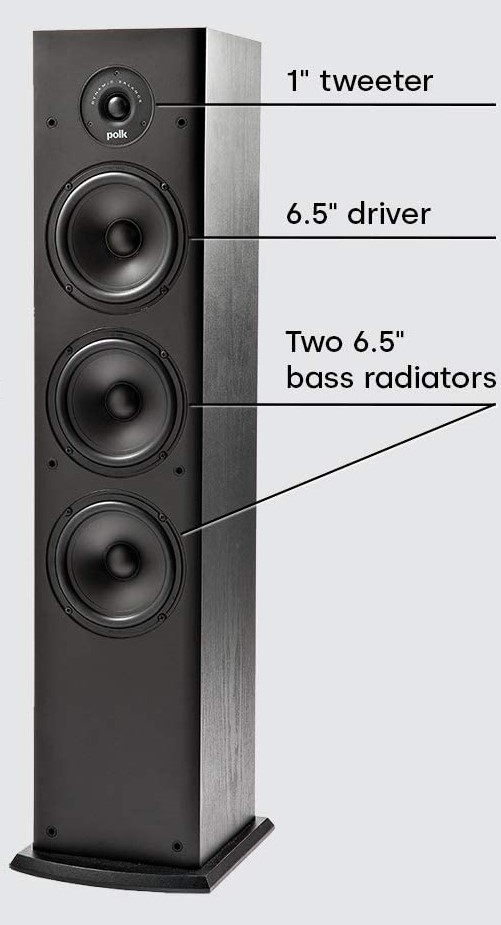
The Polk Audio T50 is generally considered to have good build quality. The speaker features a solid and sturdy construction, with a wooden enclosure that is designed to reduce resonance and improve sound quality. The T50’s driver and tweeter components are also well-constructed and built to last. Additionally, the speaker’s sleek and modern design makes it a stylish addition to any home entertainment system. The Polk Audio T50 is a very good choice for those looking for a high-performance tower speaker with a good build quality. The Polk Audio T50 floor-standing tower speaker has a standard set of connections for connecting to an amplifier or receiver. The speaker features a set of binding posts on the back, which are used to connect the speaker wire to the speaker. The binding posts are color-coded, with red for positive and black for negative. This allows for easy and secure connection to the amplifier. It is important to use the appropriate gauge of speaker wire for the best performance.
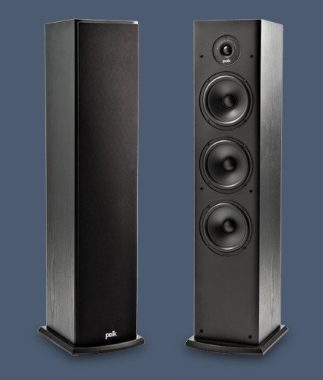
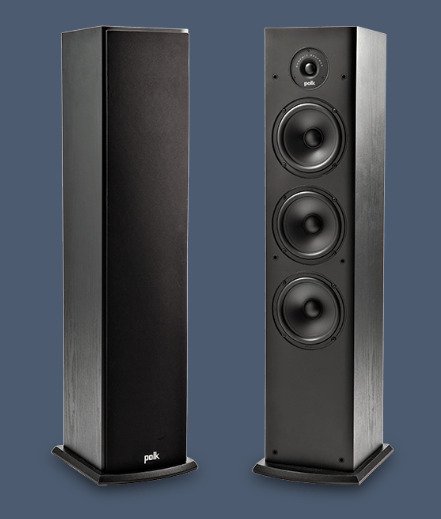
Polk Audio T50
It’s also worth noting that the T50 does not have any wireless connectivity options such as Bluetooth or wifi. To use it you will need to connect it to an amplifier or receiver using wired connection.
The Polk Audio T50 is a floor-standing tower speaker. It features a 1-inch tweeter and a 6.5-inch dynamic balance driver, which are designed to provide clear, detailed sound across a wide frequency range. The T50 also has a built-in bass reflex port, which helps to enhance the bass response of the speaker. Additionally, the T50’s sleek, modern design makes it a stylish addition to any home entertainment system. The T50 is a solid choice for those looking for a high-performance tower speaker at an affordable price.
The Polk Audio T50 floor-standing tower speaker is generally considered to have good sound quality. The speaker features a 1-inch tweeter and a 6.5-inch dynamic balance driver, which are designed to provide clear, detailed sound across a wide frequency range. The T50’s bass reflex port also helps to enhance the bass response of the speaker, providing a full and rich sound. Many users have praised the T50 for its clear and balanced sound, with good separation of instruments and vocals. It is also considered to be an efficient speaker, able to fill a large room with sound without the need to overdrive the amplifier. The Polk Audio T50 floor-standing tower speaker is a good choice for a home theater system. The T50’s 1-inch tweeter and 6.5-inch dynamic balance driver, combined with its built-in bass reflex port, provide clear, detailed sound across a wide frequency range, which is ideal for movie and music reproduction. The T50’s sleek and modern design also makes it a stylish addition to any home entertainment system. The T50s were able to deliver adequate performance throughout the full dynamic range, and while pushing them to extremely high volumes caused them to lose some control, under typical listening situations they will provide a very decent musical experience, which is truly amazing considering the price you have pay. The T50 will provide a pleasant musical experience to any music fan on a small budget because to its perfectly regulated mid-range, brilliant highs, and tight lows.
It is important to note that for a home theater setup, you will need a set of speakers, including a center channel speaker for dialogue, two or more surround speakers for immersive sound effects and a subwoofer for deep bass. The T50 would serve as a good front left and right speakers.
The Polk Audio T50 floor-standing tower speaker is a solid choice for those looking for a high-performance tower speaker that delivers good sound quality for a home theater system. IMMERSIVE SURROUND SOUND & HIGH-RES AUDIO FOR A SUPERIOR HOME THEATER EXPERIENCE. including two 6.5″ bass radiators, a 1″ tweeter, and a 6.5″ driver. The main woofer is augmented by the two bass radiators, which create a well-balanced, pleasant sound that can be heard in all four corners of the room. With this T-series speaker, which not only sounds incredible but also enhances your audio experience, YOU CAN AMPLIFY YOUR MOVIE, MUSIC, AND GAMING EXPERIENCE. Fill any small or medium-sized room with fascinating, lifelike sound that immerses you in the action. Photo: POLK AUDIO USE ALL OF POLK’S T-SERIES SPEAKERS TO CREATE A FULL-FLEDGED 5.1 HOME THEATER SETUP, including two T50 Tower Speakers, one T30 Center Channel, two T15 Bookshelf Speakers, and a subwoofer.
Polk Audio T-Series
Introduce Yourself To Polk Audio Performance and Value T-Series speakers are perfect for building your first home theater or stereo listening system, whether you have a small room, or just want a great value priced speaker for multi-room applications. T-Series speakers reproduce sound accurately with impressive volume. They’re solidly built and come in a black wood grain finish. Best of all, simply add a PSW Series powered subwoofer yourself with real home theater performance. Polk speakers are designed and engineered by Polk Audio, Inc. at research and development facilities in Maryland and California.
Polk Audio T50 Specifications
Specification
Exterior
– Bass reflex enclosure – Front mounted bass port – Integrated stand
Driver Specs
– 1 X 6.5″ (16.51 cm) Dynamic Balance – Mid/Woofer – 2 x 6.5″ (16.51 cm) Bass Radiators – 1 X 1″ (2.54 cm) Silk Dome, Wave Guide – Tweeter
Performance
Frequency Range [Hz] : 38 – 24,000 Sensitivity (1 watt @ 1 meter) [dB] : 90 Nominal Impedance [ohms] : 6 ohms Lower and Upper -3dB Limits [Hz] : 40 → 30,000 Recommended Amplifier Power [W] : 20-100 / channel Crossover Principle : 2-way Maximun Power Handling [W] : 150
There are several advantages to using a solid-state drive, SSD in a laptop, including:
Faster boot and load times: SSDs can access stored data much faster than traditional hard drives, so your laptop will boot up and launch programs much more quickly.
Improved performance: SSDs use flash memory, which allows for faster read and write speeds. This can make your laptop feel more responsive and improve overall performance.
Increased durability: Because SSDs have no moving parts, they are less likely to be damaged if your laptop is bumped or dropped.
Lower power consumption: SSDs use less power than traditional hard drives, which can help extend your laptop’s battery life.
Lightweight: SSDs are smaller and lighter than traditional hard drives, making them ideal for laptops and other portable devices.
More reliable and longer lifespan: SSDs have a longer lifespan and are less likely to fail than traditional hard drives.
Compatibility – There are a few factors to consider when determining if your laptop is compatible with an SSD:
SATA or NVMe interface: Check the type of interface your laptop’s current hard drive uses. Most laptops use a SATA interface, but newer laptops may use the faster NVMe interface. Ensure the SSD you are considering is compatible with the interface your laptop uses.
Form factor: Check the physical size of your current hard drive and compare it to the form factor of the SSD you are considering. Most laptop hard drives are 2.5 inches, but some may be smaller or larger. Make sure the SSD you choose will fit in the space for your laptop hard drive.
Power and data connectors: Make sure the SSD you choose has the same power and data connectors as your current hard drive.
BIOS support: Some laptops may require a BIOS update to support an SSD.
Laptop brand and model: Some laptops may have proprietary hard drive configurations, so it is best to check the manufacturer’s website or consult their customer service to confirm if your specific laptop model is compatible with an SSD.
It is always recommended to check the laptop’s manual or the manufacturer’s website for detailed information.
What is an SSD?
An SSD, or solid-state drive, is a type of storage device that uses flash memory to store data. It is an alternative to a traditional hard disk drive (HDD), which uses magnetic disks to store data.
Unlike HDDs, SSDs have no moving parts, which makes them faster and more reliable. They can access stored data much more quickly, which can result in faster boot and load times for your computer, as well as improved overall performance.
SSDs also use less power than HDDs, which can help extend battery life in laptops and other portable devices. They are also more durable, as there are no moving parts that can be damaged if the device is bumped or dropped.
SSDs come in different form factors, the most common are 2.5 inches and m.2. They also come in different interfaces such as SATA and NVMe, and different capacities, starting from 128GB to 16TB.
Overall, SSDs offer faster performance, increased durability, and lower power consumption compared to traditional hard drives, making them a popular choice for many modern computers and devices.
How do I care for my SSD to ensure maximum performance?
There are a few things you can do to ensure optimal performance and longevity of your SSD in a laptop:
Avoid overfilling the drive: SSDs have a limited number of write cycles, so it’s important to avoid filling the drive to capacity. Aim to keep at least 15% of the drive’s total capacity free to ensure optimal performance.
Keep your operating system and drivers up-to-date: Make sure to keep your operating system and drivers up-to-date to ensure that your SSD is running at its best and to avoid any possible compatibility issues.
Regularly defragment and optimize your drive: SSDs do not require defragmentation, but you can use the built-in optimization tools provided by your operating system to help keep the drive running smoothly.
Avoid using sleep mode: Whenever possible, shut down your computer instead of using sleep mode, as this can put less wear on your SSD.
Keep your SSD cool: SSDs can overheat and it can cause performance issues, so make sure to keep your computer in a cool, well-ventilated area.
Backup your data regularly: As with any storage device, it’s important to regularly back up your important files and data to protect against data loss in case of failure.
Use a UPS: Power fluctuations and brownouts can cause damage to the SSD and the data on it. Using a Uninterruptible Power Supply (UPS) can help protect your data from power fluctuations.
Avoid using the SSD for long-term storage of rarely used files.
By following these guidelines, you can help ensure that your SSD performs at its best for as long as possible.
Some of the recommended SSDs with excellent performance:
Samsung 970 EVO Plus: The Samsung 970 EVO Plus is a high-performance NVMe SSD that is well suited for laptops. It offers fast read and write speeds, and comes in a variety of capacities up to 2TB.
Crucial MX500: The Crucial MX500 is a reliable and affordable SATA SSD that offers good performance and a large range of capacities up to 2TB.
Kingston A2000: The Kingston A2000 is a budget-friendly NVMe SSD that offers fast read and write speeds and a high capacity of up to 2TB.
WD Blue SN550: The WD Blue SN550 is a NVMe SSD that offers fast performance, a range of capacities up to 1TB, and a good price.
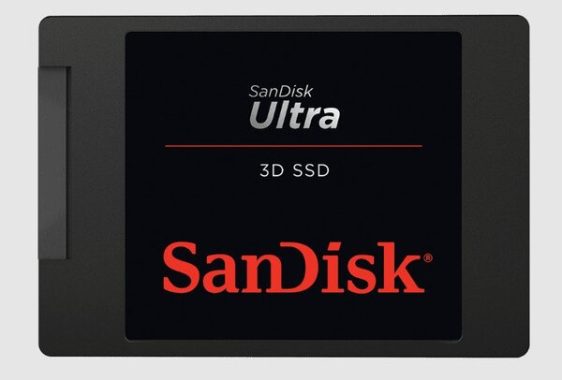
Sandisk Ultra 3D: The Sandisk Ultra 3D is a SATA SSD that offers good performance and a range of capacities up to 2TB. It’s a good option for budget-conscious consumers.
Please note that these are just examples, and there are many other SSDs available in the market that may also be suitable for laptops. It’s always best to check the specific requirements of your laptop and also compare the prices, warranty, and reviews to make a more informed decision.
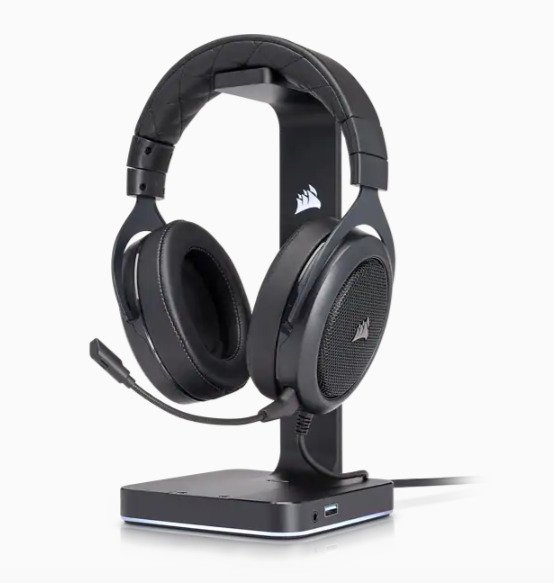
The Corsair HS50 Stereo Gaming Headset is a wired headset designed for gaming and other audio applications. It features a durable aluminum frame, 50mm neodymium audio drivers for clear sound, a unidirectional noise-canceling microphone for clear communication, and memory foam earpads for comfort during extended use. The headset also has an in-line volume and mute control, which allows easy access to adjust audio without having to reach for your PC or console. Additionally, it is available in multiple colors and it’s compatible with PC, Mac, Xbox, PlayStation, Nintendo Switch, and mobile devices. Overall, it is considered a budget-friendly and good quality headset.
The Corsair HS50 is generally considered to have good build quality. The headset features a durable aluminum frame that is designed to withstand the wear and tear of regular use. The ear cups and headband are also made with high-quality materials that provide a comfortable fit and can withstand extended use. Additionally, the audio drivers, microphone and controls are well-built and function as expected.
Corsair HS50 Stereo Gaming Headset
Users and critics have reported that the HS50 has a sturdy and well-constructed design and that it can hold up well over time. Some reviewers have also praised the headset for its comfortable fit and lightweight design, which makes it easy to wear for extended periods.
Overall, the Corsair HS50 is considered to be a well-built and durable headset that offers a comfortable fit, good sound quality and a great value for its price. ($49.99)
The Corsair HS50 is Discord certified, which means that it has been tested and approved by Discord, a popular communication platform for gamers, for use with the platform. This certification ensures that the headset will work well with Discord and provide a high-quality audio experience for both voice and game sound.
Discord certification includes several parameters such as mic quality, audio quality and compatibility to ensure a great experience while using Discord. The HS50 passed all the necessary tests and got certified.
Having a Discord certified headset like the Corsair HS50 can be beneficial for gamers who frequently use Discord to communicate with others while playing. The certification ensures that the headset is optimized for use with the platform and will provide a clear and reliable audio experience.
Corsair HS50 Stereo Gaming Headset
Corsair HS50 voice quality
The Corsair HS50 is generally considered to have good voice quality for a gaming headset in its price range. The headset features a unidirectional noise-canceling microphone that helps to filter out background noise and ensure clear communication. The microphone is sensitive enough to pick up the user’s voice clearly and effectively while minimizing background noise.
Many users have reported that the microphone is clear and easy to understand, which is helpful for online gaming and communication. Some reviewers have also noted that the microphone is flexible and can be easily adjusted to a comfortable position.
The HS50 also has a mute button which allows you to turn the microphone on and off easily, which is helpful when you need to mute your microphone quickly.
Overall, the Corsair HS50 is considered to be a good headset for voice quality, especially for its price range. The unidirectional microphone is effective in filtering background noise and providing clear communication. Photo: Corsair
Audio CUE Software No
Surround Sound No
Detachable Microphone Yes
Rechargble Battery No
Weight 0.319
Headset Frequency Response 20Hz – 20 kHz
Headset Battery Life N/A
Headphone Sensitivity 111dB (+/-3dB)
Headset Wireless Range N/A
Impedance 32 Ohms @ 1 kHz
Headset Type Wired
Headset Connector Type 3.5mm analog
Headset Drivers 50mm
Cable Length 1.8m
Model HS50
Color Black
Audio Stereo
Lighting None
Platform PC, PS4, XBOX and mobile
Microphone Impedance 2.2k Ohms
Microphone Type Unidirectional noise cancelling
Microphone Frequency Response 100Hz to 10kHz
Microphone Sensitivity -40dB (+/-3dB)
Corsair HS50 PRO STEREO Gaming Headset
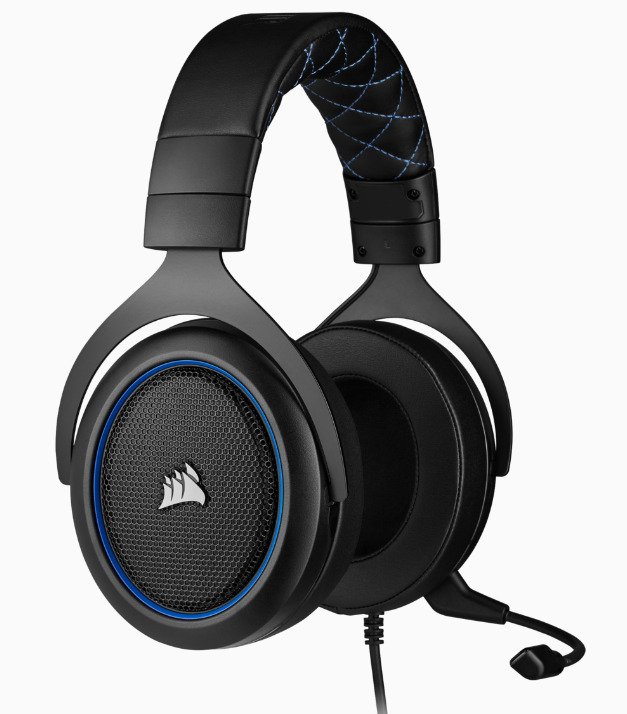
The Corsair HS50 Pro Stereo Gaming Headset is an upgraded version of the HS50 Stereo Gaming Headset, with some additional features. It still has the same durable aluminum frame, 50mm neodymium audio drivers for clear sound, and unidirectional noise-canceling microphone for clear communication, and memory foam earpads for comfort during extended use.
The HS50 Pro has some added features like an improved microphone with a built-in pop filter that enhances the clarity of your voice. The microphone is also detachable, allowing you to remove it when not in use.
Additionally, it has also a built-in volume control on the ear cups, which allows for quick and easy adjustments to the audio volume. This makes it more convenient for users who don’t want to reach for the volume controls on their device.
The HS50 Pro is also compatible with PC, Mac, Xbox, PlayStation, Nintendo Switch, and mobile devices and available in multiple colors. Overall, it is considered a budget-friendly and good quality headset with some added features compared to the original HS50. ($49.99)
Corsair HS50 PRO STEREO Gaming Headset
Audio CUE Software No
Surround Sound No
Detachable Microphone Yes
Rechargble Battery No
Weight 0.325
Headset Frequency Response 20Hz – 20 kHz
Headset Battery Life N/A
Headphone Sensitivity 111dB (+/-3dB)
Headset Wireless Range N/A
Impedance 32 Ohms @ 1 kHz
Headset Type Wired
Headset Drivers 50mm
Cable Length 1.8mCorsair HS50 PRO STEREO Gaming Headset
Color BLUE
Audio Stereo
Lighting NONE
Platform PC, PS4/5, Xbox 1 / X
S, Mbl
Microphone Impedance 2.0k Ohms
Microphone Type Uni-directional with noise-cancelling
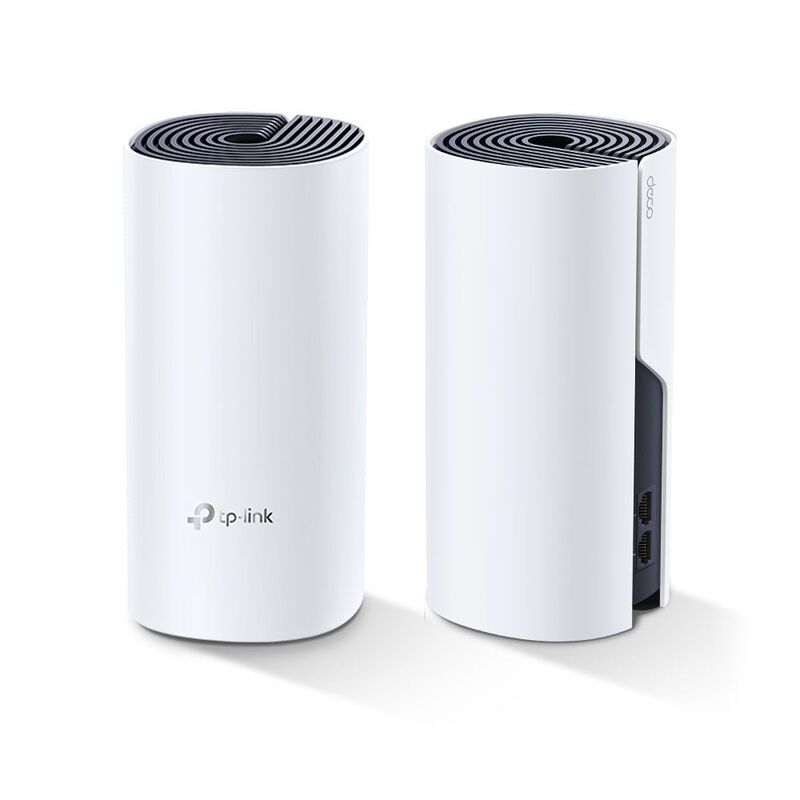
TP-Link Deco is a line of mesh WiFi systems that aims to provide strong, reliable wireless coverage throughout a home or small office. Reviews for the Deco line have generally been positive, with users praising its easy setup, strong performance, and affordable price. Some reviewers have noted that the Deco’s app could be more user-friendly, and that the system’s design is not as sleek as some competitors. Overall, the TP-Link Deco is a solid choice for those in need of a mesh WiFi system that delivers good performance at an affordable price.
TP-Link Deco main benefits
The main benefits of the TP-Link Deco line of mesh WiFi systems include:
Strong and reliable wireless coverage: Deco systems use multiple units or “nodes” that work together to create a seamless, high-performance mesh network that covers the entire home or small office.
Easy setup: Deco systems can be easily set up using the Deco app, which guides users through the process step-by-step.
Affordable price: Compared to other mesh WiFi systems on the market, Deco systems are relatively affordable and offer good value for the price.
Parental controls: Deco systems come with built-in parental controls that allow parents to set limits on their children’s internet access and monitor their online activity.
Advanced security: Deco systems come with built-in Advanced Security, which can automatically detect and block online threats to your network, such as viruses and malware.
Voice control: Deco systems can be controlled by voice commands through Amazon Alexa and Google Assistant.
Flexible configuration: Deco systems can be configured to work with other TP-Link networking devices such as switches, powerline adapters and cameras, creating a more comprehensive network to suit your needs.
TP-Link deco P9
TP-Link Deco high-quality Hybrid Mesh Wi-Fi System
The best specs of the TP-Link Deco line of mesh WiFi systems include:
High-speed performance: Deco systems can deliver fast internet speeds of up to 2,600 Mbps, depending on the model. This is more than enough to support multiple devices and high-bandwidth activities such as streaming 4K video or online gaming.
Large coverage area: Deco systems can cover an area of up to 5,500 square feet with a single system, depending on the model. This allows for strong and reliable wireless coverage throughout a home or small office.
Multi-pack systems: Deco systems are available in multi-pack configurations, which allow for even larger coverage areas and more flexibility in network configuration.
Advanced security features: Deco systems come with built-in Advanced Security, which can automatically detect and block online threats to your network, such as viruses and malware.
Easy setup and management: Deco systems can be easily set up and managed using the Deco app, which allows users to monitor network activity, set parental controls, and more.
Compatibility: Deco systems are compatible with other popular smart home devices and platforms, such as Amazon Alexa and Google Assistant.
Ethernet ports: Deco systems have multiple Ethernet ports, which allow you to connect wired devices such as gaming consoles or desktop computers directly to the network.
TP-Link Deco line
The TP-Link Deco line includes a variety of mesh WiFi systems with different specifications and features to meet different needs. Some examples of models in the Deco line include:
Deco X20: This is the latest model, a tri-band mesh WiFi system that provides speeds up to 2,600Mbps, it covers an area of up to 5,500 sq ft, and it has built-in antivirus and parental controls.
Deco M9 Plus: This is a tri-band mesh WiFi system that provides speeds up to 2,200Mbps, it covers an area of up to 5,500 sq ft, and it has built-in antivirus and parental controls.
Deco P9: This is a dual-band mesh WiFi system that provides speeds up to 1,200Mbps, it covers an area of up to 4,500 sq ft, and it has built-in antivirus and parental controls.
Deco S4: This is a tri-band mesh WiFi system that provides speeds up to 1,800Mbps, it covers an area of up to 4,500 sq ft, and it has built-in antivirus and parental controls.
Deco X60: This is a tri-band mesh WiFi system that provides speeds up to 6,600Mbps, it covers an area of up to 6,500 sq ft, and it has built-in antivirus and parental controls, also support for WiFi 6.
All of the above models have easy setup and management through the Deco app, and they can be controlled by voice commands via Amazon Alexa and Google Assistant. photo: TP-LINK
In summary, the TP-Link Deco line of mesh WiFi systems is a solid choice for those in need of strong and reliable wireless coverage throughout a home or small office. The Deco systems are easy to set up, affordable, and come with built-in parental controls and advanced security features. They also offer high-speed performance and large coverage areas, and can be controlled by voice commands via Amazon Alexa and Google Assistant. Additionally, Deco systems have multiple Ethernet ports, which allow you to connect wired devices directly to the network. Overall, the TP-Link Deco is a great option for those looking for a mesh WiFi system that delivers good performance at an affordable price.
TP-Link Mesh Technology Optional Ethernet backhaul work together to link Deco units to provide seamless coverage
Powerline Technology Uses your home’s electrical wiring to create stronger connections between Deco units, reducing the impact of walls or other obstacles on signal
2× Antennas (Internal) Multiple antennas form a signal-boosting array to cover more directions and large areas
Beamforming Concentrates wireless signal strength towards clients to expand WiFi range
WiFi Capacity
Medium
Dual-Band Distribute devices to different bands for optimal performance
MU-MIMO Simultaneously communicates with multiple MU-MIMO clients
Regardless of the cause, we’ve created this post to show you how to delete Snapchat or Instagram account. You must first deactivate your account before you can remove it. During this time, you can easily reactivate by logging in again if you change your mind. Your deactivated account will be completely deleted after 30 days, which will result in the loss of all of your Snaps, Chats, Stories, friends, settings, and data. Because of this, you might need to download your data before deleting your account.
How to delete your Snapchat account?
To delete your Snapchat account, you can follow these steps:
Open the Snapchat app on your device.
Log in to your account, if you haven’t already.
Tap on your profile icon in the top-left corner of the screen.
Select the gear icon in the top-right corner of the screen to open the Settings menu.
Scroll down and tap on “Support”
Scroll down and Tap on “My Account & Security”
Now, Tap on “Account Information”
Tap on “Delete My Account”
Next, you’ll be asked to enter your username and password.
After that you’ll be prompted to provide a reason for deleting the account.
Snapchat will then send you an email to confirm account deletion.
photo: Pixabay
Please note that after you delete your account, your account will be deactivated for 30 days before it is deleted permanently, during this 30 days if you login to your account, the account will be reactivated. Also there is no way to undo account deletion after confirmed.
How to delete Snapchat from a browser or Android smartphone Go directly to Snapchat’s accounts page if you wish to remove your account on an Android phone or web browser. Simply enter your username and password to log in, confirm your usernames and passwords, then click Continue to delete your account.
How to download my data before deleting Snapchat account?
By signing onto Snapchat and navigating to Settings, you may access and update parts of your personal information, including your name, email address, phone number, and Bitmoji. Simply tap your profile icon in the top-right corner to access your profile, and then tap the gear icon to access Settings.
Visit our accounts website or scroll to “Account Actions” under Settings, and then follow the steps below to obtain more information, such as the date your account was created and the devices that have signed into your account.
Go to accounts.snapchat.com and sign in. Click “My Data,” then at the bottom of the page, “Submit Request.”
When your data is prepared for download, we’ll send you an email with a link if you provide a valid email address. Do not send link to anyone. To get your data, click on the link in your email. To download your data, click the provided link.
Additionally, a zip file will be delivered together with your “My Data” download. You need appropriate software on your device to open a zip file and view its contents.
How to delete your Instagram account?
To delete your Instagram account, you can follow these steps:
Go to the Instagram website on a computer or mobile browser.
Log in to your account, if you haven’t already.
Tap or click on your profile picture in the top-right corner of the screen.
Select “Edit Profile”
Scroll down and tap or click on “Temporarily disable my account”
Select the reason for disabling your account.
Re-enter your password.
Click or tap on “Temporarily Disable Account”
photo: Pixabay
Please note that after disabling your account, the account will be deactivated for 14 days, if you login to your account within 14 days, your account will be reactivated. If you don’t want to reactivate account within 14 days, it will get deleted permanently Also, there’s no way to undo an account deletion once it’s confirmed.
How to download my data before deleting Instagram account?
To download your data before deleting your Instagram account, you can follow these steps:
Go to the Instagram website on a computer or mobile browser.
Log in to your account, if you haven’t already.
Tap or click on your profile picture in the top-right corner of the screen.
Select “Settings” (the gear icon)
Select “Privacy and Security”
Select “Data Download”
Enter your email address where you want the link to download data sent, then click on “Request Download”
Instagram will send you an email with a link to download your data.
Click on the link in the email, and you’ll be prompted to enter your password.
After you enter your password, you’ll be able to download your data, which will be provided in the form of a .zip file containing all your photos, videos, messages, and other information.
Please note that the link for data download will expire after 48 hours, If you don’t download the data in 48 hours, you will have to repeat the process and request for data download again. Also, after you download your data, you can proceed with disabling or deleting your account if you choose to.
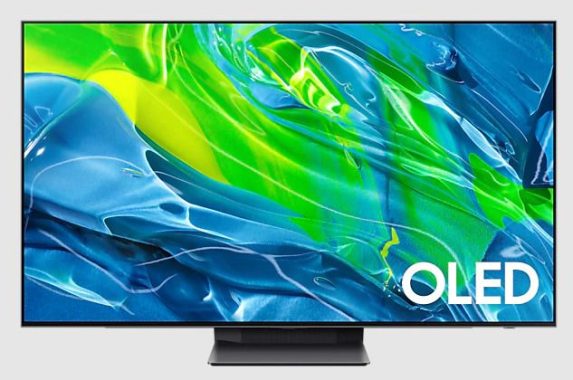
QLED and OLED are two different display technologies used in TVs and monitors. OLED stands for organic light-emitting diode and QLED stands for quantum dot light-emitting diode. Both technologies have their own advantages and disadvantages, so it’s difficult to say definitively which one is “better.” Here are some things to consider when deciding between QLED and OLED:
Picture quality: OLED TVs are known for their excellent picture quality, with deep blacks, wide viewing angles, and high contrast ratios. QLED TVs also have good picture quality, but they may not quite match the deep blacks and wide viewing angles of OLED.
Brightness: QLED TVs are generally brighter than OLED TVs, which can be an advantage if you have a bright room or want to use your TV for HDR content. However, OLED TVs can still produce bright, vibrant images and are capable of displaying HDR content.
Lifespan: OLED TVs are prone to image retention and burn-in, which can be an issue if you leave static images on the screen for extended periods of time. QLED TVs are less prone to these issues, but they can still occur if the TV is not used properly.
Price: OLED TVs tend to be more expensive than QLED TVs, especially for larger screen sizes.
Ultimately, the choice between QLED and OLED will depend on your personal preferences and budget. Both technologies offer excellent picture quality and can be a good choice for a home theater setup.
OLED (organic light-emitting diode) displays have several advantages over traditional LCD, LED displays:
Excellent picture quality: OLED displays are known for their excellent picture quality, with deep blacks, wide viewing angles, and high contrast ratios.
Thinner and lighter: OLED displays are thin and lightweight, making them ideal for use in portable devices such as smartphones and laptops.
Faster refresh rate: OLED displays have a faster refresh rate than LCD displays, which means they can display fast-moving images more smoothly.
Lower power consumption: OLED displays use less power than LCD displays, which makes them more energy-efficient and longer-lasting.
More flexible: OLED displays are flexible, which means they can be used in devices with curved or flexible screens.
Better color accuracy: OLED displays are able to display a wider color gamut, which means they can produce more accurate and vibrant colors.
OLED displays offer several benefits over LCD displays, making them a popular choice for use in a variety of devices.
QLED (quantum dot light-emitting diode) displays have several advantages over traditional LCD or LED displays:
Excellent picture quality: QLED displays have excellent picture quality, with high brightness levels and a wide color gamut.
High brightness: QLED displays are able to achieve higher brightness levels than OLED and LCD displays, which makes them ideal for use in brightly-lit rooms or for displaying HDR content.
Wide viewing angles: QLED displays have wide viewing angles, which means that the picture quality remains consistent even when viewed from off to the side.
Long lifespan: QLED displays have a longer lifespan than OLED displays, as they are less prone to image retention and burn-in.
Better for gaming: QLED displays have a faster refresh rate and lower input lag than OLED displays, which makes them better for gaming.
More affordable: QLED displays are generally more affordable than OLED displays, especially for larger screen sizes.
QLED displays offer several benefits over OLED and LCD displays, making them a popular choice for use in TVs and monitors.
Local dimming is a feature found on some LED TVs that allows the TV to adjust the brightness of the backlight behind the screen on a pixel-by-pixel basis. This can be used to enhance the contrast and black level of the picture, making dark areas appear darker and more detailed.
Local dimming is achieved by dividing the backlight into smaller zones and controlling the intensity of each zone independently. For example, if a scene has a bright object in the center of the screen and a dark background, the local dimming feature will increase the brightness of the backlight in the center of the screen and decrease it in the surrounding areas, resulting in a higher contrast ratio.
Local dimming is generally considered a premium feature and is found on higher-end LED TVs. Local dimming can significantly improve the picture quality of certain types of content, such as movies or TV shows with a lot of dark scenes. However, it can also introduce some artifacts, such as halos around bright objects or uneven lighting in certain scenes.
photo: Pixabay
Mini LED backlighting
Mini LED backlight is a technology used in LED TVs that uses smaller LED lights to backlight the screen. It is similar to traditional LED backlighting, but the size of the LED lights is significantly smaller, typically in the range of 200-500 microns. This allows for a higher density of LED lights to be used in the backlight, which can improve the contrast and black level of the picture.
The use of Mini LED lights in the backlight also allows for more precise control of the backlight, which can be used to enhance the local dimming feature on the TV. With traditional LED backlighting, the size of the LED lights limits the number of zones that can be used for local dimming, which can result in some loss of detail in dark areas of the picture. Mini LED backlighting allows for a higher number of dimming zones, which can improve the detail and clarity of dark areas of the picture.
Mini LED backlighting it’s also a more expensive technology to implement, so TVs with Mini LED backlighting tend to be more expensive than those with traditional LED backlighting.
What is Full-Array backlighting?
Full-array backlighting is a technology used in LED TVs that uses an array of LED lights to backlight the entire screen. This is in contrast to edge-lit TVs, which use a strip of LED lights along the edges of the screen to backlight the display.
One advantage of full-array backlighting is that it allows for more precise control of the backlight, which can be used to enhance the local dimming feature on the TV. With full-array backlighting, the LED lights are distributed evenly behind the screen, which allows for a higher number of dimming zones and more precise control over the brightness of different areas of the screen. This can result in a higher contrast ratio and better picture quality, especially in dark scenes.
Why TV “need” a Full-array backlighting, Mini LED backlight and Local dimming?
TVs use Full-array backlighting, Mini LED backlighting, and local dimming to improve the contrast and black level of the picture. These technologies allow the TV to control the brightness of the backlight behind the screen on a pixel-by-pixel basis, which can enhance the detail and clarity of dark areas of the picture.
Full-array backlighting and Mini LED backlighting both use an array of LED lights to backlight the entire screen, which allows for more precise control of the backlight and a higher number of dimming zones. This can result in a higher contrast ratio and better picture quality, especially in dark scenes.
Local dimming is a feature that allows the TV to adjust the brightness of the backlight on a pixel-by-pixel basis. It is typically used in conjunction with Full-array or Mini LED backlighting to enhance the contrast and black level of the picture. By dividing the backlight into smaller zones and controlling the intensity of each zone independently, the local dimming feature can make dark areas appear darker and more detailed.
photo: Pixabay
Overall, these technologies are used to improve the picture quality of the TV, especially in dark scenes. They can enhance the contrast and black level of the picture, resulting in a more immersive and cinematic viewing experience.
Sketching apps are digital tools that allow you to create drawings and paintings using your computer or mobile device. Many sketching apps offer a range of features and tools that are similar to those found in traditional art media, such as pencils, pens, markers, and watercolors. Some sketching apps also offer additional features, such as layers, blending modes, and custom brushes, that allow you to create more complex and nuanced artwork.
Sketching apps are popular among artists, designers, and hobbyists who want to create digital artwork. They can be used for a wide range of purposes, including creating concept art, storyboards, character designs, and finished paintings.
Here are three options for free sketching apps that you might find useful:
Autodesk SketchBook: This is a professional-grade sketching app that is available for Windows, Mac, iOS, and Android. It has a wide range of tools and features, including pencils, markers, and watercolors, as well as layers and blending modes. Autodesk SketchBook is a professional-grade sketching app that is available for Windows, Mac, iOS, and Android. Some of the main highlights of the app include:
Wide range of tools and features: Autodesk SketchBook includes a wide range of traditional art tools, including pencils, pens, markers, and watercolors, as well as more advanced features such as layers, blending modes, and custom brushes.
SketchBook app – photo: Sketchbook
Intuitive user interface: The app has a simple and intuitive user interface, making it easy to use even for beginners. It also includes helpful tutorials and tips to help you get started.
High performance: Autodesk SketchBook is designed to be fast and responsive, so you can sketch and paint without any lag or delay. It also supports high-resolution canvases, so you can create detailed and intricate artwork.
Cloud synchronization: With the Autodesk SketchBook Pro subscription, you can access your artwork from any device and save it to the cloud for easy access and collaboration.
Overall, Autodesk SketchBook is a very simple & feature-rich sketching app that is suitable for artists, designers, and hobbyists who want to create professional-grade digital artwork.
MediBang Paint: This is a free digital art app that is available for Windows, Mac, iOS, and Android. It has a wide range of brushes and tools, as well as pre-made backgrounds and characters that you can use in your sketches. MediBang Paint is a free digital art app that is available for Windows, Mac, iOS, and Android. Some of the advantages of this app include:
Wide range of brushes and tools: MediBang Paint includes a variety of brushes and tools that you can use to create different types of artwork, including pencils, pens, markers, and watercolors. It also includes custom brush options, so you can create your own unique brushes.
Panel layout tools: The app includes tools that you can use to create the panel layout for your manga or comic. You can divide the canvas into different panels and adjust the size and position of each panel to suit your needs. MediBang Paint is a powerful and feature-rich digital art app that is well-suited for creating manga and comics.
Exporting options: MediBang Paint allows you to export your manga or comic in a variety of formats, including image files, PDFs, and EPUBs. This makes it easy to share your work with others or publish it online.
Pre-made backgrounds and characters: The app includes a library of pre-made backgrounds and characters that you can use in your artwork. This can be helpful for artists who are working on comics, manga, or other types of illustrated stories.
Cloud synchronization: MediBang Paint allows you to save your artwork to the cloud, so you can access it from any device and collaborate with other artists.
Collaboration features: The app includes a range of collaboration features, such as the ability to leave comments on other people’s artwork and work on the same document with other people in real-time.
MediBang Paint is a powerful and feature-rich digital art app that is suitable for artists, designers, and hobbyists who want to create a wide range of digital artwork.
Krita: This is a free and open-source digital art app that is available for Windows, Mac, and Linux. It has a wide range of tools and features, including brush engines, blending modes, and vector art support. It is popular among artists who create digital paintings and illustrations. Krita is a free and open-source digital art app that is available for Windows, Mac, and Linux. Some of the main highlights of the app include:
Wide range of tools and features: Krita includes a wide range of traditional art tools, including pencils, pens, markers, and watercolors, as well as more advanced features such as layers, blending modes, and custom brushes. It also includes advanced brush engines that allow you to create unique and expressive brushes.
Krita app – photo: Krita
Support for vector art: Krita includes support for vector art, so you can create scalable illustrations and graphics. It also includes a range of tools for creating and editing vector shapes.
Customizable interface: The app allows you to customize the layout and appearance of the interface to suit your workflow. You can create your own toolbar configurations and dockers, and save them as presets for easy access.
In Krita, brushes are digital tools that you can use to apply paint or other media to the canvas. Krita includes a wide range of brush engines, each of which has its own set of options and parameters that you can use to create a wide range of brush styles. Some of the brush engines available in Krita include:
Chalk: This brush engine simulates the look of a soft pastel or chalk, and allows you to control the width, softness, and texture of the brush.
Color Smudge: This brush engine allows you to smear and blend colors together, creating a range of textured and painterly effects.
Dynamic Brush: This brush engine allows you to create custom brushes that respond to various inputs, such as pressure, tilt, and speed. You can use this engine to create expressive and natural-feeling brushes.
Ink: This brush engine simulates the look of traditional ink and brush techniques, and allows you to control the width, wetness, and color of the brush.
Pixel: This brush engine allows you to create pixel art and other low-resolution graphics. You can use this engine to create precise and detailed artwork, or to create a retro or pixelated look.
Krita also includes a range of preset brushes that you can use as-is or customize to suit your needs. You can also create your own custom brushes by combining different brush engines and options.
Community support: Krita is developed by a community of volunteers, and there is a strong and active community of users who share resources, tips, and tutorials online.
Overall, Krita is a nice and feature-rich digital art app that is very popular among artists who create digital paintings and illustrations. It is suitable for both beginners and advanced users.
Each of these sketching apps has its own strengths, so you may want to try a few of them to see which one works best for you.