Home Blog Page 66

Vizio P Series Quantum 2020 – Still a very popular TV at an affordable price

0

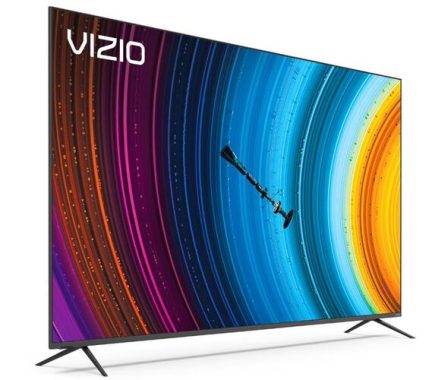
The Vizio P Series Quantum is a 4K Ultra HD LED TV that was released in 2020. It is part of Vizio’s high-end P-Series line of televisions, which is known for its good picture quality and high-end features.

Some of the key features of the Vizio P Series Quantum include:

4K Ultra HD resolution: The TV has a resolution of 3840 x 2160 pixels, which provides four times the detail of Full HD.

Quantum Color Technology: This technology delivers a wider color gamut, providing more vivid and accurate colors.

HDR Support: The TV supports HDR10 and Dolby Vision, two of the most widely used HDR formats, which deliver improved contrast, brightness, and colors compared to standard dynamic range content.

Smart TV features: The TV comes with Vizio’s SmartCast platform, which allows you to stream content from popular apps like Netflix, Hulu, and Disney+.

Design: The TV has a sleek, modern design, with thin bezels and a sturdy stand.
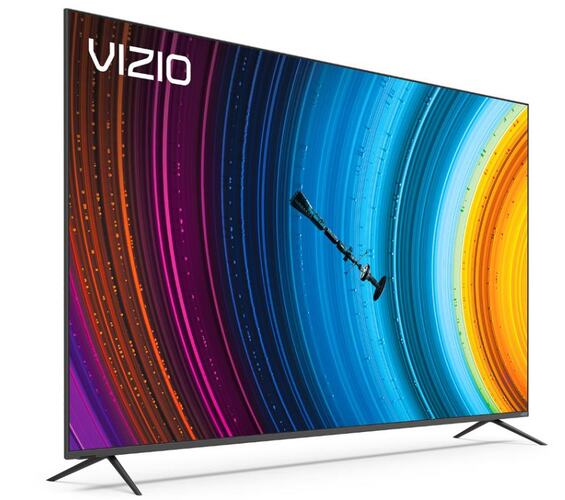
Vizio P Series Quantum 2020
Vizio P Series Quantum 2020 photo

For gaming, the Vizio P Series Quantum 2020 is fantastic. Fast moving scenes are crisp and silky smooth thanks to its fast response time and 120Hz refresh rate. It offers variable refresh rate technology to deliver an almost tear-free gaming experience, and it has a remarkably low input lag to make every action feel almost instantaneous. It is a good alternative for gaming in the dark because of its VA panel’s ability to produce deep blacks.
For usage as a computer monitor, the Vizio P Series Quantum 2020 is an excellent TV. It supports the majority of standard resolutions and has a quick response time. In well-lit areas, it offers good visibility due to its superb handling of reflections and high brightness. Unfortunately, if you sit close to the screen, its low viewing angles cause images to look washed out at the corners. Additionally, even though it supports chroma 4:4:4, the firmware needs to be updated because it is currently a little problematic.

For watching movies, the Vizio P Series Quantum 2020 is excellent. It has a high contrast ratio, which produces good picture quality, but full-array local dimming results in a lot of blooming and unpleasant clouding on our unit’s screen. On the plus side, it upscales low-resolution movies nicely and can get rid of judder in native apps and 24p sources.

Vizio P Series Quantum 2020 pros and cons

Pros of Vizio P Series Quantum:

Picture Quality: The TV delivers high quality and sharp images with deep blacks and vivid colors.
HDR Support: The TV supports HDR10 and Dolby Vision HDR formats, which enhances the overall picture quality.
Smart TV Features: The TV has built-in smart features like streaming apps, voice control, and integration with smart home devices.
Value for Money: The TV offers a good balance of performance and affordability compared to other high-end models.

Cons of Vizio P Series Quantum:

Limited Viewing Angles: The TV’s picture quality degrades significantly when viewed from off-center angles.
No local dimming controls: The TV does not have local dimming controls, which may result in a less defined image quality in dark scenes.
Limited HDR Brightness: The TV’s HDR performance may not be as bright as some other high-end models, reducing its impact in bright rooms.
Limited Connectivity Options: The TV has limited connectivity options compared to other high-end models, including a lack of built-in Wi-Fi.

About Vizio Quantum Color Technology

Vizio Quantum Color technology is a feature included in certain Vizio TV models, including the P Series Quantum. It aims to deliver a wider color gamut and more vivid and accurate colors than standard displays. The technology uses quantum dots, which are tiny semiconductor particles that emit light, to enhance the color performance of the TV. The result is a display with a larger color palette, which can produce more lifelike and accurate images. Additionally, Vizio Quantum Color technology supports HDR (High Dynamic Range) content, which enhances the overall picture quality by providing more vivid and detailed images with a wider range of brightness and contrast. Overall, Vizio Quantum Color technology enhances the overall viewing experience by providing more vivid and accurate colors, making it ideal for watching movies, playing games, and streaming content.P Series Quantum 2020

The best soundbar for Vizio P Series Quantum 2020

The best soundbar for a Vizio P Series Quantum will depend on various factors such as personal preference, budget, and room size. Here are a few popular options that are compatible with the Vizio P Series Quantum:

Vizio M Series Soundbar: Vizio’s own M Series soundbar is a good choice that is specifically designed to complement Vizio TVs. It delivers powerful and clear audio, with support for Dolby Atmos and DTS:X surround sound technologies.

Sonos Beam: The Sonos Beam is a compact soundbar that delivers high-quality audio with clear vocals and deep bass. It’s easy to set up and offers seamless integration with other Sonos speakers for a multi-room audio setup.

Bose Soundbar 700: The Bose Soundbar 700 is a premium option that delivers powerful and clear audio. It also has built-in Amazon Alexa and Google Assistant voice control, which allows you to control the soundbar and other smart home devices with voice commands.

Samsung HW-Q90R: The Samsung HW-Q90R is a high-end soundbar that delivers immersive 7.1.4 surround sound. It supports both Dolby Atmos and DTS:X and has a sleek and modern design that matches well with the Vizio P Series Quantum.

Ultimately, the best soundbar for your Vizio P Series Quantum will depend on your personal preferences, budget, and requirements. Consider your room size, audio preferences, and the features you want in a soundbar when making your decision.

The Vizio P Series Quantum 2020 is a high-end TV that delivers good picture quality and a wide range of features, making it a good choice for those looking for a premium TV experience. The Vizio P Series Quantum 2020 current price: $1,698.00
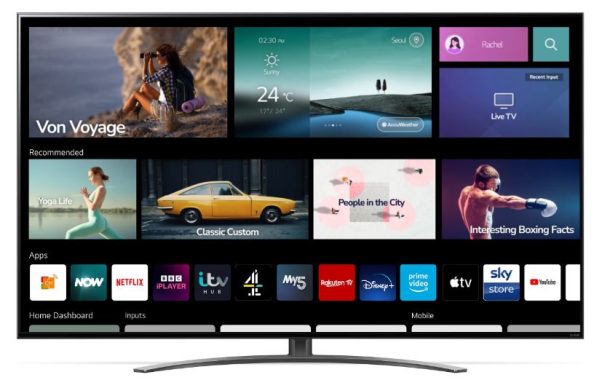
What exactly does Filmmaker Mode mean?

0

Filmmaker Mode is a feature on some newer television sets that displays content in a way that’s intended to preserve the filmmaker’s original vision and intention. This means that when a movie or TV show is played in Filmmaker Mode, the TV will automatically adjust its settings to reduce image processing, such as motion smoothing, and display the content in a way that’s closest to how it was intended to be viewed. This can help reduce the “soap opera effect” and provide a more cinematic experience.

Whether it’s good to watch TV in Filmmaker Mode depends on personal preference. Filmmaker Mode aims to display content in a way that’s closest to the filmmaker’s original vision and intention, reducing image processing that can alter the look of the content. This can provide a more cinematic viewing experience for those who prefer to see movies and TV shows in their original form. However, some people may prefer the enhanced picture quality that results from image processing and find Filmmaker Mode less appealing. Ultimately, the choice to use Filmmaker Mode or not is up to the individual viewer.

LG QNED QNED81
LG QNED QNED81 – TV with Filmmaker Mode feature 

Who created Filmmaker Mode?

Filmmaker Mode was created by the UHD Alliance, an industry group consisting of leading technology companies and Hollywood studios. The UHD Alliance was established in 2016 with the goal of promoting high-quality video experiences and the use of industry standards. Filmmaker Mode is one of the features introduced by the alliance to help ensure that movies and TV shows are displayed in a way that’s faithful to the filmmaker’s original vision and intention.

What is the difference between Garmin drive and DriveSmart?

0

“Garmin Drive” and “DriveSmart” are both product lines offered by Garmin, but they are designed for different purposes and have different features.

“Garmin Drive” is a line of GPS navigation devices designed for use in a car. They provide turn-by-turn directions, real-time traffic updates, and millions of points of interest, making it easier to find destinations and get there quickly.

“DriveSmart” is a line of advanced GPS navigators that offer additional features and capabilities, compared to the basic “Garmin Drive” devices. DriveSmart devices have larger screens, built-in Bluetooth for hands-free calling and live traffic updates, as well as smart features such as driver alerts for sharp curves, speed changes, and other road warnings.

In summary, “Garmin Drive” is a basic GPS navigation device, while “DriveSmart” is a more advanced GPS navigator with additional features and capabilities.

Garmin DriveSmart main advantages

The “DriveSmart” line of GPS navigators offered by Garmin has several key advantages over basic GPS navigation devices. Some of the main advantages of DriveSmart devices include:
  1. Larger screens: DriveSmart devices have larger screens, making it easier to see maps, read turn-by-turn directions, and access other information.
  2. Bluetooth connectivity: DriveSmart devices have built-in Bluetooth, allowing for hands-free calling and live traffic updates.
  3. Smart features: DriveSmart devices come with a range of smart features, such as driver alerts for sharp curves, speed changes, and other road warnings.
  4. Advanced navigation features: DriveSmart devices offer advanced navigation features, such as lane assist, junction view, and real-time traffic updates, making it easier to find your destination and get there quickly.
  5. Multimedia playback: DriveSmart devices also offer multimedia playback capabilities, such as the ability to play music and audiobooks from a smartphone or tablet.

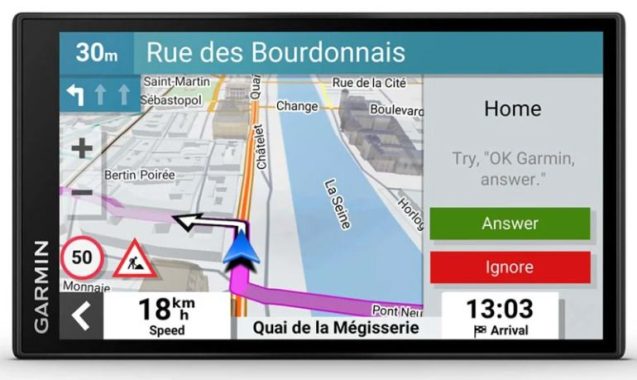
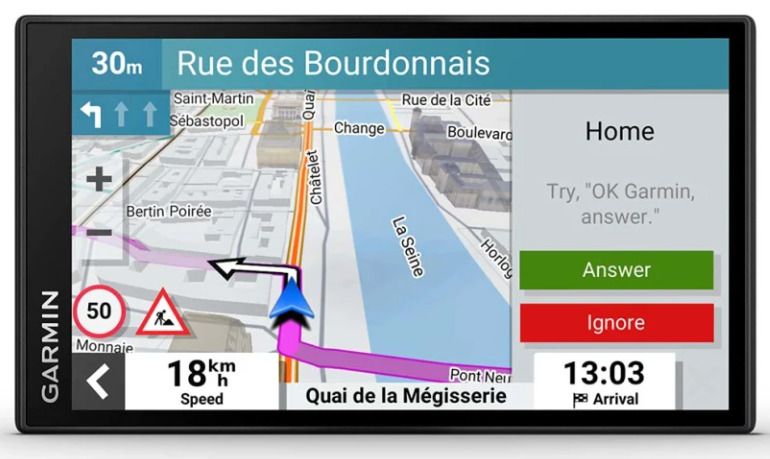
    Garmin DriveSmartâ„¢ 66
    Garmin DriveSmartâ„¢ 66 —-photo: Garmin

DriveSmart devices offer several advanced navigation features, including:

  • Lane assist: This feature displays clear, detailed views of exits and intersections, making it easier to identify the correct lane for your next turn.
  • Junction view: This feature provides detailed views of exits and intersections, so you can make more informed driving decisions.
  • Real-time traffic updates: DriveSmart devices receive real-time traffic updates, so you can avoid delays and find the quickest route to your destination.
  • Dynamic guidance: DriveSmart devices offer dynamic guidance, which gives you turn-by-turn directions that are constantly updated based on real-time traffic and road conditions.
  • Smartphone integration: DriveSmart devices can be connected to your smartphone, allowing you to access information such as incoming calls, text messages, and music playlists while driving.
  • Driver alerts: DriveSmart devices provide driver alerts for sharp curves, speed changes, and other road warnings, helping you stay focused on the road and stay safe.

These advanced navigation features, combined with a range of multimedia capabilities, make DriveSmart devices an ideal choice for those who want a more advanced and connected driving experience.

In summary, DriveSmart devices offer advanced navigation and multimedia capabilities, making it easier to stay focused on the road while staying connected and entertained.

DriveSmart-  SMARTPHONE PLATFORM COMPATIBILITYCompatible with Android™ 6.0 and later. Compatible with iOS 11.3 or higher. Made for Phone® XS Max, iPhone XS, iPhone XR, iPhone X, iPhone 8 Plus, iPhone 8, iPhone 7 Plus, iPhone 7, iPhone SE, iPhone 6s Plus, iPhone 6s, iPhone 6 Plus, iPhone 6, iPhone 5s, iPad Pro (10.5-Inch), iPad Pro (12.9-Inch) 2nd Generation, iPad Pro (12.9-Inch) 1st Generation, iPad Pro (9.7-Inch), iPad mini 4, iPad Air 2, iPad mini 3, iPad Air, iPad mini 2, iPad (6th generation), iPad (5th generation

How to Fix Windows Boot Loop Issues?

0

A little spinning circle with a black background and the boot logo appears to be fixed in position. Regardless of whether Windows is using an older or newer version, this issue is fairly typical.
For Windows 10 and 11, try one of the following fixes if you can’t proceed past the login screen.
Use a Safe Mode’s powerful troubleshooting options.
It’s likely that you won’t be able to access your login screen when your machine is in an endless boot cycle. Here’s how to get access again.

Step 1: Before removing the battery, unplug the power.

Step 2: Long-press the Power button for at least 30 seconds. Any remaining charge in the circuit will be eliminated as a result.
3. Connect the power source once more and reinsert the battery.
Step 4: Use the Power button to restart the computer, but press the Start keys to start it in Safe Mode. The keys differ depending on the PC maker.

Next, pick from one of the available choices:
Remove latest Windows updates, perform System recovery,
PC reset

Fix Windows Boot Loop
photo: Pixabay

Get rid of any unwanted third-party programs at starting

You can delete any unwanted programs that are currently executing during startup to prevent further disruptions. The next time Windows starts up, some installed third-party application tools often launch. They are the ones who need to go.

Step 1: Press the Win + R keyboard shortcuts to bring up the Run command menu.

Step 2: To open the Registry Editor, type regedit.

Step 3: Open Registry Editor and then take the following steps:

Computer/HKEY_LOCAL_MACHINE/SYSTEM/CurrentControlSet/Control/ServiceGroupOrder

Step 4: To open a new pop-up window, double-click the List menu item.

Step 5: You can view a complete list of Windows processes and external apps that are active in Windows startup in the Edit Multi-String window. Consider deleting any unwanted programs, such as antivirus software or other apps from a third party.

Step 6: You should also get rid of as many startup programs as you can. From the search menu, enter “Startup apps.”

Remove bloatware
Numerous cumbersome applications have the potential to significantly slow down the Windows launch procedure. It might be safer to entirely remove them from your Windows computer.

A completely new installation of Windows
One solution suggested by Microsoft to solve the delayed starting issue is to perform a clean install of Windows.

Master Boot Record repair

The master boot record (MBR), which guides your computer how to load its operating system, is the first sector that must be read when your computer accesses your hard drive after booting. Your computer cannot find the instructions it needs to boot when the MBR is damaged, and it becomes stuck in a loop.

1. Choose Troubleshoot > Advanced Options > Command Prompt when your computer enters WinRE.

2. Run the following three commands when the cmd window appears:

  • bootrec /RebuildBcd
  • bootrec /fixMbr
  • bootrec /fixboot

3. Next, use the command below to fix the boot sector.

bootsect /nt60 sys

4. In order for the changed settings to take effect, restart your computer. Check to see if the Windows 10 or 11 boot loop/unbootable to OS problem has been fixed at this point.

4 FREE medical Software for healthcare providers

0

There are several free medical software options available, here are some popular ones:

  • OpenEMR: an open-source electronic medical record and medical practice management software.
  • Medisafe: a medication management app that reminds users to take their medication and tracks doses.
  • FreeMED: a free, open-source Electronic Medical Record system.
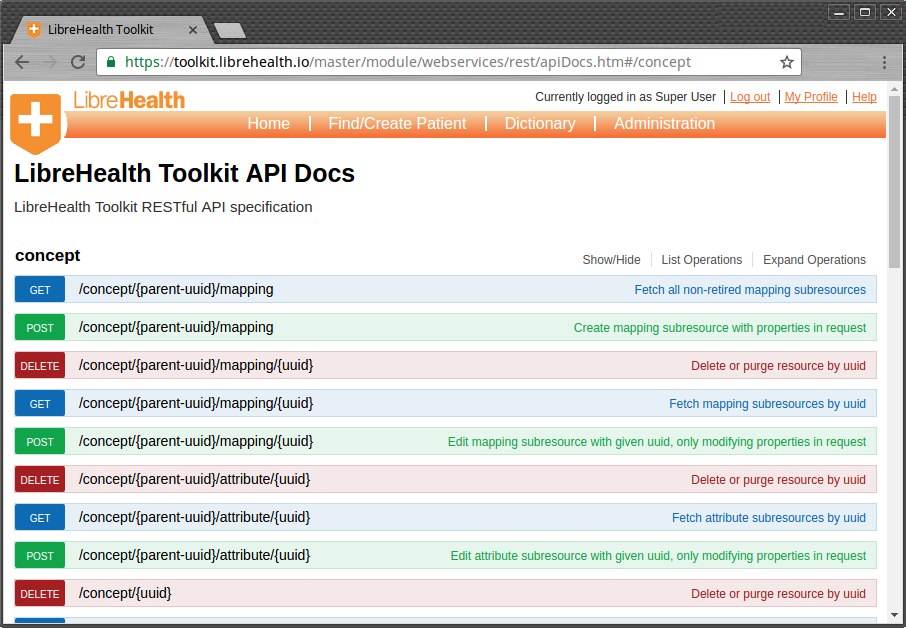
  • LibreHealth: a community-driven, open-source health IT platform.

Keep in mind that the quality and functionality of free software may not be the same as paid software, so it’s important to carefully evaluate the options before choosing one.

OpenEMR is a free, open-source electronic medical record (EMR) and medical practice management software. It provides a comprehensive set of features for managing patient records, appointments, billing, and prescription management. It is web-based, making it accessible from anywhere with an internet connection, and it can be customized to meet the specific needs of a healthcare practice.OpenEMR

Some of the features offered by OpenEMR include:

  1. Patient Demographic Management: stores patient information such as demographics, insurance, and medical history.
  2. Appointment Scheduling: allows patients to schedule appointments and tracks appointment history.
  3. Electronic Prescribing: enables electronic prescribing of medications to patients.
  4. Clinical Decision Support: provides decision support for patient care through alerts and reminders.
  5. Billing and Accounts Receivable: allows for tracking of patient billing and accounts receivable.
  6. Reporting and Analytics: provides reporting and analytics capabilities for practice performance tracking and improvement.

OpenEMR is a popular choice among healthcare providers due to its open-source nature and ability to be customized to meet the specific needs of a practice.

Medisafe is a medication management app designed to help patients remember to take their medications and track their doses. The app provides reminders for taking medications and allows patients to track their pill-taking history. It also provides information on drug interactions and side effects and allows patients to share their medication list with their healthcare providers.

Some of the best features offered by Medisafe:

  1. Medication Reminders: provides reminders for taking medications, including the ability to set custom reminders for different times of day.
  2. Pill Tracking: allows patients to track their pill-taking history and see when they have taken their medications.
  3. Drug Information: provides information on drug interactions and side effects.
  4. Sharing with Providers: enables patients to share their medication list with their healthcare providers.
  5. Health Insights: provides health insights and analytics based on the patient’s medication and pill-taking history.

Medisafe is a useful tool for patients who take multiple medications and want to ensure they are taking their medications as prescribed. The app is available for both iOS and Android devices and is free to download and use.

FreeMED is a free, open-source electronic medical record (EMR) system. It is designed to provide healthcare providers with a comprehensive set of tools for managing patient records, appointments, billing, and prescription management. FreeMED is web-based and can be accessed from anywhere with an internet connection, making it a convenient solution for healthcare providers.

The best features offered by FreeMED:

  1. Patient Demographic Management: stores patient information such as demographics, insurance, and medical history.
  2. Appointment Scheduling: allows patients to schedule appointments and tracks appointment history.
  3. Electronic Prescribing: enables electronic prescribing of medications to patients.
  4. Clinical Decision Support: provides decision support for patient care through alerts and reminders.
  5. Billing and Accounts Receivable: allows for tracking of patient billing and accounts receivable.
  6. Reporting and Analytics: provides reporting and analytics capabilities for practice performance tracking and improvement.

FreeMED is a popular choice among healthcare providers due to its open-source nature and ability to be customized to meet the specific needs of a practice. It is a good option for healthcare providers who are looking for a low-cost solution for managing patient records and other medical information.

LibreHealth is a community-driven, open-source health IT platform. It provides a comprehensive set of tools for healthcare providers to manage patient records, appointments, billing, and prescription management. LibreHealth is web-based and can be accessed from anywhere with an internet connection, making it a convenient solution for healthcare providers.

LibreHealth
LibreHealth

Some of the features offered by LibreHealth include:

  1. Patient Demographic Management: stores patient information such as demographics, insurance, and medical history.
  2. Appointment Scheduling: allows patients to schedule appointments and tracks appointment history.
  3. Electronic Prescribing: enables electronic prescribing of medications to patients.
  4. Clinical Decision Support: provides decision support for patient care through alerts and reminders.
  5. Billing and Accounts Receivable: allows for tracking of patient billing and accounts receivable.
  6. Reporting and Analytics: provides reporting and analytics capabilities for practice performance tracking and improvement.

LibreHealth is a good option for healthcare providers who are looking for an open-source solution for managing patient records and other medical information. Its open-source nature also allows for customization to meet the specific needs of a healthcare practice.

I can’t use wireless to access my network storage?

0

Here are a few steps you can try to resolve the issue when your network storage cannot be accessed through wireless:

  1. Check the network connection: Make sure that both your device and network storage are connected to the same network and the network is functioning properly.
  2. Restart the devices: Try restarting both your device and network storage to see if it resolves the issue.
  3. Update the firmware: Check if there are any firmware updates available for your network storage and install them if available.
  4. Change the security type: Try changing the security type of your network to see if that resolves the issue.
  5. Reconfigure the network storage: Try reconfiguring your network storage to ensure that it’s set up properly.
  6. Try a different device: If possible, try connecting a different device to your network storage to see if the issue is specific to your device or a more general problem.

If none of these steps resolve the issue, it may be necessary to seek assistance from the manufacturer or a technical support professional.

Network Storage
Photo: Pixabay

Network storage: how to set up properly

Here is a general outline for setting up network storage:

  • Connect the network storage to your router: Connect the network storage to your router using an Ethernet cable.
  • Access the network storage’s web interface: Use a web browser on a device connected to the same network as the network storage to access its web interface. The address is usually in the format of “http://<device_ip_address>”.
  • Login to the network storage: Login to the network storage using the default username and password (which can usually be found in the user manual).
  • Configure basic settings: Configure basic settings such as the device name, network settings, and time zone.
  • Create user accounts: Create user accounts for those who need access to the network storage.
  • Set up sharing: Set up sharing for the network storage by creating shared folders and setting permissions for those folders.
  • Test the setup: Test the setup by trying to access the network storage from another device on the same network.

The exact steps may vary depending on the specific network storage device you have. Consult the user manual or manufacturer’s website for more detailed instructions.

Network Storage: The differences between NAS and SAN

NAS (Network Attached Storage) and SAN (Storage Area Network) are two different types of network storage systems that serve different purposes.

NAS is a type of dedicated file server that provides file-level access to a large amount of data over a network. It connects to a network and provides a centralized repository for storing and sharing files, making it easy for multiple users to access and collaborate on the same files.

SAN, on the other hand, is a high-speed network of storage devices that provides block-level access to data. It is typically used for storage of critical data that requires high-speed access, such as for database applications or virtualized environments. SANs typically use fiber-channel or iSCSI protocols for communication between servers and storage devices, and provide a higher level of performance and reliability compared to NAS.

In summary, NAS is better suited for file sharing and general-purpose storage, while SAN is better suited for applications that require high-speed data access, such as database and virtualization.

Motherboard BIOSTAR Z790A-SILVER – Digital PWM, SMART BIOS Update…

0

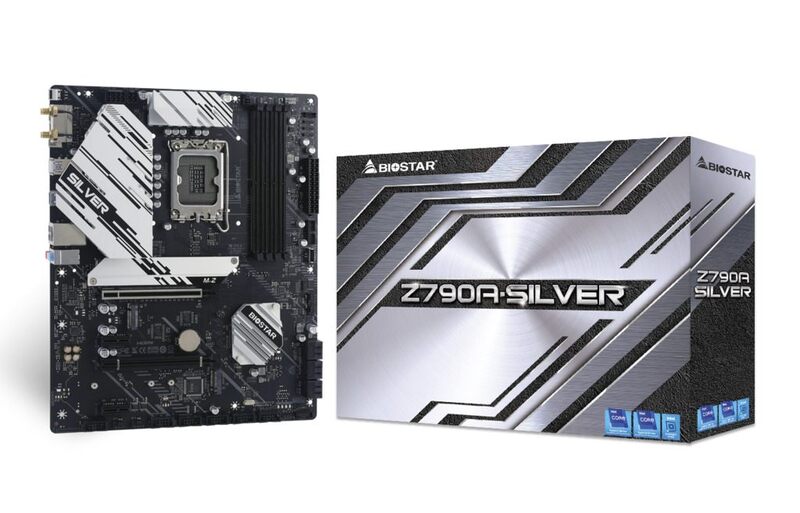
The Z790A-SILVER motherboard is the flagship model of BIOSTAR’s SILVER series, which it is proud to announce. BIOSTAR is a major manufacturer of motherboards, gpus, and storage devices today.

The Z790A-SILVER, a brilliant piece of technology built on the Intel Z790 architecture, is intended to provide devoted service to gamers, content makers, and casual users.

With support for Intel CoreTM CPUs from the 12th and 13th generations, a quad DIMM DDR5 memory interface, and a PCIe 5.0×16 slot specifically designed for that monstrous new graphics card, it’s the perfect option for a tough gaming setup that elevates regular players to true champions.

BIOSTAR Z790A-SILVER

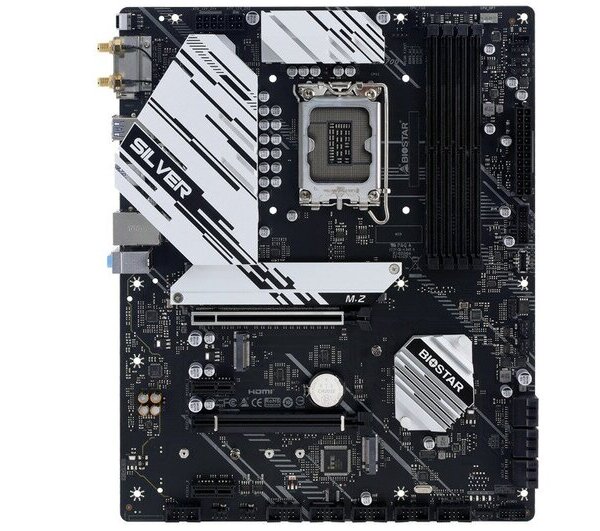
The Z790A-SILVER is an addition to BIOSTAR’s RACING line of motherboards. It features the same sturdy design and aesthetics as its predecessors, including the familiar RACING stripes on its PCB and Silver-colored cooling blocks.

The Z790A-SILVER motherboard’s chosen storage technologies are SATA III (6Gb/s) and PCIe M.2 4.0. With improved USB 3.2 (Gen2) type-C and type-A connectors for lightning-fast data transfers, they are incredibly stable and effective for any task.

The Z790A is no exception to BIOSTAR’s SILVER series motherboards’ standard inclusion of intelligent safety features. Superior power delivery, improved power economy, and improved performance at higher switching frequencies are provided by BIOSTAR’s ground-breaking DIGITAL PWM technology and Dr. MOS integrated driver ICs.

Furthermore, M.2 Cooling Protection, ESD Protection, and OC / OV / OH Protection keep the system from overheating and critical electrical malfunctions, extending its hardware lifespan greatly.
The Z790A-SILVER motherboard uses Realtek’s RTL8125B LAN chipset supported by BIOSTAR’s 2.5Guard, featuring 2.5x higher data transfer speeds with electrical surge and lightning discharge protection.BIOSTAR Z790A-SILVER

Some of the standout features of the Z790A-SILVER motherboard’s rear I/O panel are the provision of 1 x HDMI Port (HDMI 2.1) and 1 x DP Port (DP1.2) for rich, 4K video output. With one SMART BIOS UPDATE Button and a SMART BIOS USB Port, BIOSTAR has given special attention to user-friendly functionality so that users can easily update their vital BIOS patches.

In conclusion, the Z790A-SILVER is the best-selling gaming motherboard from BIOSTAR. It was created for customers who are fiercely competitive and seek out the highest-performing motherboard capable of maximizing the performance of the newest CPUs, graphics cards, and RAMs available.BIOSTAR Z790A-SILVER

BIOSTAR Z790A-SILVER specs:

ChipsetIntel Z790
CPU SUPPORTSupport for 12th / 13th Generation Intel Core™ i9/ i7/ i5/ i3 processors and Intel® Pentium processors/ Intel Celeron processors in the LGA1700 package
* Please refer to www.biostar.com.tw for CPU support list.
MEMORYSupports Dual Channel DDR5 – 7200+(OC)/ 7000(OC)/ 6800(OC)/ 6600(OC) / 6400(OC)/ 6200(OC)/ 6000(OC)/ 5800(OC)/ 5600(OC)/ 5400(OC)/ 5200(OC)/ 5000(OC)/ 4800
4 x DDR5 DIMM Memory Slot, Max. Supports up to 128 GB Memory
Each DIMM supports non-ECC 8/ 16/ 32GB DDR5 module
Support Intel® Extreme Memory Profile (XMP) memory modules
* Please refer to www.biostar.com.tw for Memory support list.
INTEGRATED VIDEOSupports DX12
Supports HDCP
STORAGE— Total supports 3 x M.2 socket and 6 x SATA III (6Gb/s) ports
6 x SATA III Connector (6Gb/s) : Supports AHCI, RAID
0, 1, 5, 10 & Intel® Rapid Storage Technology
1 x M.2 (M Key) Socket (M2M_CPU)
Supports M.2 Type 2280 SSD module
Supports PCI-E 4.0 x4 (64Gb/s) – NVMe SSD
1 x M.2 (M Key) Socket (M2M_SB1):
Supports M.2 Type 2280 SSD module
Supports PCI-E 4.0 x4 (64Gb/s) – NVMe SSD
1 x M.2 (M Key) Socket (M2_SB2):
Supports M.2 Type 2242/ 2260/ 2280/ 22110 SSD module
Supports PCI-E 4.0 x4 (64Gb/s) – NVMe/ AHCI SSD & SATA lll (6Gb/s)SSD
* When using PCI-E module on M.2 slot(M2M_SB1), the PCI-E slot(PCIEx16_2) will be disabled
LANRealtek RTL8125B
10/ 100/ 1000/ 2500 Mb/s auto negotiation, Half / Full duplex capability
AUDIO CODECALC1220
7.1 Channels, High Definition Audio, Hi-Fi
USB2 x USB 3.2 (Gen2) Type-C port (1 on rear I/O and 1 via internal header)
5 x USB 3.2 (Gen2) port (5 on rear I/Os)
2 x USB 3.2 (Gen1) port (2 via internal header)
6 x USB 2.0 port (2 on rear I/Os and 4 via internal header)
EXPANSION SLOT2 x PCIe 3.0 x1 Slot
1 x PCIe 5.0 x16 Slot (x16 mode)
1 x PCIe 4.0 x16 Slot (x4 mode)
REAR I/O2 x WIFI Antenna Port
1 x HDMI Port (HDMI2.1)
1 x DP Port (DP1.2)
1 x USB 3.2 (Gen2) Type-C Port
5 x USB 3.2 (Gen2) Port
2 x USB 2.0 port
1 x LAN port
3 x Audio Jack
1 x SMART BIOS UPDATE Button
1 x SMART BIOS USB Port
INTERNAL I/O6x SATA III Connector (6Gb/s)
1x M.2 (E Key) Socket : Supports 2230 type Wi-Fi & Bluetooth module and Intel® CNVi
2 x USB 2.0 Header (each header supports 2 USB 2.0 ports)
1 x USB 3.2 (Gen1) Header (each header supports 2 USB 3.2 (Gen1) ports)
1 x USB 3.2 (Gen2) Type C Header.
1 x 4-Pin Power Connector
1 x 8-Pin Power Connector
1 x 24-Pin Power Connector
1 x CPU Fan Connector
1 x CPU water cooling connector (CPU_OPT)
4 x System Fan Connectors
1 x Front Panel Header
1 x Front Audio Header
1 x Internal Stereo Speaker Header
1 x Clear CMOS Header
1 x COM Port Header
1 x TPM Header
1 x Thunderbolt Header
2 x LED Header (5V)
1 x LED Header (12V)
* M.2 (E key) Wi-Fi card is not provided
H/W MONITORINGCPU / System Temperature Monitoring
Smart / Manual CPU Fan Control
CPU/DDR Voltage Monitoring
DIMENSIONATX Form Factor Dimension: 30.5 cm x 24.4cm ( W x L )
OS SUPPORTSupports Windows Windows 10(64bit) / Windows 11(64bit)
Biostar reserves the right to add or remove support for any OS with or without notice.
BUNDLE SOFTWAREBullGuard
ACCESSORIES4 x SATA Cable
1 x I/O Shield
1 x DVD Driver
1 x User Manual

ABOUT BIOSTAR

BIOSTAR, is a professional brand dedicated to the production of motherboards, gaming motherboards, SSD, graphics cards, industrial computing systems, IoT, crypto mining equipment, healthcare solutions and motor start battery. Since its establishment in 1986, BIOSTAR has become a major motherboard supplier in the IT industry. In order to pursue the best quality and aesthetic design, BIOSTAR has invested heavily in ID design, equipment, global marketing research as well as R&D. With a constant emphasis on quality, BIOSTAR always seeks to improve beyond better and race to the future. Photo: BIOSTAR

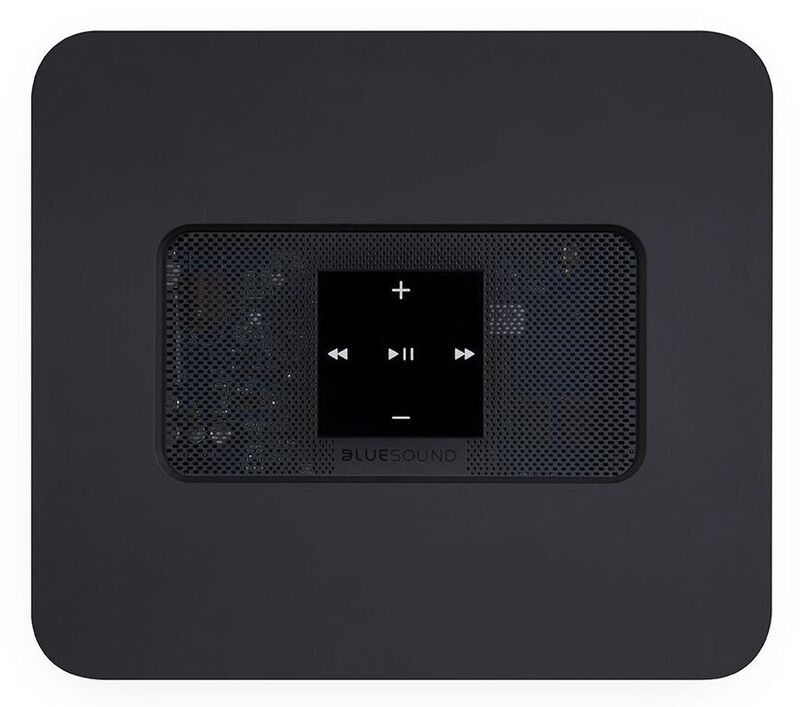
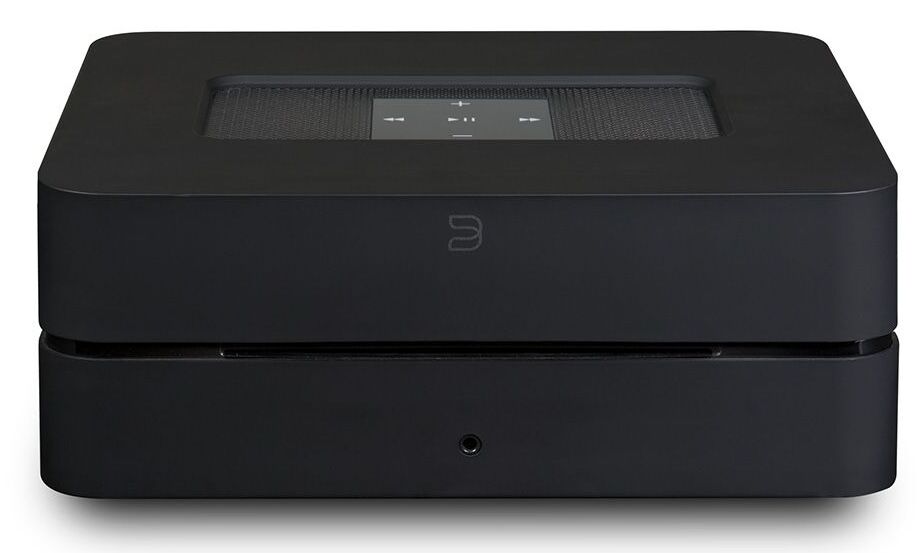
Bluesound VAULT 2i – High-quality Streaming player

0

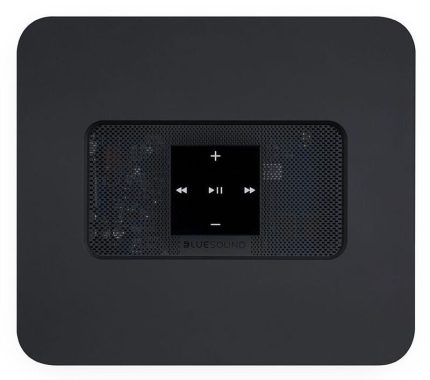
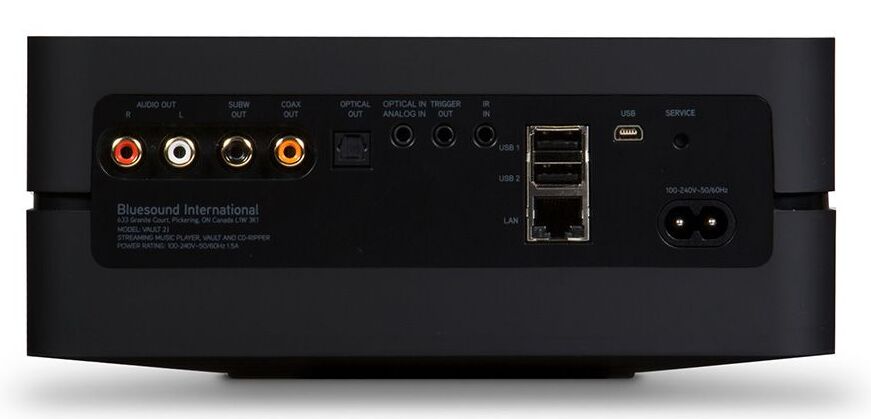
The Bluesound VAULT 2i is a network-attached storage (NAS) device designed for use with high-resolution audio. It can store and stream music files, including FLAC, WAV, ALAC, MP3, and other formats. The device supports both wired and wireless connections and can be controlled with a mobile app. It also features an analog output and digital output for connecting to an amplifier or DAC.

Pros and cons of Bluesound VAULT 2i
Pros:
  • High-Resolution Audio Support: Supports high-resolution audio formats, including FLAC, WAV, and ALAC, for superior sound quality.
  • Versatile Connectivity: Supports both wired and wireless connections, allowing for easy integration with existing home networks.
  • Mobile App Control: Comes with a mobile app for easy control and streaming from smartphones and tablets.
  • Analog and Digital Outputs: Features both analog and digital outputs for connecting to a range of different audio equipment.

    Bluesound VAULT 2i
    Bluesound VAULT 2i — photo: Bluesound

Cons:

  • Cost: The Bluesound VAULT 2i may be more expensive than other network storage options.
  • Limited Storage Capacity: The built-in storage capacity is limited, meaning that additional storage may need to be added over time.
  • Complex Setup: The setup process may be complex for those who are not familiar with network-attached storage devices.
  • Limited File Format Support: May not support all file formats, particularly lossless formats like DSD.

The VAULT 2i, a cutting-edge network hard drive, lets users access and manage their music library on all Bluesound players directly from the BluOS Controller app. The VAULT 2i provides a truly innovative multi-room experience, regardless of whether you’re streaming from a cloud music service, podcast, Internet radio station, or even your own personal music library stored on a USB.

You can stream audio directly from your iPhone®, iPad®, or Mac® computer via your Bluesound system thanks to built-in Apple AirPlay 2 technology. That includes the music from Netflix shows and YouTube videos.
You can also do much more if you have an Apple Music® subscription. Use Siri on your iPhone, iPad, or Apple TV 4K to give voice commands to control Apple Music. Tell it the song or playlist to play, as well as which Bluesound speakers or other equipment you want it to use.

The Bluesound VAULT 2i, once set up on your wired home network, enables you to stream your complete music collection to any Bluesound device without using a computer. The VAULT 2i can flawlessly multitask while streaming to numerous rooms thanks to a powerful and effective Dual-Core ARM Cortex A9 processor. Bluesound VAULT 2i price: $1,399.00Bluesound VAULT 2i

What is network-attached storage (NAS) device

A Network-Attached Storage (NAS) device is a data storage system that is connected to a computer network and allows data to be shared among multiple users and devices. It operates as its own self-contained device, with its own operating system, storage drives, and network connectivity. NAS devices are often used for storing and sharing large amounts of data, such as music, photos, and videos, and for backing up important files. They can be accessed from any device connected to the network, and can also be configured for remote access from outside the local network.Bluesound VAULT 2i
Bluesound company
Bluesound is a Canadian-based company that designs and manufactures high-fidelity audio equipment. It was founded in 2012 and is part of the Lenbrook Group of companies, which also includes NAD Electronics. Bluesound’s product line includes wireless speakers, soundbars, and network-attached storage devices, all designed to deliver high-quality sound and seamless integration with home networks and mobile devices. The company is known for its innovative products and its commitment to delivering premium audio experiences for music lovers.

Bluesound VAULT 2i specs:

Supported File Formats

MP3, AAC, WMA, OGG, WMA-L, ALAC, OPUS

Hi-Res formats – FLAC, MQA, WAV, AIFF

Storage

2TB internal ultra-quiet hard-drive with low power consumption

Rip Formats

FLAC, MP3 (320kbps), WAV selectable

CD

Slot-loading mechanism for ripping standard audio CDs

Native Sampling Rates

32 – 192 kHz

Processor

Dual-Core ARM® CORTEX™ A9, 1 GHz

Mobile Operating System

BluOS – Free Android and iOS App Available Online at Google Play and Apple App Store

Network

Gigabit Ethernet RJ45

USB Host

1 x Type-A port for connection to USB memory sticks (Fat32 or NTFS formatted) and supported peripherals
1 x Type-B (mini) for product servicing

What exactly is a Laser Projector?

0

A laser projector is a type of image projection device that uses laser light as a source instead of a traditional lamp. Laser projectors are known for their bright and vivid image quality, as well as their energy efficiency and long lifespan. They are commonly used for large-scale presentations, home theater systems, and entertainment venues. Unlike traditional lamp-based projectors, laser projectors do not require frequent bulb replacements and are capable of producing consistent and accurate colors.

The best features of laser projectors include:

  • Bright and Vivid Image Quality: Laser projectors produce bright and vivid images with high contrast and accurate color reproduction.
  • Energy Efficiency: Laser projectors are more energy efficient than traditional lamp-based projectors, resulting in lower operating costs.
  • Long Lifespan: Laser projectors have a longer lifespan than traditional lamp-based projectors, often lasting tens of thousands of hours.
  • Maintenance-free Operation: Unlike traditional lamp-based projectors, laser projectors do not require frequent bulb replacements, making them a more reliable and maintenance-free option.
  • Consistent Color Reproduction: Laser projectors are capable of producing consistent and accurate colors, making them a great choice for color-critical applications such as digital signage and medical imaging.

Here are some of the best laser projector brands and models:

  1. Sony VPL-VW590ES: A high-end home theater laser projector with 4K resolution and excellent image quality. The Sony VPL-VW590ES is a 4K home theater projector designed for use in a dedicated home cinema setup. It features a native 4K resolution (4096 x 2160), HDR compatibility, and 1,800 lumens brightness. The projector uses Sony’s SXRD technology for high contrast and rich, detailed images. Additionally, the VPL-VW590ES is equipped with a motorized lens and has a wide lens shift range, making it easy to install and adjust. It’s a mid-high end projector designed for those who are looking for a premium home cinema experience.
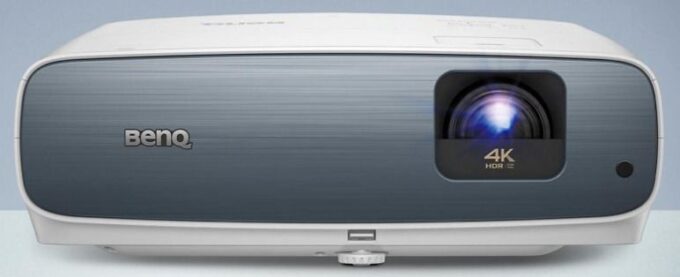
  2. BenQ TK850i: A versatile laser projector that offers excellent color accuracy and a bright image, making it ideal for a variety of applications. The BenQ TK850i is a 4K home theater projector designed for use in a dedicated home cinema setup. It features 4K resolution (3840 x 2160), HDR compatibility, and 3,000 lumens brightness. The projector uses BenQ’s proprietary HDRi technology to enhance the brightness and contrast of HDR content, delivering more vivid and life-like images. It’s also equipped with a built-in speaker, making it a convenient choice for those who don’t want to add an external sound system. Additionally, the TK850i offers a wide lens shift range and keystone correction, making it easy to install in a variety of room setups. It’s a mid-range projector suitable for those looking for a good balance between image quality and affordability.

    BenQ TK850i
    BenQ TK850i laser projector
  3. Epson EF-100 : The EF-100 is equipped with 3LCD technology, which provides accurate color reproduction and smooth motion. The Epson EF-100 is a compact and portable home theater projector designed for use in a variety of settings, including dedicated home cinema setups, as well as on-the-go presentations and outdoor movie screenings. It features full HD resolution (1920 x 1080), HDR compatibility, and 2,500 lumens brightness. The EF-100 is equipped with Wi-Fi connectivity, allowing for easy streaming of content from compatible devices. It also has a built-in speaker and offers keystone correction and automatic image alignment, making it easy to set up and use. With its compact size and portability, the EF-100 is a good choice for those who want a flexible home theater projector that can be used in a variety of locations.

  4. ViewSonic PX747-4K: A budget-friendly laser projector that offers 4K resolution and HDR support, making it an excellent choice for home theater or gaming. The ViewSonic PX747-4K is a 4K home theater projector designed for use in a dedicated home cinema setup. It features 4K resolution (3840 x 2160), HDR compatibility, and 3,500 lumens brightness. The projector uses ViewSonic’s SuperColor technology for accurate and vivid colors. Additionally, the PX747-4K is equipped with a 1.3x zoom and offers a wide lens shift range, making it easy to install and adjust in a variety of room setups. It also has a built-in speaker and offers both horizontal and vertical keystone correction. It’s a mid-range projector suitable for those looking for good image quality and flexibility in their home theater setup.
  5. Epson LS500: A high-end laser projector that offers 4K resolution and HDR support, making it ideal for home theater applications. The Epson LS500 is a 4K laser projector designed for use in a dedicated home cinema setup. It features 4K resolution (3840 x 2160), HDR compatibility, and up to 2,500 lumens brightness. The projector uses Epson’s proprietary 4K PRO-UHD technology for accurate and vivid color reproduction. Additionally, the LS500 is equipped with a laser light source, offering a longer lifespan and more stable brightness compared to traditional bulb-based projectors. It also has a sleek, compact design and offers a wide lens shift range, making it easy to install and adjust in a variety of room setups. It’s a high-end projector suitable for those looking for premium image quality and a hassle-free home theater experience.
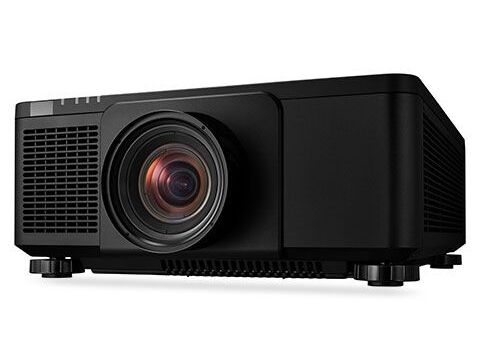
  6. NEC NP-PX1005QL: A professional-grade laser projector with WUXGA resolution and a high brightness output, making it ideal for large-scale presentations.
    • Built-in HDBaseT enabels simplified installations with a single cable for video, audio, and control signals – The NEC NP-PX1005QL is a high-end professional installation projector designed for use in corporate, education, and other large venues. It features WUXGA resolution (1920 x 1200), HDR compatibility, and 5,000 lumens brightness. The projector uses NEC’s proprietary ImageCare technology to optimize lamp life and reduce power consumption, making it a cost-effective choice for large-scale installations. Additionally, the NP-PX1005QL is equipped with advanced color correction and image processing capabilities, making it suitable for use with high-quality video and multimedia content. It also offers 360-degree installation flexibility and lens shift, allowing for easy and versatile installation in a variety of room setups. It’s a professional-grade projector suitable for those looking for high-quality, reliable performance in large-scale installations.

    NEC NP-PX1005QL
    NEC NP-PX1005QL _ photo

What is a docking station?

0

A docking station is a device that connects to a laptop or tablet computer, and allows the user to connect multiple peripheral devices, such as a keyboard, mouse, and external monitor. It also typically provides additional ports such as USB and Ethernet, and may include a power supply to charge the connected device. Docking stations are commonly used in office and productivity environments, as they allow users to quickly and easily connect their mobile devices to a desktop setup.

What the docking station provides?

A docking station typically provides several features and functions to enhance the capabilities of a laptop or tablet computer. These may include:
  • Additional ports: Docking stations typically provide a variety of ports that are not typically found on a laptop or tablet, such as USB, Ethernet, HDMI, and DisplayPort. These ports allow the user to connect a variety of peripheral devices, such as a keyboard, mouse, external hard drive, and monitor.
  • Charging: Many docking stations include a power supply that can charge the connected device, allowing the user to leave the device plugged in and charging while in use.
  • External monitor support: Docking stations often include ports for connecting an external monitor, allowing the user to expand their desktop and increase their screen real estate.
  • Audio: Some docking stations have audio ports to connect speakers or headphones.
  • Other features: Some docking stations may also include additional features such as a card reader, built-in fans, or even a security lock.

Overall, docking stations provide a convenient way for users to connect and use a wide range of devices and peripherals with their laptop or tablet, while providing a more stable and ergonomic desktop setup. Video: YouTube/Plugable

Plugable UD-6950H
Plugable UD-6950H
Some of the best docking station
The best docking station depends on the specific needs and requirements of the user.
  • For those who are looking for a high-end docking station with the latest technology and a wide range of features, the Dell Thunderbolt Dock G4, the HP Elite Thunderbolt 3 Dock, and the Lenovo ThinkPad Thunderbolt 3 Dock Gen 2 are excellent options.
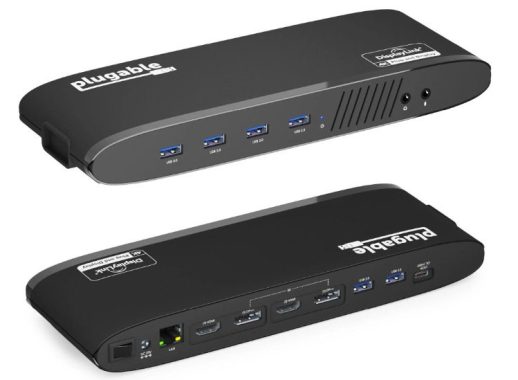
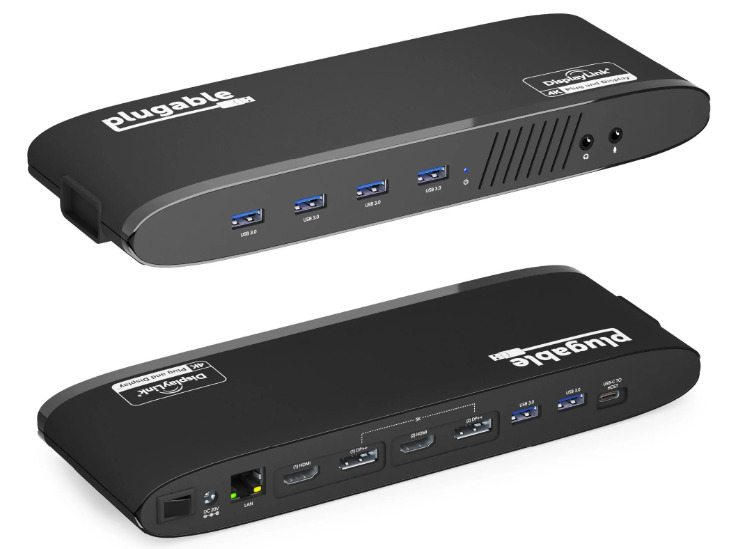
  • For users who are looking for a more budget-friendly option, the Plugable UD-6950H, the Anker USB C Hub and the AmazonBasics USB 3.0 Docking Station are great choices.
  • For those who are looking for a portable and compact option, the Satechi Type-C USB Hub and the HyperDrive USB C Hub are good options.
  • For those who are looking for a docking station with a lot of ports and high-speed data transfer, the CalDigit TS3 Plus Thunderbolt 3 Dock and the Elgato Thunderbolt 3 Pro Dock are great options.

    Lenovo ThinkPad Thunderbolt 3 Dock Gen 2
    Lenovo ThinkPad Thunderbolt 3 Dock Gen 2

It’s important to consider your specific needs and requirements when choosing a docking station, such as the type and number of devices you plan to connect, the ports you need, and your budget. Also, the compatibility with your device is important to check.