Home Blog Page 65

How to fix: Hulu not streaming in 4K?

0

If you’re having trouble streaming content in 4K on Hulu, here are a few steps you can try to resolve the issue:

  • Check your device: Make sure that your device is compatible with 4K streaming on Hulu. You can find a list of supported devices on the Hulu website.
  • Check your internet connection: A strong and stable internet connection with a minimum speed of 13 Mbps is required for 4K streaming on Hulu. You can run a speed test to check your internet speed at speedtest.net or nperf.com (Check your ADSL, xDSL, cable, optical fiber or satellite broadband connection bandwidth).
  • Check your subscription: You need to have the right subscription plan to stream in 4K on Hulu. If you’re not sure, check the details of your plan on the Hulu website or app.
  • Check your account settings: Go to your Hulu account settings and make sure that 4K streaming is enabled.
  • Restart your device: Sometimes simply restarting your device can resolve streaming issues.
  • Update your device software: Check if there are any software updates available for your device and update it to the latest version.
  • Clear your cache: Clearing your cache can help resolve streaming issues on Hulu. You can find instructions on how to clear your cache for your specific device online.

    streaming content in 4K on Hulu
    photo: HULU

Check for updates on the Hulu app: Make sure that the Hulu app is up to date. You can usually find the option to update the app in the app store for your device.

Try a different device: If the issue persists, try streaming in 4K on a different device to see if the issue is specific to your device.

Change your streaming quality: If you are still having trouble streaming in 4K, try changing the streaming quality to a lower setting to see if that resolves the issue. You can find the option to change the streaming quality in the settings of the Hulu app.

If you’ve tried all these steps and are still unable to stream in 4K on Hulu, it’s possible that the issue is on Hulu’s end and they may be working to resolve it. You can check the Hulu support website for any updates or to report the issue.

Hulu customer support
You can contact Hulu customer support for assistance with any issues you may be experiencing with the service. Here are a few ways to get in touch with Hulu customer support:
  1. Help Center: Visit the Hulu Help Center to find answers to common questions and troubleshooting articles.
  2. Live Chat: You can start a live chat session with a Hulu customer support representative through the Hulu Help Center.
  3. Email Support: You can send an email to Hulu support through the Hulu Help Center by selecting the “Email Us” option.
  4. Phone Support: You can call Hulu customer support at 1-888-631-4858. Phone support is available Monday through Friday, 9 AM to 9 PM ET and Saturday and Sunday, 9 AM to 8 PM ET.

It’s a good idea to have your account information and a detailed description of the issue you’re facing ready when you contact Hulu customer support. This will help them assist you more quickly and effectively.


Deep learning: What is it? Why is this an increasing trend in machine learning?

0

Deep learning is a subfield of machine learning that is inspired by the structure and function of the brain, known as artificial neural networks. It involves training artificial neural networks on a large dataset, allowing the network to learn and make intelligent decisions on its own. Deep learning algorithms have been used for a variety of tasks, including image and speech recognition, natural language processing, and even playing games.

In deep learning, a neural network is composed of layers of interconnected nodes, each of which performs a simple mathematical operation. The input to the network is processed through these layers, with the output of each layer serving as the input to the next layer, until finally producing a final output. The parameters of the network, such as the weights of the connections between nodes, are optimized during training to minimize a loss function that measures the difference between the network’s predictions and the actual labels in the training data.

The term “deep” in deep learning refers to the many layers in these neural networks, as opposed to shallow machine learning algorithms that have only a few layers. The depth of the network allows it to learn and represent very complex patterns in the data, making it well-suited for tasks that require high-level abstraction and reasoning.

What is deep learning
photo: Pixabay

Why is “Deep learning” a growing trend in machine learning?

Deep learning is a growing trend in machine learning for several reasons:
  • Increased computational power: Advances in hardware, such as GPUs, have made it possible to train large deep learning models on large datasets, which was previously infeasible.
  • Large amounts of data: With the growth of the internet and the increasing use of connected devices, the amount of data being generated has grown exponentially, providing a wealth of information for training deep learning models.
  • Improved algorithms: Researchers have developed new deep learning algorithms and architectures that have significantly improved the performance of deep learning models on a variety of tasks, such as image and speech recognition.
  • Successful real-world applications: The success of deep learning in various real-world applications, such as self-driving cars and virtual personal assistants, has increased its popularity and demonstrated its potential to solve complex problems.
  • Interdisciplinary collaborations: Deep learning has also benefited from interdisciplinary collaborations between researchers in fields such as computer science, neuroscience, and psychology, leading to a better understanding of how the brain works and how to build more advanced deep learning models.

In summary, the combination of increased computational power, access to large amounts of data, improved algorithms, successful real-world applications, and interdisciplinary collaborations has driven the growth of deep learning in recent years.

Why not use SVMs?

Support Vector Machines (SVMs) are a popular class of machine learning algorithms that can be used for classification and regression tasks. However, there are several reasons why deep learning has become a more popular choice than SVMs in recent years:
  1. Better performance on complex tasks: Deep learning algorithms are well-suited for tasks that require high-level abstraction and reasoning, such as image and speech recognition. In comparison, SVMs are not as effective at learning and representing complex patterns in the data, and they may not perform as well on these tasks.
  2. Ability to handle large amounts of data: Deep learning algorithms are designed to handle large amounts of data and can be trained on large datasets, which is particularly important for many real-world applications. In comparison, SVMs can become computationally expensive and may struggle to scale to large datasets.
  3. Better representation learning: Deep learning algorithms can learn to extract and represent features from the data automatically, which can be useful for tasks where the features are not well understood. SVMs, on the other hand, rely on manually-engineered features and may not perform as well if the features are not well designed.
  4. More interpretable models: While some deep learning models can be difficult to interpret, recent developments in interpretable deep learning have made it possible to build models that are more transparent and easier to understand. In comparison, SVMs can be less transparent and may not provide as much insight into how they are making decisions.

That being said, there are still many cases where SVMs can be a good choice, especially for smaller datasets and simple tasks. The choice between deep learning and SVMs will depend on the specific requirements of each task and the resources available for training and deploying the model.

What exactly is Internet of Things IoT and IoE ?

0

The Internet of Things (IoT) refers to the network of physical devices, vehicles, home appliances, and other items that are embedded with electronics, software, sensors, and connectivity which enables these objects to connect and exchange data. This data can be used to improve efficiency, monitor and control devices remotely, and provide valuable insights into usage patterns and other information.

IoT has the potential to revolutionize the way we live and work by allowing everyday objects to communicate and share information in real-time. This can lead to new and innovative applications, such as smart homes, wearable technology, and connected cities. However, the widespread use of IoT devices also raises important security and privacy concerns, as the large amount of personal and sensitive data generated by these devices needs to be protected from unauthorized access.

Internet of Things IoT
photo: Pixabay
What exactly is IoE (Internet of Everything)?
The Internet of Everything (IoE) is a concept that refers to the interconnectedness of people, processes, data, and things. IoE is a broader term than IoT, as it encompasses not only physical objects and devices that are connected to the internet, but also the people and organizations that use them, as well as the data generated by these interactions.

In the IoE vision, everything is connected, and all the data generated by these connections can be analyzed to drive new insights and value. This interconnectedness enables new levels of automation and efficiency, as well as creating new opportunities for innovation and growth. For example, IoE could be used to improve healthcare by connecting patients, healthcare providers, and medical devices, or to make cities more sustainable by connecting public services, transportation systems, and citizens.

Overall, IoE represents a significant step forward in the development of the internet and its potential to transform our world. It represents the next stage in the evolution of the Internet of Things, and the opportunities that arise from the integration of people, processes, data, and things.

IoT and IoE are closely related concepts, but they differ in their scope and focus. IoT is focused on connecting physical devices and objects, while IoE takes a more holistic approach that includes not just devices, but also the people and processes that interact with them.

In terms of implementation, IoT is often thought of as being focused on the technical aspects of connecting devices, such as the development of sensors, protocols, and networks. IoE, on the other hand, is more concerned with the business and organizational implications of connecting everything, such as the creation of new value streams, the optimization of existing processes, and the development of new business models.

The growth of IoT and IoE is being driven by a number of factors, including the decreasing cost of sensors and connectivity, the increasing power of data analytics, and the growing demand for real-time information and automation. As the number of connected devices continues to grow, it is likely that IoT and IoE will become increasingly important, creating new opportunities and challenges for organizations and individuals alike.

Overall, the development of IoT and IoE is a significant trend that has the potential to transform many aspects of our lives and economies. As these technologies continue to evolve, it is important to carefully consider their potential benefits and risks, and to work towards building secure and sustainable IoT and IoE ecosystems.

How to fix: Netflix and device both freeze?

0

Here are a few steps you can try to resolve the problem “Netflix and device both freeze”:

  • Restart the device: Unplug your device from the power source, wait for 30 seconds and then plug it back in.
  • Check your internet connection: Make sure your device is connected to a stable and fast internet connection. You can check the speed and stability of your connection using an online speed test tool.
  • Clear the cache and data of the Netflix app: Go to the settings on your device, select “Apps” or “Application Manager,” find Netflix, and then select “Clear cache” and “Clear data.”
  • Update the Netflix app: Make sure the Netflix app is up to date. You can check for updates in the app store on your device.
  • Update the firmware of your device: Check if there’s an update available for your device’s firmware.
  • Refresh the device memory

Refresh the device memory – How?

Netflix
Netflix_photo

Refreshing the memory on your device can help resolve issues with the Netflix app. Here are the steps to refresh the memory on some common devices:

Smart TVs:

Disconnect the power cord from the back of the TV or from the wall outlet.
Wait for 30 seconds and then reconnect the power cord.
Turn on the TV and try Netflix again.

Streaming media players (e.g. Roku, Amazon Fire TV):

Unplug the power cord from the back of the player or from the wall outlet.
Wait for 30 seconds and then reconnect the power cord.
Turn on the player and try Netflix again.

Game consoles (e.g. Xbox, PlayStation):

Power off the console.
Unplug the power cord from the back of the console or from the wall outlet.
Wait for 30 seconds and then reconnect the power cord.
Power on the console and try Netflix again.

Clear the cache and data of the Netflix app – How?

Here are the steps to clear the cache and data of the Netflix app on some common devices:

  1. Android devices:
  • Go to the “Settings” app on your device.
  • Tap on “Apps” or “Application Manager.”
  • Scroll down to find the “Netflix” app.
  • Tap on the “Netflix” app.
  • Tap on “Storage.”
  • Tap on “Clear Cache” and then “Clear Data.”
  1. iOS devices:
  • Go to the “Settings” app on your device.
  • Tap on “General.”
  • Tap on “iPhone Storage” (for iPhone) or “iPad Storage” (for iPad).
  • Scroll down to find the “Netflix” app.
  • Tap on the “Netflix” app.
  • Tap on “Delete App” and then confirm.
  • Reinstall the Netflix app from the App Store.
  1. Amazon Fire TV:
  • Go to the “Settings” menu on your Fire TV device.
  • Select “Applications.”
  • Select “Manage Installed Applications.”
  • Select the “Netflix” app.
  • Select “Force Stop” and then “Clear Cache” and “Clear Data.”

Note: Clearing the cache and data of an app will erase any settings or preferences you have saved in the app, so you may need to log back in and set your preferences again.

If none of these steps resolve the issue, try uninstalling and reinstalling the Netflix app, or reach out to the device manufacturer for further assistance.

If Netflix failed to load or freezes?

If Netflix is failing to load or freezes, you can try the following steps to resolve the issue:

  1. Restart the device: Unplug your device from the power source, wait for 30 seconds, and then plug it back in.
  2. Check your internet connection: Make sure your device is connected to a stable and fast internet connection. You can check the speed and stability of your connection using an online speed test tool.
  3. Clear the cache and data of the Netflix app: Go to the settings on your device, select “Apps” or “Application Manager,” find Netflix, and then select “Clear cache” and “Clear data.”
  4. Update the Netflix app: Make sure the Netflix app is up to date. You can check for updates in the app store on your device.
  5. Try another show or movie: If a particular show or movie is causing the issue, try watching another title to see if the problem persists.
  6. Restart the router: If you are using a wireless connection, restarting your router can help resolve any connectivity issues.
  7. Delete and reinstall the Netflix app: If none of the above steps work, try uninstalling and reinstalling the Netflix app.

If the issue persists after trying these steps, reach out to your device manufacturer or Internet Service Provider for further assistance.

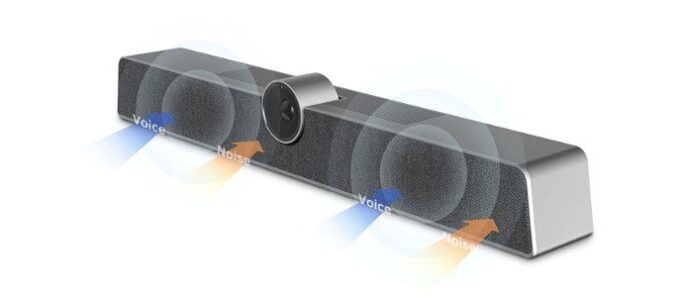
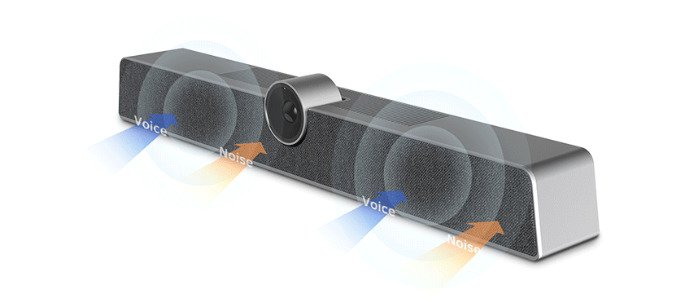
MAXHUB S05 Video Bar best feature

0

The best feature of the MAXHUB S05 Video Bar is its ability to provide high-quality audio and video for presentations and video conferencing. Its built-in camera, microphone, and speaker system deliver clear and vibrant images and sound, allowing for effective communication and collaboration. Other key features include its plug-and-play design, easy setup, and compatibility with multiple devices and platforms. The device also comes with several software tools that enhance the user experience and make it easier to control and manage presentations and video calls.

The MAXHUB S05 Video Bar is a type of presentation display device typically used for business and educational purposes. It features an integrated video camera, microphone and speaker system that can be connected to a computer or laptop to display presentations or video calls. The device is designed to enhance the quality of video conferences and improve the overall experience of the participants.

MAXHUB S05 Video Bar

The installation process of the MAXHUB S05 Video Bar can vary depending on the setup, but here are the general steps to follow:

  1. Connect the video bar to a power source and plug it into your computer or laptop using the provided HDMI or USB cable.
  2. Install the necessary drivers and software from the MAXHUB website or the included CD.
  3. Configure the video bar’s audio and video settings in your computer’s system preferences or control panel.
  4. Test the video bar’s microphone, camera, and speaker to ensure that they are working properly.
  5. Connect to a video conferencing platform, such as Zoom or Skype, and use the video bar for your presentation or video call.
  • If necessary, adjust the camera angle and microphone volume to get the best video and audio quality for your presentation or video call.
  • During the presentation or video call, you can control the video bar’s functions through the software or the device’s remote control.
  • After the presentation or video call, remember to disconnect the video bar from your computer and turn it off to conserve power.

It’s important to follow the manufacturer’s instructions carefully to avoid any issues during the installation process. If you encounter any problems, refer to the manufacturer’s website or customer support for further assistance.

MAXHUB S05 Video Bar
MAXHUB S05 Video Bar __ photo

The camera parameters of the MAXHUB S05 Video Bar may vary depending on the specific model, but here are some common camera specifications that are typically found in video bars:

  • Resolution: 720p or 1080p
  • Frame rate: 30 frames per second (fps)
  • Field of view (FOV): Approximately 90 degrees
  • Zoom: Digital zoom
  • Focus: Autofocus
  • Image stabilizationization: Electronic image stabilizationization (EIS)
  • Light sensitivity: Low light sensitivity
  • Video format: H.264 or H.265

It’s important to note that these specifications may differ from model to model, and the actual camera parameters of your video bar may vary. You can check the manufacturer’s specifications for the exact camera parameters of your specific model.

Which capabilities does the Zhaoxin CPU offer?

0
Performance – Zhaoxin CPU
The performance of Zhaoxin CPUs varies depending on the specific model and application. However, in general, Zhaoxin CPUs are targeted towards the low to mid-range market segment and are typically less powerful compared to leading CPU brands such as Intel and AMD. Zhaoxin’s primary focus is on the domestic Chinese market, and its CPUs are optimized for popular applications and software used in China. Zhaoxin is a Chinese microprocessor brand developed by Shanghai Zhaoxin Semiconductor Co., Ltd.

That being said, Zhaoxin has been continuously improving its technology and releasing new models with improved performance, so it’s possible that future Zhaoxin CPUs may offer higher performance levels.

Zhaoxin CPUs
Zhaoxin CPUs __ photo

Their only option is to concentrate on the cheap category, but they’ll face stiff competition there because their chips perform no better than low end Skylake (6th gen series) chips. They do not offer a SoC that can compete with AMD’s Ryzen APUs or Intel’s sub-10W Celerons and Pentium N/J series.

Because Zhaoxin is aware of this, they won’t bother with the western market. After all, their chips were created especially to reduce China’s dependence on American x86 chips. They are not intended for high scale manufacture, thus they won’t even make it to retail stores.

It’s uncertain if Zhaoxin will be able to penetrate the global CPU market. The global CPU market is highly competitive and dominated by well-established brands such as Intel, AMD, and ARM. Zhaoxin’s success in penetrating the global market will depend on several factors including the company’s ability to produce high-performance and competitively priced products, its ability to effectively market and sell its products globally, and its ability to secure partnerships and collaborations with key players in the industry.

The best Zhaoxin processor depends on the specific needs and requirements of the user. As of my knowledge cut-off in 2021, Zhaoxin’s highest performing processor was the KX-U6780A, which is a 8-core, 16-thread processor based on the LuJiaZui microarchitecture. However, the performance of different Zhaoxin processors varies depending on the specific model and the tasks they are being used for, so it’s important to consider the specific requirements of your use case before choosing a processor.Zhaoxin CPUs

This is, for example, specs of  KX-6000G Series Processor:

16nm technology

Up to 3.3GHz, 4 cores, 4MB cache

Support dual-channel DDR4-3200 memory

Support DP/HDMI/VGA interface, support 4K display, compared with the previous generation product, the integrated display performance is increased to 4 times

Support 16×PCIe 3.0, 4×USB3.2 Gen1, 2×USB 2.0, 2×SATA 3.2 and SPI/LPC and other peripheral interfaces

Compatible with x86 32/64-bit instructions, SSE4.2/AVX extension instructions, SM2, SM3 and SM4 acceleration instructions

Support for processor and IO virtualization technology

Blocking websites through a router?

0

Blocking websites from the router’s setting can be done in the following steps:

  1. Access Router’s Configuration Page: You can access the router’s configuration page by typing its IP address into a web browser. The default IP address can usually be found on the router or in its manual.
  2. Login: Enter your username and password to log in to the router’s configuration page.
  3. Locate the Parental Controls: Look for an option such as “Parental Controls”, “Access Restrictions” or “Website Blocking”.
  4. Set up Website Blocking: Enter the URL or keyword of the website that you want to block and apply the changes.
  5. Save Settings: Don’t forget to save the changes you made to the configuration.

Note that the exact steps may vary depending on the router model and manufacturer. If you have difficulty with the steps, refer to the router manual or contact the manufacturer for support.

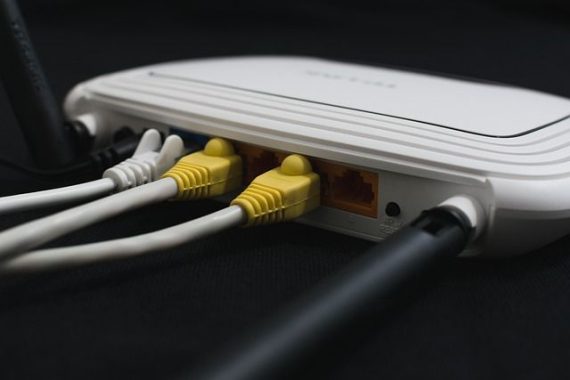
blocking websites through a router
photo: Pixabay

It’s also important to keep in mind that blocking websites through a router only affects devices that are connected to the network through the router. To block websites on individual devices, you’ll need to use software on those devices, such as parental control software or a browser extension.

Is it safe if you block bad websites via the router?
Yes, blocking websites through a router is generally safe and can be a useful way to restrict access to potentially harmful or inappropriate content for children or employees. However, it’s important to keep in mind that website blocking is not foolproof and determined users can find ways to bypass it.

Additionally, it’s important to keep your router’s firmware up to date to ensure that it is protected against potential security vulnerabilities. Regularly changing the default username and password of your router can also enhance its security.

Finally, it’s recommended to use website blocking in conjunction with other tools, such as parental control software or browser extensions, to provide a comprehensive solution for filtering out unwanted content.

PC shuts down when I try to multitask while playing a game

0

This “PC shuts down” issue might be caused by a few reasons such as:

  • Overheating: If your PC is overheating, it will automatically shut off to protect itself.
  • Power Supply: If your power supply is not providing enough power, it can cause your PC to shut off when under heavy load.
  • Software Issues: If you’re using outdated drivers or have a malware/virus on your PC, it can cause the system to crash.

    PCs shut down
    photo: Pixabay
  • Hardware Issues: If your GPU, CPU or other components are faulty, it can cause the PC to shut off.

You can try the following steps to troubleshoot the issue:

  1. Clean your PC: Dust buildup can cause overheating, so make sure to clean your PC regularly.
  2. Check the temperature: Use a monitoring tool to check the temperature of your PC’s components.
  3. Update drivers: Make sure to keep your drivers updated.
  4. Run a malware scan: Use a reputable antivirus software to scan your system for malware.
  5. Check power supply: Make sure that your power supply is providing enough power to run your PC and its components.

Additionally, you can also try the following:

  1. Stress test your components: Use a stress testing tool such as Prime95 or FurMark to test the stability of your components.
  2. Monitor resource usage: Use a system monitoring tool such as Task Manager to monitor your CPU, memory, and disk usage while gaming.
  3. Check for hardware errors: Use diagnostic tools such as memtest86 or a hardware diagnostic tool provided by your motherboard’s manufacturer to check for hardware errors.
  4. Reduce graphics settings: If your PC is still shutting off, try reducing the graphics settings in your games to reduce the load on your components.
  5. Upgrade components: If your components are outdated or not meeting the minimum requirements for the games you’re playing, consider upgrading your PC.

By following these steps, you should be able to resolve the issue and prevent your PC from shutting off while gaming. If the issue still persists, it’s best to seek help from a professional.

Why PCs shut down generally?

A PC can shut down for various reasons, some of the common ones include:

  1. Overheating: If the internal components of a PC generate too much heat, the system will shut down to prevent damage.
  2. Power Supply: If the power supply unit (PSU) fails or does not provide enough power, the PC will shut down.
  3. Software Issues: Software problems such as outdated drivers, malware infections, or corrupted operating system files can cause the PC to shut down.
  4. Hardware Issues: If a component such as the graphics card, hard drive, or motherboard is faulty, it can cause the PC to shut down.
  5. User-initiated shut down: The PC can also be shut down manually by the user.
  6. Operating System shutdown: The operating system can shut down the PC due to a software update or system maintenance.
  7. Automatic shut down due to low battery: In laptops, the PC can shut down automatically when the battery level is too low.

These are some of the most common reasons why a PC shuts down.

How to Fix an Unavailable or Disabled iPhone?

0

If your iPhone is disabled and you’re unable to access it, follow these steps to fix it:

  • Connect the iPhone to iTunes using a computer and wait for iTunes to recognize the device.
  • If iTunes asks for a passcode, try another computer you’ve synced with or use recovery mode.
  • In recovery mode, you can either restore the iPhone or update it. Restoring will erase all data and settings, while updating will preserve the data.
  • After the restore or update, set up the iPhone as a new device or restore from a previous backup.

If you don’t have access to a computer, you can also erase your iPhone using iTunes by connecting it to another computer or by going to an Apple Store.

  • If the issue persists and you still can’t access your iPhone, you may need to contact Apple support for further assistance.
  • If you have forgotten your passcode, you will need to erase your iPhone and set it up as a new device. This will erase all data and settings, so be sure to backup your data before proceeding.
  • If you have enabled Find My iPhone on your device, you can also erase your iPhone remotely using iCloud.com.

    iPhone is DisabledUnavailable, How to Fix
    photo: Pixabay

If your iPhone is disabled, there are several steps you can try to fix it, including connecting it to iTunes, restoring or updating the device, and erasing it if necessary.

  • Another option to fix a disabled iPhone is to use a third-party software like Tenorshare ReiBoot. This software can help you enter or exit recovery mode, fix various iPhone issues, and even unlock a locked iPhone without a passcode. However, be cautious when using third-party software as it may cause further damage to your device.
  • If you have a backup of your iPhone data, you can also try restoring it from the backup to see if it fixes the issue.
  • Keep in mind that if your iPhone is disabled due to security reasons, such as entering the wrong passcode multiple times, you may need to wait for a certain amount of time before you can try again.
  • Another important thing to remember is to keep your iPhone updated with the latest version of iOS. This can help prevent issues and keep your device secure.
  • If the issue persists, it may be a hardware problem, such as a damaged logic board or a battery issue. In such cases, you may need to take your device to an Apple Store or an authorized repair center for further evaluation and repair.

The amount of time your iPhone will be disabled after entering incorrect passcodes depends on the specific iPhone model and iOS version you’re using.

For iPhones running iOS 11 or earlier:

  • After 6 incorrect passcode attempts, your iPhone will be disabled for 1 minute.
  • After 7 incorrect attempts, your iPhone will be disabled for 5 minutes.
  • After 8 incorrect attempts, your iPhone will be disabled for 15 minutes.
  • After 9 incorrect attempts, your iPhone will be disabled for 60 minutes.
  • After 10 incorrect attempts, your iPhone will be disabled indefinitely until you connect it to iTunes and restore the device.

For iPhones running iOS 12 or later:

  • After 6 incorrect passcode attempts, your iPhone will be disabled for 1 minute.
  • After 7 incorrect attempts, your iPhone will be disabled for 5 minutes.
  • After 8 incorrect attempts, your iPhone will be disabled for 15 minutes.
  • After 9 incorrect attempts, your iPhone will be disabled for 1 hour.
  • After 10 incorrect attempts, your iPhone will be disabled indefinitely until you connect it to iTunes or erase the device using Find My iPhone.

Note: These times may vary based on the specific model and iOS version you’re using.

How to Unlock a Disabled iPhone Without iTunes?
If you have a disabled iPhone and don’t have access to iTunes, you can try the following methods to unlock it:
  1. Use a third-party tool: There are several third-party tools available, such as Tenorshare ReiBoot, that can help you unlock a disabled iPhone without iTunes. These tools can help you enter or exit recovery mode and fix various iPhone issues.
  2. Use Siri: If you have a disabled iPhone running iOS 8.0 to iOS 10.3, you may be able to use Siri to bypass the lock screen and access your device. This method may not work on all models and iOS versions.
  3. Use Find My iPhone: If you have enabled Find My iPhone on your device, you can erase your iPhone remotely using iCloud.com. This will erase all data and settings, but you will be able to unlock your device.
  4. Visit an Apple Store or authorized repair center: If you’re unable to unlock your iPhone using the above methods, you may need to take your device to an Apple Store or authorized repair center for further evaluation and repair.

How to Unlock a Disabled iPhone with iTunes?

To unlock a disabled iPhone using iTunes, you’ll need to follow these steps:
  • Connect your iPhone to a computer that you’ve synced with iTunes before.
  • Open iTunes on the computer.
  • Wait for iTunes to recognize your iPhone. If prompted, trust the computer on your iPhone.
  • If iTunes prompts you to enter your passcode or Trust This Computer, try another computer that you’ve synced with, or use recovery mode.
  • Once iTunes recognizes your iPhone, click on the “Restore iPhone” button.
  • Follow the on-screen instructions to restore your iPhone.

Restoring your iPhone using iTunes will erase all data and settings on your device. If you have a backup of your iPhone data, you can restore it from the backup after the device has been unlocked.

How to Factory Reset iPhone Without Passcode or iTunes?

To factory reset an iPhone without a passcode or iTunes, you can use the following methods:
  1. Use Find My iPhone: If you have enabled Find My iPhone on your device, you can erase your iPhone remotely using iCloud.com. To do this, follow these steps:
  • Go to iCloud.com on a web browser.
  • Sign in with your Apple ID.
  • Click on Find My iPhone.
  • Select your iPhone from the list of devices.
  • Click on the “Erase iPhone” button.
  1. Use Recovery Mode: If you have a disabled iPhone and don’t have access to Find My iPhone, you can use recovery mode to erase your device. To do this, follow these steps:
  • Connect your iPhone to a computer with iTunes installed.
  • Press and hold the Home button and connect your iPhone to the computer.
  • Continue holding the Home button until you see the Connect to iTunes screen.
  • Release the Home button and iTunes will detect your iPhone in recovery mode.
  • Click on the “Restore iPhone” button in iTunes to erase your device.

Note: Both of these methods will erase all data and settings on your iPhone, so make sure to backup your important data before proceeding. Additionally, using unauthorized software to modify the software on your iPhone can cause harm to your device and compromise its security.

Audioengine A2+ Speakers: In-Depth Review & Specs

0

Find out why the Audioengine A2+ is a popular choice for computer speakers. Read our review for a detailed breakdown of the sound quality, build quality, and features of this versatile and high-quality speaker system.

Audioengine A2+ is a pair of powered bookshelf speakers designed for high-quality music playback and computer audio. They are known for their compact size, high-fidelity sound, and ease of use. The A2+ features built-in amplifiers and high-quality components, allowing users to connect directly to a computer, smartphone, or tablet without the need for an external amplifier or receiver. The speakers are also compatible with a range of other devices, making them versatile and flexible. With a classic design, compact size, and exceptional sound quality, the Audioengine A2+ is a popular choice for home music systems, desktop audio, and more.

Audioengine A2+ speakers
Audioengine A2+ for gaming
The Audioengine A2+ can be used for gaming, but they are primarily designed for music playback. They are capable of delivering good quality sound for gaming, but they may not have the power or immersion needed for a fully immersive gaming experience. If you are looking for speakers specifically for gaming, there are options that are designed specifically for gaming and may have additional features such as virtual surround sound and built-in sound processing to enhance the gaming experience. That being said, the A2+ is still a solid choice if you’re looking for a compact, high-quality speaker system for both music and gaming.
Audioengine A2+ speakers build quality
The Audioengine A2+ is known for its high build quality and solid construction. The speakers are made with high-quality materials and are built to last. The compact design and sleek finish make them a good choice for both home and office environments. The speakers have received positive reviews for their durable construction and attention to detail in their design. Additionally, the built-in amplifiers and high-quality components used in the A2+ ensure that the speakers deliver consistent, high-fidelity sound. Overall, the Audioengine A2+ is considered to be a well-built, high-quality speaker system that offers both versatility and reliability.

Audioengine A2+ speakers
Audioengine A2+ speakers ___photo

Pros and cons Audioengine’s A2+ speakers

Pros of the Audioengine A2+ speakers:
  1. High-quality sound: The A2+ delivers high-fidelity, detailed sound that is well-suited to a wide range of music genres and other audio content.
  2. Compact design: The compact size of the speakers makes them a good choice for small spaces or desktop setups, while also offering versatility and portability.
  3. Easy to use: The speakers are easy to set up and use, with no need for an external amplifier or receiver.
  4. Versatile: The A2+ is compatible with a wide range of devices, including computers, smartphones, tablets, and more, making it a flexible and versatile speaker system.
  5. Good build quality: The A2+ is built with high-quality materials and is designed to last, making it a good investment for audio enthusiasts and casual listeners alike.

Cons of the Audioengine A2+ speakers:

  1. Limited bass: Some users have reported that the A2+ speakers may not deliver enough bass for some music genres or gaming experiences.
  2. Price: The A2+ speakers are priced at the high end of the market, making them less accessible to some users.
  3. No EQ controls: The speakers do not have any built-in equalization controls, which may limit users’ ability to tweak the sound to their liking.

The compact-yet-powerful A2+ is regarded as one of the top computer speakers for customers who value fine audio and have the money to pay for it. To suit your aesthetics, the well-built units are available in satin black, glossy white, or glossy red. Because Audioengine made the annoying choice to locate the volume control on the back, which gets annoying to access every time, you’ll want to discover the right volume level and stick with it. Audioengine A2+ speakers price $269Audioengine A2+ speakers

Audioengine A2+ speakers specs:

  • Type  Powered Bluetooth aptX speaker system

    Amplifier Type   Class AB

    Power Output    60 W peak power total (15 W RMS / 30 W peak per channel), AES

    Drivers    2.75” aramid fiber woofers  –  0.75“ Silk dome tweeters

    Inputs     3.5 mm stereo mini-jack, RCA L/R, USB, Bluetooth

    Outputs    RCA variable line-out

    Input Voltages    100-240 V 50/60 Hz auto-switching

    SNR   >95 dB (typical A-weighted)

    THD+N  <0.05% at all power settings   Crosstalk   <50 dB  Frequency Response  65 Hz-22 kHz ±2.0 dB

    Input Impedence   10K ohms unbalanced

    Protection   Output current limiting, thermal over-temperature, power on/off transient protection

    Power Consumption    Idle: 10W

    • Internal BT Receiver    CSR8670

      Input Bit Depth   16 bit

      Bluetooth Receiver Type   Bluetooth 5.0

      Supported Codecs    aptX, AAC, SBC

      Wireless Operation Range    Up to 100 ft (30 m) typical

      Input Data Rate    Determined by Bluetooth

      Wireless Latency   ~30 milliseconds (ms)