The highly anticipated watchOS 10, the next major software update for the Apple Watch, is on the horizon, and we’ve gathered all the essential details you need to know right here.
With the recent unveiling of the Apple Watch 9, there’s limited time remaining until the release of the upcoming watchOS update, which will not only benefit Apple’s latest wearable but also all compatible previous Apple Watch models.
As the tenth-generation update for its operating system, Apple has pulled out all the stops for watchOS 10. In contrast to last year’s update, this one brings a plethora of enhancements that promise to reshape our interaction with Apple Watches.
To ensure you stay well-informed, we’ve compiled comprehensive information about watchOS 10, including expected features, compatible devices, and, most importantly, the release date for the general public. Keep reading to discover more.
Apple – photo: Pixabay
Celebrating the significant milestone of ’10,’ Apple has undertaken a complete revamp of the watchOS design. WatchOS 10 introduces fresh app designs for major applications like Apple Maps, Weather, and Calls, all following a design philosophy reminiscent of last year’s iOS lockscreen update. This approach emphasizes vibrant colors and stylized fonts that fill the screen.
Following collaborations with beloved characters like Mickey Mouse and Toy Story, the Apple Watch introduces its next prominent branded watch face, featuring the iconic Snoopy from Charlie Brown. This watch face offers various animations that pay homage to Snoopy’s rich history.
After its debut on iOS, Smart Stack is making its way to the Apple Watch, offering quick access to relevant information based on the time of day. While not a full-fledged widget system, it’s a significant step in that direction. Apple has demonstrated this feature in presentations, with apps like Apple News, Stocks, and Weather providing seamless integration, reducing the need to open individual apps.
Apple continues to enhance its Mindfulness app, allowing users to log their current emotional state and the underlying reasons, a feature commonly found in meditation apps like Calm. Remarkably, the Mindfulness app remains completely free.
In the pursuit of improved well-being, Apple Watch now tracks your time spent outdoors using the ambient light sensor. This feature aligns with the connection between outdoor time and increased Vitamin D intake, promoting better overall mental health. This innovation may set a precedent for other wearables.
For avid golfers wearing an Apple Watch Series 8 or an Apple Watch Ultra, exciting functionality is on the horizon. These wearables’ sensors will provide detailed insights into wrist rotation and stance pronation, aiding in perfecting your golf swing.
Cycling workouts will be presented as Live Activities, offering additional metrics, including heart rate zones, accessible on your phone. Hiking enthusiasts will also benefit from an update that tracks their last known location, aiding emergency services in case you veer off the beaten path.
Compatibility with watchOS 10 includes the following Apple Watch models:
Apple Watch Series 4
Apple Watch Series 5
Apple Watch SE
Apple Watch Series 6
Apple Watch Series 7
Apple Watch Series 8
Apple Watch Ultra
Notably, no watches have been excluded from this update compared to the previous watchOS 9 release. The Apple Watch 3 was the last device to be left out, having received its last update with watchOS 8, but all its successors remain in the update cycle.
Snoopy is not the sole addition to the watch face library; the new ‘Palette’ design will also be introduced via the update. Palette adopts a minimalist approach with no dials but features an array of pastel-like colors on the screen. It may not suit everyone’s taste, but if you prefer a laid-back, colorful design, it could become your preferred watch face.
In recent years, the way we consume television content has undergone a profound transformation. Gone are the days of cable subscriptions and scheduled programming. Instead, streaming TV content has taken center stage, offering viewers unparalleled convenience, choice, and flexibility. In this article, we will explore the evolution of streaming TV content and the impact it has had on the entertainment industry and our daily lives.
The Rise of Streaming Platforms
Streaming TV content has experienced explosive growth, thanks to the rise of streaming platforms such as Netflix, Amazon Prime Video, Hulu, Disney+, and HBO Max. These platforms have become household names, offering vast libraries of movies, TV shows, documentaries, and original programming. They have effectively disrupted the traditional television model, allowing viewers to watch what they want, when they want, and where they want.
photo: Pixabay
Convenience and Flexibility
One of the primary appeals of streaming TV content is convenience. Viewers no longer need to adhere to fixed schedules or wait for reruns. With streaming platforms, they can access a vast catalog of content at any time. Whether you’re binge-watching an entire series in one sitting or catching up on missed episodes during your lunch break, streaming makes it possible.
Moreover, streaming platforms are available on a variety of devices, including smartphones, tablets, smart TVs, and gaming consoles. This versatility means you can enjoy your favorite shows and movies wherever you are, whether at home or on the go.
Original Content and Exclusive Releases
Streaming platforms have also become major players in producing original content. Shows like “Stranger Things” (Netflix), “The Mandalorian” (Disney+), and “The Handmaid’s Tale” (Hulu) have garnered critical acclaim and attracted large audiences. These platforms invest heavily in creating exclusive content, enticing viewers with unique and compelling stories.
Additionally, streaming services have changed the dynamics of movie releases. Some platforms, like Netflix, have begun releasing movies directly to streaming without traditional theater runs. This shift has allowed viewers to enjoy new releases from the comfort of their homes, further challenging the traditional film distribution model.
Customized Viewing Experience
Streaming platforms use algorithms and user data to provide personalized recommendations. By analyzing your viewing history and preferences, they suggest content that aligns with your interests. This customization enhances the viewer experience, helping users discover new shows and movies tailored to their tastes.
The Downsides of Streaming
While streaming TV content offers numerous advantages, it’s not without its downsides. The growing number of streaming services has led to a fragmentation of content. To access all the shows and movies they want, viewers may need to subscribe to multiple platforms, which can be costly.
Furthermore, the abundance of content can be overwhelming. Paradoxically, having too many options can make it challenging to decide what to watch. Some viewers may find themselves spending more time scrolling through menus than actually watching content.
Streaming TV content has revolutionized the way we consume entertainment. Its convenience, flexibility, and vast content libraries have made it a dominant force in the industry. While traditional cable and satellite TV are still available, streaming platforms have become the go-to choice for many viewers.
As technology continues to advance, it’s likely that streaming TV content will evolve even further. The key challenge for the industry will be finding ways to balance the desire for exclusive content and customization with affordability and ease of access. Regardless of the challenges, streaming TV content has firmly established itself as a cornerstone of modern entertainment, shaping the way we watch, discover, and enjoy our favorite shows and movies.
Apple IDs are the cornerstone of the Apple ecosystem, serving as the user’s digital identity for accessing various services like iCloud, iTunes, and the App Store. An Apple ID isn’t just an email address; it’s the gateway to your music, photos, and device backups. Yet, despite its central role, many users find themselves wrestling with common issues that can range from the simple to the confounding. In this article, we will delve into some of these challenges and offer guidance on how to resolve them. Whether you are thinking of changing your details or you’re trying to figure out how to delete Apple ID, this article will provide valuable insights.
Forgotten Passwords
Probably the most straightforward yet commonly encountered issue is forgetting the Apple ID password. If you find yourself in this position, the good news is that Apple’s website offers a ‘Forgot Apple ID or password’ feature that will guide you through the process of resetting it.
Account Recovery Delays
Apple takes security very seriously, and this shows in their account recovery process. If you’ve tried to recover your Apple ID account and found yourself waiting for an extended period, know that it’s a security feature. Apple uses this time to ensure that the account recovery request is legitimate. Be prepared to wait and check your contact methods frequently.
photo: Pixabay
Verification Failures
Two-factor authentication is an excellent security measure, but it can be a headache if it fails to work as expected. Users often find that they don’t receive the verification code or that the code they received isn’t accepted. In such cases, ensure that you are connected to a reliable network and that you’re checking the correct device or phone number for the code.
Billing Issues
Nothing is more frustrating than being unable to complete a purchase because your payment method is declined. Typically, this can be resolved by updating your billing information. Navigate to ‘Apple ID -> Payment & Shipping’ to update your details. If the issue persists, contact your bank to ensure there are no problems with your account.
Syncing Errors
The Apple ID is integral to iCloud, which syncs your data across devices. Syncing errors can occur if you’re signed into different Apple IDs on different devices or if iCloud is facing an outage. Check Apple’s System Status page to rule out the latter and ensure that you’re signed into the same Apple ID across your devices for a seamless experience.
The Complications of Multiple Apple IDs
Some users end up with more than one Apple ID over the years, perhaps due to changing email addresses or forgetting that they already had an account. This can create a confusing maze of purchased apps, stored data, and device authorizations. The bad news is that Apple currently doesn’t allow you to merge multiple Apple IDs. You will have to choose one as your primary account and download any apps or content onto that account manually.
Family Sharing Woes
Family Sharing is a wonderful feature that lets you share purchases and subscriptions with up to six family members. However, it can become problematic when a family member with numerous shared items decides to leave the group. You could lose access to several apps and services, making the transition a little complicated.
Trying to Delete Apple ID
At some point, you may decide that you want to delete Apple ID entirely, either because you are switching to a different ecosystem or due to privacy concerns. Apple allows you to do this, but the process is irreversible and comes with several caveats. All your data, including photos, messages, and app purchases, will be permanently deleted. Before taking this drastic step, ensure that you’ve backed up all vital information and are ready to part ways with your Apple identity.
Conclusion
Apple IDs are an essential part of the user experience on any Apple device. While the system is generally user-friendly and secure, users may encounter various issues, from forgotten passwords and verification failures to more complicated matters like billing issues and the desire to delete Apple ID. Awareness of these common problems and their solutions can make your digital life a lot smoother. Be proactive in managing your Apple ID, and don’t hesitate to use Apple’s support resources for any issues that you can’t resolve on your own.
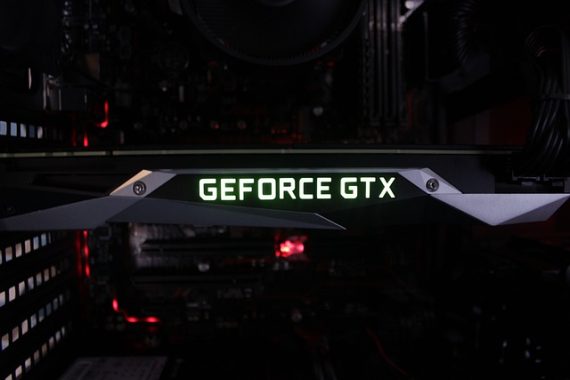
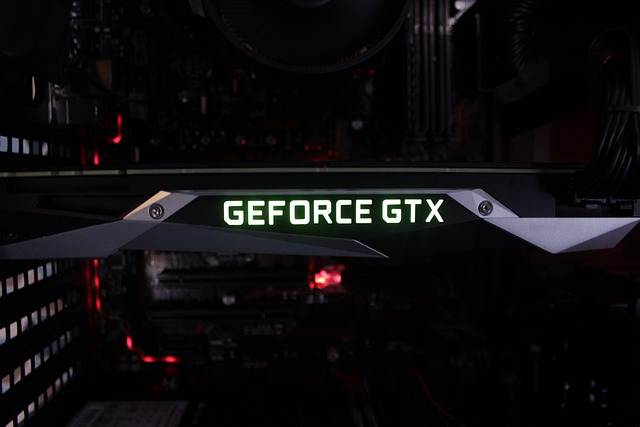
When it comes to the various electronic components that comprise a computer, the graphics card stands out as an indispensable device for delivering a top-notch visual experience. This critical component, in the form of an integrated circuit, handles data processing and transforms it into the visible information presented to users through monitors, televisions, projectors, and more. In this article, we will guide you through the different types of graphics cards, their constituent elements, key features, and help you determine how to make the right choice.
Types of Graphics Cards – Graphics cards fall into two categories, primarily distinguished by their use of RAM: integrated and dedicated graphics cards.
Integrated Graphics Cards Integrated graphics cards utilize the VRAM (Video Memory) of your computer rather than having their dedicated RAM. These cards are integrated within the same chip as the CPU (central processing unit) of your computer. Integrated graphics cards are typically more budget-friendly and can suffice for tasks that are not highly graphics-intensive.
Dedicated Graphics Cards Dedicated graphics cards come equipped with their independent memory source, ensuring superior performance by keeping their memory separate from your computer’s RAM. However, it’s worth noting that they consume more power, necessitating efficient cooling systems. Dedicated graphics cards excel in delivering an enhanced visual experience, particularly in demanding games and graphic design software. These cards are available in two formats: with a direct connection to a motherboard port or in MX format for laptops.
photo: Pixabay
Components of a Graphics Card – Here are the elements that make up a graphics card, along with their specifications:
GPU (Graphics Processing Unit) – The GPU serves as the graphics card’s brain, performing all necessary operations related to image processing. The GPU plays a significant role in determining the overall performance of the graphics card. Key GPU specifications include:
Core clock speed (CPU): Measured in MHz or GHz, this indicates how fast the graphics card’s cores operate. A higher clock frequency translates to faster data processing. Low-end cards typically operate around 825MHz, while high-end models can exceed 1200MHz. Two types of frequencies are typically specified: Base Clock (processor base frequency) and Boost Clock (the maximum frequency within temperature and power limits).
Number of shader processors: Also known as CUDA cores (in NVIDIA cards) or stream processors (in AMD cards), these components are crucial for texture rasterization and object geometry. More shader processors generally result in higher graphics card performance, with low-range models having around 192 cores and high-end models reaching up to 3594 cores.
Number of pipelines: Responsible for converting vertices and lines to pixels when transitioning from 3D to 2D images.
ROP (Raster Operations Pipeline): A subprocessor that handles the memory transcription of pixels, directly impacting FPS (Frames Per Second) in video games.
GRAM (Graphics Random Access Memory) – Graphics cards require dedicated memory to operate efficiently. GRAM, or graphics memory, consists of specialized integrated RAM that stores graphics data when needed, preventing the main RAM of your computer from getting overloaded. The quality of GRAM depends on factors such as:
Capacity: Measured in GB (gigabytes) or MB (megabytes), a higher capacity results in quicker data processing. Capacity can vary from 4GB to 16GB in high-end models.
Interface or data bus: Measured in bits, the data bus represents the number of data that can be transmitted or received per unit of time. A higher-bit bus allows for more data transfer. Common types include PCI Express (PCIe) slots.
Speed: Measured in MHz or GHz (effective frequency), this complements the data bus by determining data transfer speed.
Bandwidth: Usually measured in GB/s (gigabytes per second), bandwidth is the product of the memory interface (bits) and the effective frequency of speed divided by 8. Higher bandwidth means faster data transfer.
RAMDAC (Random Access Memory Digital-to-Analog Converter) – The RAMDAC converts digital signals into analog signals for output devices, affecting screen refresh rates. Although most monitors support digital images today, RAMDAC is less relevant but is typically measured in MHz, with higher values supporting a wider range of monitor refresh rates.
Outputs – Graphics cards typically offer various output options for connecting to monitors. Common output options include VGA (analog image), DVI (digital displays), HDMI, and DisplayPort (digital image transmission technologies that support high-definition video and audio). In modern setups, HDMI and DisplayPort are often recommended due to their versatility and support for high-definition content.
Interfaces with the Motherboard – The connection systems between the graphics card and your computer’s motherboard play a crucial role in determining the bus architecture, frequency, and required bandwidth for data transfer.
Cooling Devices – Effective cooling is essential to prevent graphics card overheating, which can lead to performance issues and damage. Cooling devices include heatsinks and fans. Heatsinks are passive and silent, while fans are active but noisier. Combining both heatsinks and fans is often recommended for optimal cooling. Some advanced setups use water cooling for enhanced performance.
Power – Graphics cards consume a significant amount of energy, so it’s vital to ensure they don’t exceed the power supplied by the PCIe port on the motherboard, typically limited to 75W. If higher power consumption is necessary, you may need to connect the graphics card to a separate power source using a specific connector.
The types of games you aim to play, play a crucial role in determining the criteria for choosing the appropriate graphics card. When indulging in GPU-intensive games, it becomes essential to invest in a powerful graphics card. Additionally, considering the resolution at which you plan to enjoy your games is of utmost importance. The higher your monitor’s resolution, the more demanding it is on your graphics processing unit (GPU) to ensure an exceptional gaming experience.
As you move towards higher resolutions, the demands of PC games also increase proportionally. For example, if you own a 4K monitor, a top-tier graphics card becomes indispensable to fully appreciate the visual splendor of 4K gaming.
In addition to resolution, the refresh rate of your monitor is another critical factor to contemplate when selecting a graphics card. The refresh rate signifies how frequently your monitor can refresh its display with new images per second. For instance, a 60Hz refresh rate means your monitor updates its content 60 times per second.
If your monitor boasts a high refresh rate, it is imperative to pair it with a high-performance graphics card to unleash its full potential.
Achieving a balanced configuration between these components is essential for the proper functioning of your graphics card. It’s not enough to have a graphics card with high capacity if the bandwidth is limited, so consider all these factors when making your selection.
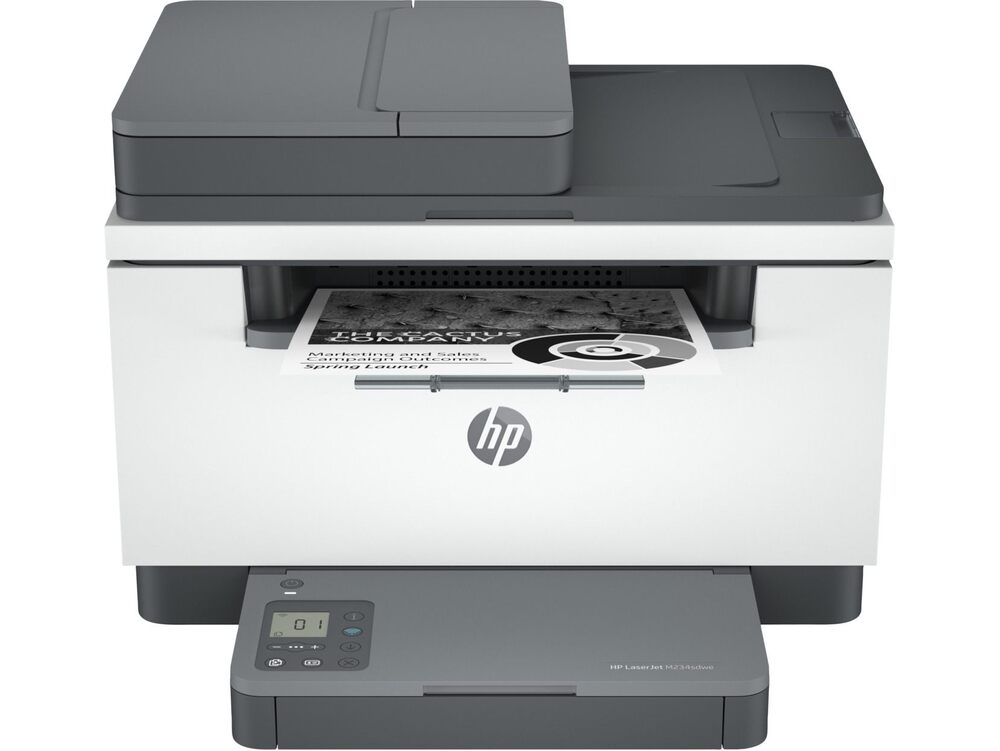
In a world where digital connectivity often takes center stage, having a reliable and efficient printer can make a world of difference, especially for home offices and small businesses. The HP LaserJet MFP M234sdwe printer is one such machine that caught my attention, and after putting it through its paces, I’m here to share my thoughts on this versatile printer.
Let’s start with the first impression—the design. The HP LaserJet MFP M234sdwe printer boasts a sleek and compact design that fits nicely into any workspace. Its 1.6″ Icon LCD display is intuitive and easy to navigate, making it user-friendly for both tech-savvy users and those less inclined. It’s a printer that not only performs well but also looks good doing it, a rare combination in the world of office equipment.
One of the standout features of this printer is its impressive compatibility. It plays nice with a variety of operating systems, including Windows 11, Windows 10, macOS Mojave, Catalina, and Big Sur, and even Linux. So, regardless of your preferred OS, you won’t have compatibility issues, making it a hassle-free addition to your office setup.
HP LaserJet MFP M234sdwe printer
In this age of mobile connectivity, the HP LaserJet MFP M234sdwe printer doesn’t disappoint. It’s equipped with Apple AirPrint™, allowing seamless printing from your iOS devices. Additionally, the HP Smart App is a game-changer. This app not only simplifies printing tasks but also offers scanning and management functions, making it an all-in-one solution for your printing needs. Whether you’re in the office or on the go, this mobile app has your back.
Now, let’s talk about the heart of any laser printer—the cartridge. The HP LaserJet MFP M234sdwe printer uses the HP 134A Original Black LaserJet Toner Cartridge or the higher capacity HP 134X Original Black LaserJet Toner Cartridge. These cartridges ensure high-quality prints and a longer life for your printer, reducing the hassle of frequent cartridge changes. Plus, they are easy to replace, and the printer’s automatic paper sensor helps you keep track of your toner levels, preventing unexpected outages.
The scanner in this MFP (Multi-Function Printer) is no slouch either. It delivers sharp, high-resolution scans with up to 600 x 600 dpi, ensuring that your digital copies are just as good as the originals. The built-in automatic document feeder (ADF) streamlines the scanning process, saving you valuable time when dealing with multiple pages. Whether it’s scanning important documents or digitizing old photos, this printer handles it with ease.
Performance-wise, the HP LaserJet MFP M234sdwe Printer shines. It boasts a black print speed of up to 30 pages per minute, and the first page comes out in a mere 6.9 seconds. This speedy performance ensures that you won’t be waiting around for your important documents. With a monthly duty cycle of up to 20,000 pages and a recommended monthly page volume of 200 to 2,000 pages, this printer is up for the demands of a bustling office.
Connectivity options are abundant with this printer. It supports Bluetooth Low Energy, Ethernet 10/100 Base-TX, and Wireless 802.11b/g/n, with dual-band 2.4GHz/5GHz Wi-Fi. This means you can connect it to your network through various means, making it accessible to all your devices, including smartphones, tablets, and laptops. Printing wirelessly has never been easier, thanks to these versatile connectivity options.
In an age where data security is paramount, the HP LaserJet MFP M234sdwe Printer takes its role seriously. It offers a range of security features, including Secure Boot, Secure Firmware Integrity, and password-protected EWS (Embedded Web Server). With secure browsing via SSL/TLS and account lockout, you can rest assured that your sensitive data remains protected. These robust security measures provide peace of mind in an increasingly connected world.
While the aforementioned aspects are the key highlights of this printer, it also boasts several additional features that enhance its overall value. Automatic duplex printing comes standard, helping you save on paper costs and reduce your environmental footprint. The printer can handle various media types, including paper, envelopes, labels, cardstock, and postcards, making it adaptable to a range of printing needs.
Using the HP LaserJet MFP M234sdwe printer is a breeze. Thanks to its intuitive 1.6″ Icon LCD display, navigating through its settings and functions is straightforward. You won’t find yourself struggling with a complex interface, even if you’re not particularly tech-savvy. This user-friendly design adds to the overall positive experience of owning and operating this printer.
The printer’s paper handling capabilities are also worth mentioning. It comes with a 150-sheet input tray and a 100-sheet output tray, allowing you to manage your print jobs efficiently without constantly refilling the paper. The automatic duplex printing feature is a significant time and resource saver, especially for businesses that need to produce double-sided documents regularly. It not only reduces paper consumption but also contributes to a cleaner, more environmentally friendly office.
In today’s world, energy efficiency is a crucial consideration. The HP LaserJet MFP M234sdwe printer is designed with this in mind. It is ENERGY STAR® certified, which means it meets strict energy efficiency guidelines set by the U.S. Environmental Protection Agency. This not only saves you money on energy bills but also reduces your carbon footprint. It’s a win-win for your pocket and the planet.
Managing the printer is made easy with the HP Printer Assistant and HP Device Toolbox. These tools provide you with control and visibility over your printer’s settings, status, and performance. Whether you need to troubleshoot an issue, update firmware, or monitor your toner levels, these management tools have you covered.
The HP LaserJet MFP M234sdwe printer is a versatile, feature-packed printer that caters to the modern office’s diverse needs. Its compatibility with various operating systems, user-friendly mobile app, efficient cartridge system, robust scanner features, and high-performance rate make it a top choice for businesses and home offices.
The printer’s sleek design and energy efficiency further enhance its appeal. Whether you’re a small business owner looking for a reliable office companion or a home-based professional seeking a dependable printer, this HP LaserJet printer ticks all the boxes.
With its emphasis on security, energy efficiency, and user-friendly design, the HP LaserJet MFP M234sdwe Printer not only meets but exceeds expectations. It’s a workhorse that delivers consistent results, all while keeping your data secure and your environmental impact low.
Investing in the HP LaserJet MFP M234sdwe printer is an investment in productivity, convenience, and peace of mind. It’s a printer that adapts to your needs and ensures that your printing tasks are completed efficiently and effectively. Whether you’re printing documents, scanning important papers, or handling various media types, this printer does it all with ease.
In today’s fast-paced, digitally connected world, having a reliable printer like the HP LaserJet MFP M234sdwe printer is essential. It’s more than just a printer; it’s a valuable tool that empowers you to focus on what matters most—your work. So, if you’re looking for a printer that combines performance, versatility, and security, the HP LaserJet MFP M234sdwe Printer is the one to consider. It’s a dependable companion that will keep your office running smoothly, day in and day out.
Numerous pre-built PCs are readily available in the market, but they often fall short of meeting your performance aspirations. Assembling a computer, however, is not particularly challenging, provided you possess a basic understanding of the various components that constitute a computer. You can easily follow a step-by-step video guide to help you in the PC building process.
The first step in this endeavor is determining the primary purpose of your computer. If your needs revolve around routine office work, study, and home use, investing in expensive, high-end hardware may lead to unnecessary expenditure. However, if your computer will be used for professional tasks such as graphic design or gaming, meticulous attention to the configuration is vital, as these endeavors demand more robust resources.
Computers serve a wide range of purposes, from gaming to research for students, and many others. Building a computer can be a daunting task for beginners, demanding careful component selection and adherence to safety precautions. The process comprises numerous steps that should be followed diligently to construct your PC.
So, what do you need to embark on this PC building journey? First and foremost, you must acquire all the necessary hardware components, ensuring their compatibility. Here are the core components you require to build a PC:
CPU/Processor
Motherboard
Memory (RAM)
SSD/Hard Drive
Power Supply
CPU Cooler
Case
Graphics Card
Let’s delve into each of these components:
Motherboard – The motherboard serves as the central circuit board that connects all hardware components, including the power supply and graphics card. It also dictates the compatibility of other hardware components that can be used. Motherboards come in various types, primarily distinguished by their socket type, with LGA for Intel and AM for AMD being the primary options as of 2023. Size-wise, ATX is the most common form factor.
Processor (CPU) – The CPU is the computer’s brain, responsible for executing all operations. Intel CPUs generally offer better gaming performance, characterized by higher instructions-per-clock (IPC) and single-thread clock speed. AMD CPUs, on the other hand, excel in multitasking workloads and are more flexible for overclocking.
From our perspective, Intel stands out as the top choice for CPUs when it comes to everyday use. For high-end workstations that demand superior core counts, AMD can offer a slight edge in performance. However, for most other scenarios, Intel is likely to provide the ideal processor.
photo: Pixabay
When assessing CPU performance through stress tests, Intel consistently boasts superior clock speeds, surpassing all but the most elite high-end chips. Additionally, Intel processors are often noted for their versatility and reliability, a sentiment echoed in various reviews. It’s safe to say that you can expect a trouble-free experience with an Intel CPU.
While in the market for CPUs, be on the lookout for deals that align with your preferred specifications. If you stumble upon an AMD chip that meets your requirements at a more attractive price point than its Intel counterpart, don’t hesitate to make the switch. The intense rivalry between these two companies has fueled the creation of exceptional and innovative hardware options.
What are the Benefits of AMD Ryzen CPUs? – AMD Ryzen CPUs offer several advantages. Primarily, they tend to be more budget-friendly compared to Intel processors. Thanks to their core architecture, AMD CPUs excel in managing demanding multitasking workloads and can be easily overclocked while consuming less power.
What are the Drawbacks of AMD Ryzen CPUs? – However, there are some downsides to AMD Ryzen CPUs. They typically exhibit lower single-core performance when compared to Intel processors, which can make them less suitable for high-performance gaming. Additionally, during intensive tasks, AMD CPUs may generate more heat.
What are the Advantages of Intel CPUs? – Intel CPUs come with a range of benefits. They are optimized for high-performance gaming, offer greater flexibility and compatibility with various components, deliver faster performance across various price points, and tend to produce less heat.
What are the Limitations of Intel CPUs? – On the flip side, one significant limitation of Intel CPUs is that most of them cannot be overclocked as easily. While they generally feature higher single-thread clock speeds compared to their AMD counterparts, this often results in higher power consumption and suboptimal multitasking performance.
To summarize:
Intel continues to lead the CPU market, striking a remarkable balance between price and performance. With unparalleled single-thread clock speeds, Intel CPUs are an enticing choice, particularly for gamers.
AMD has emerged as a formidable competitor, with their latest Ryzen 9 chip standing as one of the most potent consumer-grade CPUs available. Sporting 8+ cores and a multithreaded Zen architecture, AMD’s new-generation chips excel, especially in high-end workstation environments.
Memory (RAM) – Adding RAM is a cost-effective method to enhance computer performance. Ensure you determine your system’s RAM support and compatibility with your memory technology and capacity requirements.
Storage (SSD) – Choose between Hard Disk Drives (HDDs) for greater storage capacity and Solid-State Drives (SSDs) for significantly faster performance. SSDs are particularly recommended for faster data access.
Case, Fans, and Power Supply – The choice of case, fans, and power supply depends on your PC’s intended use. High-performance PCs require robust power supplies and optimal cooling solutions to prevent overheating.
Now, let’s outline the steps to build your PC:
1. Hardware Installation
Begin by installing the CPU and power supply onto the motherboard.
Secure the motherboard inside the case.
2. Memory Installation
Locate the memory slots on the motherboard.
Carefully align and insert the memory modules, ensuring they click securely in place.
3. SSD Installation
Consult the SSD’s owner’s manual for installation instructions, as they may vary based on the SSD’s form factor.
4. System Testing
After assembling all components, power on your PC. Ensure your monitor and keyboard are connected.
If everything functions correctly, a screen will appear, allowing you to access your BIOS.
Once your PC is successfully built, it’s time to start using it. Test its functionality by watching movies, installing games, and engaging in photo and video editing. Should you require additional resources for specific applications in the future, upgrading your PC’s hardware is always an option.
Lastly, when purchasing components, ensure you buy from reputable vendors. Check prices at local authorized shops to potentially save money. Maintaining a focus on your budget will help you build a cost-effective computer.
Here are some additional tips and considerations to keep in mind as you embark on your PC building process:
1. Trusted Vendors: When purchasing components for your PC, it’s advisable to buy from reputable and trusted vendors. Online marketplaces like Amazon and Walmart may offer third-party deals, but it’s essential to verify the prices with authorized local shops. This approach can help you save money and ensure the authenticity of the components.
2. Budget Awareness: Building the most cost-effective computer involves maintaining a keen focus on your budget. While it’s tempting to invest in top-tier components, consider your specific needs and budget constraints. Often, a well-balanced mid-range PC can provide excellent performance for your intended tasks without breaking the bank.
3. Compatibility: Ensuring compatibility among your chosen components is crucial. Always double-check that the CPU, motherboard, RAM, and other hardware components work seamlessly together. Manufacturers usually provide compatibility lists and guidelines, making it easier to select compatible parts.
4. Cable Management: Neat and organized cable management within the PC case not only improves airflow but also contributes to the overall aesthetics of your build. Invest some time in tidying up cables to enhance both functionality and appearance.
5. Software and Drivers: After assembling your PC, you’ll need to install the necessary operating system and drivers for your components. Keep your motherboard, GPU, and other drivers up to date for optimal performance and compatibility.
6. Overclocking (Optional): If you’re interested in maximizing the performance of your PC, you can explore overclocking your CPU and GPU. However, this should be done with caution, as it can increase power consumption and heat generation, potentially affecting component lifespan.
7. Warranty and Support: Each component you purchase may come with its own warranty and support. Be sure to register your products and familiarize yourself with the warranty terms in case any issues arise.
8. ESD Protection: Protect your components from electrostatic discharge (ESD) by grounding yourself before handling sensitive hardware. An ESD wrist strap or working on an anti-static mat can help prevent damage to your components.
9. Maintenance: Regularly clean your PC to prevent dust buildup, which can impact cooling efficiency and component lifespan. Cleaning the fans and air vents can go a long way in maintaining optimal performance.
10. Future Upgrades: As technology advances, you may find the need to upgrade individual components or expand your PC’s capabilities. Always plan for future upgrades when selecting components, ensuring compatibility with potential future enhancements.
Building a PC can be a rewarding experience, allowing you to tailor your system to your specific needs and preferences. With careful planning, attention to detail, and consideration of the factors mentioned above, you can create a high-performance and cost-effective computer that serves you well for years to come.
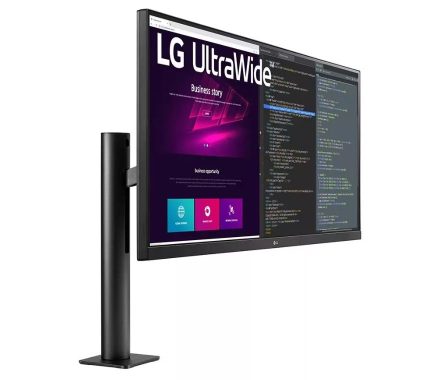
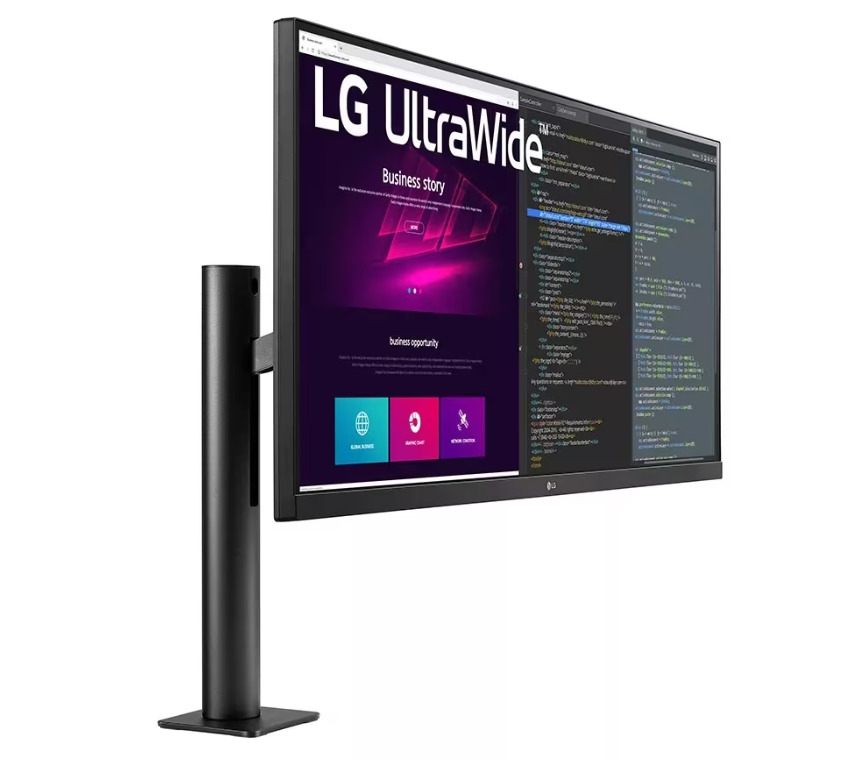
The LG UltraWide Ergo 34WN780-B monitor is a game-changer in the world of productivity and entertainment. Whether you’re a professional multitasker or a binge-watching enthusiast, this monitor has something special to offer.
Ergonomic Excellence: First and foremost, let’s talk about the ergonomic design. The “Ergo” in the name is no marketing gimmick; it’s a testament to LG’s commitment to making your workspace as comfortable as possible. This monitor comes with an adjustable stand that allows you to swivel, pivot, and tilt it to your heart’s content. Whether you prefer a portrait or landscape orientation, this monitor will oblige. And if you’re tired of slouching over your desk, you’ll appreciate the height-adjustable stand that can be set to the perfect eye level.
LG UltraWide Ergo 34WN780-B monitor
Working long hours? No problem. The LG UltraWide Ergo 34WN780-B has you covered with its eye-care technology. The flicker-free and blue light reduction features help reduce eye strain, allowing you to work or play for extended periods without discomfort. So, whether you’re editing spreadsheets, writing reports, or battling foes in your favorite game, your eyes will thank you for choosing this monitor.
Design:Now, let’s talk about aesthetics. The 34-inch ultra-wide display is a sight to behold. The virtually borderless design offers an immersive experience that draws you into your content. The slim bezels make this monitor look sleek and modern, perfect for any workspace, whether it’s a home office or a dedicated gaming den. The brushed metallic stand adds a touch of sophistication, making it a great fit for any environment.
What truly sets the LG UltraWide Ergo 34WN780-B apart is its attention to detail. Cable management is often an afterthought in monitor design, but not here. The monitor’s stand features a built-in cable management system that keeps your workspace clutter-free. No more tangled mess of cables on your desk!
Performance: Let’s not forget about performance. This monitor boasts a 3440 x 1440 resolution with an IPS panel, delivering vibrant colors and wide viewing angles. Whether you’re editing photos or watching movies, the picture quality is nothing short of stunning. The 21:9 aspect ratio is ideal for multitasking, allowing you to open multiple windows side by side without feeling cramped.
For gamers, the LG UltraWide Ergo 34WN780-B doesn’t disappoint. With a 75Hz refresh rate and 5ms response time, it offers smooth gameplay and minimal motion blur. While it may not be the go-to choice for hardcore esports enthusiasts, it’s more than capable of providing an immersive gaming experience for casual and enthusiast gamers alike.
Connectivity: In the connectivity department, this monitor shines. It comes equipped with two HDMI ports, a DisplayPort, and even a USB-C port. The USB-C port not only allows you to connect your laptop or desktop but also charges your device simultaneously. This feature is a godsend for MacBook users and anyone who values simplicity and convenience.
Additionally, there are two USB 3.0 downstream ports and a headphone jack, making it easy to connect your peripherals and audio devices. The inclusion of a USB hub is a nice touch, reducing the need for additional dongles or adapters.
Rock-Solid Build Quality: When it comes to build quality, LG has hit the mark. The monitor feels sturdy and well-constructed. The stand, in particular, exudes durability, and the adjustability options feel smooth and reliable. LG’s reputation for quality is evident in every aspect of this monitor’s design and construction.
Unique Features: Now, let’s talk about what makes the LG UltraWide Ergo 34WN780-B truly unique. The OnScreen Control software is a standout feature. It allows you to split your screen into multiple sections, making multitasking a breeze. You can customize the layout to suit your workflow, whether you’re a content creator, programmer, or just someone who likes to keep their email and social media open side by side.
Another cool feature is the Dual Controller. If you have two devices connected to the monitor, you can control both with a single keyboard and mouse. It’s incredibly convenient for those who work with a laptop and desktop setup or simply want more screen real estate for different tasks.
LG UltraWide Ergo 34WN780-B –
We were impressed by the versatility of its adjustable arm, which offers an impressive 130mm of height adjustment, a generous 25-degree tilt range, and an impressive 280 degrees of swivel. Getting comfortable with this monitor is a breeze, making it a fantastic fit for virtually any workspace. The arm itself feels robust and sturdy, perfectly suited for supporting the expansive 34-inch ultrawide panel.
LG has made a concerted effort to maximize the versatility of this monitor, a noteworthy endeavor considering its IPS panel, which delivers excellent viewing angles, and a 75Hz refresh rate for smoother on-screen motion. The port selection is commendable as well, featuring a couple of USB-A ports, DisplayPort, and HDMI connections, all conveniently facing outward for easy access. Priced at £509.99, it strikes a reasonable balance between features and cost.
Integrated stereo speakers, while not audiophile-grade, are a welcome addition on this monitor, sparing you the hassle of setting up separate speakers. Their sound quality may not blow you away, but they get the job done. Another noteworthy feature is the dedicated Reader Mode, which reduces blue light emission, ensuring a gentler experience for your eyes during those late-night sessions.
However, the true star of the show here is the ingenious arm mount. It securely clamps to your desk and provides exceptional flexibility in positioning the screen. You can effortlessly swing it into view when you need it and tuck it away when you don’t. While some users may prefer a more traditional stand, this mount design is a game-changer, and it keeps your desk free from clutter.
Cable management is a thoughtful touch, simplifying the organization of your cables. Moreover, the monitor offers a variety of ports at the back: two HDMI ports, a DisplayPort socket, a USB-B upstream port, and two USB-A downstream ports, effectively transforming the monitor into a convenient USB hub for your various devices. Additionally, there’s a headphone port for your audio needs.
Setting up the monitor is a straightforward process, although you might want a helping hand to get it connected and properly positioned, given its flexible arm. The on-screen display provides intuitive control over essential settings like brightness, contrast, and volume. For content or devices that don’t support the 21:9 aspect ratio, you have the option to stretch the image to fit or maintain its original dimensions, with black bars on the sides. This flexibility ensures compatibility with a wide range of content and applications.
The LG UltraWide Ergo 34WN780-B is a top-tier monitor that excels in ergonomic design, aesthetics, performance, connectivity, and build quality. It’s a versatile workhorse that can enhance your productivity and entertainment experiences. Whether you’re working from home, gaming, or simply enjoying multimedia content, this monitor is a worthy investment that will elevate your computing setup to a whole new level of comfort and functionality. Say goodbye to neck strain and hello to ergonomic bliss with the LG UltraWide Ergo 34WN780-B!
LG UltraWide Ergo 34WN780-B
| LG UltraWide Ergo 34WN780-B Specification:
| **Connectivity** | DisplayPort | Yes | HDMI | Yes | Headphone Out | Yes | USB Down-stream | Yes | USB Up-stream | Yes | **Display** | | Aspect Ratio | 21:9 | Brightness | 300cd/m² | Color Depth (Number of Colors)| 16.7 M | Color Gamut (Typ.) | sRGB 99% (CIE1931) | Contrast Ratio | 1000:1 | Display Type | IPS | Pixel Pitch (mm) | 0.2325 x 0.2325 mm | Refresh Rate | 75Hz | Resolution | UW-QHD | Response Time | 5ms (GTG) | Screen Size | 34″ | Surface Treatment | Anti-Glare | Viewing Angle | 178˚(R/L), 178˚(U/D) | **Power** | | DC Off (Max) | Less than 0.3W | Input | 100-240 Vac, 50/60 Hz | Power Consumption (Max.) | 67 W | Power Consumption (Typ.) | 45 W | | Power Save/Sleep Mode (Max) | Less than 0.5W | Type | Adapter | **Audio** | | MAXX Audio | Yes | Speaker | Yes | Speaker Output | 7W x 2 | **Features** | | Adaptive Sync | AMD FreeSync™ | Black Stabilizer® | Yes | Color Calibrated | Yes | Color Weakness Mode | Yes | Dual Controller | Yes | Dynamic Action Sync® | Yes | Flicker Safe | Yes | | HDR (High Dynamic Range) | Yes | HDR Effect | Yes | OnScreen Control (OSC) | Yes | Reader Mode | Yes | Smart Energy Saving | Yes | Super Resolution+ | Yes
In today’s hyper-connected world, having a firm grip on your Wi-Fi network is pretty much a necessity. Whether it’s monitoring your signal strength, tracking down rogue devices, or simply satisfying your curiosity about what’s happening on your network, you need the right tool for the job. That’s where the WifiInfoView tool comes into play.
Scanning and Managing Your Wi-Fi Network
Let’s kick things off by talking about the heart and soul of this tool: scanning and managing your Wi-Fi network. WifiInfoView excels in this department, offering a robust set of features that can help both novices and network geeks alike.
Scanning your network is a breeze. With just a click of a button, WifiInfoView tool scans all nearby Wi-Fi networks and provides you with a wealth of information about each one. You’ll get details like the network name (SSID), signal strength, MAC address, channel, and encryption type. This is invaluable when you’re troubleshooting a slow connection or trying to find the optimal channel for your own network.
WifiInfoView
But WifiInfoView goes beyond the basics. It can also detect and display information about hidden networks, which can be a lifesaver when you need to connect to a network that doesn’t broadcast its SSID. Plus, it doesn’t just stop at your Wi-Fi network; it can also show you information about nearby Bluetooth devices, which is handy if you’re concerned about unwanted intruders.
Supported Systems and Installation Process
One of the great things about WifiInfoView is its compatibility. It’s a versatile tool that works seamlessly on various Windows operating systems, from Windows Vista all the way up to Windows 10 and beyond. (Windows XP is not supported because this tool is based on new Wi-Fi API that doesn’t exist on Windows XP). Whether you’re using an old laptop or the latest gaming rig, you can count on WifiInfoView to deliver the goods.
Installing WifiInfoView is a piece of cake. You don’t need to be a tech wizard to get it up and running. Just download the executable file from NirSoft’s website, run it, and you’re good to go. There’s no need for an installation wizard or any complicated setup procedures. It’s a no-nonsense approach that I appreciate.
Translating WifiInfoView to Other Languages
For users around the world, the ability to use software in their native language can make a significant difference in user experience. WifiInfoView doesn’t disappoint in this department. One of its standout features is its support for multiple languages. It’s been translated into more than 35 languages, making it accessible to a global audience.
If you’re more comfortable navigating software in your native tongue, you’ll likely find this feature incredibly useful. It’s a small touch that shows the thought and effort that went into developing WifiInfoView.
Pros and Cons
Like any tool, WifiInfoView has its strengths and weaknesses.
Pros:
User-Friendly Interface: WifiInfoView boasts an intuitive interface that doesn’t overwhelm you with technical jargon. Even if you’re not a networking expert, you’ll find it easy to use.
Comprehensive Network Information: It provides a wealth of information about your Wi-Fi network and nearby devices, helping you troubleshoot and manage your network effectively.
Compatibility: WifiInfoView is compatible with a wide range of Windows operating systems, ensuring that it can be used on various devices.
Multi-Language Support: The ability to switch between languages makes it accessible to users from diverse linguistic backgrounds.
Cons:
Windows-Exclusive: Unfortunately, WifiInfoView is only available for Windows users.
Limited Features: While it excels at network information, it lacks some advanced features like network mapping or real-time monitoring, which might be essential for power users.
Apart from the core functions, WifiInfoView offers some additional features that can come in handy. For instance, you can save the network information to a text, HTML, or XML file for future reference or analysis. This is particularly useful if you’re a network administrator or simply want to keep a record of your network’s history.
Additionally, WifiInfoView allows you to create a summary report of all the detected wireless networks, making it easy to share network information with others, such as when you’re seeking assistance with network troubleshooting.
The WifiInfoView tool is a valuable addition to your toolkit if you’re looking to gain a better understanding of your Wi-Fi network and the devices connected to it. Its straightforward interface, compatibility with various Windows versions, and multi-language support make it a reliable choice for users worldwide. While it may not offer all the bells and whistles of some premium network management tools, it excels at what it does best: providing detailed information about your Wi-Fi environment. So, go ahead, download WifiInfoView, and take control of your Wi-Fi network with ease. You can freely download WifiInfoView tool as it is available as freeware. Download
In the age of virtual meetings, online content creation, and remote socializing, a reliable webcam is no longer a luxury but a necessity. Enter the Logitech StreamCam webcam, a versatile and feature-packed device that promises to elevate your video streaming and conferencing experience. In this review, we’ll dive deep into the Logitech StreamCam webcam’s compatibility, lens quality, and supported frame rates to help you make an informed decision.
Compatibility: A Universally Friendly Cam
First things first, let’s talk about compatibility. The Logitech StreamCam webcam is designed to work seamlessly with both Windows and macOS operating systems. Whether you’re a PC enthusiast or a dedicated Mac user, this camera has got you covered. It’s worth noting that to harness the full potential of this webcam, you’ll need at least a 7th Gen Intel Core i5 or later processor. Additionally, the StreamCam connects via USB 3.1 Gen 1 Type-C, ensuring a speedy and stable connection. This compatibility with the latest technology ensures that your streaming setup remains future-proof.
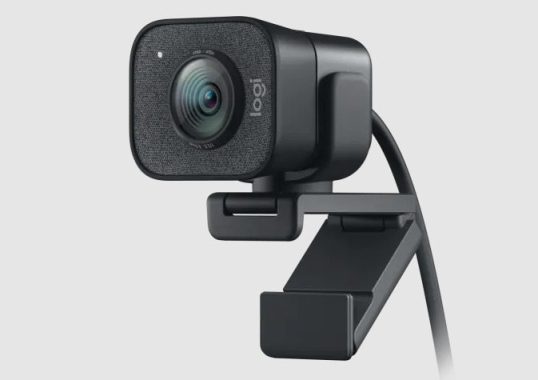
Logitech StreamCam Webcam
Lens: Crystal Clear Imagery
When it comes to visual quality, the Logitech StreamCam webcam truly shines. Its premium Full HD glass lens captures video at a maximum resolution of 1080p and 60 frames per second in MJPEG format. What does that mean for you? In simple terms, your video quality will be sharp and buttery smooth, making your streams and video calls look professional and engaging.
The f/2.0 aperture and focal length of 3.7 mm ensure excellent low-light performance, making this webcam a reliable choice even in less-than-ideal lighting conditions. The 78° diagonal field of view is perfect for framing yourself or your surroundings without making you feel cramped on the screen. Whether you’re streaming gameplay, conducting webinars, or simply chatting with friends, the StreamCam’s lens will make sure you look your best.
Supported Frame Rates: Flexibility at Its Best
One of the standout features of the Logitech StreamCam webcam is its support for a wide range of frame rates and resolutions. You can fine-tune your settings to suit your specific needs. From a smooth 60 fps at 1080p in MJPEG format for gaming or professional presentations to lower resolutions and frame rates for bandwidth-constrained situations, the StreamCam adapts effortlessly.
For those who like to experiment with different frame rates and resolutions, this webcam offers MJPEG at 60 fps, 30 fps, 24 fps, 20 fps, 15 fps, 10 fps, 7.5 fps, and 5 fps, as well as YUY2 and NV12 at 30 fps, 24 fps, 20 fps, 15 fps, 10 fps, 7.5 fps, and 5 fps. This level of flexibility ensures you can optimize your video quality according to your specific needs and the capabilities of your internet connection.
Unique Features: More Than Meets the Eye
Apart from its technical prowess, the Logitech StreamCam webcam boasts a few unique features that set it apart from the competition. First and foremost is its autofocus capability, which ensures your image remains crisp and clear regardless of your distance from the camera. Whether you’re showcasing a product, switching between multiple subjects, or simply moving around during a presentation, the StreamCam has got you covered.
The Logitech Capture software further enhances the StreamCam’s versatility. It offers face-based autofocus, which means the camera will automatically adjust focus to keep your face sharp, even if you’re moving around. This feature can be a game-changer for streamers and content creators who need to maintain a dynamic and engaging presence on camera.
Audio is an equally important aspect of streaming and video conferencing, and the StreamCam doesn’t disappoint in this department either. Equipped with dual omnidirectional microphones and a noise reduction filter, this webcam captures audio in stereo or dual mono channel, ensuring that your voice comes through loud and clear. Say goodbye to background noise and muffled audio – the Logitech StreamCam webcam delivers audio quality that matches its outstanding video capabilities.
Price: A Solid Investment
With a price tag of $139.99, the Logitech StreamCam webcam offers exceptional value for the features it brings to the table. Whether you’re a professional streamer, a remote worker, or someone who simply enjoys high-quality video calls with friends and family, this webcam is a solid investment that will elevate your online presence to the next level.
While the Logitech StreamCam webcam’s performance is undoubtedly impressive, it’s worth noting that it also excels in the design department. Its sleek and compact form factor blends seamlessly into any setup. The webcam can be mounted on a tripod or clipped securely to your laptop or monitor, giving you the flexibility to choose the angle that works best for you. The design is both modern and functional, ensuring that the StreamCam looks good while doing its job.
The included Logitech Capture software is a valuable addition to the package. It not only provides face-based autofocus, as mentioned earlier, but also allows you to fine-tune your camera settings with ease. You can adjust exposure, white balance, and even apply filters and effects to enhance your video feed. This level of customization empowers content creators to add their unique touch to their streams and presentations.
Furthermore, Logitech Capture lets you easily switch between multiple scenes and camera angles, a feature particularly useful for streamers who want to add variety and engagement to their content. It’s an intuitive and user-friendly software that enhances the overall experience of using the StreamCam.
In the world of webcams, the Logitech StreamCam webcam stands out as a true contender. Its compatibility with both Windows and macOS, premium Full HD glass lens, and support for various frame rates and resolutions make it a versatile tool for streamers, remote workers, and anyone in need of high-quality video communication.
Logitech StreamCam
The unique autofocus feature and Logitech Capture software add convenience and creativity to the mix, ensuring that your videos look and sound their best. Whether you’re hosting virtual meetings, creating content, or simply staying in touch with loved ones, the Logitech StreamCam webcam is a reliable companion that won’t let you down.
At a price of $139.99, it’s a solid investment in enhancing your online presence. With its sleek design, exceptional performance, and user-friendly software, the StreamCam is a webcam that can help you unleash your inner streamer and make a lasting impression in the virtual world. Say goodbye to blurry, low-quality video – the Logitech StreamCam webcam is here to elevate your online game.
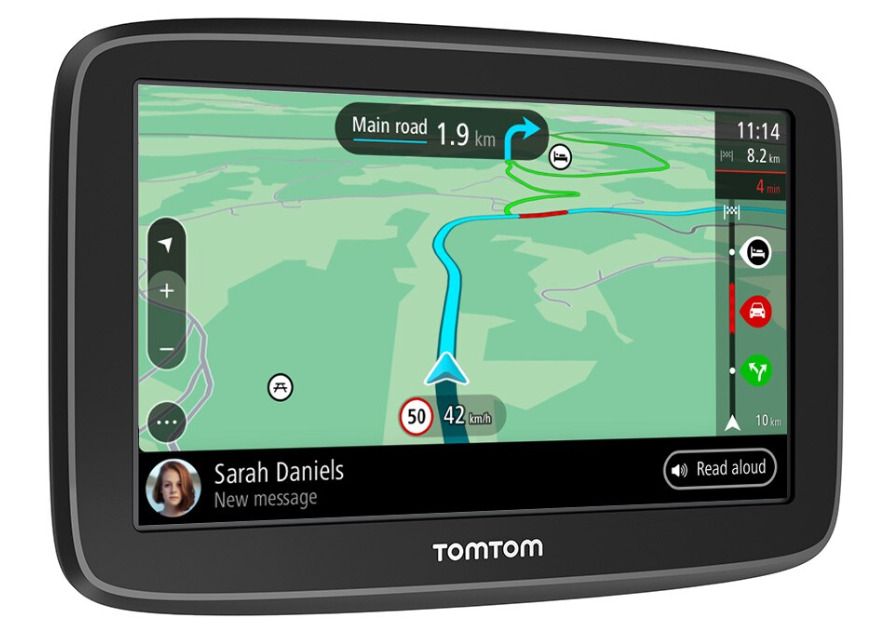
If you’ve ever been on a road trip without proper navigation, you know the importance of a reliable GPS device. Enter the TomTom GO Classic, a navigation powerhouse that effortlessly guides you through your journeys with its Quad-core Processor, convenient app, and Wi-Fi connectivity.
Design and Build
Let’s start with the design – the TomTom GO Classic boasts a sleek and minimalist look that complements any car interior. Its compact size doesn’t clutter your dashboard, and the intuitive touchscreen interface makes it easy to use on the go. It’s a modern gadget that seamlessly blends into the tech-savvy driver’s lifestyle.
Quad-core Processor
Under the hood, the Quad-core Processor is the star of the show. It ensures lightning-fast response times, making route calculations and re-routing a breeze. Whether you’re navigating through a bustling city or cruising down the highway, you’ll appreciate the device’s ability to keep up with your demands. No more frustrating lags or delays – the TomTom GO Classic has the processing power to handle it all.
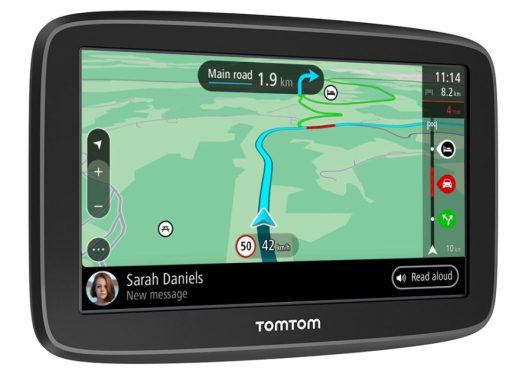
TomTom GO Classic
App Integration
Now, let’s talk about the app. TomTom has stepped up its game by providing an easy-to-use companion app that syncs with your device seamlessly. The app not only helps you plan your routes from the comfort of your phone but also ensures that traffic updates and map changes are delivered in real-time. It’s like having a personal traffic assistant in your pocket. Plus, with Wi-Fi connectivity, your device stays updated effortlessly. No more fumbling with cables or waiting for downloads.
Wi-Fi Connectivity
Wi-Fi connectivity is a game-changer. Gone are the days when you had to connect your device to a computer for updates. With the TomTom GO Classic, simply connect to your home network, and the device takes care of the rest. This feature alone saves time and makes sure you’re always on top of the latest maps and traffic information.
Unique Features
The TomTom GO Classic doesn’t stop at the basics. It’s packed with unique features that enhance your driving experience. Its intuitive voice control allows for hands-free operation, ensuring your focus stays on the road. You can also personalize your device with a selection of voices, making your navigation experience as entertaining as it is functional.
One standout feature is the Advanced Lane Guidance, which provides clear visuals and instructions for complex intersections and highway exits. It’s a stress-reliever, especially in unfamiliar territories. Another noteworthy addition is the Points of Interest database, which helps you discover exciting places, restaurants, and attractions along your route.
The TomTom GO Classic navigation device is a must-have for any road warrior. Its sleek design, lightning-fast Quad-core Processor, user-friendly app, and hassle-free Wi-Fi connectivity make it a top choice in the world of GPS navigation. With its array of unique features, it’s not just a navigation device; it’s your travel companion. So, why settle for less when you can have the best? Upgrade your driving experience with the TomTom GO Classic and never lose your way again.
TomTom GO Classic
Battery Life: The TomTom GO Classic offers up to 1 hour of battery life, which is generally sufficient for shorter trips. However, for longer journeys, it’s advisable to keep the device plugged into your vehicle’s power source using the provided vehicle mount.
Vehicle Mount: One of the standout features of this navigation device is its easy reversible mount. This clever design allows you to attach the TomTom GO Classic securely to your car’s dashboard or windshield in the most convenient orientation for your driving style. It’s all about customization and comfort.
Internal Memory: With a generous 16 GB of internal memory, the TomTom GO Classic has ample space to store maps, points of interest, and other essential data. You won’t have to worry about running out of storage anytime soon.
Wi-Fi: The built-in Wi-Fi connectivity is a true game-changer. It ensures that your device is always up-to-date with the latest maps and traffic information, all without the need for manual updates or connecting to a computer. This seamless integration keeps you on the road and in the know.
TomTom Services via Smartphone: The TomTom GO Classic goes beyond a standalone device by offering TomTom Services via your smartphone. This means you can access additional features and real-time information through your smartphone’s connection, enhancing your overall navigation experience.
Tech Specs: Here are some technical specifications for the TomTom GO Classic:
Dimensions: The device measures 16.25 x 10.48 x 2.38, making it compact enough to fit comfortably in your car without obstructing your view.
Weight: It weighs a mere 201 grams, ensuring it won’t add unnecessary bulk to your setup.
Battery Life: As mentioned earlier, the device provides up to 1 hour of battery life, which is suitable for most daily trips.
Mount: The resistive touchscreen mount offers an intuitive interface for ease of use.
Screen Size: You can choose between two screen sizes: 5.6 inches (13.15 cm) or 6 inches (15 cm), depending on your preference and visibility needs.
Screen Resolution: The device offers a clear and crisp display with a resolution of either 480 x 272 pixels or 800 x 480 pixels, ensuring that maps and directions are easy to read.
Display Type: The screen type is WQVGA (Wide Quarter VGA), which provides sharp visuals and vibrant colors.
Widescreen: The device features a widescreen display, which is great for displaying maps and navigating complex intersections.
Memory: In addition to the internal 16 GB memory, you have the option to expand storage further with a microSD card, supporting up to 32 GB of additional memory.
Compatible Memory Cards: The TomTom GO Classic supports microSD cards, providing flexibility when it comes to storing maps and other data.
The TomTom GO Classic impresses not only with its advanced navigation features but also with its thoughtfully designed hardware. With features like the easy reversible mount and built-in Wi-Fi, it’s a navigation device that combines style and functionality to enhance your driving experience. Whether you’re embarking on a daily commute or a cross-country adventure, the TomTom GO Classic has you covered. In a world where time is precious, having a GPS device that works seamlessly is invaluable. The TomTom GO Classic not only helps you reach your destination efficiently but also adds a touch of style to your journey. Don’t miss out on the road trips of a lifetime – get the TomTom GO Classic and let the adventures begin. Price: £ 119.00