Home Blog Page 93

Parasound NewClassic 200 – Integrated Amplifier & DAC

0

A low-profile integrated amplifier
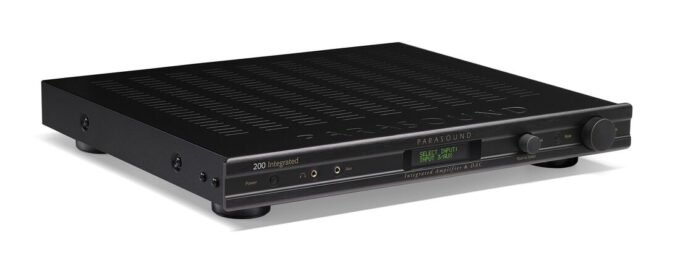
Parasound’s Newclassic 200 Integrated Amplifier is only 2-1/2″ tall, but includes many features in this space-saving chassis. It offers 110 watts per channel with a load of 8 or 4 ohms, so you can use it with a wide variety of speakers. It is ideal for listening to music, but it also offers a convenient set of bypass inputs, so you can use it in combination with a receiver or a surround processor to drive even the front left / right speakers in a home theater system.

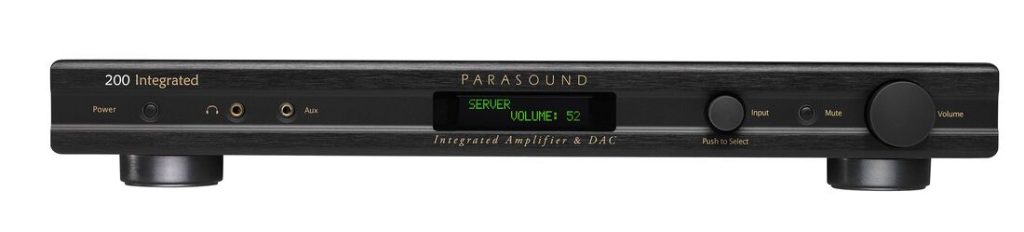
The functionality of the NewClassic 200 Integrated Amplifier with Remote Control stands out in several aspects. Despite its slim profile, the amplifier remains cool to the touch when in operation, exhibiting a sturdy build with no chassis flex or movement. The tactile soft-touch finish of the front panel input and volume control knobs, along with a solid and intuitively designed remote, add to the user-friendly experience.

One notable feature is the retro-style backlit LCD screen, which dynamically changes text color from green to black based on the viewing angle. This clever design ensures easy readability from any position in the room.

Parasound has also included a thoughtful touch by allowing users to adjust tone controls using the remote. The well-designed remote simplifies this process, and users can effortlessly return to default settings by pressing the tone flat button.

These controls are finely tuned, enabling precise adjustments that enhance the overall listening experience. This flexibility proves beneficial for adapting to different speaker pairings, room acoustics, and varying recording qualities. For instance, adjusting the treble to -3 or -4 in response to a slight elevation in volume on a specific recording is easily achieved without compromising the musicality or tonal structure.

Parasound NewClassic 200 Integrated
Parasound NewClassic 200 – Integrated

Convenient connections –
This Parasound NewClassic 200 amplifier offers three unbalanced RCA inputs for connecting analog sources. Input 1 is switchable, so you can use it as a line input or as a phono stage to move magnets and moving coil cartridges. The NewClassic 200 has a built-in DAC that makes digital sources sound great: on the back panel there are individual optical and coaxial inputs, as well as a USB Type-B port for connecting a computer. The 3.5mm AUX input on the front panel is designed to play music from a portable audio player.
In addition to a pair of connecting speaker terminals, there are preamplifiers and subwoofer main outputs. If you have a submarine in the system, you can turn on the adjustable high-pass filter. In this way, the amplifier will play only those frequencies that are not covered by its sub, which will allow you to make the best use of its available power.

NewClassic 200 Integrated
Parasound NewClassic 200 – Integrated

These NewClassic 200 products have inherited the features developed for Parasound’s high-end Halo family of products, renowned for their bypass and crossover home theater capabilities, as well as DACs with exceptional sound. The built-in bypass 200 and 200 Home Theater preamplifiers work in the same way with an adjustable high-pass filter from 40 to 140 Hz for L and R outputs, as well as the generation of full-range outputs and sub-outputs <80 Hz.

Integrated DAC
The Parasound NewClassic 200 integrated amplifier is ready to give you the maximum enjoyment of your digital music files. It incorporates a state-of-the-art DAC of the highest quality using very famous Halo P 5 preamp circuits. This DAC can process a wide range of digital sources with its coaxial and optical inputs that accept speeds up to 192 kHz and the USB input accepts up to 96 kHz. Photo: Parasound

Parasound NewClassic 200 Integrated 1

NewClassic 200 Integrated

The Cirrus Logic digital receiver of the new Classic 200 integrated amplifier cleans the digital clock to mitigate fluctuations not only for USB but for all inputs. In this way, your acclaimed Burr-Brown PCM1798 DAC delivers outstanding, natural sound quality for all your digital sources. Parasound NewClassic 200 price: $1,299.00

NewClassic 200 Integrated Specs

Power Output – Both channels driven
(0.05% THD, 20 Hz – 20 kHz)
110 watts x 2 @ 4 Ω or 8 Ω (RMS)

Power Output – Both channels driven
(1% THD, 20 Hz – 20 kHz)
125 watts x 2 @ 4 Ω or 8 Ω (RMS)

NewClassic 200 remote
NewClassic 200

Frequency Response:
20 Hz – 20 kHz, +0 / -0.05 dB
10 Hz – 80 kHz, +0 / -3 dB

Total Harmonic Distortion (20 Hz – 20 kHz):
< 0.05 %, (110 watts, 8 Ω)

Interchannel Crosstalk:
-75 dB at 20 kHz
-85dB at 1 kHz

Preamp Output:
250mv = 1V output
Total gain = 12 dB (volume set to 100)
Unity gain = Volume set to 76
Maximum output = 3.5V

Phono Stage Gain / Input Impedance:
MM: 40 dB / 47 k Ω
MC: 50 dB / 100 Ω

Line Level Input Impedance: 24k Ohms

Preamp Output Impedance: 470 Ohms

S/N Ratio – Line Inputs:
> 100 dB, input shorted, IHF A-weighted

S/N Ratio – Digital Inputs:
> 110 dB, input shorted, IHF A-weighted

DAC IC: Burr-Brown PCM1798

DAC Maximum Sampling Rates (PCM only):
USB: 96kHz – 24 bit
Optical: 192kHz – 24 bit
Coax: 192kHz – 24 bit

DC Trigger Output: 12 Vdc, 50mA

AC Power Requirement:
Standby: 0.5 watts
Idling: 15 watts (no music playing)
Typical: 50 watts (music playing)
Maximum: 300 watts
100-250 VAC 50/60 Hz (automatic)

Dimensions:
Width: 17.25″ (438 mm)
Depth: 14.75″ (375 mm)
Depth: 16.75″ (425 mm) with cables connected
Height, with feet: 2.5″ (63.5 mm)
Height, without feet: 1.75″ (44.5 mm), 1U
Rack mounting requires RMK-11(sold separately)

Weight:
Net: 11.5 lbs (5.2 kg)

How To Turn Content Into earnings

0

Being professional in the production and creation of content is not a sufficient guarantee to generate earnings.

Being professional in the production and creation of content is not a sufficient guarantee to generate earnings. In recent years, the world has changed on the path of high technology, and therefore it’s time to think and act digitally to get the desired income.

Turn Content Into earnings
Photo: Pixabay

The path of income-generating work is not complicated, but it requires continuous efforts, innovative thinking and improved vision. Here are a few steps that can guide you along the way before you can expect to see positive results and earnings from your content.
Establish your identity: to remember that you have a personalized logo, precise but descriptive. And finish the touch with a perfect slogan. These three things can make or break your identity, so before publishing a work, make sure that your identity is sorted.
Design your own design: Once you have your identity in order, a beautiful and simple design is important to allow the public to read or understand the work created. It is not limited to written material, but includes all types of content. For written material, it should not be too clean, clear and attractive, etc., For audio, the voice should not be too loud or low, clear and audible, etc., For video, the content should not be too complicated, have a good resolution, sound, etc.,
Focus not on good content, but on great content: everyone is able to do a good job.However, focusing on a great job can help you stay out of it. Make sure that the content is lint-free, contains useful links and references, and includes many concrete examples, as well as practical tips.
Be creative: bringing creativity to create work is not enough. Displaying your content in even more creative titles would help capture the necessary attention.
Be frequent: having your content published from time to time is not enough. Every social media platform is flooded with unlimited content, so it’s not enough just to sprinkle a few of them. Where quality is important, quantity is much more important. Above all, if you are gathering an audience and aiming to generate revenue, consistency is essential.
Create content for your audience, but optimize it for search engines: when you create content, you need to target your audience. Content that is in line with the audience’s thinking can help you connect better. When audience-driven content is in your hands, it’s time to optimize. Using organic SEO methods to increase your content, among other things, may take time, but it will certainly be rewarding.
Focus on the audience: it is important to add your essence and individuality in the content and identify yourself, but income can only be generated if you have the right audience. Therefore, shaping its essence into the taste desired by the audience is the key. Your custom logo, name, content, images, additional information, etc.being audience oriented can help you in ways you can never imagine. It is important to focus on one’s individuality however, the need to incopor audiences can help audiences to better understand the content and attract a wider audience.
Be vocal: not everyone can read the line and understand the underlying message. Therefore, being vocal and advertising about your identity, your services, your content blatantly via a call to action, etc. at the end of messages is a good idea too.

All types of content ranging from video, audio or written are a great way to connect and interact with the public, strengthen the brand and gather more authority and attention in the respective field. If you follow the steps mentioned above to create your own custom logo, optimization, etc. can help you see the amazing results, such as well generate earnings.

What is a blockchain? What exactly is a Cryptocurrency?

0

The valuations of the stock are reduced to updated estimates of the future cash flows of a company. There is no comparable valuation measure for cryptocurrencies because there is no underlying company; the value of a cryptocurrency is related only to investor appetite.
Cryptocurrency valuations boil down to one of two factors: the likelihood that other investors will buy the cryptocurrency’s blockchain asset or utility.

How does it work?
Cryptocurrency works with blockchain technology, but what precisely is a blockchain? The term has become so common, its meaning are often blurred. A blockchain is simply a book of digital transactions. This general register (or database) is distributed over a network of computer systems. No system controls the General Registry. Instead, a decentralized network of computers maintains a running blockchain and authenticates transactions.
Proponents of blockchain technology claim that it can improve transparency, increase trust and strengthen the security of data shared over a network. Detractors say blockchain can be cumbersome, inefficient, expensive and can use too much energy.

Cryptocurrency
Photo: Pixabay

Rational crypto investors buy a digital asset if they believe in the strength and usefulness of its underlying blockchain. All cryptocurrencies work on the blockchain, which means that crypto investors bet (whether they know it or not) on the resilience and attractiveness of this blockchain.
Cryptocurrency transactions are recorded in perpetuity on the basic blockchain. Transaction groups are added to the “chain” in the form of “blocks”, which validate the authenticity of transactions and keep the network running. All transaction batches are recorded in the shared general ledger, which is public. Everyone can go and see the transactions carried out on the main blockchains, such as Bitcoin (BTC) and Ethereum (ETH).

The answer is that they are paid with the underlying cryptocurrency. This incentive system is called a proof-of-work (POW) mechanism. Computers that “work” to “prove” the authenticity of blockchain transactions are known as miners. In exchange for their energy, miners receive newly minted crypto resources.
Cryptocurrency investors do not hold their assets in traditional bank accounts. Instead, they have numeric addresses. These addresses are equipped with private and public keys, long strings of numbers and letters, which allow cryptocurrency users to send and receive funds. Private keys allow you to unlock and send cryptocurrencies. Public keys are publicly available and allow the holder to receive cryptocurrencies from any sender.

It is fair to say that Bitcoin has changed the paradigm as before, and it has triggered a new technology, a new investment platform and a new way of thinking about money.

Cryptocurrency started out as a grassroots movement with an anti-establishment spirit, but today companies and financial institutions are embracing cryptocurrencies for their potential to destroy clunky legacy systems and diversify investment portfolios. As innovations continue to reshape the cryptocurrency industry, including exciting new projects such as decentralized finance (“DEFI”), the importance of cryptocurrencies will continue to evolve.
Cryptocurrency is often simply described as digital money. This description may be true, but it fails to capture what makes cryptocurrency unique and so attractive to many investors.
In essence, cryptocurrency is a value system. When investors buy a cryptocurrency, they bet that the value of such an asset will increase in the future, just as stock investors buy securities when they think that the company will grow and stock prices will rise.

What Is a Cryptocurrency Wallet?

A cryptocurrency wallet – often referred to as a crypto wallet or a bitcoin wallet – operates like a regular wallet, but instead of holding cash, it holds cryptocurrency. The cryptocurrency wallet will store the private and public keys to purchasing bitcoin and other cryptocurrencies. You’ll need to keep your private key safe and secure.

Do I actually Need a Cryptocurrency Wallet to Trade Cryptocurrency?
The quick answer is absolutely yes, you do. Even though a variety of cryptocurrency trades will recommend wallets for your use, if you’re searching to buy cryptocurrency or bitcoin, you will need a wallet address to transfer and store digital currency.

The Various Types of Cryptocurrency Wallets
There are a large range of cryptocurrency wallets, and each wallet has its own advantages and disadvantages. However, keeping your wallet safe and protected is the most significant thing. Here are the 2 main types of cryptocurrency wallets:

Hot storage cryptocurrency wallets are connected to the net via a mobile phone application, desktop software/program, or an online provider. These services are completely free, but many have security problems due to being connected to the internet.

Cold storage cryptocurrency wallets are well known choices as they are little encrypted portable devices enabling users to carry and download their bitcoin or some other cryptocurrencies. Cold wallets are not free, and they usually cost up to $100 and above. That said, they are more safe compared to hot wallets.

You will need to do some research to discover the ideal wallet to fulfill your needs. For cryptocurrency traders who have a lot of cryptocurrency investments, the mixture of hot wallets for fast trading and cold wallets for long-term solutions is an excellent concept.
Keep in mind, cryptocurrency is quite often highly unpredictable. You should not own more than you can afford to lose. Before you invest in any cryptocurrencies or Bitcoin, you’ll need to create a wallet and select an online broker.

Raccoon – Downloader for Windows, Linux and MacOS

0

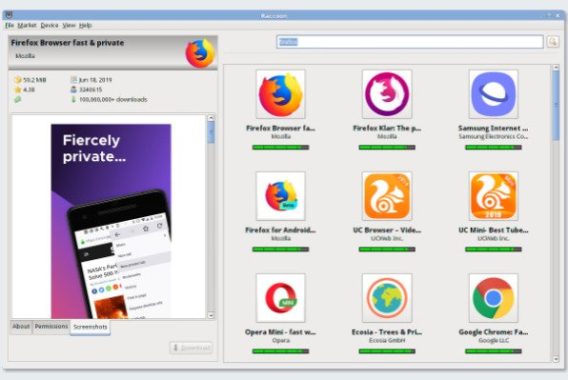
Raccoon is a simple application that allows you to fast and easily download Android applications without using the web browser. Instead, it acts as a kind of Google Play type application where you can choose and select the files you want to download yourself.

Raccoon - Downloader
Raccoon – Downloader

A simple download client
As for download clients, you will do very well to find a simpler tool than this one. It helps you to easily download the files you want, without having to worry about additional aspects such as a complicated user interface. This application offers a very simple interface where everything is very easy to find.
All you need to do to download a file with this client is to log in to your Google account, open Raccoon and search for the application you want to download. Then just select this application, locate it and click the Download button. In a few moments, the application should be on your phone and it will be placed in the files folder created by the application.
Find your favorite apps
It has a very efficient search engine where you can find the application you are looking for very easily. Just type the name of the application, then the results will appear in a well-organized list where you can see additional details such as file size, release date, permissions, user ratings, etc.

Scrvfddre
Raccoon APK Downloader

Another thing activated by this application is the search filters. After typing a query in the application to search for other applications, there may be hundreds of results. With the filters, you can easily locate the results. However, be sure to check the files for viruses before downloading.
Raccoon is a fantastic application where you can locate and download Android APK files and install them on your phone. This is useful if you do not want to use the Google Play Store and avoid being followed by bots that will offer you ads relevant to your searches.

Download free Raccoon APK Downloader for Windows, Linux and MacOS here

Speed up your PC – Few tips for better FPS

0

The most important tips for better FPS

There are several steps you can take to improve the FPS (frames per second) rate of your computer and make your games run more smoothly. Here are a few tips:

  1. Lower your graphics settings: One of the easiest ways to increase your FPS is to lower your graphics settings. This can include reducing the resolution, turning off shadows, lowering texture quality, and disabling effects like motion blur.

  2. Update your graphics drivers: Make sure your graphics drivers are up to date. New drivers can often improve performance and stability.

  3. Close unnecessary background processes: Close any unnecessary programs or processes running in the background to free up system resources.

  4. Overclock your GPU: If you have a graphics card that supports it, you can try overclocking it to get better performance. However, be cautious when overclocking, as it can cause stability issues and potentially damage your hardware.

  5. Adjust your game settings: In addition to lowering your graphics settings, you can also adjust other in-game settings to improve performance. For example, you can lower the field of view, disable anti-aliasing, and reduce the number of visible objects.

  6. Upgrade your hardware: If you’re still not satisfied with your FPS, you may need to upgrade your hardware. This can include getting a better graphics card, adding more RAM, or upgrading your processor.

  7. Use optimization software: There are several software tools available that claim to optimize your system for gaming. While some of these tools can be helpful, be cautious when using them, as they can sometimes cause more harm than good.

By following these steps, you should be able to improve your FPS and enjoy a more seamless gaming experience.

The best optimization software for gaming

there are several optimization software options available that you can research and try to see which works best for you. Some popular options include:

  • Razer Cortex: A free software that claims to optimize your system for gaming by freeing up resources and optimizing settings.

  • MSI Afterburner: A software that allows you to overclock your GPU, monitor system performance, and customize graphics settings.

  • CCleaner: A system optimization software that can help clean up junk files, temporary files, and registry entries that can slow down your system.

  • Game Fire: A software that optimizes your system for gaming by disabling unnecessary services and processes, defragmenting game files, and prioritizing CPU and GPU resources.

  • GeForce Experience: A software that optimizes graphics settings for games and provides driver updates for NVIDIA graphics cards.

While optimization software can be helpful, it’s important to be cautious when using them, as they can sometimes cause more harm than good. Always research the software and read reviews before downloading and installing it on your system.


The most obvious ad basic method is to install a better graphics card. But besides that, there are several things you can do to get a faster gaming.
Disable anti-aliasing. This should give you a 20% increase in FPS.
Less detail and quality of the game. It’s unpleasant, but sometimes it’s necessary.
Lower resolution. This is awful too, but it can make playable unplayable.
Turn off the shadows. Shadows can be the most difficult feature of graphical representation, and turning them off will make a big difference in speed.
GPU Overclocking. Low-end graphics cards tend to overclock very well. MSI Afterburner is a utility that every player should master even if he does not use it for overclocking.

The way it works best is to reduce the screen resolution, the fewer pixels the GPU needs to make, the more FPS it will have, and secondly, to reduce the in-game settings as much as possible.
For a laptop, the options are limited, first make sure you have the latest screen drivers, all applications running in the background are closed and disable or close any antivirus software during the game. You can upgrade the RAM to faster modules and make sure that both slots have an equal amount to run in dual channel mode.
One of the imporant things for a modern Intel machine is that you can power down the CPU and GPU using the Intel Extreme tuner, which significantly reduces power consumption and can allow for better performance (even if they are low and the machine breaks down). Finally, you can create a lower custom resolution in the Intel graphics settings to force the game to use it.
On a desktop, you have all these options, but the best thing to do is upgrade your graphics card and maybe your processor.

tips for better FPS
                                                                                                                                                                                                                                         Photo: Pixabay

You can easily increase the performance of your PC, which includes the use of third-party applications. iSumsoft system Refixer is a powerful system optimization application that eliminates the mystery of registry cleaning, allowing users to easily clean Windows registry keys and remaining entries from uninstalled applications. It also cleans many types of temporary files, memory dumps and more that can help slow down a PC.

You can improve the cooling of the PC or simply upgrade the PC components for even better performance.
If you have a laptop, the only things you can upgrade are RAM and hard drive that can be replaced with a faster SSD. Upgrading the RAM- a lot of memory. Faster memory brings only a small improvement. Before you buy anything, be sure to do some research to make sure that the component you want to upgrade is compatible with your laptop or PC.
For a desktop, you can upgrade the processor, RAM and graphics card. You also need to upgrade your monitor to support 144 Hz and above. Also check what your motherboard can support before purchasing an upgrade. Also check the power requirements of any new graphics card. Remember that improving your FPS is often a trade-off between performance and visual quality. Experiment with different settings to find a balance that works for you.

Graphics card freezing? – Tips and solutions

0

You can stop the graphics card from freezing while playing games by disabling ATKFUSService, disabling the iGPU, disabling vertical sync and checking your computer hardware for problems. Here is a detailed procedure to do that.

  1. To disable the ATKFUSService, press the “windows” and “R” keys simultaneously and type “services.msc”. Click the “OK” button. Select the ATKFUSService option from the pop-up window. Click the “Startup” type option. From the drop-down menu, select the “disabled” option and apply the changes.
  2. To disable iGPU, go to the BIOS setup by booting your computer. Press the “F2” or “Del” key to enter setup. From the setup, choose the iGPU option and disable it from the menu. Apply the change by clicking the “Save Changes” button and restarting your computer.
  3. To disable the vertical sync, access the control panel and choose NVIDIA Control Panel from the given options. Select the “Manage 3D Settings” option and go to the “Power Management” tab. Turn the performance to “maximum”. Then click on the “vertical sync” option and disable it.
  4. Check the computer hardware for overheating due to loose or broken components, dust on the GPU or a dead graphics card.

If the freezing is random, then the most possible source is overheating. Replace the fans, remove unnecessary wires, rethink the air flow, install additional fans in the case (if not a laptop). If the freezing is predictable, the most possible source is the conductor. Replace the driver, install the old driver, rewrite the driver (try).

If you don’t fix this, replace motherboard, then check. Replace the operating system, test.

If nothing helps, it is recommended to check the capacitors on the GPU card, these are the only elements that can be replaced DIY-style with reasonable soldering capabilities (and are vulnerable).

Graphics card freezing
Photo: Pixabay

It may be a software (driver, motherboard, video card, virus) if it happens while playing some game, it may be too old or due to too inadequate and weak power supply.

Try to remove the software from the video card, in the control panel, programs and features, and install a version of the software at the time of production / release year of the original, this software is usually found on the video card’s website in the Media / drivers.
Try another video card.

Reinstall the graphics drivers.
All kinds of graphics card problems, specifically freezing, crashes and graphics failures can be caused by bad drivers. This is especially common on older graphics cards that no longer receive driver updates (for example, the Nvidia 700 series and earlier, AMD R9 and earlier versions). In this situation, reverting to an older driver can sometimes help, but (unfortunately) the only real solution is to get a newer GPU with the right software support.
If the problems persist, consult a monitoring tool to see if it is overheating or if some of its parameters are incorrect (for example, if it consumes too much energy and activates the OCP). Try to reset it to the default settings, if any of the settings have been changed. In case of overheating, you can try to increase the fan speed, improve the ventilation of your case or possibly slightly reduce the working time and speed of the GPU or its RAM. 

Physically control the GPU: is it completely inserted into the PCIe slot, are there power cables firmly connected and are your fans running freely?

One of the worst things that can happen to your computer is a hard drive failure. Once died, the content on your hard drive might never be recovered, and recovering data from a failing hard drive might be at best difficult. While regularly performing data backups is the best defense against data loss for your business, knowing the signs of a failing hard drive might make the difference between part of your data being saved and being completely lost.

How to fix problems of video buffering and streaming?

0

There are a few potential solutions to problems with video buffering and streaming. First, try closing other programs and applications on your computer or device to free up bandwidth and processing power. This can help improve the performance of your streaming video.

Next, try clearing your browser’s cache and cookies, as these can sometimes interfere with the smooth streaming of video. You can also try using a different web browser to see if that helps.

If you are streaming video over a wireless network, try moving your device closer to your router or using a wired connection instead. This can help improve the quality of your streaming video.

Finally, if you are still having problems with buffering and streaming, you may need to upgrade your internet service provider or consider using a faster internet connection. Some streaming services may also have specific requirements for internet speeds, so be sure to check their website for more information.

Buffering is the process in which the video is preloaded into a reserved memory area called buffer. In this way, the streaming service loads the video in the background and makes it work properly.
But when the buffering of the video is delayed during the download, it takes a while before it can be played. And a round loading symbol that appears on the screen.
The ideal buffer reserves should ensure a transparent reading process. However, this is not always the case. Sometimes you may find a slow buffer that cannot be downloaded fast enough to maintain the playback rate, thus stopping transmission.

There are top five reasons that cause buffering problems:

When bandwidth and Internet speed are limited
The bandwidth speed of your Internet is not enough to support the quality of the video you are streaming.
The modem or router is outdated and does not work properly.
Too many devices use the network
Graphics card drivers are outdated
Your browser may be overloaded with temporary data and caches that slow you down.
The best way to stop buffering during streaming is to reduce anything that hinders streaming. Having a good connection is important for quality online streaming.

Here are some things you can do to achieve this:

Reduce programs running in the background: When a computer performs several tasks at once, it may limit the ability to stream videos.
Here is a step-by-step guide to stop all programs in the background:

video buffering and streaming
Photo: Pixabay

Go to the Ctrl + Alt + Del keys and click on them together. A new screen will appear with a menu
Press Alt+T to open the Task manager application tab. Here you will see a list of running applications
Then press the down arrow and use the Shift and down arrow keys to select all the programs you want to stop
After selecting, press Alt+ and
Finally, press the Alt + F keys and close the Task Manager
Close all programs dedicate the resources of your PC to the application you are using for video streaming.

Restore and update your Wi-Fi device – simply restore your Wi-Fi connection:
First, disconnect the power cord from the device’s power supply
Wait a few seconds, then reconnect it
If the recovery process does not improve significantly, it is recommended to update the Wi-Fi device.
Reduce video quality: The easiest and most convenient solution is to watch videos at a lower resolution. And it’s possible on most streaming platforms.
Go to the Settings icon in the video. A small window will appear.
In the small pop-up screen, go to the video Quality tab and click on it to see the available resolution, then choose a lower video quality.
If you’re constantly buffering streaming videos from multiple websites, you’re probably having Internet speed issues. Something you can do to identify problems:

If it is on your laptop, it will probably connect via WiFi. Wireless network connections are excellent, but the main problem is that they will not provide maximum bandwidth to the connecting device. It’s a lost technology. Instead, you can test a wired connection over an Ethernet cable that offers minimal losses and is closer to full WiFi speed
If you can’t avoid using WiFi only, I suggest upgrading your WiFi router to a dual band router. Most wireless routers are designed for single-band 2.4GHz wireless transmission. A dual band can transmit at an additional bandwidth of 5 GHz. This is different from 2.4 and has less leakage and interference. Therefore, you can expect higher speeds with a dual-band router.
When transmitting to mobile devices, you are mainly traveling and can only rely on your mobile data for connectivity. In this case, all I can suggest is the service of a good telecom operator with a large coverage area so that there are no drops due to poor reception.

Computer restart randomly – solutions

0

Look below to find solutions to the same problem that might help you for your convenience.

1) recover lost files after computer restart randomly

Once the computer randomly restarts Windows 10, all saved files are lost forever. There is no chance that you will ever get them back. If you want to try to find lost files, look in the search bar of the File Explorer and press Enter.

If you can’t find any files, all you have is an option to download Stellar data recovery software for files lost after restarting your computer. Stellar is a DIY Windows data recovery software that can help you find lost files easily. It is efficient and reliable in case of data recovery.

Computer restart randomly
Photo: Pixabay

Stellar recovers data from any type of hard drive or any external device used for storage. It analyzes the data, saves it, recovers it from any 4K hard drive and automatically sorts the files.

To recover files, follow the steps below:

Find the type of data or files that you want to restore. Select “next”.

Choose the location or any drive folder where you want and select the “Scan” option.

Then choose the files you want to recover, and then press the “recover” option.

2) replace the faulty power supply

One factor causing the problem is a faulty power supply that does not provide the right amount of power. The least amount of power supply can be one of the reasons to restart your computer randomly at any time. Try to replace the power supply with a new one.

Turn off and disconnect the computer.

Unscrew the side of the computer or laptop and try to remove the plug cord from the power port.

Remove the power supply and cables from the motherboard.

Look for dust and air blocking paths that increase the chances of the computer overheating.

Clean the space and connect the power cord cables to allow the computer to connect.

If you experience the same problem again, change the power cord.

3) reinstall graphics card drivers

Press the Windows key and press R.

In the search box, type devmgmt.msc and press Enter.

Find the “video cards” option and double-click on it.

Uninstall the graphics card by right-clicking on it.

After uninstalling the graphics card, restart the system. Windows will install the latest drivers compatible with your version.

4) Disable the auto restore function

The auto restart function is active when the user is on the PC. At the moment when you save something for download, the computer is forcibly restarted if new updates have been downloaded. This is a problem and most of the time the data is lost without any error messages during an automatic restart.

So, to solve this problem, there is an option to disable the auto-restore function.

To continue with this solution, follow these steps:

Open the Run window by pressing the Windows and R keys.

Type sysdm.cpl and click the OK button.

The System Properties dialog box appears. Select the Advanced tab in the dialog box.

In the Start and Restore section, click the Settings button.

In the System Error section, uncheck the auto restart option and press OK.

Users can work regularly and check if the same problem persists again. If such a problem occurs, you can try contacting our experts via their phone or chat. They will help you solve the problem.

The computer randomly restarts Windows 10

If the system reboots automatically, then, you have the Blue Screen of Death (BSOD) option. This is usually due to problems with the graphics card, driver software, computer overheating or any hardware problems, viruses and malware are also included.

To try to reduce these problems, try disabling the auto-restore option. This will not allow the PC or computer to randomly restart Windows 10. You can also update or reinstall the graphics card drivers.

The computer randomly restarts Windows 7

Windows 7 is the outdated version nowadays. It is recommended to upgrade to Windows 10. If you have an older computer that supports Windows 7 and not the updated version, this may cause your device to have a problem. Suppose the computer randomly restarts Windows 7 without any errors.

What to do? We will try to find out the cause

This may be due to third-party software or drivers installed on the system. To solve this problem, check if you can update the software drivers. Try restarting the computer in safe mode. Press the F8 key before the Windows logo appears.

If it appears, wait a few more minutes to turn it off and restart it again. This will check if your computer has one or more operating systems. Also check for hardware issues when your PC keeps restarting, which may be part of the problem you are facing.

Hisense H6510G (2020) Review: very good budget-friendly TV

0

The Hisense H6510G has a decent design and looks almost identical to the Hisense H6570F 2019. It has thicker edges than the Hisense H6570G and the back looks different. Overall, there is nothing premium about its design as it is made from basic plastic and the metal on the back looks cheap.
The Hisense H6510G has an excellent contrast ratio, which is expected from a VA panel. It offers deep blacks when viewed in the dark. Note that the contrast may vary between units.
The Hisense H6510G is a TV for most uses. It works best when watching movies in dark rooms due to its exceptional contrast ratio and incredible black uniformity, but there’s no local darkening. It is not suggested for extensive seating arrangements due to their narrow viewing angles. It’s fine for random games as it has a fairly low input delay, but the fast-moving content looks a bit blurry.Hisense H6510GThe Hisense H6510G is fine for watching movies. It has an excellent native contrast ratio and incredible black uniformity, but lacks a local attenuation feature to further deepen blacks. It also removes the 24p thrill from native apps and blu-rays.
The Hisense H6510G is very good for video games. It have a good response time, but you may still notice the mirroring of the images. It has a fairly low entry delay for random gaming, but it is too high for competitive games. There is also a lack of additional game features, such as variable refresh rate support. However, it is ideal for playing in the dark room due to its exceptional contrast and incredible black uniformity.

Hisense H6510G have just 60 Hz refresh rate. These types of a refresh rate is be found in standard TV’s only. Nevertheless, today you will view 4K TVs with effective refresh rates of 120Hz, 240Hz, or greater. Refresh rate informs you how quite often a TV changes the image or frame onscreen.

Furthermore, Hisense H6510G works on the Android operating system and there is nothing negative about it. You can have fun with all the streaming platforms you really want and have a fairly good picture on the screen, which is significant. Many people agreed that this offer is very decent and it’s really worth it. Some buyers even purchase the second Hisense TV due to the fact of the Black Friday low cost.

The Hisense H6510G 4k TV is truly worth for the offered selling price ($250). But also you need to know that Hisense TV has average quality amongst all TVs that are on the marketplace right now.

The Hisense H6510G is fine for HDR movies. It shows deep blacks thanks to its exceptional contrast ratio and incredible black uniformity. However, it cannot display a wide range of colors and does not become bright enough to make reflections appear in HDR.
The Hisense H6510G is fine for computer use. Displays 4:4:4 chroma, which is important for reading fine text. It also has a pretty low entry delay and a good response time. However, it has narrow viewing angles, so the image might look inaccurate on the sides if you sit too close. In addition, it does not become bright enough to combat glare in well-lit rooms.Hisense H6510GThe Hisense H6510G is a cheap TV. It is a “Black Friday” alternative of the Hisense H6570G with improved performance. Unlike the H6570G, it perfectly displays native 4k content. It has an excellent contrast ratio and incredible black uniformity, making it a great choice to watch movies in dark rooms. However, it is not ideal for large seat arrangements because it has narrow viewing angles and loses image accuracy when displayed outside the center. It’s fine for random matches due to its fairly low entry delay, but there’s too much delay for competitive matches. The built-in Android TV offers a total of apps available for download, and the interface is smooth enough to navigate.Photo:Hisense

DIMENSIONS/WEIGHT
TV Dimensions(without the stand) 57.4×33.1×3.4 inches
(with the stand) 57.4×35.6×10.8 inches
TV Stand Width 48.4×10.8 inches
TV Weight (without the stand) 39.1 lbs
(with the stand) 39.7 lbs
Carton Dimensions (WxHxD) 64.1×39.2×7.3 inches
Shipping Weight 54 lbs
DISPLAY
Actual Screen Size (Diagonal) 64.5 inches
Screen Class 65 inches
Screen Type LCD
TYPE OF TV
Smart TV Yes (Android TV)
App Store Yes (Google Play App Store)
PICTURE QUALITY
Screen Resolution 4K UHD, 3840x2160p
Local Dimming No
4K Upscale Yes
Motion Rate 120
Aspect Ratio 16:9
HDR* Yes
(Dolby Vision/HDR10/HLG)
Backlight Type Source Full Array
AUDIO
Audio Output Power (Watts) 8Wx2
Audio Enhancement DTS Virtual:X
LANGUAGES
On-screen Display English/French/Spanish
POWER

43 Class - H6510G
Power Consumption 160W
Standby Consumption <0.5W
Power Supply (Voltage/Hz) AC 120V / 60Hz
CONNECTIVITY
Wi-Fi Built In Yes (802.11ac 2.4GHz/5GHz)
Bluetooth® Yes
PORTS
HDMI 3
HDMI CEC, HDMI ARC Yes
Ethernet (LAN) Yes
USB 2.0 2
RF Antenna 1
RCA Composite Video Input 1
L/R Audio Input for Composite 1

43" Class - H6510G

Be Quiet! Pure Loop 280mm – All-in-One water cooling

0

Exploring at most of their entire product offerings, Be Quiet! is a relatively standard PC peripherals manufacturer. The company is maybe best well-known for for their outstanding selection of PSUs, while they furthermore offer cases, fans, and coolers too. And these days, that of course offers into all-in-one (AIO) CPU liquid coolers also, with their valuable Pure Loop family of coolers. Be Quiet! is a German company that primarily manufactures computer cases, power supply units (PSUs), and cooling-related items. As the company’s label indicates, their products are developed with a special focus on quiet operation.
We are currently taking a look at the 280mm model of the Be Quiet! Pure Loop AIO cooler, which is the 2nd biggest that the company provides, and would seem to be the most preferred dimension for AIO coolers right now.

Be Quiet Pure Loop 280mm
Be Quiet! Pure Loop 280mm

The primary design and style of the Be Quiet! Pure Loop 280mm AIO cooler seems relatively standard at first view. However if you pay a little bit more attention, there is a important abnormality: the liquid pump is independent and not positioned on the primary cooling block by itself. The block simply assists as a heat exchanger in between the CPU and the cooling liquid, with no moving parts in any way. Be Quiet! relocated the liquid pump to up close to the radiator, as an inline unit. Even though this is probably good for the durability of the pump, and it decreases the noise output by dampening its small vibrations, this method also creates 4 more connection areas. Normally, important joints and some other connection points are the weakest links in AIO cooler design, so the extra points here raise the possibility for mechanical harm.
The radiator is a regular dual-pass cross-flow design, with small fins soldered on thin rectangular tubes. At the bottom area of the radiator, there is one fairly huge screw that serves as a filling port. Working with this requires proper care – the placement of the screw forbids users from undoing it while the radiator is mounted inside of the system, or even the cooler may drain into the system itself. The radiator requires to be located such that the filling port is the top point of the system, then undo-options the screw to add coolant. The series logo design is printed on both sides of the radiator’s frame.

Be Quiet! created the Pure Loop series to be a representation of the company’s values – uncomplicated, sophisticated, powerful, and concentrated on working with the minimum possible levels of noise. From what we have noticed during all of our testing the 280 mm model of the Pure Loop cooler, we consider that the cooler has definitely lived up to those concepts, producing for a significant succeed for Be Quiet!.
Be Quiet! is a company that generally goes with refined designs and the Pure Loop series are no exception to this rule. The Pure Loop 280 aesthetically is very really serious and classy, based on nice and clean, standard geometric shapes and sizes. It would most likely look out of place in an luxurious PC with multi-colored RGB lighting all around it however it will absolutely look fantastic when the visual concept needs to be clean and significant.

Be Quiet Pure Loop 280mm
Be Quiet! Pure Loop 280mm

The thermal overall performance of the Be Quiet! Pure Loop 280 mm cooler is very good, yet as you may perhaps count on for an acoustics-focused cooler, unexcitedly so. It does not do very much better than the majority of some other AIO coolers, and a lot of other products using two 140 mm fans tend to provide better thermal efficiency. As a matter of fact, perhaps even some 240 mm alternatives can thermally do better than the 280 mm version of the Pure Loop.
Nevertheless, when taking noise ranges right into consideration, the tables change significantly. The Pure Loop 280 provided remarkably low noise results, producing for the quietest two-fan cooler ever. And when we plotted that as part of a thermal level of resistance to sound pressure level chart, we could undoubtedly see the Pure Loop 280 going head on with products that cost you twice or 3 times as much. Photo: Be Quiet! video: YouTube/Be Quiet!

In summary, we find that the Be Quiet! Pure Loop 280 cooler is an exceptional product. Possibly even with the focus on always keeping noise levels straight down, Be Quiet! has not left thermal performance behind, so the Pure Loop offers a really great balance between thermal performance and acoustics. And they may capable to do all of this while keeping the price tag of the cooler pretty acceptable with the Pure Loop 280 quickly found for less than $110. Taking in thought both the cooler’s performance and that low selling price tag, we can state that the Pure Loop 280 is a extremely fantastic offer for customers who need superb overall cooler performance joined together with an stylish look.

The Pure Loop series was created by Be Quiet! to represent the company’s principles: simplicity, understatement, efficacy, and a commitment to functioning with the minimum amount of noise. Based on our testing of the 280 mm Pure Loop cooler, we can say that it has definitely lived up to those expectations, which is a significant victory for Be Quiet.
The Pure Loop 280 mm cooler has good thermal performance, although not particularly so, as one might anticipate for a cooler with an acoustics focus. Its thermal performance is not significantly better than that of the majority of other AIO coolers, and many other products that use two 140 mm fans typically perform better.

Be Quiet! Pure Loop 280mm is the brand-new remarkably high-performing and quiet All-in-One water cooling product of be quiet! for price-conscious consumers with overclocked systems.

Remarkably high cooling efficiency
Doubly decoupled pump for quiet operation and minimum vibration
Pure Wings 2 140mm PWM fans mix quiet operation with high air pressure
White LED illumination, all-black design and aluminum-style for unique and trendy look
Easy-to-access refill port and integrated coolant bottle assure a very long lifespan
Adaptable sleeved tubes and a practical installation guarantee easy handling
Nickel-coated coldplate enables ideal use of liquid metal thermal compound
3-year manufacturer’s warranty

Be Quiet Pure Loop 280mm 1 1
Be Quiet! Pure Loop 280mm
Model Pure Loop 280mm
Dimensions radiator, incl. fan (H x W x D), (mm) 317 x 140 x 52
Total weight (kg) 1.22
Socket compatibility Intel: 1150 / 1151 / 1155 / 1200 / 2011(-3) square ILM / 2066; AMD: AM3(+) / AM4
Noise level (dB(A)) @ 25 % / 50% /100% rpm 22.5 / 26.8 / 38.1
Fan model, number 2x Pure Wings 2 140mm PWM high-speed
Pump speed (rpm) 5500
Pump adjustable
Pump connector 3-pin
RGB connector
Tube length (mm) 400
Refill port

pure loop 280mm