AOMEI Backupper is a backup and recovery software that is designed to help users create and restore backups of their computer systems, files, and partitions. It supports a variety of backup types, including full backup, incremental backup, and differential backup, and can be used to back up data to a variety of storage devices, including external hard drives, network-attached storage (NAS), and cloud storage services. In addition to its backup and recovery capabilities, AOMEI Backupper also offers features such as system clone, partition clone, and disk clone, which can be used to migrate data to a new computer or create an exact copy of a system or disk.
The ease of use is a major point of focus for AOMEI. Even if you’re not an experienced user or have never used a similar application, its UI is fairly straightforward, and the backup process is also quite straightforward. Selecting the drive, partition, or system files you wish to backup is the first step. Following that, you should decide where to save the backups. You can also encrypt or compress the files for which you make backups. The procedure can now be started, and you can make sure that your files are backed up.
Automate Regular Work You will be able to plan backups at predetermined intervals if you have automated backups and some recurring duties. By doing this, you can be sure that the backups are created by the application without your constant intervention. You will then be able to check the consistency of the files you have backed up.
The best software to use when making extensive backups is AOMEI Backupper. It allows you to back up disks, partitions, or system files, encrypt them, and check the reliability of the contents. Download AOMEI Backupper HERE
A powerful graphics card can be wasted if it’s combined with a slow CPU, so if you play video games and need quick graphics cards, take your CPU’s power into consideration. Here are our recommendations for the top graphics cards available right now, keeping everything in mind.
The best graphics card for gaming on a limited budget: Radeon RX 560 by AMD
The AMD Radeon RX 560 is the finest graphics card if you’re on a limited budget and only want to play games at 1080p. Although it is not the strongest card available, it is more than adequate for the majority of games at 1080p. Additionally, it’s relatively inexpensive, making it a fantastic choice for gamers on a limited budget. The AMD Radeon RX 560 is a graphics card for mid-range laptops and desktop computers. It is built using the Polaris architecture and is manufactured using the 14nm process. It features 896 stream processors and 4GB of GDDR5 memory, providing smooth performance in most games at 1080p resolution. The card also supports features such as AMD FreeSync and Radeon Chill, which can help improve gaming experience by reducing screen tearing and power consumption. All models in the RX 500 series include technologies like AMD FreeSync Technology, HEVC 4K decoding, and AMD Eyefinity Technology, as well as Radeon Chill, an adaptive power saving function for gaming, Radeon ReLive, which lets you record, stream, and share your best moments, and HEVC.
The Radeon RX 560 outperforms its biggest rival in a large selection of AAA games and provides much superior gaming performance in many well-known titles. With the settings on medium, the RX 560 is more than capable of offering a fluid gaming experience at 1080p. In almost every game we tested, we discovered that the RX 560 was significantly faster than the GTX 1050. The RX 560 is more than able to run any game at 1080p with the settings set to medium if you’re building a gaming rig on a tight budget and want a powerful entry-to-midrange card for 720p/1080p gaming. When idle, the XFX RX 560 Double Dissipation keeps a temperature of 34 degrees Celsius, and when gaming intensively, it stays below 60 degrees.
The ideal graphics card for gaming at 1080p: Radeon RX 5700 XT from AMD
The AMD Radeon RX 5700 XT is the excellent graphics card for you if you want to game at the highest settings on a 1080p monitor. Although it isn’t quite as efficient as the RTX 2070 Super, this card is still extremely capable and can handle any task you throw at it. The AMD Radeon RX 5700 XT is a high-end graphics card for gaming. It is part of the Radeon RX 5700 series, which is based on AMD’s “Navi” architecture. The RX 5700 XT features 8GB of GDDR6 VRAM, a base clock speed of 1605 MHz, and a boost clock speed of up to 1905 MHz. It is designed to provide smooth gaming performance at high resolutions and high frame rates, and is capable of running demanding games at maximum settings. Overall, the Radeon RX 5700 XT is a powerful graphics card that can handle most modern games with ease. The AMD Radeon RX 5700 XT is a high-end graphics card for gaming and other demanding applications. It was released in July 2019, and it was well-received by critics for its performance and value. Many reviewers noted that the 5700 XT was able to deliver performance on par with NVIDIA’s GeForce RTX 2070, but at a lower price point. Some critics also praised the card’s support for features like AMD FreeSync, which can help reduce screen tearing and other visual artifacts. Overall, the Radeon RX 5700 XT was generally well-received by critics, who appreciated its performance and value.
The best graphics card for gaming at 1440p: GeForce RTX 2070 Super from NVIDIA
The NVIDIA GeForce RTX 2070 Super is the perfect graphics card for you if you want to game at the highest settings and have a 1440p monitor. Even if it isn’t quite as strong as the RTX 2080 Ti, this card is still highly capable and can handle any task you throw at it. The NVIDIA GeForce RTX 2070 Super is a high-end graphics card based on the Turing architecture. It was released in 2019 and is an updated version of the original RTX 2070, offering improved performance and new features such as ray tracing and AI-powered rendering. The RTX 2070 Super is suitable for gaming and other graphics-intensive tasks, and it offers 8 GB of GDDR6 memory and a Boost clock speed of up to 1770 MHz. It is a powerful card that can handle most modern games at high settings and resolutions.
For 4K gaming, the best graphics card is: GeForce RTX 2080 Ti from NVIDIA
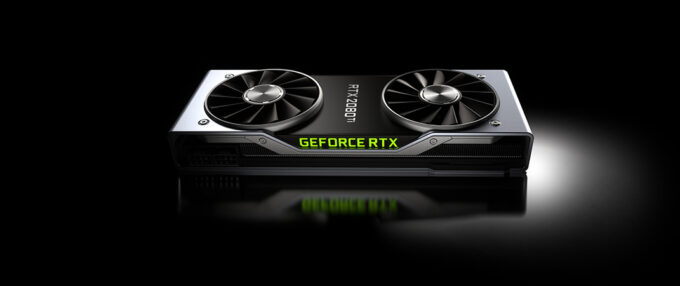
You need a graphics card that can handle it if you have a 4K monitor and want to game at the maximum settings. The best graphics card for 4K gaming and our top selection for the best graphics card overall is the NVIDIA GeForce RTX 2080 Ti. It is exceptionally strong and capable of taking on almost any challenge. The NVIDIA GeForce RTX 2080 Ti is a high-end graphics card for gaming and other demanding applications. It is part of the NVIDIA GeForce RTX series of graphics cards, which are based on the Turing architecture and offer real-time ray tracing capabilities for more realistic lighting and visual effects. The 2080 Ti is the most powerful card in the series, offering the best performance for gaming and other demanding tasks. It features 11 GB of GDDR6 memory and a base clock speed of 1350 MHz, which can be boosted up to 1545 MHz for even better performance. Overall, the NVIDIA GeForce RTX 2080 Ti is a top-of-the-line graphics card that can handle even the most demanding workloads with ease.
The best settings for the NVIDIA GeForce RTX 2080 Ti will depend on the specific applications and games you are running, as well as your personal preferences. Generally speaking, you should set the resolution to the native resolution of your display, as this will provide the best visual quality. For most games, you will also want to enable real-time ray tracing if it is available, as this can provide more realistic lighting and other visual effects. The NVIDIA GeForce RTX 2080 Ti was released in September 2018. It was well-received by critics and gamers alike, with many praising its performance and real-time ray tracing capabilities. The 2080 Ti was the most powerful graphics card in its class at the time of its release, and it remains a popular choice among gamers and other users who need high-end performance. Overall, the NVIDIA GeForce RTX 2080 Ti is considered to be a solid choice for those who want the best possible performance from their graphics card.
To clear the cache in Windows 10, follow these steps:
Open the Start menu and type “Control Panel” into the search box.
Click on the “Control Panel” item that appears in the search results.
In the Control Panel, click on the “System and Security” category and then click on the “Free up disk space” link.
Click on the “Caches and temporary files” option and then click on the “Clean up system files” button.
Check the box next to “Temporary files” and click on the “OK” button to delete the temporary files and clear the cache.
Alternatively, you can use the following keyboard shortcut to quickly access the temporary files folder and delete the files manually:
Press the Windows key + R on your keyboard to open the Run dialog.
Type “%temp%” (without the quotes) into the Run dialog and press Enter.
This will open the temporary files folder in File Explorer. You can delete the files in this folder to clear the cache.
Note: It is not recommended to delete files from the temporary files folder manually unless you are familiar with what you are doing, as deleting the wrong files can cause problems with your system. It is safer to use the built-in tools provided by Windows to clear the cache.
photo: Pixabay
Some of the best software to Clear the Cache in Windows 10
There are many different software programs that you can use to clear the cache in Windows 10. Some of the best ones include CCleaner, CleanMyPC, and Auslogics Disk Cleaner. These programs are specifically designed to clean up temporary files and clear the cache on your system, making it run faster and more efficiently.
CCleaner is a popular program that is available for free and offers a wide range of cleaning and optimization tools. It can clear the cache in all of the major browsers, as well as clean up temporary files and other junk files that can accumulate on your system over time.
CCleaner is a popular program that offers a wide range of cleaning and optimization tools for Windows computers. Some of the advantages of using CCleaner include:
It is free to use, making it a cost-effective solution for users who want to clean up their systems without spending any money.
It is easy to use and has a user-friendly interface, making it a good choice for users who are not comfortable using more complex cleaning and optimization tools.
It can clear the cache in all of the major browsers, as well as clean up temporary files and other junk files that can accumulate on your system over time.
It can help improve the performance of your computer by freeing up disk space and removing unnecessary files that can slow down your system.
It includes a variety of advanced tools and options that can be used to customize the cleaning and optimization process to meet your specific needs.
It is regularly updated with new features and improvements, ensuring that it stays up to date and effective at cleaning and optimizing your system.
Overall, CCleaner is a powerful and effective program that offers a wide range of cleaning and optimization tools for Windows computers. Its advantages make it a popular choice among users who want to improve the performance of their systems.
CleanMyPC is another popular program that offers a wide range of cleaning and optimization tools, including the ability to clear the cache in Windows 10. It has a user-friendly interface and is available for a reasonable price.
Auslogics Disk Cleaner is a free program that offers a simple and easy way to clear the cache in Windows 10. It has a straightforward interface and is easy to use, making it a good choice for users who are not comfortable using more complex cleaning and optimization tools.
Overall, any of these programs can be a good choice for clearing the cache in Windows 10. It is a good idea to try out a few different programs and see which one works best for your needs.
You can occasionally give a family member a temporary loan of your iPhone so they can use Google or make phone calls. Or, if you unintentionally leave your iPhone unlocked and go away for a short period of time, a curious friend or coworker may check out your device. Check out these easy guidelines to to hide private content on your iPhone in order to maintain your privacy.
Applying a passcode Making sure no one else can pass your iPhone’s lock screen is the first step. It’s preferable to include a passcode if you’re not utilizing Face ID or Touch ID. Go to the Settings app, choose Face ID & Passcode or Touch ID & Passcode, and then press Turn Passcode On to create a passcode. You should also routinely change the passcode on your iPhone. This is because if someone frequently watches how you touch your iPhone, they can figure out your passcode.
How to hide private content on iPhone?
To hide private content on your iPhone, you can use the built-in Notes app to create a password-protected note. To do this, follow these steps:
Open the Notes app on your iPhone and tap the “Create New Note” button.
Type the content you want to hide into the note.
Tap the “Share” button at the bottom of the screen and then tap the “Lock Note” button.
Enter a password for the note and confirm it.
Tap the “Done” button to save the password-protected note.
To access the hidden content, you will need to enter the password you created when you locked the note. You can also use a third-party app, such as 1Password or LastPass, to store and protect your private information on your iPhone. These apps offer additional security features, such as two-factor authentication, to help keep your information safe.
Hide private photos on your iPhone
Have you ever found yourself scrolling through your iPhone’s photo album to find the picture you wanted to show someone and they just kept staring at the screen? It would be unpleasant to have someone else judge every recent selfie you’ve taken in silence. You have the option to short-term erase those private images. If you don’t remember to retrieve them from your Recently Deleted folder, what then? Therefore, hiding them in an album created just for this purpose is the wiser choice.
photo: Pixabay
You might have downloaded an app at some point just out of curiosity, but you don’t want others to know you’re interested in its features. You can at least conceal apps from your list of App Purchased items even though there is no way to totally delete them from your account’s purchase history. To view a list of downloaded apps, hit your profile in the App Store and choose Purchased. To hide an app, swipe right and select the red “Hide” button. By navigating to Settings > Apple ID > Media & Purchases > View Account, you can view your hidden purchases. Scroll to the bottom and tap Hidden Purchases after authenticating with Face ID or Touch ID. Then tap Unhide to restore the app to your purchase history.
Take apps off the iPhone home screen You can remove an app from your iPhone’s home screen without uninstalling it if you want to use it but don’t want it to be seen by others. Tap and hold the application you want to hide. Then select Remove App. Pick Remove from Home Screen from the menu. By sliding left from your most recent Home screen, you can reach the App Library, where you can locate your removed apps.
Don’t display previews or notifications on the lock screen. Your iPhone’s notifications make a lot of your activity visible. For instance, disabling app alerts is a simple approach to increase the privacy of your valuable data if you don’t want your chatty colleagues to know that you are speaking with job recruiters.
Unknown senders can be blocked in the messaging app. Message threads can now be totally hidden, just like photos on an iPhone. However, you can hide your text conversations from public view by blocking senders you don’t recognize. This feature is designed to filter messages from people who are not in your contacts, as the name would suggest. However, it can also be helpful if you’re conversing with someone and don’t want other people to see new messages in your message list.
Remove the contact from your contact list first. Then tap on Messages under Settings. Select the option to Filter Unknown Senders. Their emails will be redirected to the list of Unknown Senders. Make sure you’re on the Known Senders screen and remove their messages each time before you close the Messages app. By doing this, even if someone touches the app, any new messages won’t be added to your regular message list.
Remove all recent calls Curious people can find out who you’ve been talking with for a while and how frequently they’ve been by looking at your recent calls list. You can erase particular recent calls that you’ve made to prevent this. Select the Recents tab in the Phone app. To remove a recent contact from the list, swipe left on it and press Delete.
Notes can be password-protected You can make sure that no one can view the content (except perhaps the title) even if they manage to access the application, whether you use the Notes app to diary or to draft the next chapter of your book. The Notes app’s password is distinct from your iPhone’s password. For further security, you can choose to turn on Face ID or Touch ID with the app while setting up a password.
Use Safari’s Private Browsing mode Safari’s predictive search and search bar autocomplete features are useful, but occasionally the positives outweigh the negatives. Simply inputting a letter will disclose all previous web searches and visits that began with that letter. You can use Private Browsing Mode to stop this. Disable Siri’s suggestions Siri suggests things you can do with your iPhone based on how you typically use it, such as send a message to a recent contact or open an app you frequently use. use. This exposes your most recent activities once more. Your private content on your iPhone must remain private because it is personal property. The truth is that someone will inevitably be interested enough to look at other people’s screens.
It’s vital to understand how to better control what is displayed on your iPhone, even though it’s not required to make it into an impregnable shield that is inconvenient to use. You can improve your device’s privacy throughout this way.
Beyond a formal study, the technology makes use of predictive and adaptive analysis techniques, including machine learning, an artificial intelligence subtype. In order to evaluate the likelihood of fraud, extensive data sources, real-time monitoring, and risk profile analysis have been combined to advance fraud prevention. We now have some amazing fraud-fighting technology as a result. Here are some tech-based fraud prevention tools and services. Let’s examine each of them separately.
The following technological tools and services can be used by enterprises to fight fraud:
Virtual private networks (VPNs)
Virtual Private Network, or VPN, is the capacity to establish a secure network connection over open networks. VPNs cover up your online identity while encrypting your internet traffic. As a result, it will be more difficult for third parties to monitor your online activities and steal data. Your online activity is more secure because the encryption is carried out in real time. What is the functionality of a virtual private network (VPN)? By permitting the network to pass through a VPN host’s specially set-up distant place server, a VPN can hide your IP address. The VPN server serves as the source of your data when you use a VPN to access the internet. Additionally, it implies that your Internet Service Provider (ISP) and other outside parties won’t be able to see the websites you visit or the information you send and receive online.
photo: Pixabay
Services for Identity Theft Protection
Services that guard against identity theft check public data and the dark web to discover if your personal data or facts are for sale. Additionally, it looks for any risky or fraudulent online transactions you may have carried out. The majority of the time, hackers are kept at bay by identity theft protection services because they continuously scan the dark web and consumer behavior for possibly fraudulent purchases or transactions.
Managers of Credentials
A tool known as a password manager stores all of your passwords and other sensitive data in one location and protects it with a single master password. Making the complex passwords you’ll need to protect your internet accounts will be handled by a password manager. Two-factor authentication is a common feature of password managers that provides an extra layer of protection. As a result, each time you attempt to log in to your password manager, your phone will display a one-time verification code. To complete the log-in process, you must also input the verification code in addition to the username and password.
Malware Protection Services
Attackers are constantly looking for innovative methods to quickly steal information. They might easily accomplish this with readily available automated tools and enhanced methodologies, making your current network security measures useless. Malware is created with the intention of rapidly multiplying, wreaking havoc, and infecting as many machines as possible. You’ll require all-encompassing malware protection services to secure your business from such risks. By depending simply on perimeter security, such as firewalls, intrusion prevention systems, and URL filtering, or by concentrating just on endpoint security, you give the appearance of security. You’ll need malware protection services that protect the network, endpoints, and cloud, as well as capabilities for supporting cyberattacks with a global threat intelligence community, if you want to stay one step ahead of cyberattacks.
SSL Certificate
An essential part of the statistics encryption system that guarantees the security of online transactions is the SSL certificate. Virtual passports offer authentication to safeguard the confidentiality and integrity of browser-spoken communications on websites. The SSL certificate uses the secure sockets layer (SSL) protocol to establish reliable internet connections with the user’s browser. Additionally, you won’t be able to have a reliable and secure internet connection without the SSL certificate, which digitally connects agency data to a cryptographic key.
What does an SSL certificate do?
A browser or server tries to connect to a website that is SSL-protected (i.e., a web server). The browser on the server requests that the internet server choose itself. The browser or server receives a copy of the SSL certificate for the web server. The SSL certificate is examined to determine if the browser or server can still trust it. In this situation, a message is sent to the web server. A digitally signed confirmation is returned by the web server to initiate an SSL encrypted session. The webserver and the browser or server both share encrypted records.
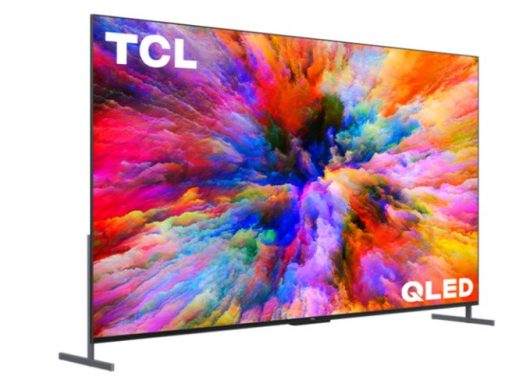
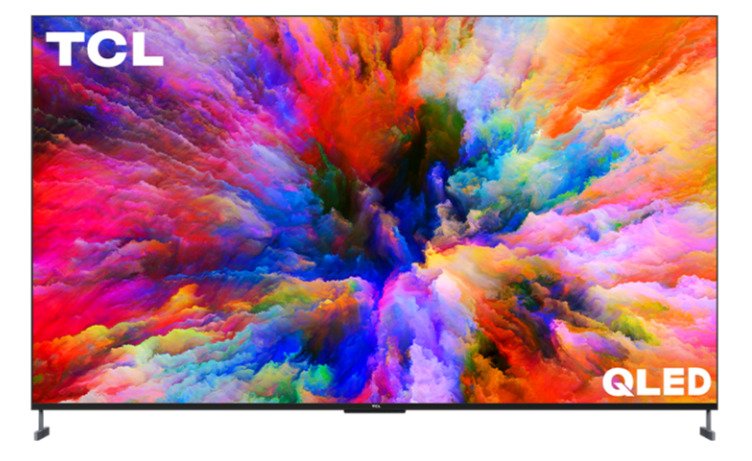
The 98-inch TCL 98R754 TV has a 120Hz refresh rate, a quantum-dot display, 4K resolution, and supports 4K content at 120 frames per second. The R754 model includes Google’s smart platform integrated into the TV, just like the TCL 5-Series with Google TV from the previous year. TCL has made some excellent-performing televisions in the recent years, including its highly reputable 6-Series Mini-LED QLED panels. TCL unveiled a massive 98-inch 4K TCL 98R754 QLED TV earlier this year, making it one of, if not the largest consumer display currently on the market and very near to front projection screen proportions. The TCL XL Collection includes an incredibly huge display. There is a model with an 85″ screen in addition to the 98″ one. Having said that, TCL might have the TV you’re looking for if you’re in the market for a big screen TV— I think, very big.
A 98-inch 4K QLED TV from TCL is offered in the 2022 TV lineup for around $7500. Of course not cheap, but everything is relative. For instance, the 98-inch 2021 Samsung Q90A Neo QLED TV would cost you three times that amount ($20,000), so this does seem like a reasonable purchase. The TCL 98R754 model number belongs to TCL’s new 98-inch QLED TV, which features high-quality imaging that the manufacturer promises will produce the most accurate color, strong contrast, and realism. The company claims that Game Studio Pro, a software component that optimizes gaming, provides a quick and responsive gameplay experience. Other noteworthy features include the usage of an AiPQ engine for an optimal image experience, Dolby Vision for high-quality 4K HDR imagery, Dolby Atmos for immersive surround sound, and Dolby Vision. The 98R754 has most of the features people are searching for, including a quantum dot LED display, Dolby Vision/HDR 10/HDR10+/HLG, Dolby Atmos, Google TV, hands-free access to the Google Assistant, and four HDMI inputs (two of which support 4K/120Hz input and one of which has HDMI eARC). It isn’t quite as feature-rich as the X9, though. According to TCL, the 98R754 includes a function called Game Studio Pro, which also supports VRR and ALLM.
TrueCut from Pixelworks is the second motion technology, and both movie makers and their audience members may find use for it. Filmmakers may manage how frame-rate-based motion is projected on TVs and other devices with the new end-to-end TrueCut technology. The same principles apply to TrueCut, but it applies to motion what Dolby Vision applies to color, brightness, and contrast. Unwanted artifacts produced by excessive motion-smoothing techniques should be removed as a result. Similar to Dolby Vision, TrueCut only functions if it is supported by every player, from the studio to the TV. For this reason, TCL’s announcement is a significant step forward for TrueCut because it means that a TV manufacturer now supports it. Video: YouTube/BTheInstaller
The TCL 98R754 TV has a brushed metal finish and an edge-to-edge glass display for a premium and sophisticated look. The software will be familiar to certain consumers because of Google TV. Additionally, it offers hands-free voice control and has Chromecast built-in, allowing users to search for shows, get answers to queries, manage the TV, and carry out a variety of other tasks simply by speaking the “Hey Google” wake word. The voice remote for the TV also has shortcut buttons for well-known apps and streaming services. Your watchlist, library, and suggestions follow you everywhere you go while using the Google TV app, whether you’re leaving the house or just going to another room. Immediately pick up fresh discoveries on the big screen later by adding them to your Watchlist in the app.
The company claims that Game Studio Pro, a software feature that optimizes gaming, provides a quick and responsive gaming experience. Other noteworthy features include the usage of an AiPQ engine for an optimal image experience, Dolby Vision for high-quality 4K HDR imagery, Dolby Atmos for realistic surround sound, and Dolby Vision.
TCL 98R754 TV
Onkyo’s 2.1 speaker system is installed in the TCL screen for audio needs. It has an additional subwoofer on the back and stereo speakers positioned below. The front speakers’ power is 2 x 15 watts, while the subwoofer’s capacity is 20W.
The speakers are positioned in such a way that they offer the sound good size and quality, making the built-in audio system seem incredibly natural. Voices sound clear, and the volume can be turned up rather high without the speakers seeming strained. The additional bass speaker gives music and sound effects a little bit more depth.
You have a competitive advantage thanks to TCL’s extensive feature set that optimizes big-screen gaming performance. Everything you need for immersive, next-generation gaming is provided by Game Studio, including cinematic graphics, powerful and effective sound, fluid gameplay, and almost instantaneous responses.
We tested the contrast ratio at roughly 15,000:1 using a checkerboard test image on the screen, which is another benefit of the local dimming (ANSI Checker Board). It is totally comparable to an excellent MiniLED panel, however it is still much below OLED contrast.
With up to 192 zones, contrast is individually tuned throughout the image to provide a stunning contrast between light and dark areas. Machine-learning algorithms power TCL’s AiPQ Engine to deliver the greatest viewing experience with rich color, razor-sharp clarity, and dramatic depth. The feet distance needed to fit this 98-inch TCL 98R754 TV on a TV is 85.3 inches. Physically attaching the feet to the TV can only be done in one position. Simply said, this is how the TV is constructed. The majority of stands and wall mounts that accept the 400mm x 850mm VESA mounting pattern, however, are also compatible with this TV. The suggested viewing distance for this 98-inch TV is between 9.8 and 15.4 feet. Photo: TCL
This TCL 98R754 TV has a 4K resolution. It supports cutting-edge HDMI features like eARC, Variable Refresh Rate (up to 120Hz), an Auto Game Mode, 120Hz HDMI Input decoding, and is the first TV in the world with a THX Certified Game Mode, guaranteeing not only an incredibly fast response time for gaming but also the excellent cinematic image that gamers needs. The Google TV operating system on TCL 98R754 TV gives users access to more than 5,000 apps and more than 500,000 TV episodes and movies via the App Store. You might want to check out model 85R745 in the TCL XL Collection for the Roku version.
TCL 98R754 TV specs:
Model
98R754
Screen Size
98″
Viewable Display Size
97.5″
Description
XL Collection QLED HDR 4K TV
WiFi
WiFi 6 – 802.11b/g/n/ac/ax 2×2, 2.4 GHz & 5 GHz
Advanced PQ Setting with Mobile App
Yes
Control Buttons
One button
Multilingual On-Screen-Display
English, Spanish, French, German
Closed Caption
Yes
Parental Control (V-Chip)
Yes
Accessible Menu System (CVAA)
Yes
Sleep Timer
Yes
Easy Voice Control
Works with Alexa and Hey Google
Integrated Hands-Free Voice Assistant
Google Assistant
Live TV Pause from antenna (up to 30 minutes)
Yes
Natural Motion
Natural Motion 480
Panel Resolution
3840 x 2160
Resolution
UHD
Display Colors
1.07 billion
High Dynamic Range Format
Dolby Vision, HDR10, HDR10+, HLG
Game Studio Pro
Yes
Variable Refresh Rate (VRR)
VRR/120Hz (Variable refresh rate from 48Hz to 120 Hz)
Auto Game Mode
Yes
AV Input
Composite Video + L&R Audio In (Mini 3.5mm connector)
Audio Output (3.5mm)
Yes
RF Input (NTSC, ATSC)
1
Ethernet
1
USB
2 x USB 2.0
HDMI
4 HDMI (2 ports with HDMI support up to 4K/120Hz, 1 port with eARC)
SPDIF Digital Audio Optical
1
Audio Output Headphone
1
Functions of the TCL 98R754 TV provide:
Superior 4K HDR picture quality
Wide Color powered by QLED technology
Contrast Control Zone technology maximizes contrast
Hands-free voice control, just say “Hey Google” to get started
HDR Pro Pack featuring Dolby Vision®
What you want to watch, all in one place
Access thousands of streaming apps
Cast to your TV with Chromecast built-in
Easy Voice Control works with Alexa
AiPQ Engine™ technology intelligently enhances picture as you watch
A sleek, high-performance TV, the Hisense 65A7GQTUK is hard to beat in its class.
Quantum dot color for stunning realism Quantum Dot Color takes LED display technology and advances to the next level. Using nanocrystals, Quantum Dot Color produces a more accurate color, over a wider color spectrum. With subtler shades, shades and tones, you get a more realistic and realistic image.
HDR support, including Dolby Vision HDR maximizes image quality, bringing detail into the darker areas of the image and making the overall image more realistic than ever. In addition to HDR10 and HLG formats, this 65-inch Hisense TV also supports Dolby Vision. Dolby Vision optimizes the HDR format to deliver the sharpest and most accurate images possible. Dolby Vision continuously adjusts the image for the most remarkable realism.
UHD 4K with ultra wide viewing angle for excellent resolution Taking full advantage of the color of quantum dots, the Hisense 65A7GQTUK features UHD and 4K display resolution. with four times the resolution of FHD 1080p, UHD 4K shows the detail that was missing before. Depth Enhancer further optimizes the benefits of 4K, with impressive realism. Grass on a sports field or fine details on a nature program are now realistic and clear to see. Ultra wide viewing angle means everyone in the room gets the best place in the House.
Gaming With a dedicated game mode, the 65A7GQTUK is the perfect monitor / TV combination for gaming. With VRR 4K 60Hz (variable refresh rate) and ALLM (automatic low latency mode), games are optimized for a faster and more responsive feel.
The Hisense 65A7GQTUK truly shines when it comes to delivering a consistently bright image, making it ideal for binge-watching and gaming at any time of day, even in well-lit rooms. When I connected my PlayStation 5 and Xbox Series X to it, the A7G impressively recognized the gaming consoles automatically (although it correctly identified the PS5 but not the XSX). If either of these consoles was the last device you used before powering off the TV, it will power them back on the next time you turn on the A7G.
Whether this feature is convenient or annoying depends on how many devices you have connected and how frequently you switch between them. Unfortunately, the Hisense 65A7GQTUK has only three HDMI ports, which might pose an issue if you want to connect multiple current consoles and a Chromecast. Nevertheless, its performance in tests with the Xbox Series X, PlayStation 5, and Chromecast was speedy, automatically configuring settings for the consoles, and quite impressive considering its price point.
On the downside, the TV’s built-in speakers leave much to be desired. Unlike other TVs I’ve tested throughout the years, the A7G’s speakers reach high volumes quickly and can deliver loud sound at higher settings. However, they noticeably lack bass, which diminishes the overall audio impact. It’s highly recommended to pair the Hisense 65A7GQTUK with a compatible soundbar (via Bluetooth) or a speaker system (via SPDIF) for a more satisfying audio experience.
The 65A7GQTUK series not only offers a Quantum dot color for a superior image, but also has a higher finishing standard. A sleek design and pure metal Center Support provides complete cable management for an accurate finish. The super slim bezel gives the TV an elegant and discreet style.
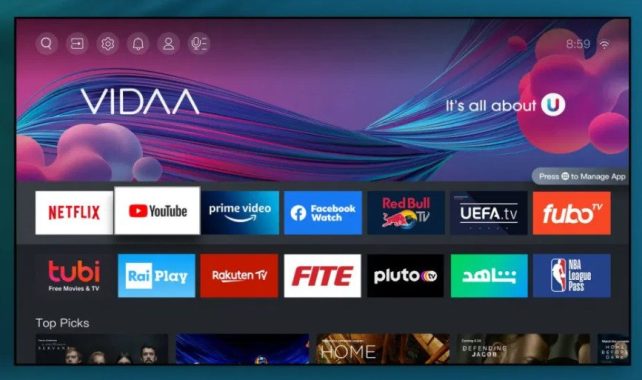
VIDAA U5 for Smart TV Powered by Hisense’s smart operating system called VIDAA U5, this 65A7GQTUK Hisense TV simplifies smart TV. Bringing together a wide range of applications and devices, VIDAA U5 allows you to switch from one to the other in three steps or less, without more complex submenus. You’ll find easy access to all your favorite TV services, including Netflix, Prime Video, YouTube and Freeview Play.
Voice control of the TV Supplied with voice control, the Hisense 65A7GQTUK TV makes navigating through the control functions a breeze. Alexa is integrated, with the Google Assistant also available. For simple and easy control, just ask. Photo: Hisense
Freeview Play to catch up TV The Freeview game makes your TV recover easily. Find BBC iPlayer, ITV Hub, All4 and Demand 5 shows along with 70 TV channels and up to 15 HD channels. Just scroll back in your TV Guide to see the shows you missed in the last 7 days. Just make sure your TV is connected to the Internet and you are ready to go.
Sound compatible with Dolby Atmos Dolby Atmos offers a big step forward in immersive sound. With a more immersive sound, get involved in the action. Just pair with Dolby Atmos compatible media and get ready for a fill room sound.
Connect all Equipped with three HDMI sockets, the 65A7GQTUK is perfect for connecting to your TV set top box, UHD Blu-ray player and game console. Other connections include two USB sockets, ideal for connecting media devices and playing music, photos and videos. Add an optical connection to a soundbar / base and you’ll have everything you need on a TV.
The Hisense A7G is a excellent decision for anyone who would like a 4K QLED TV for less than £500. You will get brilliantly colored, sharp picture quality even though the HDR brightness might be better. Vidaa U offers you access to all of the the majority of favorite streaming and catch-up services, and it’s very simple to use too. The greatest part is that this TV will fit perfectly into your current smart home set up, with access to Google Assistant or Amazon Alexa directly from the remote control.
Get much more smart TVs for your money, with perfect Hisense 65A7GQTUK.
Hisense 65A7GQTUK specs:
Model Number 65A7GQTUK
Series A7G
Model Year 2021
Front Colour Black
Display
Screen Size 65inch
Resolution Ultra HD 3840×2160
Backlight Type Quantum Dot
Curvature Rate 0
Quantum Dot Technology Yes
Panel Bit Depth 8bit + FRC
Peak Brightness (nits) N/A
Viewing Angle (H/V) 178°
Refresh Rate 60Hz
HDR (High Dynamic Range) HDR10, HLG
HDR Classification HDR
Local Dimming No
Wide Colour Gamut No
3D No
Processor Features
Processor Quad Core/NT72671D
4K Upscaling Yes
Decoder HEVC (H.265),VP9,H.264,MPEG4, MPEG2,AV1
Input Lag <20ms (Game Mode)
3D Digital Comb Filter Yes
Audio
Sound Output 2x10W
NICAM Stereo Yes
Audio Enhancement Dolby MS12,Dolby Atmos
Dolby Digital Plus No
User Equaliser Yes
Smart Service
User Interface VIDAA U5.0
Web Browser Yes (VEWD)
Freeview Play Yes
Netflix Yes
Amazon Yes
YouTube Yes
Remote One Touch Access No
Application Store Yes
Connectivity
HDMI Input HDMI2.1 (ALLM, VRR)
HDMI Input HDMI2.1 (eARC, ALLM, VRR)
HDMI Input HDMI2.1 (ALLM, VRR)
USB USB (3.0) 1
USB USB (2.0) 1
Digital Audio Output (Optical) Yes
Ethernet (LAN) Yes
Wi-Fi WiFi- IEEE 802.11 a/b/g/n/ac (2.4G and 5G)
Headphone Out Yes
Component In (Y/Pb/Pr) No
Composite In (AV) 1
CI Slot Yes (CI + ECP)
RF In (Terrestrial / Cable / Satellite Input) 2
SCART No
VGA Input No
TV Tuner / Broadcasting
Digital & Analog Tuner DVB-T2/T/C/S2/S
Freeview HD Yes
Freesat HD No
EPG Yes
Extended PVR No
Time Shift Yes
Parental Control Yes
Convenience
Media Player Yes (Video, Audio, Picture)
Multi-Language OSD English, French, Spanish
Eco & Power Supply
Power Supply 100V-240V 50/60Hz
Energy Efficiency Class G
Power Consumption (In Standby) ≤0.5 W
Mercury Content Yes – this television contains lead only in certain parts or components, in accordance with existing exemption clauses under the RoHS Directive.
Lead Content
Yes – this television contains lead only in certain parts or components,in accordance with existing exemption clauses under the RoHS Directive.
Weight & Dimensions
Product Weight (Packaged) 26.5kg
Product Weight (With Stand) 19.1kg
Product Weight (Without Stand) 18.5kg
Dimensions (Packaged) (W X H X D) 1610×171×1017 mm
Dimensions (With Stand) (W X H X D) 1449×294×903 mm
Dimensions (Without Stand) (W X H X D) 1449×78×835 mm
Any technologically advanced, digital workplace must have file sharing in order for employees to collaborate on tasks, no matter how big or small, from any location.
This article will outline the key components of Office 365 that facilitate efficient and simple file sharing. To make your workplace more productive, learn how to confidently transfer files.
Being able to easily create, save, communicate, collaborate, co-author, and share files is crucial for company in today’s fast-paced digital workplace with hybrid working. People can work more conveniently and from anyplace as a result. Access to productivity tools enables organizations to be flexible and prosper.
To share files in Office 365, first, open the file that you want to share. Then, click on the “Share” button, which is usually located in the top right corner of the file. This will open a pop-up window where you can enter the email address of the person you want to share the file with. You can also add a message to go along with the file, and choose the type of access that you want the person to have (e.g. edit or view only). Once you’ve entered this information, click on the “Share” button to send the file. The person you shared the file with will receive an email with a link to the file. They can then click on the link to access the file.
Office 365 apps let you install on up to thirty different devices without even purchasing additional licenses, which ends up saving you money over time. If you continue to pay your monthly price, the most recent feature updates will be automatically downloaded. Additionally, you receive a ton of storage space for files, pictures, and recordings. Have you ever shared a file while using Microsoft 365? No matter the file size, sharing your papers is really easy. Both internal and external partners are available for interaction. Office 365 includes lots of wonderful features that make it easier for you to remain in touch and do tasks with more peace of mind.
You can work from anywhere whether you’re using a laptop, a desktop computer, or a mobile device. Online Word, Excel, and PowerPoint documents can all be shared and co-authored in real time. While the document is maintained online, you can collaborate with other team members on it, post links, and ask for feedback.
File sharing: How do you do it? When using Office 365, sharing files is easy. To make it simple to share a document in an email, document, or instant message, you can establish a shareable link. Additionally, you have the option of sharing with others inside or outside of your organization.
Sharing Documents Select Link options after choosing Share. Select Apply after selecting your desired permissions and whether or not you wish to allow editing. Enter the names or e-mail addresses you want to share with, then click Send after adding an optional message.
Linking to Shareable Content (Internal) Select Link options after choosing Share. If you want to update the permissions, choose Link settings. Choose Copy Link, then share the URL as you like—in an email, document, or instant message.
Linking to Shareable Content (External) Select Link options after choosing Share. Select Apply after selecting your desired permissions and whether or not you wish to allow editing. Enter the names or email addresses you want to share with, then click Send after adding an optional message.
5 SEO Techniques to Improve the Ranking of Your Website
Publish Adequately, Reliable Content:
Post quality, authoritative content that is relevant and timely. The quality and authenticity of your content have a major impact on your search engine results. Excellent content is essential, especially when undertaking SEO marketing. Due to the high-quality content you’ve created with your target audience in mind, your site gets more authoritative and relevant as more people visit it. Improve your web writing skills and position yourself as an authority on the subject.
– Update your content frequently:
We’ve surely made it apparent that content is something we care deeply about. So too with search engines. Examining how frequently a site updates its content is one of the best methods to determine how relevant it is, so make sure to do this. Conduct an ongoing audit of your content (each semester, for example) and make any necessary updates.
– Data meta:
Metadata, or details about the page’s contents, should be placed between the head> tags on each page of your site. However, it is essential that you review and update the metadata as your site changes over time.
– Maintain a captivating website:
When a website is authoritative, objective, and aids users in learning more about their interests, the likelihood of gaining links from other websites rises. Your search engine optimization is improved by this. Your authority and credibility might grow by providing relevant links within the article. Try replacing “click here” links with the name of the place. “Click here” has no additional search engine value beyond the associated URL, in contrast to “Technology Enterprise Program,” which is stuffed with keywords and will improve both your website and the page you are connecting to in search engine results. To improve search engine optimization and give more value to your users, particularly those with disabilities or screen readers, regularly link keywords to descriptive links.
– Implement alt tags:
Always put a description in your video and picture material using alt tags, or alternative text descriptions. They are crucial because they make it possible for search engines to find your webpage, which is especially important for users of text-only browsers or screen readers.
The significance of backlink building lies in the fact that it raises your website’s trustworthiness and reputation. Additionally, enhancing user experience on your website might encourage visitors to stay on it longer, which can boost your SEO.
You want to install SSD to improve the speed of your laptop because it uses up a lot of storage space and is slow. It’s a really smart approach. It might appear easy to install an SSD in your laptop, but it’s not. You might run into some tricky issues, like system migration.
It’s simple to choose an SSD that works with your laptop because all you need to do is write down the model of your computer or the type of hard drive interface, which can be found in your computer’s handbook. It’s also not difficult to install the SSD because all you have to do is stick to the directions, which call for turning off the laptop, taking apart its back cover, and installing the SSD.
The most difficult part is system migration, which typically implies having to reinstall Windows and any other necessary software on the new SSD. Making a Windows installation disc, for example, or backing up your data are just a few of the procedures needed to perform a clean reinstall. The entire procedure, especially the backup and installation, is highly time-consuming. You will experience data loss if you don’t have a reliable backup strategy.
photo: Pixabay
Is it possible to add an SSD to your laptop without having to reinstall Windows OS? True is the response. A powerful Windows copying application like iSumsoft Cloner greatly aids in the solution of this issue. It enables direct Windows OS copying or transfer to the SSD without erasing data and keeps the SSD bootable. It avoids the hassle of having to reinstall Windows and preserves all of your data. Here are some precise details.
A great disk cloning program for Windows PCs is iSumsoft Cloner, which can copy or clone the Windows operating system, data partitions, and even complete hard drives. It allows you to swiftly upgrade or replace your computer’s hard drive without having to reinstall Windows or risk losing data. It also makes Windows migration and data backup quicker and more effective.
– Ensure that the SSD is connected to the laptop
Install the SSD inside the laptop if your laptop allows you to install two hard drives simultaneously. Otherwise, you must externally connect the SSD to the laptop using a USB-to-SATA converter and an external hard drive enclosure.
-Log into Windows after turning on the laptop. Ensure that the SSD is shown as a partition. Before using the new SSD, you might need to initialize it by opening Disk Management.
Directly Copy the Windows OS to the SSD
On the laptop, download and install iSumsoft Cloner. Launch the software once it has been installed. To begin transferring the Windows OS to the SSD, select the Copy option on the left side, choose your current system disk (generally drive C:) as the source target, choose the SSD drive as the destination target, and then click Start. Just wait until the copying is complete. Depending on the amount of operating system drive space used, this typically takes about ten minutes. Your Windows OS has successfully been cloned to the recently installed SSD when the software displays a “Mission Completed” prompt.
From the SSD, start up your laptop
The SSD can now be set as the first boot device in your laptop’s BIOS utility so that it boots from it when you restart it. The SSD should be installed inside the laptop this time if it was previously attached to the computer externally. Your Windows OS will then operate smoothly and properly.
By doing this, you may keep all of your data without having to deal with the inconvenience of reinstalling Windows. If you intend to replace the hard drive in your pc, it will be useful.